Klaviyo's Shopify integration is one of the good ones. Turn it on, wait for the backfill, and you have order history, browse behavior, and abandoned-cart data flowing in without anybody writing a line of code. Which is why the questions merchants actually bring us are never "how do I connect Klaviyo to Shopify." They're the ones that start with almost: the delivery email that almost works, the refund flow that almost fires, the VIP segment that's almost right.
Every one of those lives in the same place — the gap between what Shopify's native sync sends Klaviyo and what your store actually needs to react to. Below are ten workflows that close specific gaps, what triggers each one, and the four-step pattern that makes all of them work.
TL;DR: there's a template for that
What the native integration already handles
Don't rebuild what you already have. Klaviyo's Shopify integration syncs a fixed set of metrics in real time: Checkout Started, Placed Order, Ordered Product, Fulfilled Order, Fulfilled Partial Order, Cancelled Order and Refunded Order on the order side, plus Confirmed Shipment, Delivered Shipment and Marked Out for Delivery on shipments, and the on-site behavior set — Active on Site, Viewed Product, Viewed Collection, Submitted Search, Added to Cart. Customer email, name, address, phone, locale, marketing consent and Shopify tags land on the profile. The full list is in Klaviyo's Shopify data reference.
If your idea is a welcome series, an abandoned-cart sequence, or a win-back off Placed Order, stop reading and go build it in Klaviyo. Nothing here beats native. Our Klaviyo and Shopify integration overview covers that ground.
Where it stops
Three documented limits account for most of the "almost" problems. The first is that each metric syncs once, in the moment it happens, so anything your ops team does to an order later never arrives:
"Because we sync all metrics in real-time, any tags - such as Order Tags - that might be added to an order after it is processed will not sync into Klaviyo."Klaviyo Help Center
That single sentence kills a lot of plans, because tagging is how most Shopify stores record everything Shopify has no field for: a gift order, a wholesale order, a fraud review, a "ships in 3 weeks" preorder. Tag it at 10am and Klaviyo will never know.
The second is refunds:
"Klaviyo only receives events from fully refunded orders (not partially refunded orders)."Klaviyo Help Center
The third is delivery, and it's the one that surprises people who've already built a post-delivery flow and watched it sit at zero recipients:
"Confirmed Shipment, Delivered Shipment, and Confirmed Out for Delivery events will only sync to Klaviyo if they are available in Shopify."Klaviyo Help Center
Shopify only gets those notifications from certain carriers. If yours isn't one of them, your review request has nothing to fire on.
The pattern behind all ten
Every workflow below is the same four steps. Something happens in Shopify (or in the tracking app, or the POS, or a form). MESA catches it, re-reads the record so the data is current, and filters out everything you don't care about. Then it writes to Klaviyo using one of three steps: Create Event, Add Profile to List, or Subscribe Profile. And in Klaviyo, the event you just created shows up as a metric you can trigger a flow on, exactly like Placed Order.
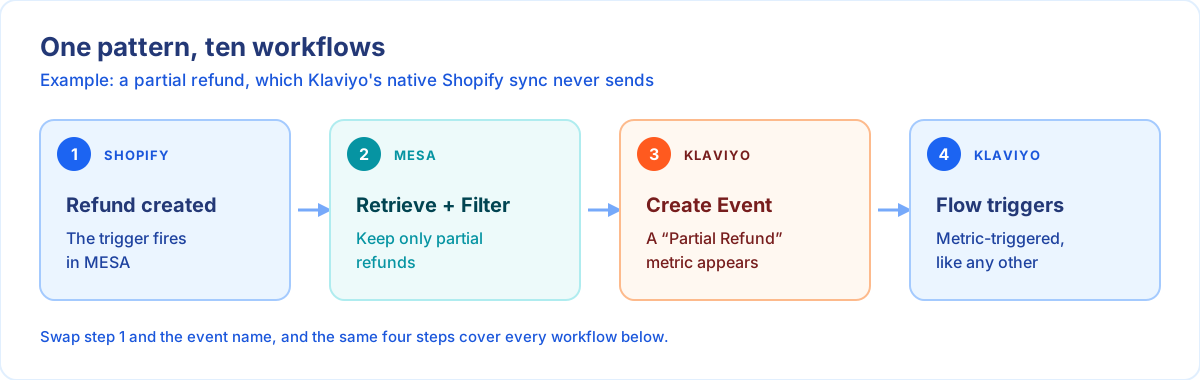
The Klaviyo side of that is standard, not a workaround: which metrics you can trigger a flow on depends on the integrations you've connected and any custom metrics in the account, and events sent through the Events API become exactly that. One catch worth knowing before you plan: a MESA-created metric won't appear in Klaviyo's trigger picker until at least one event has actually landed, so run a workflow test first, then go build the flow.
10 Klaviyo and Shopify workflows worth building
1. Welcome only the people who are actually new
Order created → Retrieve customer → Filter: order count is 1 → Subscribe Profile
Placed Order fires on every order a customer ever places, so a welcome series triggered off it needs flow filters to avoid greeting your best repeat buyer for the ninth time. Doing the check upstream is cleaner: MESA pulls the customer record, confirms this is order number one, and subscribes them to the welcome list — so the list itself only ever contains first-time buyers. The Subscribe First-Time Shopify Customers to Klaviyo List template is this exact build.
2. A delivery event your carrier can't withhold
Shipment delivered (Wonderment, Tracktor, or your tracking app) → Retrieve order → Create Event "Order Delivered"
This is the fix for the carrier gap above. Your tracking app already knows the parcel arrived — it's watching the carrier directly. Hand that moment to Klaviyo as its own metric and the review request, the how-to-use-it email, and the replenishment reminder all get a real, reliable start date. Send a Klaviyo Message When a Shopify Order is Delivered does it with Wonderment; we walk through the flow design in how to automate your order delivered flow.
3. The in-transit heads-up
Fulfillment status is in transit → Retrieve order → Retrieve customer → Create Event "Order In Transit"
Support tickets asking "where is my order" cluster in the window between shipment and delivery. One proactive email in that window removes most of them, and it needs an in-transit signal Klaviyo doesn't reliably get. Send Shopify In-Transit Fulfillment Updates to Klaviyo is the template; there's more on the mechanics in sending Shopify fulfillment status to Klaviyo.
4. Make post-purchase tags mean something
Order updated → Retrieve order → Filter: tag present → Create Event "Order Tagged"
Since tags applied after processing never reach Klaviyo, anything your team decides about an order after checkout is invisible to marketing. Watch for the tag in MESA instead and emit an event carrying it. Now "backordered," "gift," "needs signature," and "fraud hold" are all things a flow can respond to — a preorder-delay apology, a gift-note confirmation, a hold notification — instead of a Slack message someone has to act on by hand.
5. Partial refunds, which Klaviyo never sees
Refund created → Retrieve order → Filter: refund total is less than order total → Create Event "Partial Refund"
A partial refund is usually the most delicate moment in a customer relationship — one item out of stock, one item damaged, a price adjustment — and it's precisely the one your email platform is blind to. Send it as an event carrying the refunded amount and the line items, and you can apologize properly, offer a code, and suppress the review request that would otherwise arrive two days later.
6. A backorder list that maintains itself
Customer updated → Retrieve customer → Filter: has "Backorder" tag → Subscribe Profile
Preorder and backorder customers need a different cadence than everyone else: status updates, revised dates, and a heads-up the day it ships. Tag them once in Shopify and let membership in the Klaviyo list follow the tag automatically, via Add Shopify Customers with Backorder Tag to Klaviyo Email List. No exporting a CSV every Friday.
7. Gift card balances on the profile
Daily schedule → Get list of gift cards → Loop → Retrieve customer → Get Klaviyo profile → Update Klaviyo profile
Unspent gift card balances are money sitting on your balance sheet and a genuinely welcome email to send: "you still have $40 with us." Klaviyo has no idea unless you put the number on the profile. A nightly run totals each customer's remaining balance and writes it as a profile property you can segment and personalize on — that's the Sync Shopify Gift Card Balances to Klaviyo Profiles template, explained in full in tracking Shopify gift card balances in Klaviyo.
8. Crossing the VIP line, as an event
Order paid → Retrieve customer → Filter: lifetime spend over your threshold → Customer add tag → Create Event "VIP Reached"
Most stores tag VIPs in Shopify and stop there, which gives you a segment but no moment. The Tag Shopify Customers as VIPs After $500+ Spend template handles the tagging; add a Klaviyo Create Event step after it and crossing the threshold becomes a trigger — the welcome-to-VIP email, the early access, the handwritten-note task — fired the moment it happens rather than whenever someone next reviews the segment.
9. A post-fulfillment list for review requests
Order fulfilled → Add Profile to List
Two steps, and the simplest workflow here. Everyone whose order has shipped lands on one list, which is the natural audience for review requests, unboxing content, and cross-sells. Use Add Shopify Customers to a Klaviyo List Post-Order Fulfillment; the reasoning behind timing it off fulfillment is in post-purchase email marketing with Shopify and Klaviyo.
10. Signups that never touch Shopify
New Square customer / Tally form submission / WordPress comment → Subscribe Profile
If you sell in person, run a wholesale enquiry form, or take giveaway entries, those people are real prospects who will never appear in your Shopify customer list — and therefore never in Klaviyo. Point them at the same list your online customers land on: Add New Square Customers to Klaviyo Subscriber List, Add Emails from Tally Form Submissions to Klaviyo Email List, and Add WordPress Blog Commenters to Klaviyo Email List are all one-step builds.
Four details that cause most of the mess
Adding to a list is not the same as subscribing
MESA gives you both, and they behave very differently. Here's how MESA's Klaviyo docs describe the first one:
"This lets you add people directly to a Klaviyo list without offering consent. Adding a person to a list does not change their subscription status."MESA docs
That's right for internal segmentation and wrong for building a marketing audience. Subscribe Profile is the consent-carrying one — and it clears any unsubscribe, spam-report or suppression already on the profile, so use it only where you genuinely have permission to email. If the list has double opt-in enabled, people get a confirmation message before they're subscribed.
Re-read the record after any delay
Half of "the data in my email is wrong" traces back to using trigger data after a wait step. MESA's own Shopify documentation is direct about it:
"When using a Delay step in your workflow your Shopify data may be altered or updated while the delay processes. Add a Shopify Retrieve action after a delay step to ensure you're referencing the most up-to-date information for the endpoint you're working with."MESA docs
That's why nearly every workflow above starts with a Retrieve step rather than the raw trigger payload.
Opens and clicks can't start a flow
Worth knowing before you design anything around engagement:
"Performance metrics such as Opened Email and Clicked Email cannot be used to trigger flows."Klaviyo Help Center
They're for filters and conditional splits inside a flow that something else started. If you want engagement to drive an action in Shopify, that's a segment plus a workflow, not a flow trigger.
The sync back to Shopify is narrower than you'd think
Klaviyo can write some profile data back — first and last name, email, phone and locale into empty fields, subscription status onto the existing Shopify fields, and custom profile properties as Shopify metafield definitions. But not everything, and the exceptions matter: suppression status in Klaviyo does not sync to Shopify, and deleting a profile in Klaviyo doesn't delete it in Shopify. Klaviyo documents the full list in how to sync data from Klaviyo to Shopify. If a suppression needs to be visible to your support team in the Shopify admin, that's a workflow you build, not a checkbox you tick.
Where to start
Pick the flow you already tried to build and gave up on. It's almost certainly on this list, and it almost certainly failed for one of three reasons: the event never arrived (delivery, partial refund), it arrived too late to matter (post-purchase tags), or the data lives somewhere Shopify doesn't (gift card balances, in-store customers, form submissions).
Then build one. Name the metric something a human will recognize in Klaviyo's trigger list six months from now — "Order Delivered," not "mesa_event_2" — run a test so it registers, and wire up the flow. The second one takes ten minutes, because it's the same four steps.