
Shopify Sidekick can do in 30 seconds what used to take 10 clicks and three different admin pages. Instead of hunting through menus to create a discount code, you just type "create a 20% off code for first-time customers" and it's done. Instead of manually building customer segments, you describe who you're looking for and Sidekick builds it.
This guide shows you exactly how to use Shopify Sidekick for the tasks you do every day: creating promotions, writing product content, analyzing your store, building automations, and more. Each section includes step-by-step instructions with screenshots so you can follow along.
Whether you're new to Shopify or you've been ignoring that purple glasses icon in your admin, this tutorial will help you start using AI to multiply your impact without multiplying the work.
Important note: This guide covers Shopify's built-in Sidekick assistant (free with all plans), not third-party apps with similar names.
Getting started with Shopify Sidekick
Accessing Sidekick for the first time
Look for the purple glasses icon in the top-right corner of your Shopify admin. Click it once and the chat window opens. That's it—no setup required, no configuration screens, no API keys to copy. You can also find Sidekick on your admin dashboard. Again, look for the purple glasses in the textbox.
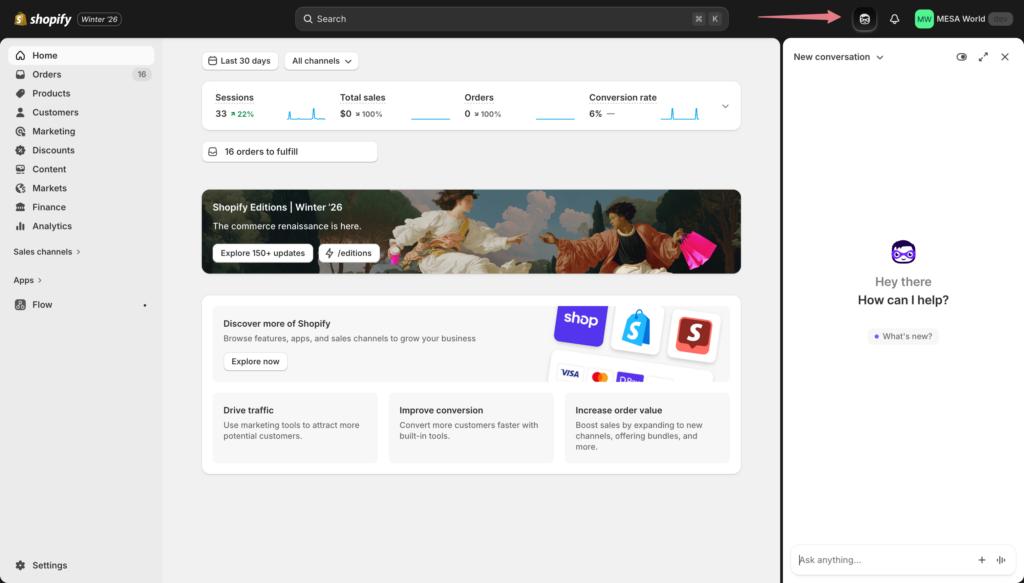
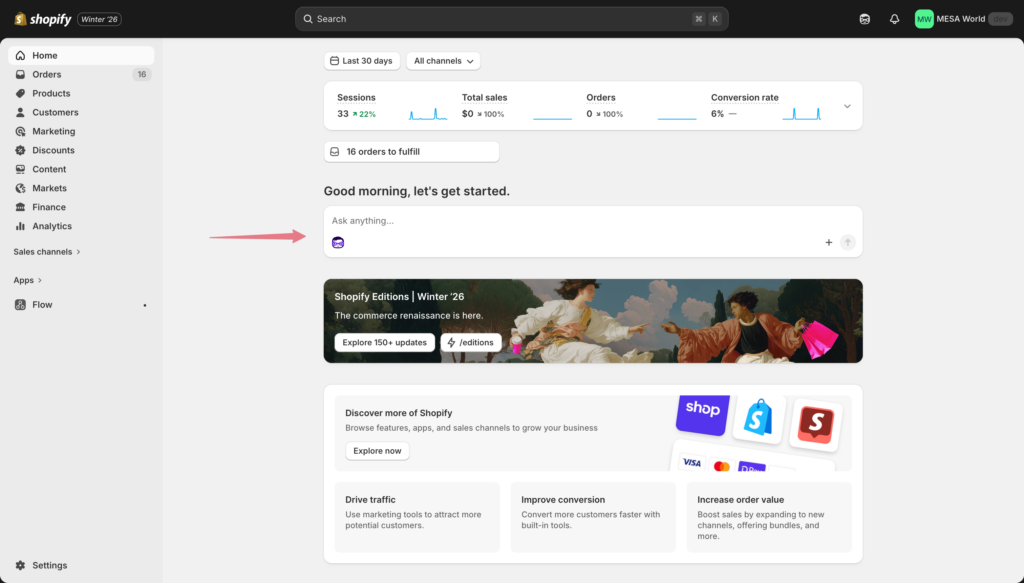
Sidekick works on both desktop and mobile. On desktop, you get the full chat interface with preview cards and detailed responses. On the Shopify mobile app, you can use voice chat to interact hands-free while you're away from your desk.
Don't see the icon? Check that your admin language is set to English (Sidekick works best in English), refresh your browser, or clear your cache. Shopify is updating Sidekick frequently, so it's possible they will change the purple glasses color. You're looking for an icon of a "masked superhero" face.
Understanding the Sidekick interface
The Sidekick window is simple by design. At the bottom, there's a text input box where you type or speak your requests. Above that, you'll see suggested prompts to get you started. Click the expand icon in the top-right to use full-screen mode for complex tasks. The new conversation link opens your conversation history, where you can also start fresh.
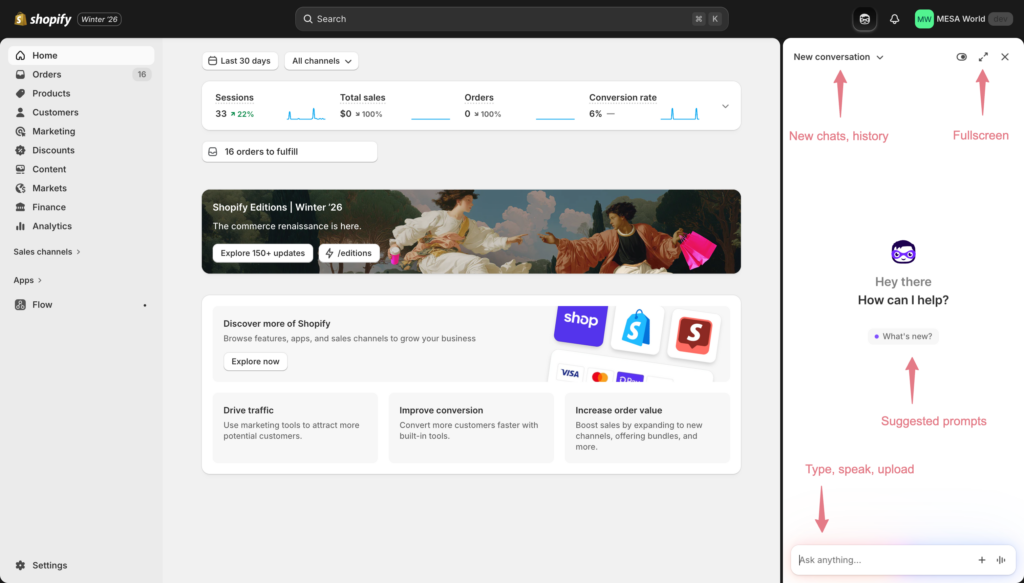
Every response from Sidekick includes thumbs up/down buttons. Use these to help Shopify improve Sidekick's accuracy—especially when a response misses the mark or nails exactly what you needed.
Click the plus (+) icon next to Sidekick's input box to access powerful features that extend what Sidekick can do.
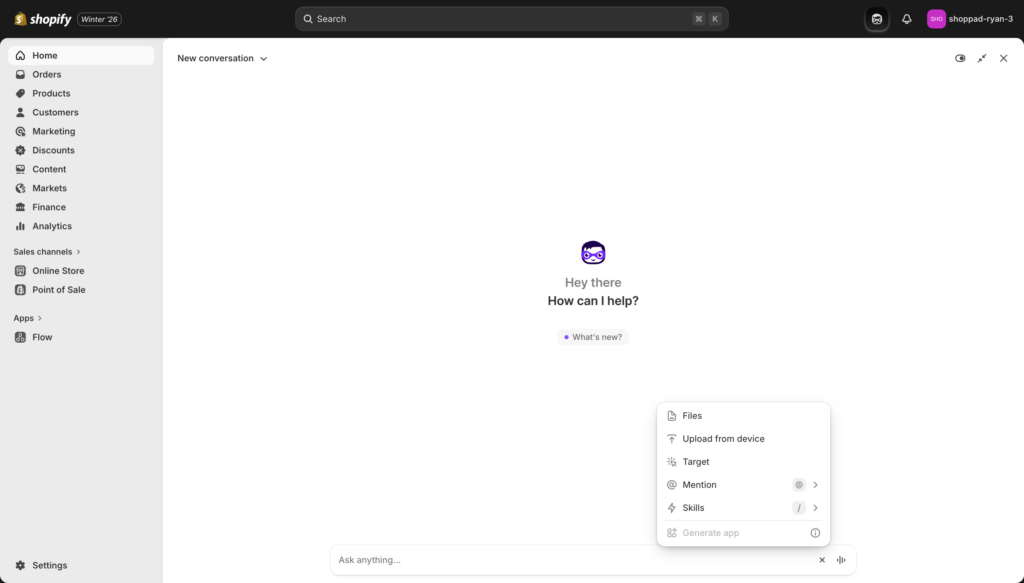
Access files from within the admin
Sidekick can reference files you've uploaded to your Shopify admin—like product images, PDFs in your content files, or documents attached to metafields. Click this option to browse and select files for Sidekick to analyze or reference in its responses.
Example use: "Analyze this product photography and suggest which images would work best for Facebook ads"
Upload files from your device
Upload files directly from your computer for Sidekick to work with. This is useful for importing data, analyzing spreadsheets, or working with documents that aren't already in your Shopify admin.
Example use: Upload a competitor's product catalog CSV and ask "Compare these products to my inventory and identify gaps"
Target (contextual focus)
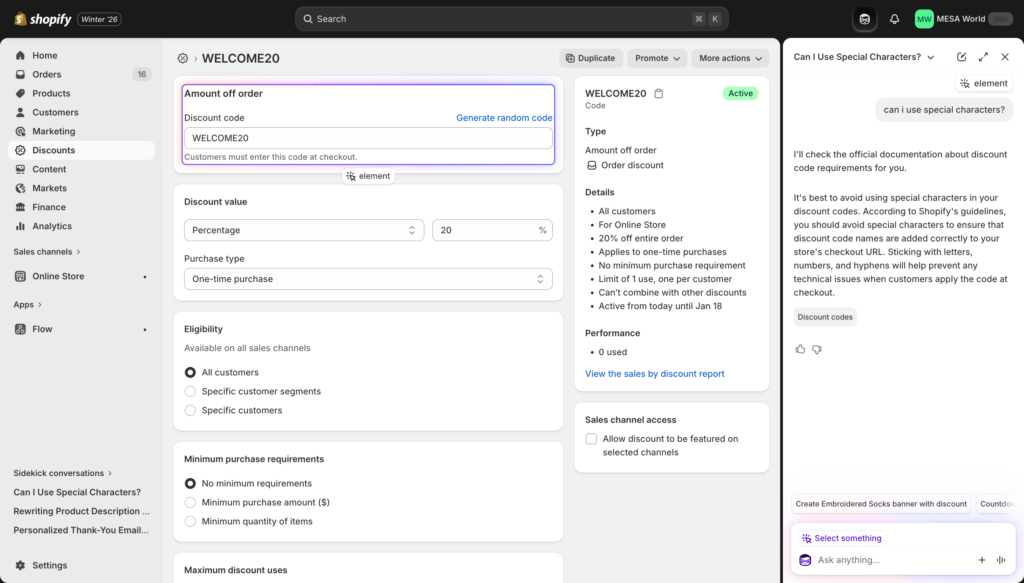
This is one of Sidekick's most useful features. Click "Target" then click anywhere on your admin screen—a specific button, form field, data point, or interface element. Sidekick focuses on that exact element and can explain it, help you configure it, or answer questions about it.
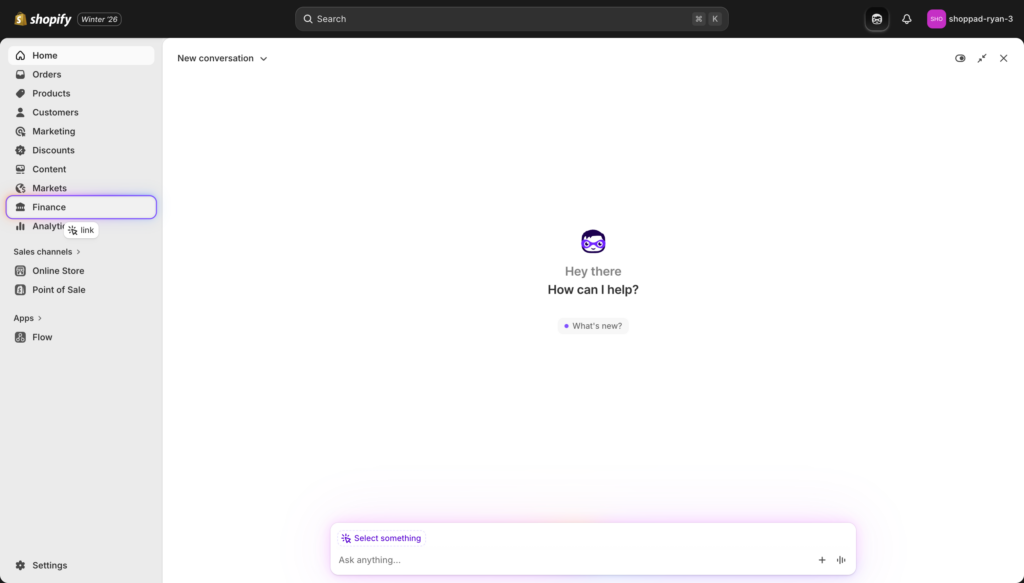
Think of it like Chrome's inspector tool, but instead of seeing code, you get conversational help about that specific feature.
Example uses:
- Click Target, then click a confusing setting → "What does this option do?"
- Click Target, then click a report metric → "Why is this number so high this month?"
- Click Target, then click a theme section → "How do I customize this section?"
Mention (reference specific items)
Instead of describing what you're talking about, use Mention to select specific products, orders, customers, or collections by name. This ensures Sidekick knows exactly which items you mean.
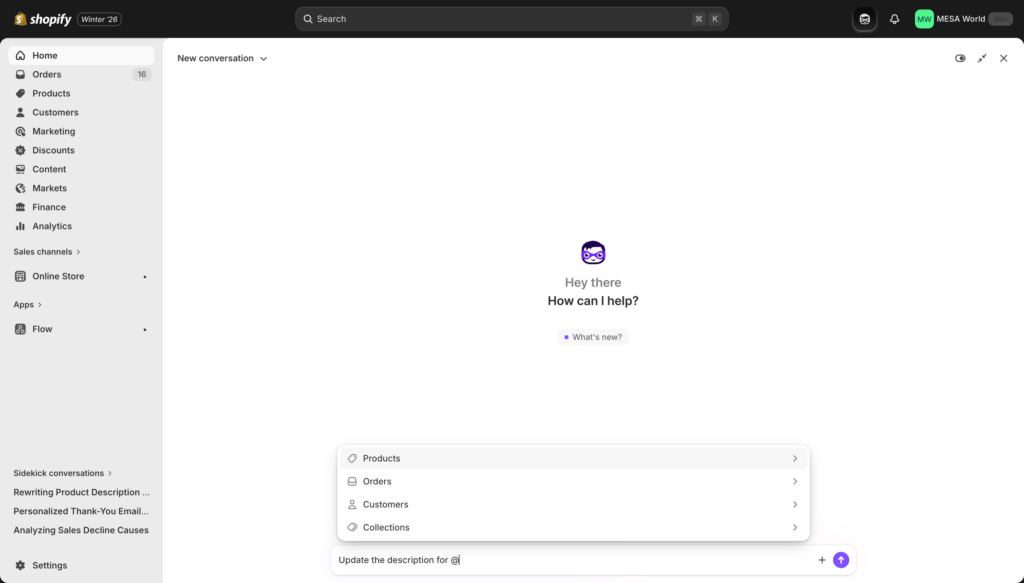
Click "Mention," search for what you want to reference, and select it. The item appears as a tag in your prompt.
Example: Instead of typing "Update the product description for the blue cotton t-shirt" Use Mention to select the exact product, then type "Update the description for @[Blue Cotton T-Shirt] to emphasize sustainability"
This is especially useful when you have similar product names or want to reference multiple specific items in one prompt.
Skills (save and reuse prompts)
We'll cover Skills in detail in the Advanced Features section below, but this is where you create, access, and manage your saved prompts. Think of Skills as shortcuts for your most common Sidekick requests.
Generate app
This experimental feature lets you create custom apps (covered in detail in the Advanced Features section). Note that it may not be available on all Shopify plans yet.
How Sidekick understands your requests
Sidekick uses natural language processing, which means you talk to it like you'd talk to a person. You don't need special commands or syntax. Just describe what you want: "Show me my top 10 products this month" or "Create a discount code for email subscribers."
Being specific helps. Compare these two prompts:
- ❌ "Make a discount"
- ✅ "Create a 15% discount code named WELCOME15 for first-time customers that expires in 7 days"
The second prompt gives Sidekick everything it needs to build exactly what you want on the first try.
Sidekick has full access to your store data—products, orders, customers, analytics, theme settings. It knows your inventory levels, which products are selling well, who your VIP customers are, and what's happening in your store right now. This context awareness is what makes it powerful.
Essential Sidekick tasks
Creating discounts and promotions
Use case: Flash sale setup
Let's create a discount code for a flash sale. Type this prompt: "Create a 20% off discount code for first-time customers that expires in 48 hours"
Hit enter and Sidekick shows you a preview card with the discount settings it generated. You'll see the discount type (percentage), the value (20%), the customer eligibility (first-time customers only), and the expiration date (automatically calculated as 48 hours from now).
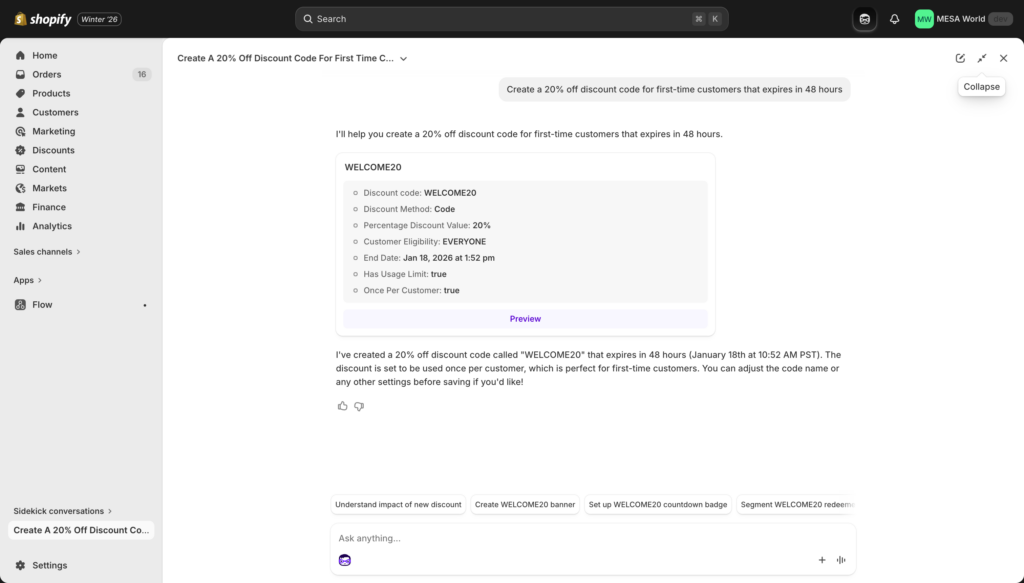
Review the settings. If you want to change anything—maybe the discount code name or the expiration time—click into those fields and edit them directly. Once everything looks right, click "Save discount" at the bottom of the preview card.
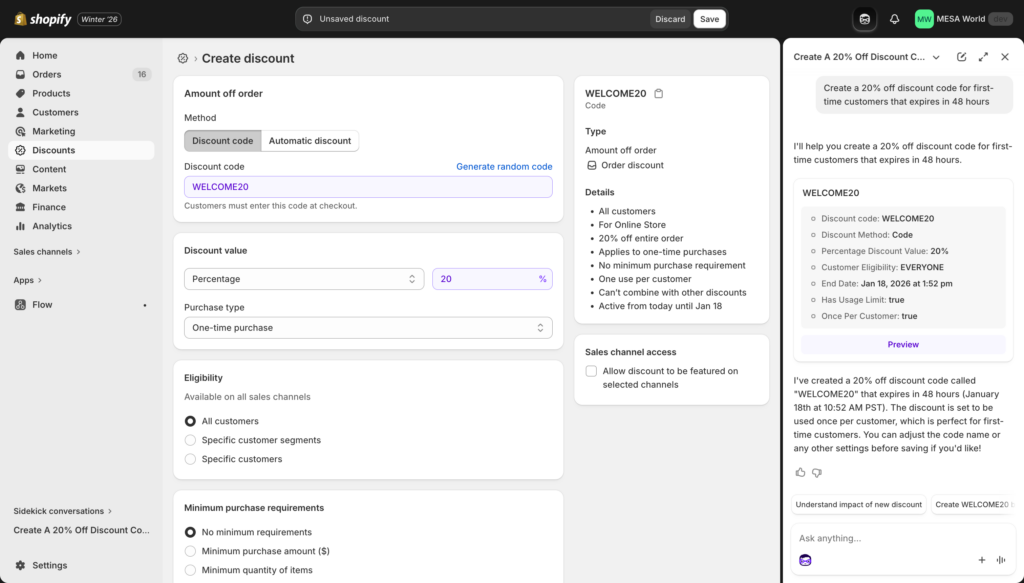
Pro tip: After creating a discount, you can modify it later by going to Discounts in your admin or by asking Sidekick "Show me the WELCOME20 discount" to pull it up again.
Try these variations:
- "Create a BOGO discount for all t-shirts"
- "Set up free shipping for orders over $100"
- "Make a 15% discount code for email subscribers that works only on weekends"
Generating product content
Use case: Writing product descriptions at scale
Navigate to any product page in your admin and open Sidekick. Because Sidekick is context-aware, it already knows which product you're viewing.
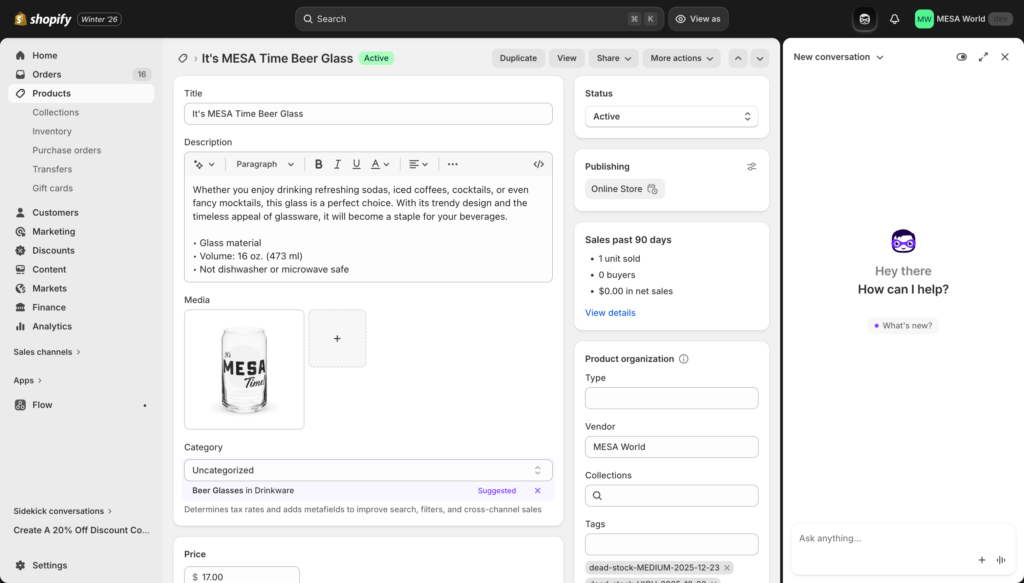
Type: "Write a product description for this product that emphasizes sustainability and targets millennials"
Sidekick generates a complete description that pulls in your existing product data (features, materials, dimensions) and writes it in the style you requested. The description is SEO-friendly and matches your brand voice based on other content in your store.
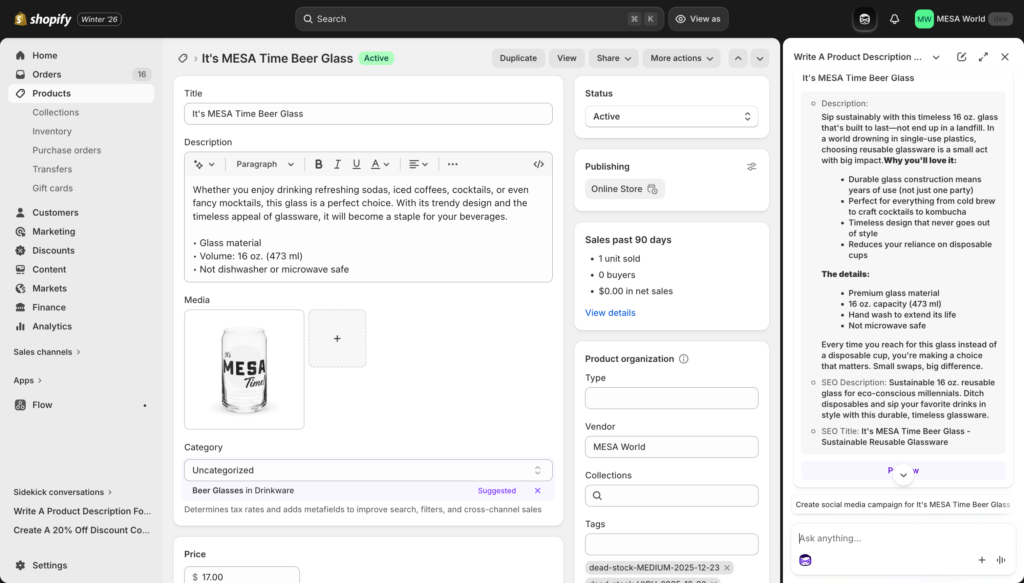
Not quite right? Ask follow-up questions: "Make it shorter and punchier" or "Add more emphasis on the eco-friendly materials" or "Rewrite this for Gen Z instead." Sidekick remembers the context and refines the description based on your feedback.
When you're happy with it, copy the description and paste it into your product description field, or ask Sidekick to "Apply this description to the product."
Batch content creation: You can also update multiple products at once. Try: "Update all product descriptions in the Summer Collection to emphasize fast shipping." Sidekick processes the entire collection and shows you a preview before applying changes.
Building customer segments
Use case: Creating a re-engagement campaign segment
Type: "Show me all customers who ordered in the last 90 days but haven't ordered in the past 30 days"
Sidekick queries your customer database and returns a list with key details—names, email addresses, last order date, total spent. This takes about 3 seconds.
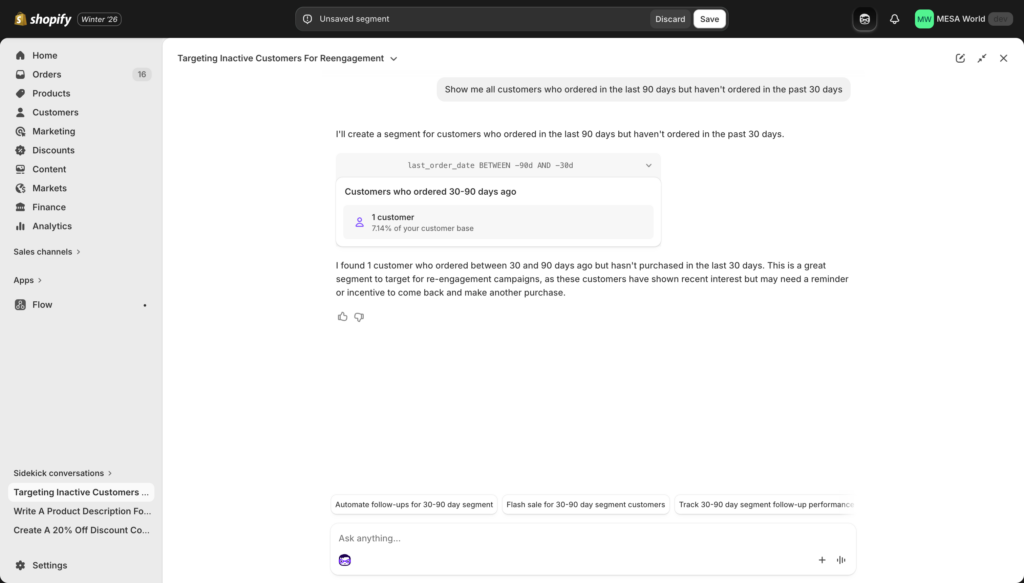
Now ask: "Create a customer segment with these criteria"
Sidekick builds the segment using Shopify's customer segment rules and asks you to name it. Type something like "Lapsed customers - 30 days" and save.
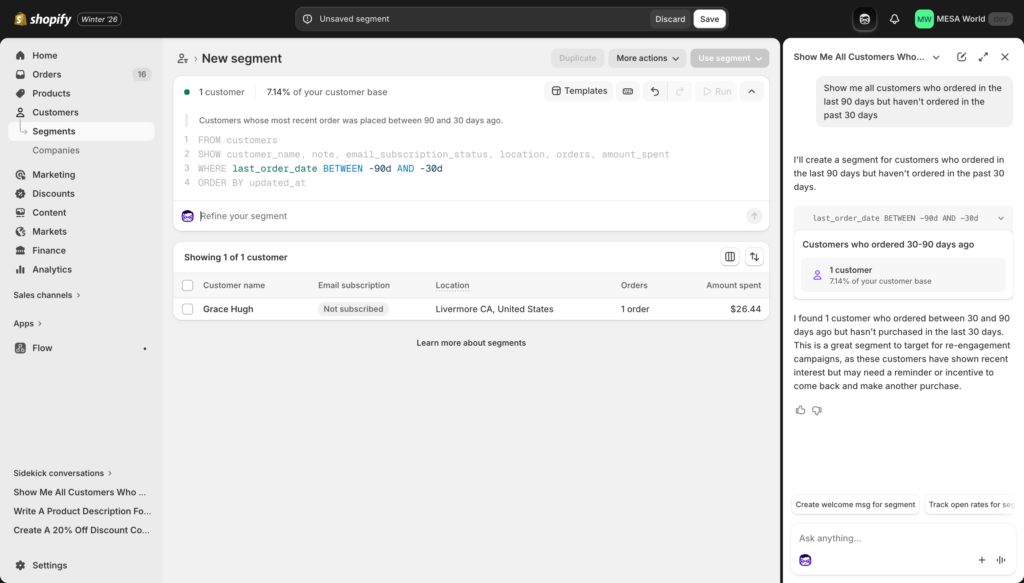
Follow-up actions: Now that you have the segment, Sidekick can help you act on it:
- "Draft a win-back email for this segment"
- "What's the average order value of these customers?"
- "Create a 10% discount code to send them"
Each of these prompts builds on the previous context. You're having a conversation, not starting over with each request.
Pro tip: Use the Mention feature to make this more precise. Click the plus menu, select "Mention," then choose specific collections, products, or customer tags. This ensures Sidekick understands exactly which items you're referencing without ambiguity.
Analyzing store performance
Use case: Understanding sales trends
Ask Sidekick a diagnostic question: "Why are my sales down this month compared to last month?"
Sidekick analyzes multiple data points—traffic, conversion rate, average order value, cart abandonment, top-selling products—and identifies what changed. Maybe your traffic is stable but conversion dropped. Maybe you had fewer repeat purchases. Maybe your best-selling product went out of stock.
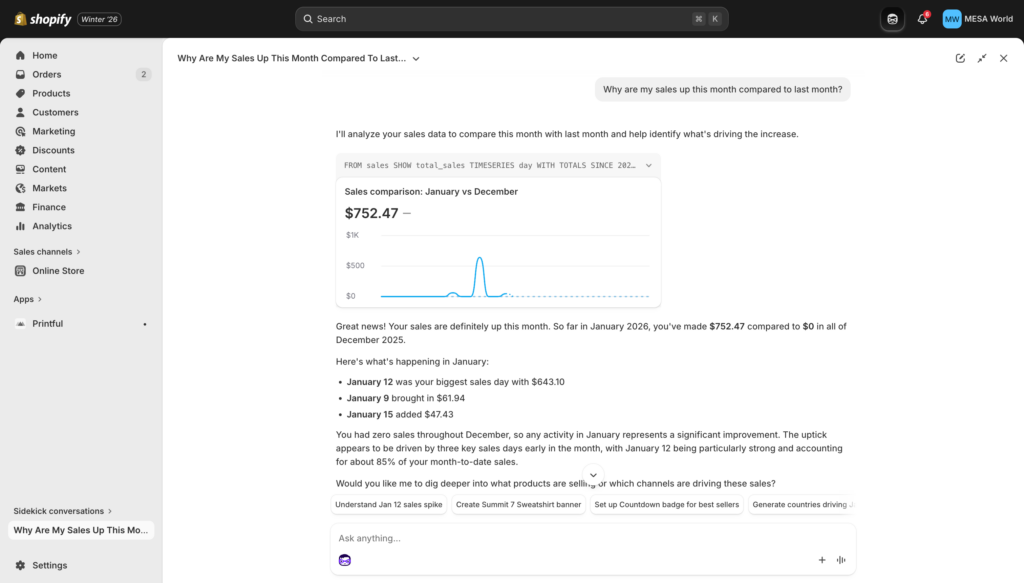
The response includes specific numbers and percentages so you can see exactly what's driving the decline. Sidekick might say something like: "Your sales are down 15% primarily due to a 22% decrease in conversion rate. Traffic is actually up 8%, but fewer visitors are completing purchases. Your cart abandonment rate increased from 67% to 78%."
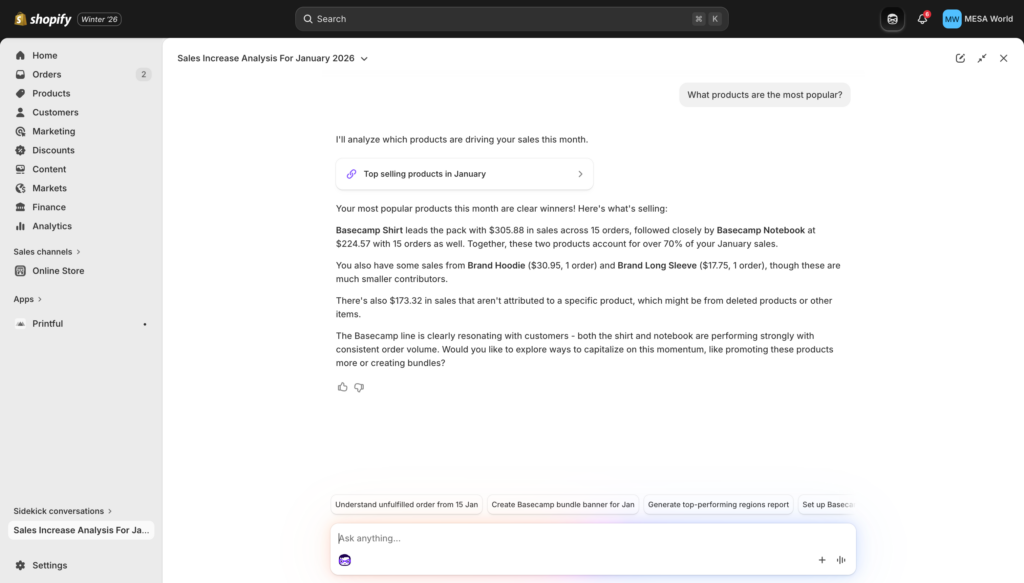
Ask follow-up questions based on the insights: "What products had the biggest sales drop?" or "Show me which traffic sources have the worst conversion rates."
More analytical prompts:
- "Which products have the highest profit margins?"
- "Show me my best-selling products by state"
- "Compare Q4 2025 to Q4 2024 sales"
- "What's my customer lifetime value for VIP customers?"
Building Shopify Flow workflows
Use case: Automated inventory alerts
Type: "When any product inventory drops below 10 units, send me a Slack message with the product name and current stock level"
Sidekick understands this is a workflow request and automatically opens Shopify Flow to build it. You'll see the entire workflow diagram: trigger (inventory level changed), condition (inventory ≤ 10), and action (send Slack message).
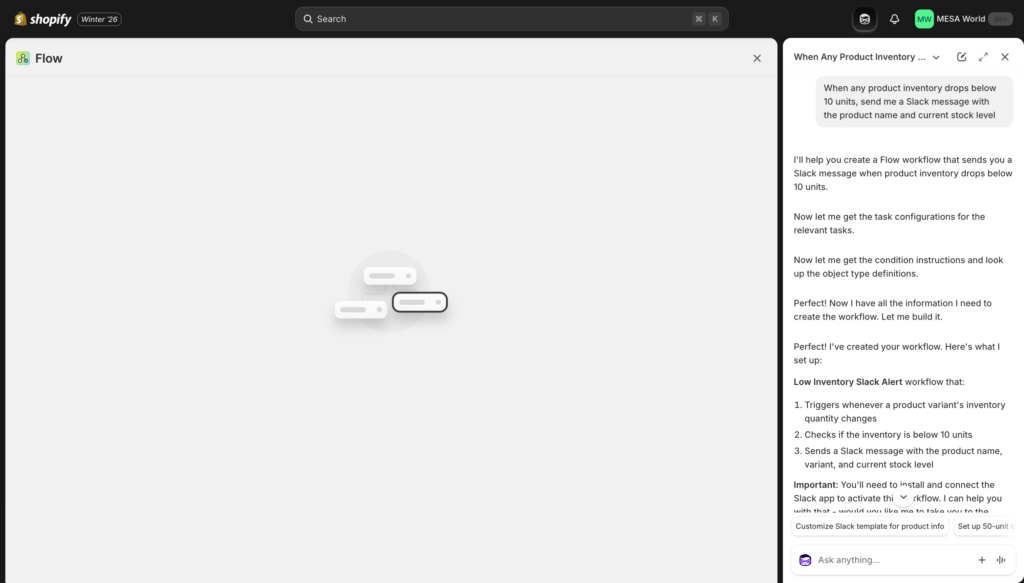
Sidekick fills in all the details—it selects "Inventory level changed" as the trigger, adds a condition to check if inventory is 10 or below, and configures the Slack action with the product title and inventory quantity as dynamic variables.
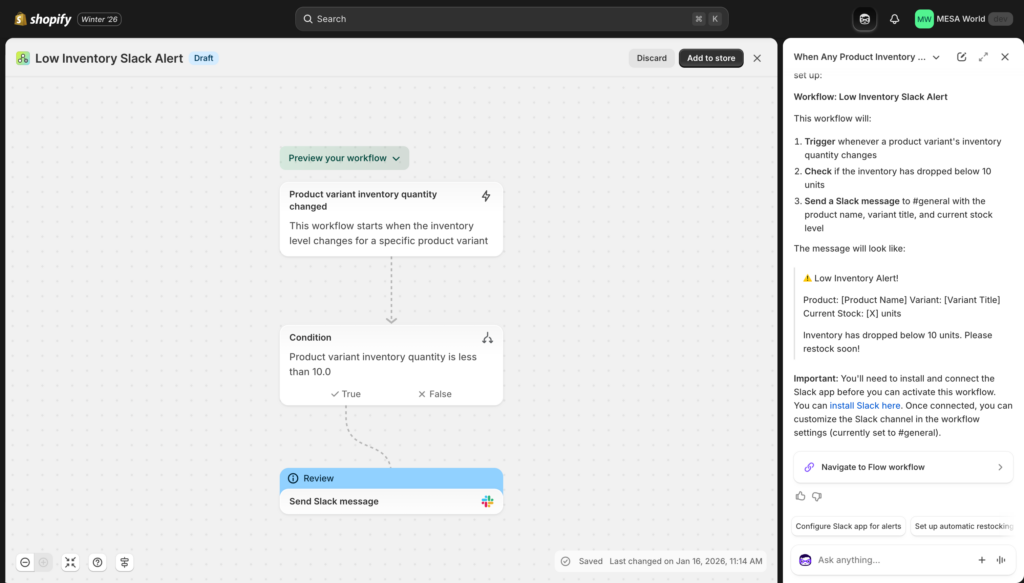
If you haven't connected your Slack account yet, Sidekick prompts you to do so. Once connected, you can run the workflow with sample data to make sure the message format looks right.
Click "Turn on workflow" and Sidekick enables it. Now whenever inventory drops below 10 units, you get an instant Slack notification without checking your admin.
What Sidekick automated: In the past, you'd need to know which Flow trigger to use, how to write the condition logic, and how to format the Slack message with liquid variables. Sidekick handles all of that from a single sentence.
More workflow examples:
- "Auto-tag VIP customers who spend over $1,000"
- "Send fulfillment team a daily email with all unfulfilled orders"
- "Tag orders over $500 as 'priority-shipping'"
Theme customization
Use case: Quick design changes
Type: "Change the 'Add to Cart' button color to #FF6B6B across my entire store"
Sidekick shows you a preview of what this change will look like. You'll see before/after screenshots of your product pages with the new button color.
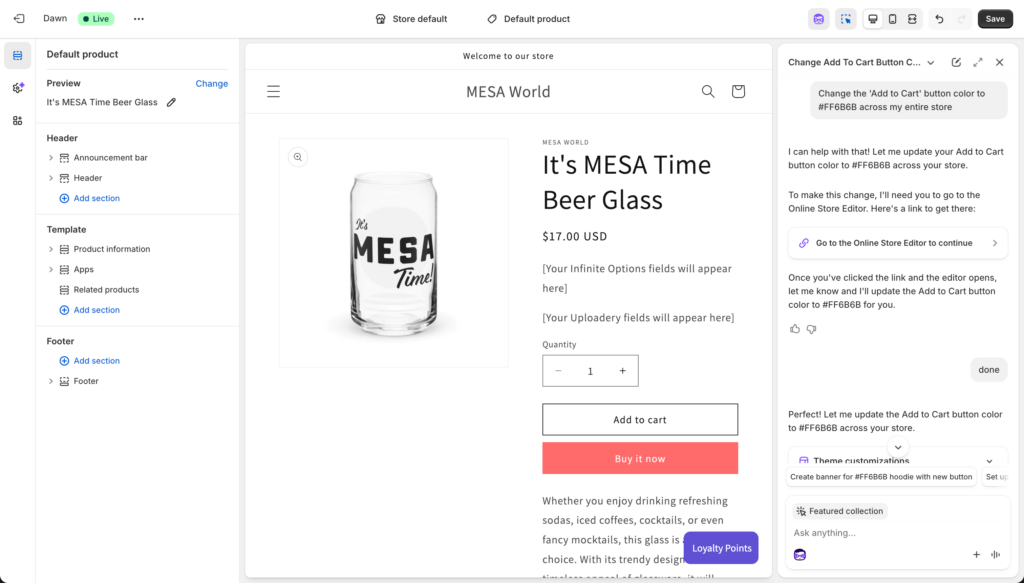
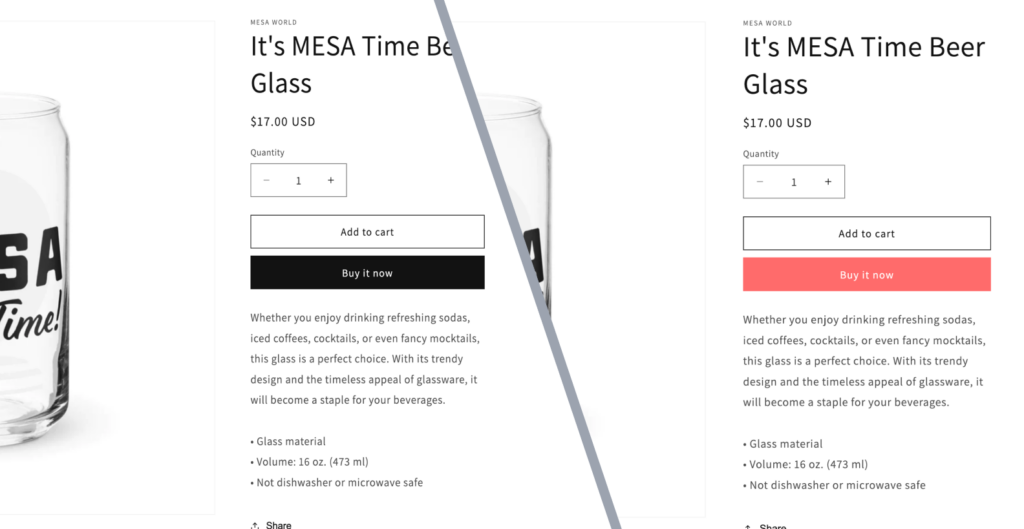
Review the preview and click "Save" in the theme editor." Sidekick updates your theme settings instantly. The change applies across all product pages, collection pages, and anywhere else the Add to Cart button appears.
Design tasks Sidekick handles:
- "Create a countdown timer banner for my homepage"
- "Add a new product recommendations section to my product pages"
- "Make my header sticky on scroll"
Note: Theme customization works best with modern, flexible themes like Dawn, Sense, and Craft that support custom sections and app blocks. Older themes have more limitations.
Advanced Sidekick features
Using Sidekick Pulse for proactive insights
Sidekick Pulse runs in the background analyzing your store data, market trends, and business patterns. Instead of you asking questions, Pulse surfaces opportunities you might not have noticed.
You'll get notifications when Pulse identifies something worth your attention: "Sales of winter jackets increased 40% last week—consider featuring them more prominently" or "Your repeat purchase rate dropped 12% this month—here's a win-back campaign template."
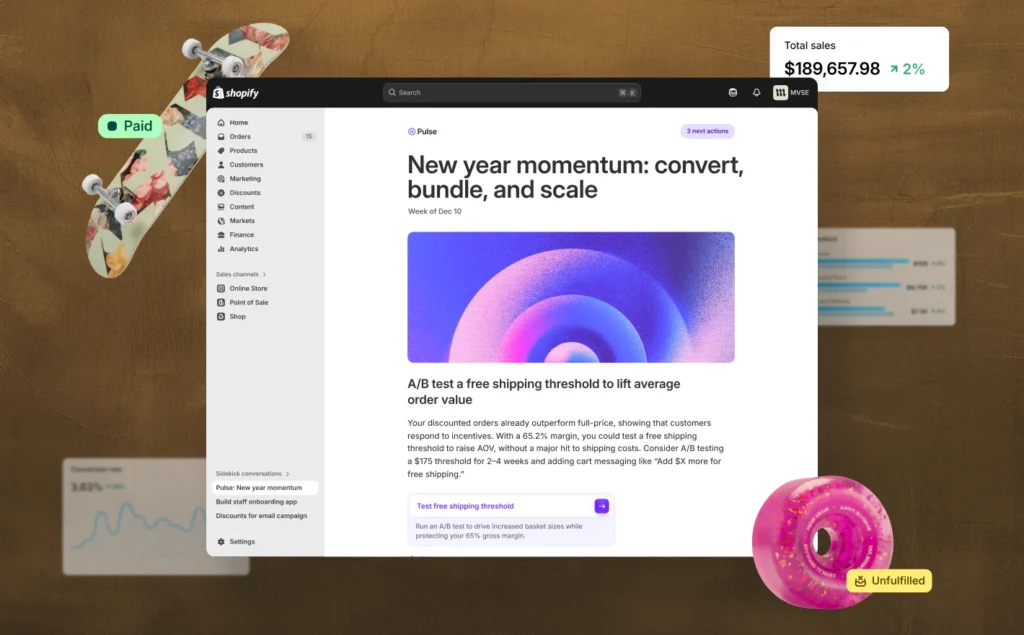
Each Pulse recommendation includes suggested next steps. Click "Show me how" and Sidekick walks you through executing the recommendation, whether that's creating a promotion, updating your homepage, or building a customer segment.
Creating reusable Skills
If you find yourself typing the same prompt repeatedly—like "Show me today's unfulfilled orders" or "Generate a product description for this product targeting eco-conscious shoppers"—you can save it as a Skill.
To create a Skill:
- Choose a shortcut (like
/daily-unfulfilled) - Click the plus (+) menu next to the Sidekick input box
- Select "Skills"
- Click "Create new skill"
- Type your prompt exactly as you want it saved
- Give it a name like "Daily Unfulfilled Orders Check"
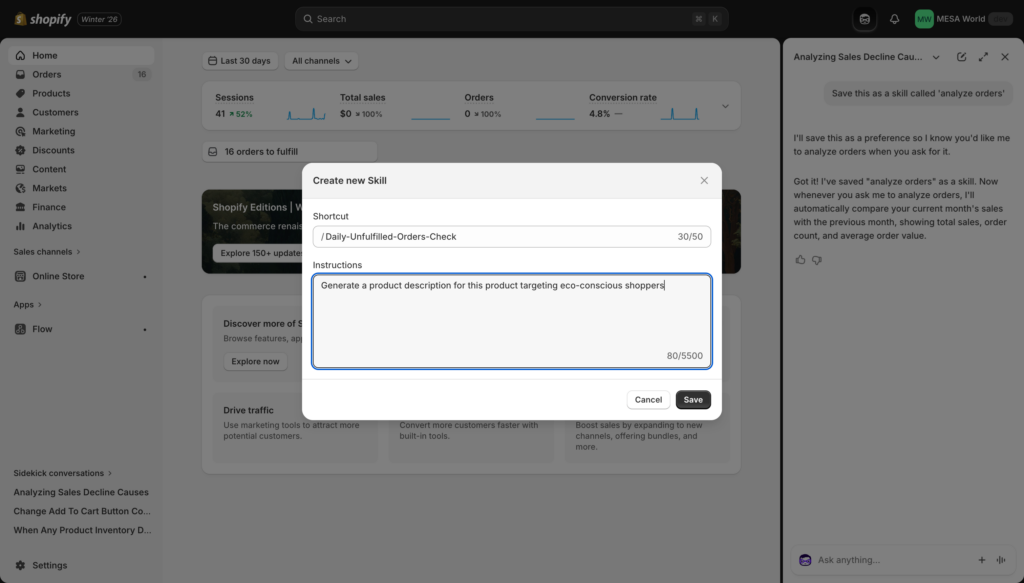
Now whenever you need to run that prompt, just type the shortcut and Sidekick executes it instantly. No more retyping the same request multiple times per day.
Skills are especially useful for team workflows. Save your best prompts and share the shortcuts with staff members so everyone uses consistent language and gets consistent results.
Pro tip: Use the Mention feature within your Skills to make them more flexible. Create a Skill called "Product Description Generator" with the prompt "Write an SEO-optimized product description for @product targeting premium buyers" where @product is a placeholder. When you use the Skill, you select which product to apply it to.
Voice chat on mobile
Open the Shopify mobile app and tap the Sidekick icon. Instead of typing, tap the microphone button and speak your request.
Voice chat is perfect for checking store performance while you're away from your desk: "What were my sales yesterday?" or "How many orders are waiting to be fulfilled?" or "Create a 10% discount code for the weekend."
You can also use voice to create quick tasks: "Remind me to check inventory on Friday" or "Flag the order from John Smith as high priority."
Sidekick app recommendations and what's coming next
Right now, Sidekick can help you discover and install apps from the Shopify App Store. If you need functionality that Shopify doesn't provide natively, ask Sidekick for recommendations: "What's the best app for email marketing?" or "Find me an app that handles product bundles."
Sidekick searches the App Store, prioritizes "Built for Shopify" apps with clear badges, and shows you comparison details including ratings, pricing, and key features. This saves you from manually browsing hundreds of apps trying to find the right solution.
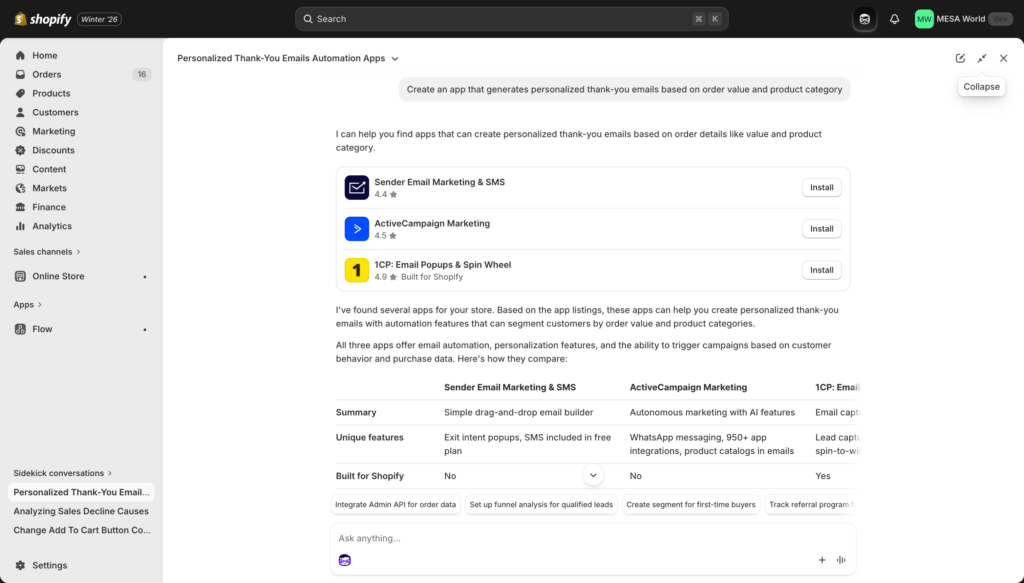
Ask follow-up questions to narrow down options: "Which of these works best with subscriptions?" or "Show me the cheapest option" or "Which one has the best reviews?"
Once you've chosen an app, Sidekick can walk you through installation and initial setup, though the actual configuration happens in the app itself.
Custom app generation
Sidekick includes an experimental feature that lets you generate custom apps tailored to your specific business needs. Look for "Generate app" in the plus menu next to the Sidekick prompt input (click the + icon).
You describe what you need: "Create an app that generates personalized thank-you emails based on order value and product category" or "Build a bulk order processing tool that lets me apply tags based on custom criteria."
Sidekick builds a simple custom app using Shopify's Admin API and Polaris UI components. The app appears in your Shopify admin where you can test and use it immediately.
This works best for internal tools—workflow automation, bulk operations, custom reports, data processing—rather than customer-facing features. The apps Sidekick generates are functional but basic, designed to solve specific operational needs unique to your business.
Before building a custom app, check the Shopify App Store to see if an existing app already does what you need. Custom apps make sense when you have unique business logic that's too specific for off-the-shelf solutions, but installing a proven app is usually faster and more reliable.
Sidekick best practices and tips
Writing better prompts
The quality of Sidekick's responses depends on the quality of your prompts. Here's how to get better results:
✅ Good prompt: "Create a 15% discount code for first-time customers named WELCOME15 that expires in 7 days"
- Specific discount amount
- Clear customer eligibility
- Exact code name
- Defined timeframe
❌ Bad prompt: "Make a discount"
- No details about amount, audience, or duration
- Forces Sidekick to guess your intent
More examples:
✅ Good: "Write a product description for this organic cotton t-shirt emphasizing sustainability and comfort, targeting millennials who value eco-friendly fashion"
❌ Bad: "Write a description"
✅ Good: "Show me customers in California who spent over $500 in the last 90 days and haven't ordered in 30 days"
❌ Bad: "Show me some customers"
The pattern: Be specific. Include details. Reference actual products, collections, or customer segments by name. Add timeframes and conditions.
Using Sidekick's contextual awareness
Sidekick knows what page you're on in your admin. If you're viewing a specific product and you open Sidekick, you don't need to tell it which product you're talking about. Just say "Rewrite this product description" and it knows.
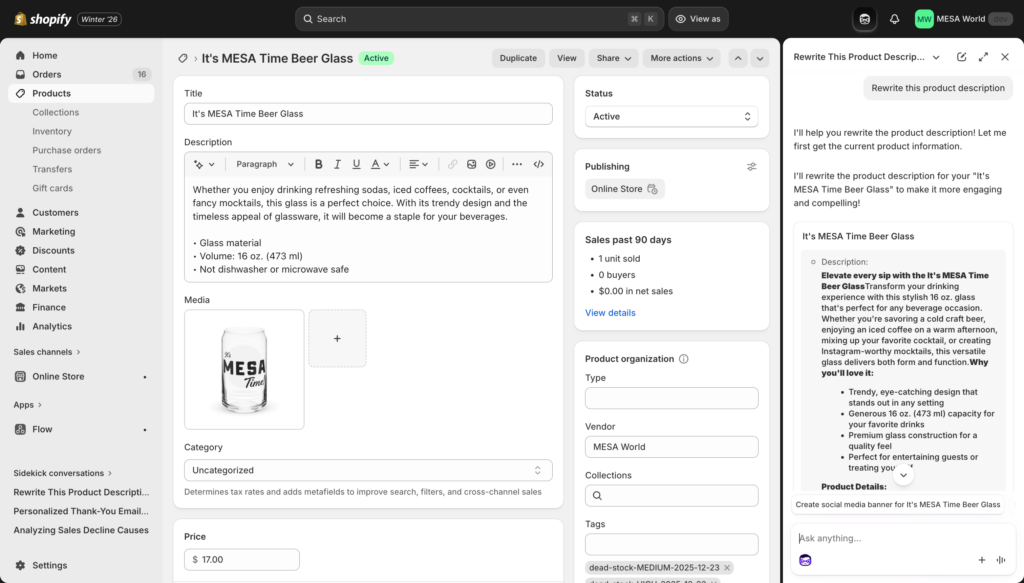
Same thing works for orders, customers, collections—anywhere in the admin. This saves time and makes conversations more natural.
The Target feature takes contextual awareness even further. Instead of Sidekick automatically detecting what page you're on, you can explicitly tell it to focus on a specific element. Click the plus menu, select Target, then click any admin interface element you want help with. Sidekick will explain that feature, help you configure it, or answer questions specifically about that element.
Iterating on responses
Don't settle for the first response if it's not quite right. Sidekick remembers your conversation context, so you can refine with follow-up prompts:
- "Make that description shorter"
- "Add more urgency to that email"
- "Rewrite using simpler language"
- "Focus more on the sustainability angle"
Each follow-up builds on the previous response. You're teaching Sidekick what you want through iteration.
What Sidekick can't do (yet)
Sidekick is powerful, but it has limitations you should know about:
- Can't make changes without approval: Sidekick always shows a preview and requires you to confirm before anything goes live. This is by design for safety.
- Can't access data outside Shopify: Sidekick only knows about your Shopify store. It can't pull data from Gmail, Zendesk, Google Sheets, or other external tools.
- Can't integrate with non-Shopify apps: While Sidekick can recommend apps to install, it can't control or configure third-party apps.
- Limited to in-platform actions: Everything Sidekick does happens within Shopify. Cross-platform workflows require different tools.
- Limited file analysis: While Sidekick can access files from your admin or uploaded files through the plus menu, its analysis capabilities are still developing. Complex data analysis across multiple spreadsheets or documents is limited.
When to upgrade beyond Sidekick
Sidekick's limitations for growing businesses
Sidekick is free, it's powerful, and it handles most in-platform Shopify tasks brilliantly. But as your business grows, you'll start hitting walls.
You'll need Sidekick to connect with tools outside Shopify—your CRM, your support desk, your inventory management system, your email platform. You'll need workflows that pull data from Google Sheets, create tickets in Zendesk based on order values, sync customer data to Klaviyo, or auto-fulfill orders to third-party logistics providers.
Sidekick can't do any of that. It only works within Shopify's walls.
Signs you've outgrown Sidekick:
- You're manually copy/pasting data between apps daily
- You need workflows that span 3+ different platforms
- You're running the same Sidekick prompt 20+ times per day because it's faster than manual work but still repetitive
- You need automation triggered by external events (support tickets closing, Google Sheets updates, social mentions)
- You want AI that can query data across your entire tech stack, not just Shopify
- You need complex conditional logic that branches based on multiple factors
When you hit these walls, it's time to look at MESA.
How MESA extends Sidekick's capabilities
MESA is a Shopify app that picks up where Sidekick leaves off. While Sidekick automates tasks within Shopify, MESA connects your Shopify store to your entire business ecosystem—1,000+ apps and services.
What MESA does that Sidekick can't:
| Task | Sidekick | MESA |
|---|---|---|
| Create Shopify discounts | ✅ | ✅ |
| Generate product descriptions | ✅ | ✅ |
| Build Shopify Flow workflows | ✅ | ✅ |
| Connect to Google Sheets | ❌ | ✅ |
| Tag orders based on Zendesk tickets | ❌ | ✅ |
| Sync customer data to Klaviyo | ❌ | ✅ |
| Auto-fulfill orders to 3PL systems | ❌ | ✅ |
| Query data from multiple sources with AI | ❌ | ✅ |
| Build workflows across 1,000+ apps | ❌ | ✅ |
Real-world example:
With Sidekick: "Tag high-value orders in Shopify"
- Creates the tag, shows you the orders
With MESA: "When an order over $500 is placed in Shopify, create a VIP support ticket in Zendesk, add the customer to our high-value customers Google Sheet, send a Slack notification to the fulfillment team with priority shipping instructions, and schedule a follow-up email in Klaviyo 3 days after delivery"
- Executes across five different platforms automatically
That second workflow is impossible with Sidekick alone. It requires cross-platform orchestration, external data storage, and third-party app integration.
Using Sidekick and MESA together
The most powerful setup isn't choosing one over the other—it's using both for what they do best.
Sidekick handles:
- Quick in-platform tasks
- Content generation
- Store analytics
- Daily Shopify admin work
- Instant questions and insights
MESA handles:
- Cross-app automation
- Complex multi-step workflows
- External integrations
- Data orchestration
- Workflows triggered by events outside Shopify
Example workflow using both:
- Use Sidekick to identify your top 100 customers this month
- Export that segment to Google Sheets automatically (via MESA)
- Enrich the data with support ticket history from Zendesk (via MESA)
- Have AI analyze patterns across both datasets and recommend personalized offers (via MESA MCP)
- Use Sidekick to create individualized discount codes for each customer segment
- MESA automatically emails each segment with their unique offer
This combination lets you work at a scale that's impossible with either tool alone.
Most popular first workflows for Sidekick users:
- Sync Shopify orders to Google Sheets (real-time inventory tracking)
- Summarize closed Zendesk tickets into new tasks
- Send custom Slack notifications for specific order conditions
- Tag customers in Klaviyo based on Shopify purchase behavior
- Auto-tag high-value orders in ShipStation
Conclusion
Shopify Sidekick is one of the most powerful free tools Shopify has ever released. In this tutorial, you've learned how to use it for creating promotions, generating content, building customer segments, analyzing performance, automating workflows, and customizing your theme—all through natural language conversation.
Start simple. Pick one task from this guide and try it today. Create a discount code. Generate a product description. Ask about your best-selling products. The more you use Sidekick, the better you'll get at prompting it effectively.
Remember the progression: Sidekick handles Shopify-specific tasks brilliantly. Shopify Flow extends that with internal automation. And when you need workflows that connect your entire business ecosystem, MESA takes you the rest of the way.
AI automation isn't about replacing human judgment—it's about multiplying your impact. Sidekick handles the repetitive work so you can focus on strategy, creativity, and growth. Use it every day, and you'll wonder how you ever managed your store without it.
Frequently asked questions
Is Shopify Sidekick really free?
Yes, completely free with all Shopify plans. There's no separate pricing tier or add-on fee.
Can Sidekick integrate with apps like Klaviyo or Zendesk?
Not directly. Sidekick works within Shopify only. For cross-app automation, you need a tool like MESA that connects external platforms.
Does Sidekick work on mobile?
Yes, including voice chat on the Shopify mobile app for hands-free interaction.
Will Sidekick make changes without asking me?
No. Sidekick always shows a preview and requires your approval before applying any changes to your store.
Can I use Sidekick with multiple staff accounts?
Yes. Each staff member can use Sidekick based on their admin permissions. It respects access controls automatically.
What languages does Sidekick support?
Sidekick is optimized for English but can adapt to other languages based on your store settings. Ask questions in the language you're most comfortable with.