As soon as you have more than one place orders can ship from, every order becomes a decision. Does this one go to your warehouse or your 3PL? If a product belongs to a specific vendor, does your fulfillment partner even handle it, or does the vendor ship direct? What about high-value orders that someone should review before anything moves?
At low order volumes, you make these calls manually. You read each order, figure out where it should go, and send it there. That works until it doesn't. When order volume increases, someone makes the wrong call, or an order slips through on a busy day and nobody notices until a customer follows up.
The 3PL market is growing fast. Mordor Intelligence estimates it at over $1.2 trillion globally and expanding steadily. That means more stores are adding fulfillment partners and running into this exact problem. Shopify has native order routing for assigning orders to locations by proximity or priority ranking. That covers the simple cases. Custom vendor logic, conditional approval flows, and mixed-cart orders require something more flexible.
This guide covers how to build that logic using three built-in MESA tools: Filter, Paths, and Approvals.
TL;DR: there's a template for that
The two main routing scenarios
Multi-vendor: You sell products from multiple suppliers, and each one ships their own items. When an order comes in for Vendor A's product, it needs to go to Vendor A with the right line items, the right shipping address, and in whatever format that vendor uses. Your 3PL doesn't fulfill those items and shouldn't receive that order.
3PL routing: You have a third-party logistics partner who handles standard fulfillment. Orders need to reach them in the right format, with the right fields, at the moment the order is paid, not at the end of the day.
Most stores that grow past a certain scale end up with both scenarios running simultaneously: some products fulfilled by the 3PL, others shipped directly by vendors, and occasionally an order with items from both. The routing logic needs to handle all of it without someone manually sorting each order.
Routing orders to a 3PL only works if Shopify knows what the 3PL actually has on hand. Here is how to sync Shopify inventory with a 3PL automatically.
The three MESA tools that do the work
Filter checks whether a condition is true before the workflow proceeds. It's a gate. If the order contains a product from Vendor A, the workflow continues. If it doesn't, the workflow stops. Nothing routes incorrectly because the condition wasn't met. You can filter on order tags, product vendor, line item attributes, order value, customer tags, and more. Filters are how you make sure workflows only fire for the orders they're meant for.
Paths splits a workflow into branches based on conditions. Where Filter is a yes-or-no gate, Paths is a fork. Orders matching one condition go one way; orders matching another go a different way. A Paths step is how you handle the fact that Vendor A needs a formatted email with a PDF attachment, your 3PL needs a webhook with a structured payload, and your B2B accounts need a different notification entirely. All within the same workflow, triggered by the same order event.
Approvals adds a human decision point before the workflow continues. The workflow pauses, sends a notification to a team member with the relevant order details, and waits for a response. Approve it and the next step fires. Reject it and the workflow branches to manual handling instead. This is how high-value or unusual orders get eyes on them without requiring someone to monitor a queue all day.
Building a routing workflow step by step
Here's a concrete example that combines all three tools. The trigger is "order created."
Step 1: Filter — qualify the order first
Before anything routes, check whether this order meets the conditions your routing logic applies to. If you only want the workflow to handle orders above a certain value, or orders tagged with a specific attribute, set that as the Filter condition. Orders that don't qualify stop here and follow your standard Shopify fulfillment flow.
Step 2: Approvals — add a human check for high-value orders
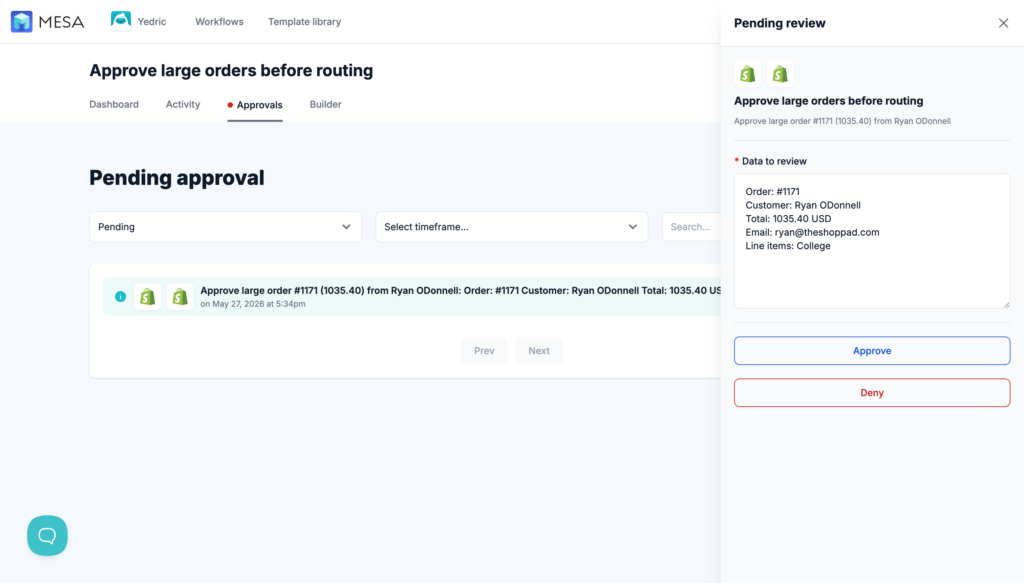
For orders above your defined threshold like large cart totals, new B2B accounts, unusually high quantities on a single SKU, route through an Approvals step before any fulfillment action fires. A notification goes to your ops manager with the order number, total, and customer name. The workflow pauses until they respond.
Approve it and routing proceeds. Reject it and it branches to a manual review step, tagged in Shopify so your team can find it immediately. Everything below the threshold skips this step entirely and routes automatically.
🔧 Try this template:
Step 3: Paths — send each order where it belongs
Branch A: the order contains products tagged to a specific vendor. MESA sends a formatted email to that vendor with the relevant line items, quantities, and the customer's shipping address. The email uses a consistent template so the vendor always receives the same format, regardless of who's working that day.
Branch B: everything else routes to your 3PL. MESA sends a webhook with the order payload, or writes a row to a Google Sheet your fulfillment partner uses as their queue, whichever format they actually work with.
🔧 Try these templates:
Step 4: Tag the order
After routing, apply a tag to the order in Shopify: "routed-vendor" or "routed-3pl." This lets your team filter by routing status in the admin at any time, and makes it straightforward to spot any orders that didn't route as expected during testing.
Mixed-cart orders
When a single order contains items from both a vendor and your 3PL, you don't have to pick one path. MESA can run two parallel branches from the same Paths step: Vendor A receives their line items, and your 3PL receives the rest. The customer gets one order, but the fulfillment instructions go to both parties simultaneously.
🔧 Try this template:
Fallbacks and testing
Every Paths step should have a catch-all branch for orders that don't match any of your defined conditions. Rather than letting those orders disappear silently, route unmatched ones to a Slack alert or a tagged manual review queue. You'll catch edge cases you didn't anticipate when you built the workflow, and you'll have a record of them to decide whether to add a new branch later.
Before going live, test each branch with real orders. MESA keeps a history of every workflow run so you can see exactly which steps fired, what data passed through, and where things went if something routed unexpectedly.
Routing decisions that used to require someone reading every order now happen the moment the order lands in Shopify. The Approvals step means the orders that warrant human judgment still get it, without slowing down the hundreds of routine orders that don't. Once the workflow is running, the consistency you've been trying to maintain manually becomes automatic.
Routing is one piece of the fulfillment chain. For the rest, from inventory sync to shipping updates, read our guide to order fulfillment automation for faster shipping.