
Your 3PL's portal says 412 units. Shopify says 439. Somewhere in that 27-unit gap you sold things you cannot ship, and now you are refunding orders and writing apology emails on a Monday morning. That is almost never a warehouse problem. It is a sync problem, and it is fixable.
This walks through how Shopify and a 3PL actually exchange inventory, the two routes to automating it, how often the sync should run, and the five things that quietly break these setups once they are live.
TL;DR: there's a template for that
The short answer
Pick one system to own the number — for stock sitting in a warehouse, that is your 3PL — and let everything else read from it. If your 3PL has a Shopify app, install it: Shopify creates a dedicated fulfillment-service location for it, the app writes stock counts to that location, and orders route there automatically. If your 3PL has no app, or its app only pushes orders and never sends inventory back, build the sync yourself: a scheduled workflow that reads the 3PL's stock feed (usually a CSV on an SFTP server or a REST endpoint), matches each row to a Shopify variant by SKU, and sets the quantity at the 3PL's location. Then add a nightly reconciliation report, so you hear about drift from a Slack message instead of from a customer.
First, decide which system owns the number
Every broken 3PL inventory sync we have seen starts in the same place: two systems both believe they are in charge. Your 3PL's WMS decrements when it picks a unit. An inventory app recalculates from purchase orders. Someone does a CSV import to "fix" a count. Each one overwrites the last, and the number in Shopify becomes whichever system wrote most recently rather than whichever system is right.
So before you connect anything, answer one question: which system physically knows how many units exist? If your inventory lives in a 3PL warehouse, the 3PL does. It counted the receipt, it picked the order, it processed the return. Shopify's job is to reflect that number accurately and fast — not to compute it.
That single decision determines the shape of everything else. Stock counts flow from the 3PL into Shopify. Orders flow from Shopify out to the 3PL. Nothing else writes inventory at the 3PL's location. If you are running your own warehouse alongside a 3PL, each location gets exactly one owner — which is the same "single source of truth" discipline we covered in our guide to making Shopify your inventory source of truth.
Be suspicious of the word "bidirectional." Vendors use it to mean "orders go out and fulfillments come back," which is fine. It is a problem when it means both systems write the same stock number.
The same rule applies beyond inventory. HandsOn Bay Area used MESA to sync thousands of Shopify records into Salesforce so the whole team worked from one set of data; read how HandsOn built a single source of truth.
Route 1: install your 3PL's Shopify app
Most established 3PLs — ShipBob, ShipHero, ShipMonk, Flexport (which acquired Shopify Logistics in 2023 and now runs the Shopify Fulfillment Network app) — ship a Shopify app that registers itself as a fulfillment service. This is the shortest path, and if it covers your setup you should not build anything.
When a fulfillment service connects, Shopify does something specific and useful: it creates a location for it automatically. Your 3PL's warehouse becomes a real Shopify location that you can see on the Inventory page, assign stock to, and rank in your order routing priority. And it does not eat into your plan's location allowance:
"Although these apps are treated as locations, they don't count toward your location limit."Shopify Help Center, on dropshipping apps, third-party logistics services, and custom fulfillment services
That matters if you are on Basic, Grow, or Advanced, where the limit is 10 active locations. Adding three 3PL warehouses does not cost you three slots.
A good 3PL app then pushes sellable counts back to that location on its own schedule. ShipBob describes its side of the exchange plainly:
"Our WMS tracks every movement of inventory, and updates sellable inventory counts in Shopify to reflect any activity automatically."ShipBob, on its Shopify WMS integration
What to verify before you trust it
App quality varies enormously, and the failure mode is silent. Before you go live, confirm four things:
- Does it write inventory at all? Plenty of 3PL apps only receive orders and return tracking numbers. That is order automation, not inventory sync. Check whether stock counts actually change in Shopify after a shipment.
- How often? "Real time" in a vendor's marketing copy often means a polling loop every few minutes. Fine for most stores; not fine for a flash sale on a single SKU.
- Which locations does it touch? It should write only to its own location. Shopify supports stocking the same product at a fulfillment app's location and your own locations simultaneously, but an app that reaches past its own location can flatten counts you manage elsewhere.
- What happens on a SKU it does not recognize? The good answer is "skips it and logs it." The bad answer is "sets it to zero."
Where these apps stop is just as important. A 3PL app owns its location and nothing else. It will not reconcile counts, will not tell you when it stops running, will not push the same numbers out to your other sales channels, and will not decide what to do when a SKU falls below its reorder point. That gap is where the workflow layer earns its keep, whether or not you also built the sync itself.
Route 2: build the sync yourself
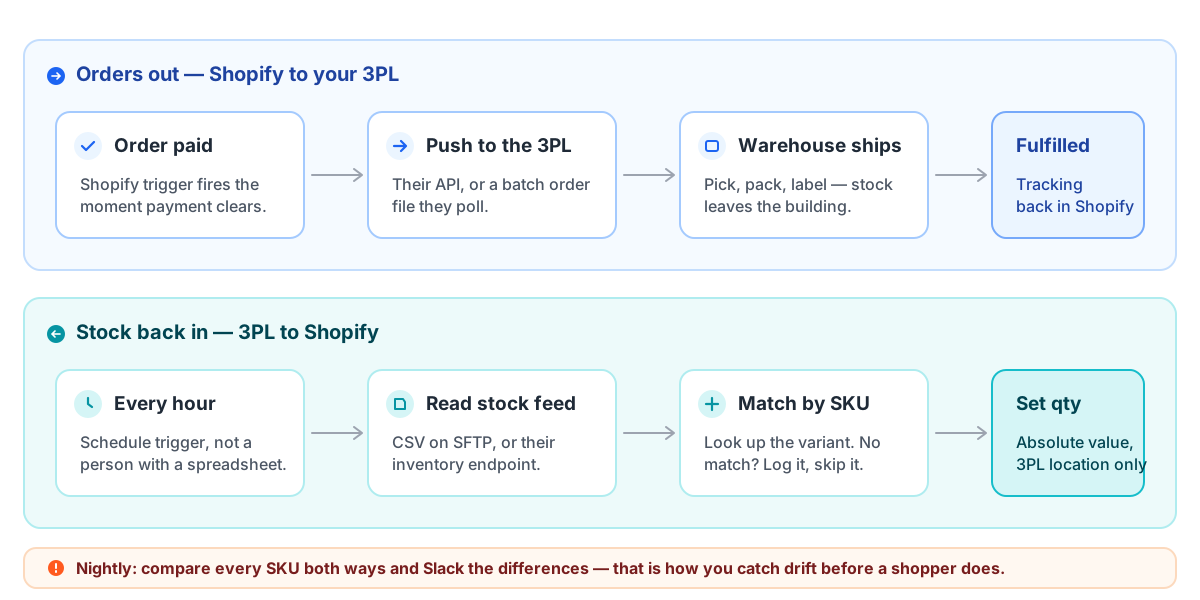
If your 3PL is regional, specialized, or simply older than the Shopify App Store, you probably have an SFTP drop, a nightly CSV, or a REST API — and no app. That is enough. A 3PL inventory sync is two independent workflows, and most stores need both.
Older back-office systems are common outside warehousing too. The Fine Arts Museums of San Francisco connected its Shopify Plus store to FTP and custom REST APIs for inventory, fulfillment and membership; see how FAMSF kept those systems in sync.
Direction one: stock counts into Shopify
This is the half that stops overselling, so build it first. The shape is always the same:
- Trigger on a schedule. Hourly is the right default. Your 3PL almost certainly cannot notify you the instant a unit moves, so you poll.
- Fetch the feed. Download the latest inventory CSV from their FTP or SFTP server, or call their inventory endpoint.
- Loop the rows. One iteration per SKU.
- Resolve the SKU to a Shopify variant. Look up the variant, and get its inventory item ID for the 3PL's location.
- Set the quantity — absolutely, not relatively. Write the 3PL's number as the new value rather than adding or subtracting a delta.
- Handle the misses. A SKU with no matching variant, a blank quantity, or a malformed row goes to a log and an alert, never to a silent zero.
Step five is the one people get wrong. Shopify's Admin API gives you two ways to change stock: inventoryAdjustQuantities moves a count by a delta, and inventorySetQuantities sets it to an absolute value. When an external system is the authority, always set. Deltas compound: miss one run and every count afterward is wrong by that amount forever, while an absolute set is self-healing — the next successful run repairs it.
Shopify's own guidance for inventory-management apps goes a step further and supports compare-and-swap on that mutation: you send the quantity you believe Shopify currently holds alongside the new one, and the write is rejected if reality has moved underneath you. That is the difference between a sync that quietly clobbers a concurrent sale and one that tells you it could not proceed.
One thing worth knowing before you reach for it: Shopify Flow cannot do this half. Flow is free on every Shopify plan and it is genuinely good at reacting to inventory — it has an inventory-quantity-changed trigger and a "Get inventory item data" action — but its action reference contains nothing that sets or adjusts a stock level. Flow can tell you a SKU dropped below ten. It cannot be the thing that writes what the 3PL reported. That is exactly the boundary MESA is built to cross: a scheduled trigger, an FTP or HTTP step to pull the feed, a loop, and a Shopify step that sets inventory levels — the ready-made CSV-on-FTP inventory template below is that exact workflow, and swapping the FTP step for your 3PL's API is a five-minute change.
Direction two: orders out to the 3PL
The other half sends work to the warehouse and brings the result back:
- Order paid → post the order to your 3PL's API, or append it to the order file they collect.
- Filter first. Only orders your 3PL actually fulfills should go. Pre-orders, digital products, wholesale, and anything shipping from your own shelves need to be filtered out before the push — that routing logic is worth designing deliberately, and we go deeper on it in multi-vendor and 3PL order routing.
- Shipment confirmed → create the fulfillment in Shopify with the tracking number, so the customer gets a shipping notification and the order closes cleanly.
Get the filter right and the fulfillment write-back reliable, and your 3PL never sees an order it cannot ship, and your customers never wonder whether their package exists.
Posting orders to an outside API works for more than warehouses. Hawaii Tee Times sends every Shopify booking, add-ons included, straight into its EZ Links system and cut about 40 hours of phone work a week; read how Hawaii Tee Times automated its reservations.
Pick a cadence, then layer a second one
There is no single correct sync frequency. There are three, and mature setups run more than one:
- Event-driven, seconds. Shopify's
inventory_levels/updatewebhook fires when a level changes, so your 3PL or middleware learns about a sale immediately. Worth it when the same SKU sells across several channels. Note that the payload is thin — plan on subscribing with the fields you need, including the location, rather than assuming they arrive. - Scheduled delta, every 15 to 60 minutes. The workhorse. Pull whatever the 3PL says changed and write those SKUs. Cheap, and accurate enough for the overwhelming majority of stores.
- Full reconcile, nightly. Read every SKU the 3PL holds and set every count, whether or not it appears to have changed. This is the run that repairs drift accumulated by a missed webhook, a timed-out API call, or a manual edit someone made in the admin at 4pm.
If you only build one, build the nightly full reconcile. A store that is accurate every morning beats a store that is accurate in real time until the one afternoon its webhook silently stops.
Five things that break 3PL inventory syncs
1. SKUs that do not line up
Practically every 3PL feed is keyed on SKU, and Shopify does not enforce SKU uniqueness. Two variants can carry the same SKU, and Shopify will happily let them:
"Duplicate SKUs can cause issues with third-party integrations and inventory tracking."Shopify Help Center, on using SKUs to manage inventory
Before you connect anything, export your variants and check for duplicates, blanks, trailing whitespace, and case differences against your 3PL's item master. Reconciling a few hundred SKUs by hand for an afternoon is dramatically cheaper than debugging a sync that has been writing the wrong warehouse's count into the wrong variant for a month.
2. Two systems writing the same number
The most common cause of counts that bounce between two values every few minutes is two writers fighting. Audit what has inventory-write access: your 3PL app, any inventory or forecasting app, a marketplace connector, your POS, and any custom script. Everything except the designated owner of that location should be read-only.
3. "Continue selling when out of stock" left switched on
This per-variant setting, in the Inventory section of a product, lets shoppers buy after the count reaches zero — which means an accurate sync will not stop overselling if the setting is on. Shopify's own documentation is clear that enabling it lets customers keep purchasing past available stock. Keep it on deliberately for pre-orders and backorders. Audit it everywhere else.
4. Order routing sending orders to the wrong warehouse
Adding a 3PL location changes how Shopify assigns orders. By default Shopify tries to fill an entire order from a single location, and when no location can, it either splits the order or lets the highest-priority location oversell. If your own shelf sits above your 3PL in the priority list, orders you expected the warehouse to ship will land in your queue instead. Set the priority order intentionally after the 3PL location appears, not before.
5. Nobody notices when the sync stops
Credentials rotate, SFTP passwords expire, a 3PL changes a column header, an API deprecates a version. Every one of those failures looks identical from the outside: yesterday's numbers, sitting there, aging. The fix is not a better sync — it is a heartbeat. Alert when a scheduled run fails, and alert when it succeeds but touched suspiciously few rows.
Build the reconciliation report before you need it
The last piece is the one that gets skipped, and it is the one that actually buys you confidence. Once a day, put both numbers side by side and look at the difference:
- Pull the 3PL's full stock list on a schedule.
- Pull Shopify's quantities for the 3PL location.
- Write both, plus the variance, to a Google Sheet — so you have a dated history rather than a single moment.
- Post any SKU whose variance exceeds your tolerance to Slack, with the SKU, both counts, and the gap.
- Pair it with a low-stock alert and, for multi-warehouse setups, location-specific inventory alerts so a problem at one warehouse does not hide inside a healthy total.
Do this and inventory stops being a thing you find out about from an angry customer. It becomes a number you already looked at this morning. It is the same principle behind connecting tagging and stock checks into a single process, which we covered in automating order tagging and inventory syncing together.
Where to start this week
- Check whether your 3PL has a Shopify app that writes inventory. If it does and it writes only to its own location, install it and skip to step four.
- Clean your SKUs. Export variants, fix duplicates and blanks, and match them against the 3PL's item master. Nothing downstream works without this.
- Build the nightly full reconcile first — feed in, match by SKU, set absolute quantities at the 3PL location. Run it in a report-only mode for a few days before you let it write.
- Add the variance report and the failure alert. One Google Sheet, one Slack channel.
- Then tighten the cadence. Move to hourly, and add webhook-driven updates only if you are selling the same stock in several places at once.
Start with the reconcile, not the real-time dream. Accurate every morning is worth more than instant and unverified — and once the boring version is running, tightening it is a scheduling change, not a rebuild.
FAQs
How do I sync Shopify inventory with a 3PL automatically?
Make the 3PL the source of truth for warehouse stock, then move counts one direction: from the 3PL into Shopify. If your 3PL has a Shopify app, install it — Shopify creates a dedicated fulfillment-service location and the app writes counts there. If it does not, build a scheduled workflow that reads their inventory feed (a CSV on SFTP or a REST endpoint), matches each row to a Shopify variant by SKU, and sets the quantity at the 3PL's location as an absolute value. Add a nightly full reconcile plus a variance alert so drift surfaces on its own.
Can Shopify Flow update inventory from my 3PL?
No. Shopify Flow is free on every Shopify plan and it reacts to inventory well — it has an inventory-quantity-changed trigger and can read inventory item data — but its action reference includes no action that sets or adjusts a stock level. Use Flow for the alerting and tagging around inventory, and an automation platform like MESA (or your 3PL's own app) for the part that writes the number.
Should Shopify or my 3PL be the source of truth for inventory?
Whichever one physically holds and counts the units — so for stock in a fulfillment center, the 3PL. It records receipts, picks, and returns first. Shopify should reflect that number rather than compute its own. If you also ship from your own warehouse, treat each location separately: one owner per location, and nothing else writing to it.
How often should Shopify and my 3PL sync inventory?
Hourly is a sensible default, with a nightly full reconcile that rewrites every SKU regardless of whether it appears to have changed. Add event-driven updates via Shopify's inventory-level webhook only if you sell the same stock across several channels and minutes matter. The nightly reconcile is the piece that repairs whatever the faster syncs missed.
Do 3PL locations count against my Shopify location limit?
No. Shopify's documentation states that dropshipping apps, third-party logistics services, and custom fulfillment services are treated as locations but do not count toward your location limit. The plan limit — 10 active locations on Basic, Grow, and Advanced, and 200 on Shopify Plus — applies to the locations you create yourself, and deactivated locations do not count either.