A contact form is the cheapest support channel a store can build, and a Google Form is the cheapest contact form. Four questions, a share link in the footer, done in ten minutes. The trouble starts the day after. Responses pile into a spreadsheet nobody owns, there's no reply thread, no assignment, no history — and no way to tell whether the person who wrote in about a damaged order on Tuesday ever heard back.
Help Scout is where that conversation belongs, and its API will create one for you: the create-conversation endpoint takes six required fields and treats everything else as optional. What it won't do is find out about your form on its own. Google Forms has no native Help Scout integration and no outbound webhook, so something has to sit in the middle. This walkthrough uses MESA, and spends most of its time on the two parts that catch people out: what the conversation should actually contain, and how to stop it emailing the customer a reply they never asked for.
TL;DR: there's a template for that
What you're building
Four steps. A form submission fires the workflow, a condition reads the topic question and decides where the request belongs, MESA looks the person up in Shopify so the agent isn't starting cold, and Help Scout opens a conversation in the right inbox.
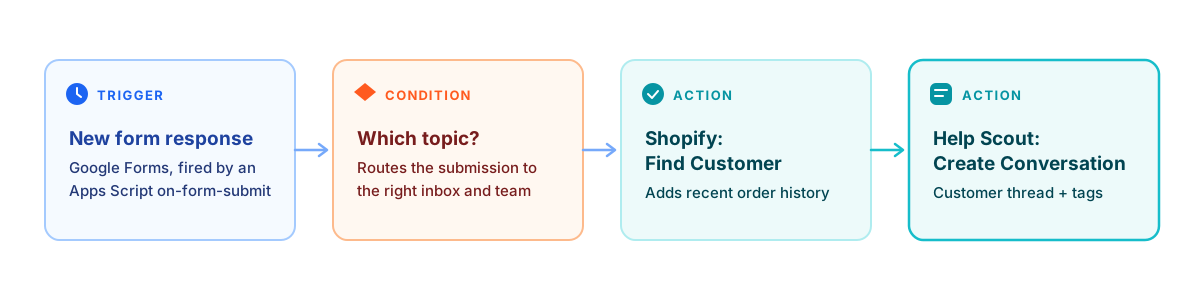
The lookup step in the middle is the one people leave out, and it's the one that decides whether your agents like this workflow or quietly go back to the spreadsheet. A conversation that says only "my order arrived broken" costs an agent two minutes of searching before they can even start typing.
Design the form around the conversation you want
Help Scout's create-conversation endpoint is strict about six things: subject, type (one of chat, email or phone), mailboxId, status (one of active, closed or pending), a customer carrying either a customer ID or an email address, and threads. On that last one the docs are blunt:
"There has to be least one thread in a conversation"Help Scout Inbox API, create conversation
Four of those six you never ask a person for. type is email for a web form. status is active for anything that needs an answer, or pending if you want it visible but out of the unassigned queue. mailboxId is the numeric ID of the inbox, which you take from the inbox's URL in Help Scout. And subject is better built in the workflow than collected — a subject line assembled from the topic question and the order number ("Damaged item — #1042") sorts and searches far better than whatever a customer types into a box labelled "Subject".
The questions that actually matter
That leaves two things the form genuinely has to collect, plus one that makes everything downstream easier:
- Email address — required, and the single field this whole workflow depends on. Make it a required short-answer question with response validation set to an email pattern. Without it there's no customer to attach the conversation to and no way to reply.
- The message — a paragraph question. This becomes the body of the first thread, so it should be the one place you invite free text.
- A topic dropdown — six or eight options, not free text: order status, damaged or missing item, returns, wholesale, billing, something else. This is what your condition branches on, what becomes a tag, and what decides the inbox. A free-text "what's this about?" question can't do any of those jobs.
Resist adding more. Every extra question is a drop-off point on a form that exists to let someone report a problem, and an agent with the customer's order history in front of them can ask the follow-up in thirty seconds.
Step 1: Connect Help Scout to MESA
MESA's Help Scout connector uses OAuth rather than a pasted API key. Per MESA's Help Scout docs, you "click Connect with Help Scout and enter your login details. Then, click to Authorize your Help Scout account with MESA." Do this from an account with admin rights, since that's what determines which inboxes the connection can see.
Two numbers worth knowing before you scale this up. Help Scout's own API article lists per-plan call ceilings — up to 200 calls per minute on Standard, 400 on Plus and 800 on Pro — and creating a conversation is not a cheap call:
"Write requests (POST, PUT, DELETE, PATCH) count as 2 requests toward the rate limit."Help Scout Inbox API, rate limiting
A contact form will never get near that. A one-off backfill of last year's response spreadsheet absolutely will, and Help Scout answers with a 429 when you cross the line, so throttle any bulk import rather than firing the whole sheet at once.
Step 2: Wire up the Google Forms trigger
This is the step that surprises people, and it's the same one that trips up every Google Forms automation — including creating a ShipStation order from a form submission. Google Forms doesn't offer outbound webhooks, so MESA's trigger runs through Apps Script:
- Add the Google Forms trigger to your MESA workflow and copy the webhook code it gives you.
- Open the form, open the Apps Script editor attached to it, and replace the default function with that code. Save it.
- Name the script project after the MESA workflow, so the next person can tell what it's for.
- In Triggers, add a trigger with the event type set to On form submit.
- Complete the Google authorization prompt.
Note that this is per-workflow, not a one-time account-level connection. MESA's documentation says so directly:
"You will want to do this for every MESA workflow that has a dedicated Google Forms trigger."MESA docs, Google Forms
Which account you set it up from matters more than it looks, because Google's installable triggers are tied to a person:
"Installable triggers always run under the account of the person who created them."Google Apps Script, installable triggers
Build it from a shared operations account. If the person who set it up leaves and their Google account is deactivated, your support intake stops, and it stops silently. The same page notes that "a given account can't see triggers installed from a second account," so nobody else will be able to spot the problem in the Triggers list either.
One more consequence of running on Apps Script: you inherit its quotas. Consumer Google accounts get 90 minutes of total trigger runtime and 20,000 URL Fetch calls per day; Google Workspace accounts get 6 hours and 100,000. A contact form is nowhere near either ceiling, but if the same account is running a dozen form scripts it's worth knowing the pool is shared.
Also worth knowing before you debug something that isn't broken: the installable-trigger docs state that "script executions and API requests don't cause triggers to run." Test by submitting the live form the way a customer would, not by running a script.
Step 3: Build the conversation
Add MESA's Help Scout step that creates a conversation, and fill it from the trigger's output variables. A mapping that works for a general store contact form:
customer.email— the email question. Help Scout matches it against existing customers, so a repeat writer lands on the profile you already have rather than a duplicate.subject— the topic answer plus an identifier, built in the workflow. Keep it short enough to read in a list view.mailboxId— set by the condition. One inbox for general support, another for wholesale, if that's how your team is split.threads[0]— a thread of typecustomer, withtextset to the message question and the same email in its owncustomerfield.type—email.status—active.
The thread is the part worth getting right. A customer thread needs only text and a customer, and using that type (rather than a note) is what makes the conversation behave like a real inbound email: the customer's words appear as theirs, and an agent's reply goes back to them normally.
Tags, assignment and custom fields
Three optional fields on the create call do most of the organising for you. tags takes an array, so pass the topic answer straight through as a tag and your reporting works from day one. assignTo takes a Help Scout user or team ID, which is how you send wholesale enquiries to the two people who handle them instead of into a shared queue. And fields writes conversation custom fields — the tidiest place to park structured answers like an order number, so they're filterable rather than buried in message text.
Custom fields come with a plan condition, so check before you build the form around them:
"Custom fields are available on the Plus and Pro plans."Help Scout, Work With Custom Fields
There's also a ceiling: each inbox can have up to 10 custom fields. If you're on Standard, or you'd rather not spend one of those ten, put the order number in the subject line and lean on tags instead. It's less elegant and it works.
Step 4: Give the agent the context they'd otherwise go looking for
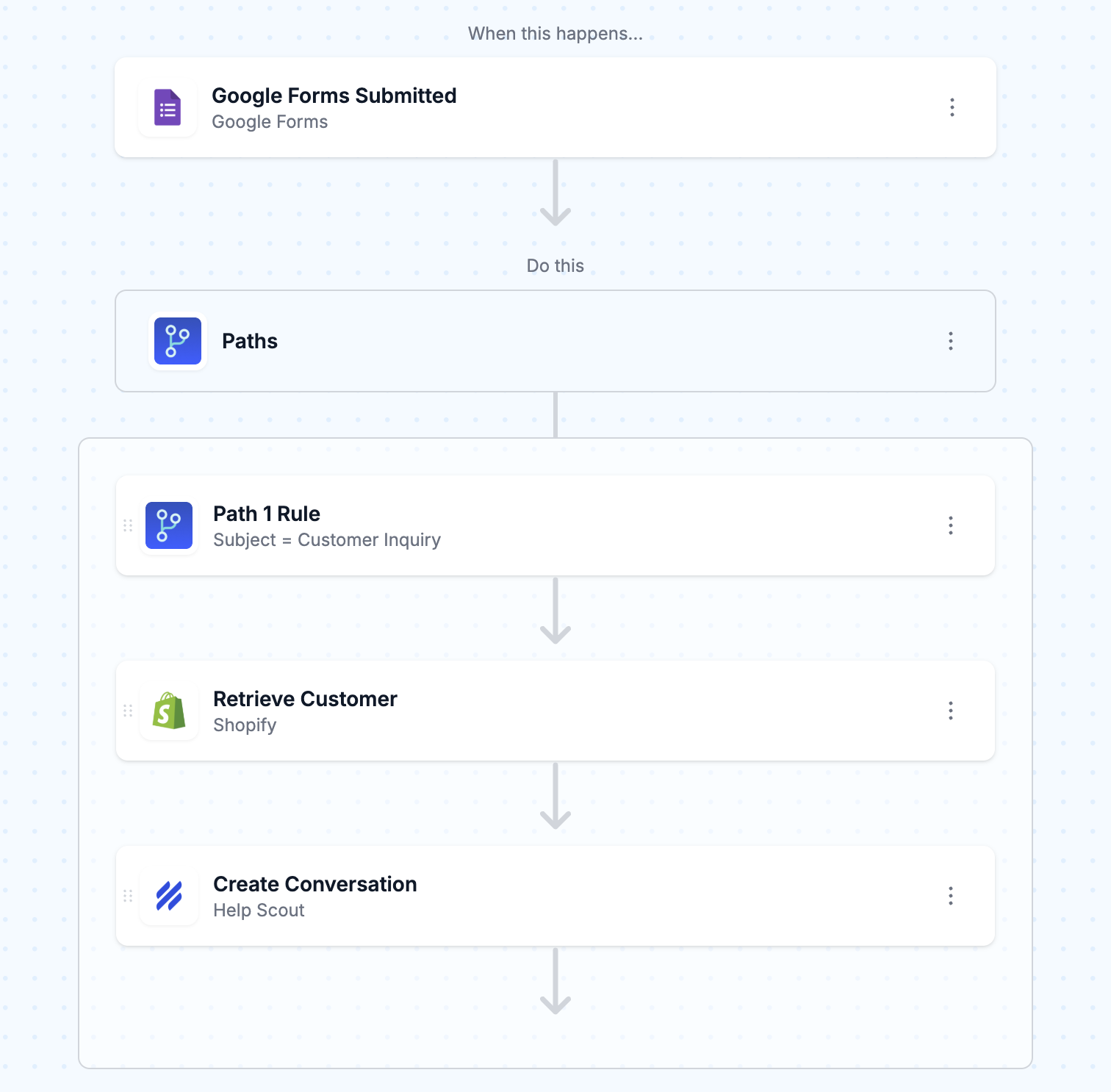
Between the condition and the Help Scout step, add a Shopify step that looks the customer up by the email address from the form. Then append what it returns to the thread text, or write it into a note on the conversation: recent orders and their fulfillment status, lifetime spend, whether there's an open return.
This is the difference between a ticket and a briefed ticket. The agent opens the conversation and already knows the order in question shipped nine days ago to an address in a different state — which is usually the actual answer. It's the same principle behind turning complex Help Scout tickets into research-backed responses: the value isn't the routing, it's what's already on the page when a human arrives.
Handle the miss case deliberately. Plenty of people writing in aren't in your customer list — they used a different email, or they haven't bought anything yet. Have the workflow carry on and create the conversation with a note saying no matching Shopify customer was found, rather than erroring out. A support request that vanishes because a lookup failed is worse than the spreadsheet you're replacing.
The reply nobody asked for
Here's the trap. Creating a conversation with a customer thread doesn't just record something — it can send mail. The thread documentation is explicit about the side effect:
"When a thread of this type is added to a conversation, the conversation will be reopened unless the thread is imported (signalled by imported: true field value)."Help Scout Inbox API, customer thread
Two flags on the create call control this, and they do different jobs:
autoReply— enables auto-reply sending when the conversation is created through the API. Leave it off unless you actually want Help Scout's auto-reply to fire, and if you do turn it on, read the auto-reply text first. "Thanks for emailing us" is a strange thing to receive after filling in a form that already showed a confirmation screen.imported— creates the conversation without generating notifications or outgoing email. This is the one you want for a backfill of historical responses, and the one you emphatically do not want for live submissions, because it also means your team gets no notification that something arrived.
Test both states before you go live. Submit the form as yourself and check three things: the conversation appeared in the right inbox, your team got notified, and your own inbox did not receive a surprise auto-reply.
If it isn't a Google Form
The Apps Script setup exists purely because Google Forms can't call out on its own. If your form tool can, skip it. MESA's Webhook tool gives you a URL to paste into any service that supports outbound webhooks — which covers Typeform, Jotform, most theme contact forms with a bit of help, and MESA's own Forms app. Everything downstream of the trigger in this walkthrough is identical.
Two differences to plan for. Webhook variables aren't picked from a menu the way a connector's outputs are — you write them yourself as {{webhook.variable_name}}, so send a real test payload first and read it in the Activity tab before you build the mapping. And the webhook is one-directional; MESA can receive the payload but can't send anything back in the response, so the form can't display "ticket #4471 created" on its confirmation screen. If you need that, the confirmation has to come from Help Scout's own auto-reply instead.
The same pattern works with other help desks, too — saving form submissions as Gorgias tickets differs only in the final step.
Where this setup runs out of road
Four honest limits before you rely on it.
Google Forms has no spam protection worth the name. A public Google Form with a public share link will eventually get scraped and hit by bots, and every hit becomes a Help Scout conversation. Add a condition that drops submissions with no email match and an obviously junk message pattern, or accept that you'll be closing some rubbish by hand. If the form is genuinely public and high-traffic, a form tool with real spam filtering is the better call.
Attachments are a separate problem. Google Forms can collect file uploads, but they land in Drive as links, and a Drive link in a support conversation is only useful to someone inside your organisation. "Send us a photo of the damage" needs either a Help Scout attachment step or an instruction to reply to the confirmation email with the photo attached.
The trigger is per-form and per-workflow. Three intake forms means three Apps Script setups, each tied to whoever created it. That's manageable, and it's a reason to consolidate forms before you build rather than after.
This is intake, not triage. The workflow routes and enriches; it doesn't decide anything. If you want the topic classified from the message text rather than a dropdown, or a first-draft reply prepared, that's a separate layer — see how support automation stacks up on Shopify and summarizing Help Scout conversations with AI for where that goes next.
Test it before you trust it
Three submissions, in this order. First, a complete one from an email address that exists in Shopify: confirm the conversation lands in the right inbox, carries the right tag, and shows the order history you expected. Second, the same submission from an address that isn't a customer: confirm the workflow still creates the conversation instead of failing. Third, one with a topic that should route somewhere else: confirm it does.
Then leave it a week and compare the response spreadsheet against the inbox. If the counts match, you can take the spreadsheet link out of your bookmarks.
FAQs
Does Google Forms have a native Help Scout integration?
No. Google Forms has no Help Scout integration and no built-in outbound webhook, so a submission can't reach Help Scout without something in between. The options are a workflow tool with a Google Forms trigger, or your own Apps Script calling Help Scout's Inbox API directly. The script is a reasonable choice for one form and one shape of ticket; a workflow tool earns its place once you need conditions, a Shopify lookup, retries, or a second form.
What does the form have to collect at a minimum?
An email address and a message. Everything else Help Scout requires — the conversation type, status, inbox ID and subject — is set in the workflow rather than asked of the customer. A topic dropdown isn't strictly required but it's what makes routing, tagging and reporting possible, so it's worth the one extra question.
Will creating the conversation email my customer automatically?
Only if you let it. The create-conversation call has an autoReply flag that enables auto-reply sending via the API; leave it off and no mail goes out. Separately, an imported flag creates the conversation with no notifications at all — useful for importing old responses, and the wrong choice for live traffic, since your own team won't be notified either.
Why isn't my Google Forms trigger firing?
Check that the Apps Script trigger's event type is On form submit and that you completed the Google authorization prompt. Then check you're testing with a real submission through the live form — Google's docs note that script executions and API requests don't cause triggers to run, so a scripted test looks exactly like a broken workflow. Finally, confirm you're looking at the Triggers list from the account that created the trigger, since one account can't see triggers installed by another.
Can I send the submission to a specific Help Scout inbox or teammate?
Yes. The inbox is set by mailboxId, which you can branch on with a condition reading the form's topic question, and assignTo takes a Help Scout user or team ID so the conversation arrives already assigned. Tags are set at creation too, via a tags array — passing the topic answer through as a tag is the cheapest reporting you'll ever set up.
Do I need a paid Help Scout plan for this?
You need a plan with API access. Help Scout's API article lists per-plan call ceilings starting at up to 200 calls per minute on Standard, rising to 400 on Plus and 800 on Pro. Conversation custom fields are a separate consideration: those are available on the Plus and Pro plans only, with a limit of 10 per inbox, so on Standard you'd carry structured data in the subject line and tags instead.