Plenty of shipments never start as a Shopify order. A wholesale buyer emails a reorder. A support agent needs a warranty replacement sent out. A rep at a trade show collects sample requests. A partner submits a drop-ship request. In most stores that intake happens on a Google Form, because a Google Form takes four minutes to build and everyone already has an account.
Then the responses land in a spreadsheet, and somebody opens ShipStation and retypes them. That's where the errors come from — a transposed postal code, a country written as "Great Britain," a row nobody noticed on a Monday. This walkthrough wires the form directly to ShipStation with MESA, so a submission becomes a real order in Awaiting Shipment without a human in the middle.
TL;DR: there's a template for that
What you're building
Four steps: a Google Form submission fires the workflow, a condition checks that the address is actually shippable, MESA creates the order in ShipStation, and — optionally — MESA buys the label too.
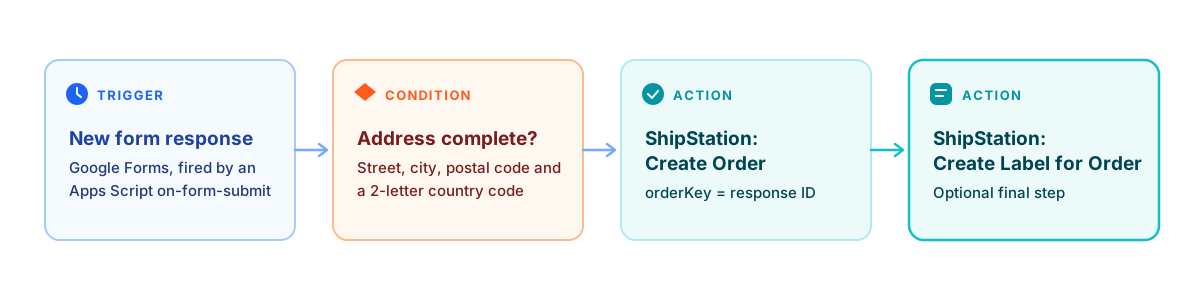
The order of operations matters more than it looks. Most people build the form first, then discover ShipStation rejects half of what it collects. Do it the other way round.
Design the form around ShipStation's required fields
ShipStation's create/update order endpoint will not accept a partial order. Five fields are mandatory:
orderNumber— a user-defined identifier, max 50 characters.orderDate— when the order was placed.orderStatus— one ofawaiting_payment,awaiting_shipment,shipped,on_hold,cancelled, orpending_fulfillment.billTo— a billing address.shipTo— a shipping address.
Two of those you never ask a person for. orderStatus is a constant you set in the workflow — awaiting_shipment for anything ready to pick, on_hold if someone should approve it first. orderDate comes from the submission timestamp, and it has a format requirement worth knowing before you debug it at 6pm:
"ShipStation API V1 uses the ISO 8601 combined format for DateTime stamps being submitted to and returned from the API"ShipStation API requirements
Specifically yyyy-mm-dd hh:mm:ss in 24-hour notation — and ShipStation asks that you submit times in PST/PDT, which is the same timezone it returns. If your form is filling for a UK warehouse, convert before you send.
The address questions that actually matter
The Address model takes name, company, street1 through street3, city, state, postalCode, country, phone and a residential flag. Build one form question per field rather than a single "Shipping address" paragraph box. A paragraph box feels friendlier and is unparseable.
The field that breaks things is country: ShipStation wants a two-letter ISO code. Make it a dropdown containing only the countries you ship to, with the code in the option text (US — United States, GB — United Kingdom), and slice the code out in the workflow. A free-text country question will produce "USA", "U.S.", "america" and "Untied States" inside a month.
Mark every required question as required in Google Forms itself. It's a free first line of defence, and it's the only validation that happens before the data leaves the form.
Step 1: Connect ShipStation to MESA
In ShipStation, go to Settings > Account > API Settings and either copy the existing API key or generate one. You need both the key and the secret — ShipStation's V1 API uses basic HTTP authentication with the key as the username and the secret as the password. Paste both into MESA's ShipStation connection form.
One number to file away: the rate limit is 40 requests per minute per key-and-secret pair. A form that collects a handful of requests a day will never come close. A bulk backfill of last quarter's spreadsheet will, so throttle that if you attempt it.
Step 2: Wire up the Google Forms trigger
This is the step that surprises people. MESA's Google Forms trigger isn't a one-click OAuth connection — Google Forms doesn't offer outbound webhooks natively, so the trigger runs through Apps Script:
- Add the Google Forms trigger to your MESA workflow and copy the webhook code MESA gives you.
- Open the form, then open the Apps Script editor attached to it, and paste the code in.
- Add a trigger in Apps Script with the event type set to On form submit.
- Authorize Google access to the form when prompted.
MESA's own documentation is direct about the fact that this isn't a one-time account-level setup:
"You will want to do this for every MESA workflow that has a dedicated Google Forms trigger."MESA docs, Google Forms
Two consequences worth planning around. First, Google's installable triggers run with the authorization of whoever created the trigger — so set this up from a shared operations account, not from the personal account of whoever happens to be building it. When that person leaves, the trigger leaves with them.
Second, calling FormResponse.submit() from a script doesn't fire the on-submit trigger. There's no shortcut for testing: you have to submit the live form like a real person would.
Step 3: Map the answers onto the order
Add MESA's ShipStation Create Order action and fill it from the trigger's output variables. A workable mapping for a wholesale reorder form:
orderNumber— a prefix plus something from the submission, likeFORM-and the buyer's PO number. Keep it under 50 characters and keep it human-readable, because this is what your warehouse team will search on.orderDate— the submission timestamp, converted to PST/PDT.orderStatus—awaiting_shipment, oron_holdif a person approves requests first.shipTo/billTo— the address questions. If your form only asks once, map the same values into both.customerEmail— so ShipStation can thread notifications back to the requester.items— the products requested, each with a SKU, name and quantity.customerNotes— the free-text "anything else?" question, which is exactly where it belongs and exactly where it shouldn't be parsed from.
Line items are the fiddly part of any form-driven intake, because a form is a flat list of answers and an order is a nested one. If your catalogue is small, one quantity question per SKU is genuinely the most maintainable answer. If it's large, collect a SKU-and-quantity pair per row and build the items array in the workflow. Watch out for underscore-prefixed line item properties along the way — they're a common source of cluttered ShipStation packing slips.
Step 4: Set an orderKey so a resubmission updates instead of duplicating
People resubmit forms. They hit back, they fix a typo, they aren't sure the first one went through. Without protection you get two orders and two labels.
orderKey is ShipStation's answer. Pass one and the endpoint upserts: if the key exists the order is updated, if it doesn't a new order is created, and if you send nothing ShipStation generates a key for you. Set it to something stable per intent rather than per submission — the buyer's PO number, or an email-plus-date composite — so a corrected resubmission lands on the same order.
The important limit:
"Only orders in an open status in ShipStation (awaiting_payment, awaiting_shipment, and on_hold) can be updated through this method."ShipStation API, create/update order
Once the warehouse has shipped it, a resubmission can't quietly rewrite the address. That's the correct behaviour, but it means late corrections still need a human — build the workflow so a failed update notifies someone rather than failing silently.
Step 5 (optional): Create the label, and tell someone
MESA's ShipStation connector also offers Update Order, Create Label for Order and Create Label for Shipment. Adding Create Label for Order straight after the create step turns the form into a genuine one-touch pipeline for predictable shipments — replacement parts, samples, anything with a known service level.
Be deliberate about it. Buying a label spends money on a submission no human has read. For sample requests and warranty replacements that's usually fine; for wholesale orders with variable weight, leave the order in on_hold and let a person rate-shop. The same reasoning applies across most fulfillment automation decisions: automate the typing, keep the judgment.
Where this setup runs out of road
Four honest limits before you rely on it.
ShipStation triggers poll, they don't push. If you want the reverse direction — "shipment created, so email the requester" — MESA checks on an interval rather than hearing about it instantly:
"on every hour or whatever the selected frequency is selected in your MESA workflow, MESA will look for any recent activity in ShipStation"MESA docs, ShipStation
Fine for a shipping confirmation. Not fine if you've promised someone a real-time status page.
A form isn't a checkout. There's no payment step, no tax calculation and no inventory reservation. This pattern is intake, not commerce. If money needs to change hands, a draft order or a proper wholesale order workflow is the right tool and this one isn't.
Bad addresses still get through. A required field and a country dropdown catch the obvious failures. Neither catches a real-looking address that doesn't exist. Add a condition on postal-code length or format for the countries you ship to most, and accept that some validation happens at the carrier.
The Apps Script trigger is per-form and per-workflow. Five intake forms means five setups. That's manageable, but it's not zero, and it's worth consolidating forms before you build rather than after.
Test it before you trust it
Three submissions, in this order. First, a complete, valid one: confirm the order appears in ShipStation with the right status, the right items, and an address that survived the trip. Second, the same submission again with one field changed: confirm it updated the existing order instead of creating a second one. Third, a deliberately incomplete one: confirm your condition catches it and routes it somewhere a person will look, rather than throwing an error into a log nobody reads.
Then leave it a week and check the ShipStation order list against the form's response spreadsheet. If the counts match, you're done retyping addresses.
FAQs
Can Google Forms send data to ShipStation without a third-party tool?
Not directly. Google Forms has no native ShipStation integration and no built-in outbound webhook, so something has to sit between them. You can write the whole thing yourself in Apps Script against ShipStation's V1 API, which is a real option if you only need one form and one order shape. A workflow tool is worth it once you need conditions, error handling, retries, or a second form.
What's the minimum a Google Form has to collect?
A shipping address (name, street, city, state, postal code and a two-letter country code) plus something to build an order number from — usually a PO number or an email address. orderDate comes from the submission timestamp and orderStatus is set in the workflow, so you don't ask for either.
How do I stop duplicate orders when someone submits the form twice?
Set orderKey to a value that's stable for the request rather than unique per submission — a PO number, or the requester's email combined with the date. ShipStation updates the existing order when it sees a key it already has, so the second submission corrects the first instead of duplicating it.
Can I have the workflow buy the shipping label too?
Yes — MESA's ShipStation connector includes Create Label for Order, so it can run immediately after the order is created. Only do it for shipments with a predictable weight and service level; for anything variable, leave the order on hold so a person can rate-shop first.
Why isn't my Google Forms trigger firing?
Check that the Apps Script trigger event is set to On form submit and that you completed the Google authorization prompt. Also check you're testing with a real submission through the live form — submitting a response programmatically from a script doesn't fire the on-submit trigger, so a scripted test will look like a broken workflow when nothing is wrong.