
Two different sellers asked our chat widget the same question a few weeks apart, and neither of them phrased it as a technical problem. One had already set up MESA's Shopify-to-Sheets template, liked it, and wanted the Etsy side of the business to land in the same place — "sync etsy and shopify to the same google sheet." The other, writing in Turkish, wanted one tracker that combined the listings from both shops so they could add their own columns next to them: which mockup file belongs to this product, whether it is currently in an ad set, what the margin actually is.
That is the same request twice. Etsy and Shopify each have perfectly good reporting inside their own admin, and neither one knows the other exists. If you sell on both, the merged view has to be built somewhere else, and a spreadsheet is usually the honest answer — not because it is elegant, but because it is the only surface where you can put a column that no platform will ever fill in for you.
This post walks through that build: four MESA workflows writing into one Google Sheet, the column layout that keeps them from fighting each other, and the three things that will bite you the first time you try it.
TL;DR: there's a template for that
One spreadsheet, two tabs — not one big table
The instinct is to make a single sheet with everything in it. Don't. An order row and a listing row have almost nothing in common: an order has a buyer, a total, a ship-to address, and a moment in time; a listing has a price, a SKU, an inventory count, and no buyer at all. Forced into one table you get a wall of blank cells and formulas full of IF statements checking which kind of row they landed on.
Use one spreadsheet with two tabs instead:
- Orders — every sale from both channels, one row per item sold.
- Listings — every product and listing from both channels, one row per variant.
Both tabs get the same first column: Channel, holding either Shopify or Etsy. You never map that from the trigger data — you type the literal word into the Add Row step when you build each workflow, so every row that workflow ever writes is stamped correctly. That one column is what turns two piles of rows into something you can pivot, filter, and compare.
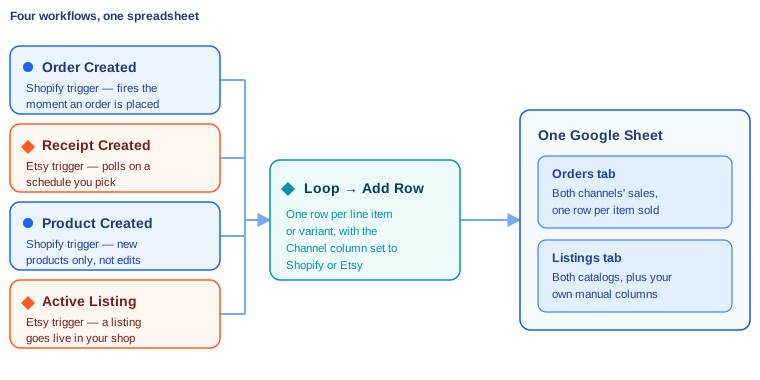
Four workflows, then. Two feed the Orders tab, two feed the Listings tab, and each one is a template you can install rather than a build you have to reason through from scratch.
The two workflows that fill the Orders tab
Shopify orders
Start with Send Shopify Orders to Google Sheets. It runs four steps: the Shopify Order Created trigger, a Retrieve Shop step that pulls your store details, a Loop over each product in the order, and a Google Sheets Add Row inside that loop. Order name, customer email, product name, SKU, and the shipping-address fields are all available to map, and you pick which ones you actually want.
Point it at your spreadsheet's Orders tab and set the Channel column to Shopify. If you already had this template running against its own separate sheet — which is how most people arrive at this problem — you are just re-pointing the existing Add Row step at the new destination, not rebuilding anything. Our walkthrough of the Shopify-to-Sheets setup covers the first-time version of that connection in more detail.
Etsy orders
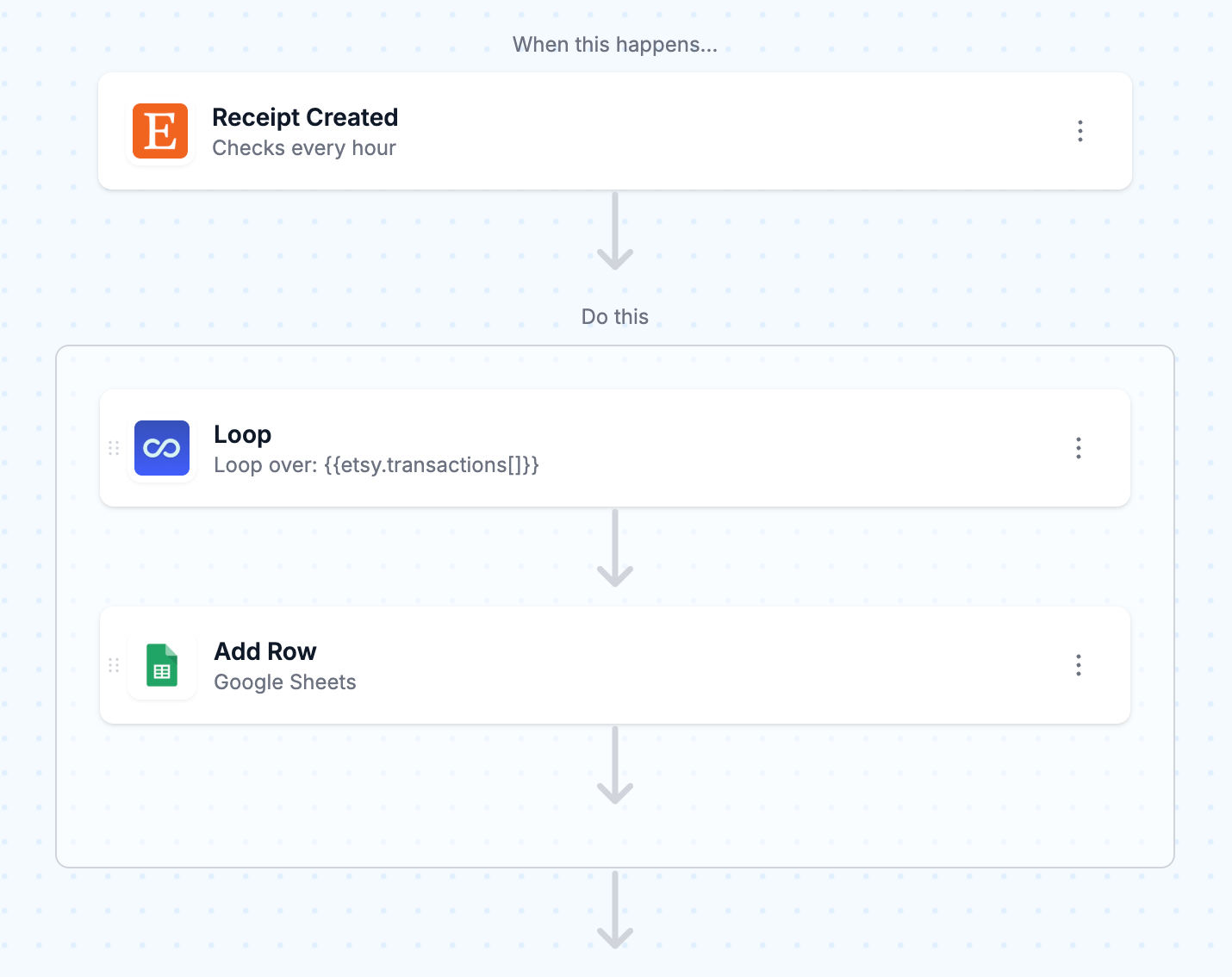
The Etsy equivalent is Send Etsy Orders to Google Sheets, and it is one step shorter: the Etsy Receipt Created trigger, a Loop through the line items, and Add Row. Etsy calls an order a receipt, which trips people up for about ten minutes and then never again.
Out of the box it writes the receipt ID, the buyer's name, the order total, and then per item: product title, product ID, quantity, and per-unit price — plus a direct Store Manager link back to the order, which is genuinely useful when you are working the sheet and need to check something on Etsy's side.
One field Shopify hands over freely that Etsy does not: the shipping address.
"You can no longer send Shipping updates (or access address information) without using Preferred Partners."MESA Docs, Etsy
So a shipping-address column on the shared Orders tab fills in for Shopify rows and sits empty for Etsy ones, unless you go through Etsy's Preferred Partner program. Leave it out of the shared layout rather than shipping a column that is half blank by design.
Map the rest to the same columns the Shopify workflow uses. Receipt ID goes in the same column as Shopify's order name; the buyer's name goes where the customer email went. The two channels will never give you identical fields, and that is fine — what matters is that "the order identifier" is always in column C, whichever shop it came from.
The two workflows that fill the Listings tab
Shopify products
Save New Shopify Products to Google Sheets uses the Product Created trigger, loops over the product's variants, and writes a row for each one: title, product ID, description, vendor, variant price, SKU, and inventory quantity. One row per variant is the right grain here — a shirt in five sizes is five things you need to track separately.
Note what this workflow does not do, because the template page says so plainly: it fires on newly created products only. Edit an existing product's price or inventory and no new row appears. If catalog changes are what you care about, that is a different trigger and arguably a different tab.
Etsy listings
Save Etsy Product Listings to Google Sheets waits for the Active Listing Created trigger, calls Retrieve Listing to pull the full record, then adds a row with listing ID, title, description, SKU, and price. The retrieve step is there because the trigger payload alone is thinner than what you want in the sheet.
Set Channel to Etsy, map into the same columns as the Shopify products workflow, and you have both catalogs side by side for the first time. If you want the sheet to push changes back the other way as well, Update Etsy Listing Prices from Google Sheets reverses the direction — edit a price in the sheet, and the listing updates.
The columns nobody's API will give you
This is the part the second seller was really asking about. They wanted a mockup link column and an ad-status column, and neither Etsy nor Shopify stores those. They live in your head, or in a Drive folder, or in a Meta Ads dashboard.
Put them in the sheet, to the right of every automated column. The Add Row action appends a new row and fills the columns it was configured with; anything past that range is yours to type into and MESA will leave it alone. So a Listings tab ends up laid out like this:
- Columns A-G, written by MESA — Channel, listing/product ID, title, SKU, price, inventory, date added.
- Columns H onward, written by you — mockup file link, ad status, ad spend, notes, whatever the business actually runs on.
Two rules keep that from falling apart. First, freeze the header row and never insert a column in the middle of the automated range — Add Row maps to positions, so inserting column D shifts every mapping after it and your prices start landing in the SKU column. Add new columns at the far right. Second, resist the urge to sort the sheet manually. New rows append at the bottom; if you sort by price on Tuesday, Wednesday's rows still land at the bottom and the order is meaningless. Sort inside a pivot table or a filter view instead, and leave the underlying rows in the order they arrived.
Three things that will surprise you on the first run
Etsy is not instant, and Shopify is
Shopify sends MESA a webhook the moment an order is created, so those rows appear within seconds. Etsy works differently:
"MESA workflows that contain Etsy triggers (such as Receipt Created or Listing Created) will run on a polling system."MESA Docs, Etsy
You choose the frequency in the trigger's Configure section, and the options available depend on your MESA plan. Practically: an Etsy sale might show up in the sheet up to an hour after it happened. That is completely fine for a daily reconciliation sheet and completely wrong for a "ping me the second something sells" alert. Know which one you are building. If it is the second one, that is a different pattern — see the broader guide to automating an Etsy shop for the notification-shaped workflows.
One order becomes several rows
Every one of these four templates loops — over line items, or over variants — and writes a row each time. A three-item Etsy order is three rows. That is the right shape for product-level analysis and the wrong shape for counting orders, so when you build a pivot on this sheet, count distinct order IDs rather than counting rows, and don't sum the order-total column across a multi-item order or you will triple-count it. The safe habit is to put the per-item price in its own column and treat the order total as a header value you only read once per distinct ID.
Sheets are big, but not infinite
"Up to 10 million cells or 18,278 columns (column ZZZ) for spreadsheets that are created in or converted to Google Sheets."Google Drive Help
At twenty columns, ten million cells is around half a million rows — years of runway for most shops, but a sheet gets sluggish long before it gets full, especially with formulas recalculating across the whole range. The simple fix is a new tab per quarter or per year, with the Add Row step re-pointed on the first of the period. Do that deliberately at a calendar boundary rather than discovering it when the file starts hanging.
What the merged sheet is actually for
Once both channels are in one place, a few things get easy that were previously impossible without exporting two CSVs and doing a lookup by hand:
- Which channel a product sells better on. Pivot the Orders tab by SKU and Channel. If a design moves on Etsy and dies on Shopify, that is a merchandising signal, not a coincidence.
- What is listed where. A lookup between the two Channel groups on the Listings tab shows you which Shopify products never made it to Etsy — usually more than you would guess.
- Price drift. The same SKU at two different prices across two channels is a thing that happens quietly and costs real money.
- Fulfillment tracking. The first seller's original ask: one queue you can work through in the morning without switching between two admin panels.
None of that requires a new tool. It requires the data to be in one table with a Channel column, which is the entire trick.
If you are still deciding how the two shops should relate to each other in the first place — which one holds inventory, which one is the storefront of record — our guide to running Etsy and Shopify together covers that decision and how to connect the two. This sheet is the reporting layer that sits on top of whichever setup you land on.
FAQs
Do I need four separate workflows, or can one workflow handle both channels?
Four, and that is the simpler design rather than the clumsier one. A MESA workflow has a single trigger, and "a Shopify order was created" and "an Etsy receipt was created" are two different events arriving through two different mechanisms. Splitting them also means each workflow's Add Row step can hard-code its own Channel value, and one channel breaking never takes the other down.
Can all four workflows write to the same spreadsheet at the same time?
Yes. Add Row appends to the bottom of a tab, so concurrent writes from different workflows land as separate rows rather than overwriting each other. The two Orders workflows share the Orders tab and the two Listings workflows share the Listings tab.
What if I already have the Shopify template running against a different sheet?
Keep it and re-point it. Open the existing workflow's Add Row step, change the spreadsheet and worksheet to the new shared one, remap the columns to match the merged layout, and add the Channel value. Your historical rows stay in the old sheet — paste them into the new Orders tab by hand if you want the history, and fill the Channel column in for them.
Will this pull in orders and listings that already exist?
No. All four triggers fire on new events going forward — a new order, a new receipt, a newly created product, a newly active listing. Backfilling existing data is a separate one-time job: export from each platform and paste it into the tab, matching the column layout and setting the Channel column yourself.
Does this work if I sell on Shopify only, or Etsy only?
It does, and the Channel column costs you nothing to add now. Single-channel sellers get the same benefit from the Listings tab's manual columns — the mockup link and ad-status fields have nothing to do with having two shops.
What happens if Google Sheets is briefly unavailable when a row is written?
That is exactly the failure the Save Shopify Orders to Google Sheets with Database Queue template exists for: it queues orders in Data by MESA and only releases them once the Google Sheets step succeeds. If losing a row would matter to you, start from that variant on the Shopify orders side instead of the plain one.