
Claude Desktop has three separate places where an MCP server can be configured — Extensions, custom connectors, and the claude_desktop_config.json file — and almost every "my MCP server won't load" problem comes from using the wrong one for the kind of server you have. A packaged extension installs in one click and never touches JSON. A remote server at an https:// URL belongs in Connectors, not the config file. Only a server that runs as a process on your own machine needs you to hand-edit JSON at all.
This guide covers all three paths, the exact file locations and menu clicks for each, and a troubleshooting order that finds the actual failure instead of guessing — including a Windows bug that makes correctly-written config silently disappear.
Which of the three setup paths you actually need
Before you open any settings menu, work out which category your server falls into. Getting this wrong is what produces the classic symptom: you save a config file, restart, and Claude behaves as though you never did anything.
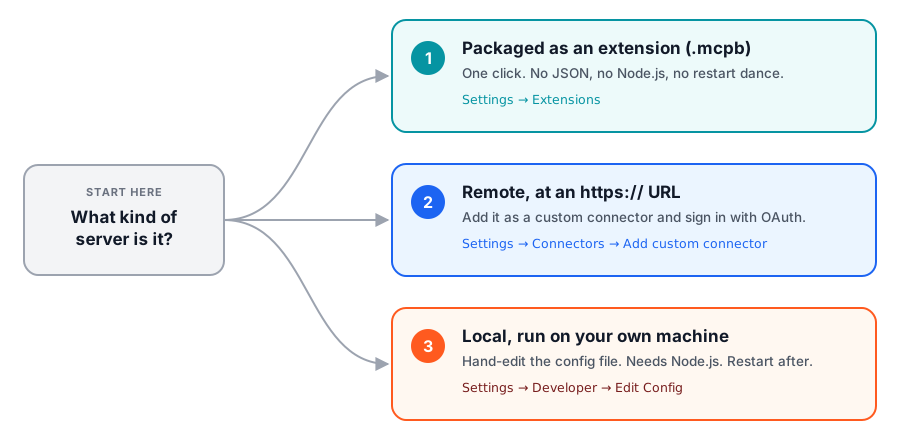
The short version:
- Someone handed you a
.mcpbfile, or the server is in Claude's extension directory. Use Extensions. You're done in about fifteen seconds. - You have a URL that starts with
https://. Use a custom connector. The config file is not involved, and putting the URL there won't work the way you expect. - You have a command to run — something like
npx some-server, a Python script, a binary — that talks over stdio. That's the only case that needsclaude_desktop_config.json.
Path 1: Install a packaged extension
Anthropic built Desktop Extensions specifically because manual JSON setup was losing people before they ever got a server running. An extension (a .mcpb file, previously .dxt) is a zip archive bundling the server and every dependency it needs into one installable package.
"Users needed developer tools, had to manually edit configuration files, and often got stuck on dependency issues."Anthropic Engineering
To install one, open Settings → Extensions and either browse the directory or drag in a .mcpb file you've been given. Double-clicking a .mcpb file also opens it with Claude Desktop, at which point you click Install.
There is no config file to edit and no Node.js install to babysit. If an extension exists for the tool you want, take it — the remaining two paths exist for cases where one doesn't.
Path 2: Add a remote server as a custom connector
Remote MCP servers are hosted on the internet rather than on your laptop, which means there's nothing to install and nothing to keep running. Claude connects to them over HTTPS, usually authenticating with OAuth so you never paste a raw password or API key into a settings box.
In Claude Desktop, press Ctrl+, (or open the top-left menu, hover File, and choose Settings), then click Connectors in the sidebar. Click Add at the top right, choose Add custom connector, and paste the server's full URL — protocol and path included, not just the domain.
If you're on a Team or Enterprise plan, this lives somewhere different: an owner adds the connector under Organization settings → Connectors, and members then enable it for themselves under Customize → Connectors. Anthropic's custom connectors documentation lists availability across the Free, Pro, Max, Team, and Enterprise plans, with free accounts capped at a single connector.
Once it's connected, open the connector again from that same Connectors list to choose which of its tools Claude is allowed to call. Doing this at setup time is worth the thirty seconds — a server that exposes twenty tools when you only need three is twenty tools' worth of surface area you have to trust.
Path 3: Edit claude_desktop_config.json for a local server
This is the path people mean when they say "MCP configuration," and it's the only one where you write JSON by hand. Use it when the server runs as a process on your own machine.
Open the file the supported way
Click the Claude menu in your operating system's menu bar — not the settings inside the Claude window — and choose Settings…. Go to the Developer tab and click Edit Config. That button creates the file if it doesn't exist yet and opens it in your default editor.
The file itself lives at:
- macOS:
~/Library/Application Support/Claude/claude_desktop_config.json - Windows:
%APPDATA%\Claude\claude_desktop_config.json
Check Node.js first
Most published MCP servers are distributed as npm packages and launched with npx, so Node.js has to be installed and on your PATH before any of this works. Confirm it:
node --versionIf that command isn't found, install the LTS build from nodejs.org before going further. A missing Node.js is the most common reason a perfectly valid config produces no server.
Write a minimal working config
Every server goes inside a top-level mcpServers object, keyed by whatever name you want to see in the UI. Here's the filesystem server, which is a good first test because it fails loudly and obviously:
{
  "mcpServers": {
    "filesystem": {
      "command": "npx",
      "args": [
        "-y",
        "@modelcontextprotocol/server-filesystem",
        "/Users/username/Desktop",
        "/Users/username/Downloads"
      ]
    }
  }
}
On Windows the same config needs escaped backslashes in the paths — "C:\\Users\\username\\Desktop", not "C:\Users\username\Desktop". A single backslash is a JSON escape character, so the unescaped version is either a parse error or a silently mangled path.
Reading the keys:
"filesystem"— the display name. Arbitrary, but it's what you'll look for in the UI and in log filenames, so keep it short and distinct."command"— the executable to launch.npxhere; it could equally bepython,uvx, or an absolute path to a binary."args"— everything passed to that command. For the filesystem server, the trailing entries are the directories it's permitted to touch."env"— optional, and where API keys go for servers that need them.
Adding a second server means adding a second key inside mcpServers, not a second mcpServers block. Duplicate top-level keys are the other classic JSON mistake here.
One security note that applies to every entry you add: the server runs with your user account's permissions. It can do anything you can do. Scope the directories and credentials you hand it accordingly — the MCP documentation is blunt that you should only grant access to directories you're genuinely comfortable letting Claude read and modify.
Restart properly, then verify
Claude Desktop reads this file at launch, so changes need a full restart — quit the application entirely rather than closing the window. On macOS in particular, closing the window leaves the app running and your edit unread.
After it reopens, click the "Add files, connectors, and more /" control at the bottom-left of the message box, hover Connectors, and click Manage connectors. Your server should be listed with its tools. If it isn't, don't start rewriting the config — go read the logs.
When the server doesn't show up, in the order that finds it fastest
The failure mode that wastes the most time is a config that's correct but never loaded. Working in this order separates "my JSON is wrong" from "my JSON is never being read."
1. Read the log files
Claude Desktop writes MCP connection logs to disk, and they usually name the problem outright:
- macOS:
~/Library/Logs/Claude - Windows:
%APPDATA%\Claude\logs
mcp.log holds general connection activity and failures. Each server also gets its own mcp-server-SERVERNAME.log containing that server's stderr output — and because stdio servers often log everything to stderr, that file is worth reading even when nothing is obviously broken. To watch them live on macOS:
tail -n 20 -f ~/Library/Logs/Claude/mcp*.log2. Run the server by hand
Take the command and args from your config and run them directly in a terminal:
npx -y @modelcontextprotocol/server-filesystem /Users/username/Desktop /Users/username/DownloadsIf it errors there, the problem is the server or your environment, not Claude. This one step resolves a surprising share of cases — missing package, wrong path, no network, a runtime that isn't installed.
3. On Windows, confirm you're editing the file Claude reads
This one is genuinely invisible without knowing about it. Claude Desktop on Windows ships as an MSIX package, which runs inside a virtualized filesystem. The app reads its config from the virtualized location, but the Edit Config button opens the real, non-virtualized %APPDATA%\Claude\claude_desktop_config.json. Those are two different files that never sync.
"The app's 'Edit Config' button in Developer settings opens a config file at %APPDATA%\Claude\claude_desktop_config.json, but the app actually reads from a different location inside the MSIX virtualized filesystem. This causes MCP server configurations to be silently ignored with no error messages, no logs, and no indication that anything is wrong."anthropics/claude-code issue #26073
The issue was filed in February 2026 and is still open at the time of writing. If your Windows config looks perfect and produces nothing at all — no server, no log entries — try writing the same JSON to the virtualized path instead:
%LOCALAPPDATA%\Packages\Claude_pzs8sxrjxfjjc\LocalCache\Roaming\Claude\claude_desktop_config.jsonThe package identifier in that path is specific to the MSIX build, so check what's actually under %LOCALAPPDATA%\Packages\ on your machine rather than copying it blindly.
4. Fix the ENOENT / ${APPDATA} error
If a server's log shows an error referencing ${APPDATA} inside a path, set the expanded value explicitly in that server's env block:
{
  "brave-search": {
    "command": "npx",
    "args": ["-y", "@modelcontextprotocol/server-brave-search"],
    "env": {
      "APPDATA": "C:\\Users\\user\\AppData\\Roaming\\",
      "BRAVE_API_KEY": "..."
    }
  }
}
Related: npx can keep failing if npm isn't installed globally. Check whether %APPDATA%\npm exists; if it doesn't, run npm install -g npm and restart Claude Desktop.
5. Use absolute paths, always
Relative paths in args don't resolve the way you'd expect, because the server is launched by the desktop app rather than from your shell's working directory. Every path in the config should be absolute.
A worked example: connecting your ecommerce stack
The reason most people set any of this up is to get Claude working against real business data instead of describing it in the abstract. MESA's MCP server is a reasonable illustration of the local-server path, because it uses the mcp-remote bridge pattern you'll hit with a lot of hosted servers.
MESA exposes its server over SSE at a URL that carries its own credentials, and its documentation configures Claude Desktop like this:
{
  "mcpServers": {
    "mesa": {
      "command": "npx",
      "args": [
        "mcp-remote",
        "https://mcp-server.getmesa.com/sse/ID/KEY"
      ],
      "env": {}
    }
  }
}
The ID and KEY come from the MCP trigger step inside your MESA workflow, and MESA's docs ask for Node.js 20.1.0 or newer. Note what this config is doing: mcp-remote runs locally and bridges to a hosted endpoint, which is why a remote service still shows up in the local config file. That's the nuance behind "you can't just paste a URL in here" — you need something local to speak stdio on the remote server's behalf.
It also means the credential is sitting in a plaintext file:
"Treat your MCP Configuration JSON like a password. It can be used to access and update your data."MESA Docs
Don't commit it, don't paste it into a chat, and rotate it if it leaks. If you'd rather skip the config file entirely, MESA's hosted endpoint can also be added through the custom connector path in Path 2 above — and our walkthrough of connecting Claude to the MESA MCP server covers that route step by step, along with a directory of other third-party servers worth adding. For what MESA's MCP server actually unlocks once it's connected — chained skills, per-tool approvals, built-in logging — see our overview of MESA MCP.
If you're actually in Claude Code, none of this applies
Worth stating plainly, because it's a common wrong turn: Claude Code is the terminal tool, and it does not read claude_desktop_config.json at all. It has its own claude mcp add command and its own scope system for deciding which projects a server appears in. Editing the desktop config to fix a Claude Code problem will do nothing. See how to add an MCP server to Claude Code for that side of it.
What you're actually granting
An MCP server isn't a passive data source — it hands Claude tools that take actions, and the content those tools return goes into Claude's context. That combination is the thing to think about before adding a server you found on the internet.
"Malicious MCP servers may include hidden instructions that try to make Claude perform unintended actions."Anthropic Help Center
Three habits that cover most of the risk: connect servers built and hosted by organizations you'd already trust with the underlying data; review the OAuth scopes a connector requests during setup and narrow them where the server lets you; and periodically prune connectors you've stopped using. Anthropic's official server collection is a safer starting point than an unvetted repository when you're just exploring what's possible.
FAQs
Where is claude_desktop_config.json located?
On macOS it's at ~/Library/Application Support/Claude/claude_desktop_config.json, and on Windows at %APPDATA%\Claude\claude_desktop_config.json. The reliable way to open it is Settings → Developer → Edit Config, which also creates the file if it doesn't exist yet. On Windows MSIX installs, be aware that button may open a different file than the one the app reads — see the troubleshooting section above.
Do I need Node.js to add an MCP server to Claude Desktop?
For the config-file path, usually yes: most MCP servers are npm packages launched with npx. You don't need it for packaged extensions (dependencies are bundled) or for remote custom connectors (nothing runs locally at all).
Can I put a remote MCP server URL directly in claude_desktop_config.json?
Not as a plain URL. The config file describes local processes to launch, so a hosted server either goes in through Settings → Connectors → Add custom connector, or gets bridged with a local helper like mcp-remote as in the MESA example above.
Do I have to restart Claude Desktop after editing the config?
Yes, and it has to be a full quit rather than closing the window — the file is only read at launch. Connectors and extensions added through the UI don't need a restart.
Why does my server connect but show no tools?
Check mcp-server-SERVERNAME.log for that specific server. A process that starts successfully but exposes nothing usually means it's missing a required credential in its env block, or it started in a state where it has nothing to offer. Running the same command manually in a terminal will normally surface the error the log is hiding.
Is MCP available on the free Claude plan?
Custom connectors are listed as available on Free, Pro, Max, Team, and Enterprise plans, with free accounts limited to one connector at a time. Anthropic's local MCP server documentation doesn't state a plan restriction for the config-file path.
Getting the first one connected
If you're stuck, the fastest route out is almost always to stop editing JSON and start reading mcp.log. Between that file, running the server command manually, and knowing which of the three configuration paths your server actually belongs in, there aren't many failure modes left that stay mysterious for long.
Start with the filesystem server as a smoke test. Once one server is connected and visible in the connectors list, adding the next is a two-line change — and at that point it's worth pointing Claude at the systems where the tedious work actually lives. MESA is one way to give it a single endpoint that reaches your store, spreadsheets, and messaging tools at once, rather than maintaining a config entry for every one of them.