
If you've typed claude mcp add into your terminal and watched it fail — or you're not sure whether the server you want lives at a URL or runs as a local process — this guide walks the whole thing end to end. You'll add a server, confirm it actually connected, handle the sign-in step that trips most people up, and know exactly which file on disk holds the config when you need to debug it.
One thing to settle first, because it's the single biggest source of confusion: Claude Code and the Claude desktop chat app are different products, and they add MCP servers differently. Claude Code is the terminal tool, and it uses the claude mcp commands below. The Claude chat app uses a Connectors screen in its settings. If you're in the chat app rather than the terminal, skip to adding a server to the Claude chat app instead.
TL;DR: there's a template for that
What an MCP server actually gives Claude Code
The Model Context Protocol is an open standard for connecting AI applications to outside systems — databases, APIs, SaaS tools, your filesystem. An MCP server is the piece that exposes those capabilities in a shape Claude can call. The protocol's own documentation puts the pitch simply:
"Think of MCP like a USB-C port for AI applications. Just as USB-C provides a standardized way to connect electronic devices, MCP provides a standardized way to connect AI applications to external systems."Model Context Protocol documentation
In practice, connecting one means Claude Code stops needing you to paste things into chat. Instead of copying a Sentry stack trace or a Linear ticket into the terminal, you connect the server once and ask Claude to go read it.
Before you start
- Claude Code installed and authenticated, with a terminal open in a project directory. Any directory works, including an empty one.
- The server's URL (for a hosted server) or the command that starts it (for a local one). Anthropic's connector directory lists reviewed remote servers you can add straight away.
- Run the
claude mcpcommands in your shell, not inside a runningclaudesession. Inside a session you use the/mcpslash command instead.
The four steps, start to finish
Every server follows the same shape: add it, check the status, sign in if it asks, then use it.
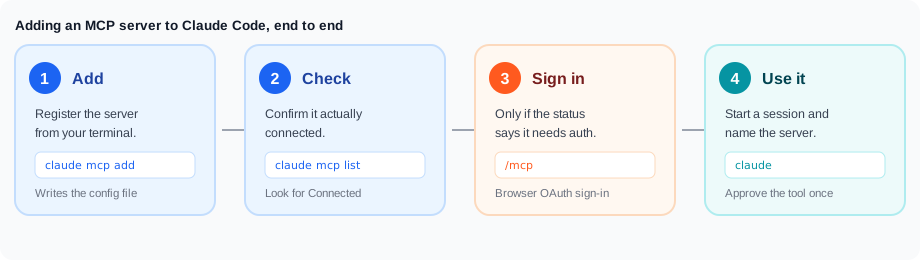
Step 1: Add the server
Most servers you'll want today are hosted at a URL, which means the HTTP transport. The basic syntax is:
claude mcp add --transport http <name> <url>The name is yours to pick — it's just the label Claude Code uses for that server's tools and in later commands. A concrete example using Anthropic's own documentation server, which needs no authentication and is a good one to test the flow with:
claude mcp add --transport http claude-code-docs https://code.claude.com/docs/mcpYou'll get back a confirmation line like Added HTTP MCP server claude-code-docs with URL: https://code.claude.com/docs/mcp to local config, plus a File modified: line naming the config file it wrote.
Read that confirmation carefully, because it's easy to over-read: it means the configuration was saved, not that the server works. That's what step 2 is for.
Step 2: Check that it connected
claude mcp listEach server comes back with a status, and the status tells you which problem you have:
✔ Connected— ready to use.! Needs authentication— the server is reachable but wants a browser sign-in or a token. Step 3 handles this.! Connected · tools fetch failed— it connected but couldn't list its tools. Runclaude mcp get <name>for the detail; this is usually a missing API key.✘ Failed to connect— the server didn't respond. Recent Claude Code versions append the HTTP status or the server's own error text to this line, which usually names the cause outright.✘ Connection error— the connection attempt threw. No detail is appended here by design, since the error text can embed a URL carrying secrets.⏸ Pending approval— a project-scoped server you haven't approved yet. Runclaudeinteractively to approve it.
A note for Windows users: some older consoles, including the default one on Windows 10, don't render those glyphs and show √ and × instead.
Step 3: Sign in, if it asks
Hosted services like Sentry, Linear, and Notion put their MCP servers behind OAuth. You add the URL first, see ! Needs authentication, then complete the sign-in from inside a session:
claude mcp add --transport http sentry https://mcp.sentry.dev/mcp
claude
Then type /mcp, select the server, press Enter, and choose Authenticate. Your browser opens to the service's sign-in page; approve there and the status flips to connected back in the terminal. If the browser doesn't open on its own, copy the URL printed in the terminal and open it by hand.
Servers that use a static token rather than OAuth take it at add time instead:
claude mcp add --transport http secure-api https://api.example-service.com/mcp \
  --header "Authorization: Bearer YOUR_TOKEN"
Step 4: Use it
Start a session with claude and name the server in your prompt the first time, just to prove the round trip:
Use the claude-code-docs server to look up what MCP_TIMEOUT doesClaude asks permission before the first tool call — approve it. The tool calls in the output are labeled with the server name, which is how you know the answer came from the server rather than from Claude's own knowledge. After that first run you don't need to name servers; Claude picks relevant tools on its own.
When you're done with a server, remove it:
claude mcp remove claude-code-docsWorth doing regularly, not just for tidiness: every connected server's tool names and instructions load into every session, so each one costs context window whether you use it or not.
The three transports, and when you need each
The --transport flag (short form -t) is where most first-attempt failures come from — people use the HTTP syntax for a local server, or forget the -- separator.
HTTP — a hosted server at a URL
The default choice for anything hosted, and the only one of the three that supports OAuth sign-in:
claude mcp add --transport http notion https://mcp.notion.com/mcpIf you're copying a config from a server's own docs, you may see the type written as streamable-http. That's the MCP specification's name for the same transport, and Claude Code accepts it as an alias for http in JSON configs, so pasted configs work unmodified.
SSE — an older hosted format
Some services still expose only a Server-Sent Events endpoint. Same command, different transport value:
claude mcp add --transport sse asana https://mcp.asana.com/ssestdio — a program on your own machine
A local server is a program Claude Code launches as a subprocess, which is what you want for anything needing your filesystem, a database socket, or a real browser. stdio is the default transport, so you can omit the flag entirely — but you must use the -- separator:
claude mcp add <name> -- <command> [args...]For example, adding Microsoft's Playwright server, which gives Claude a browser it can drive (it runs through npx, so it needs Node.js 18 or later):
claude mcp add playwright -- npx -y @playwright/mcp@latestEverything after -- is passed to the server untouched; everything before it belongs to Claude Code. Get this backwards and the server either won't start or will start with the wrong arguments. If the server needs credentials, pass them with --env:
claude mcp add --env AIRTABLE_API_KEY=YOUR_KEY --transport stdio airtable \
  -- npx -y airtable-mcp-server
One quirk to expect on a first add: claude mcp list can show ✘ Failed to connect while npx is still downloading the package. Wait a moment and run it again before you start debugging.
Picking a scope (this is the setting people get wrong)
Every server is added at one of three scopes, and the scope decides which projects it loads in and whether your team gets it too. Set it with --scope (or -s):
| Scope | Loads in | Shared with team | Stored in |
|---|---|---|---|
local (default) | Current project only | No | ~/.claude.json, under this project's entry |
project | Current project only | Yes, via version control | .mcp.json in the project root |
user | All your projects | No | ~/.claude.json, top-level mcpServers key |
Because local is the default, the most common surprise is adding a server in one project and finding it missing in the next. If you want a server everywhere, say so explicitly:
claude mcp add --scope user --transport http hubspot https://mcp.hubspot.com/anthropicA server's scope is fixed when you add it, so changing it means removing the entry and re-adding it. Run claude mcp get <name> to see which scope currently holds a definition. When the same name exists at more than one scope, Claude Code uses exactly one definition — local beats project beats user — and it uses that entry whole rather than merging fields across scopes.
On Windows, ~/.claude.json resolves to %USERPROFILE%\.claude.json.
Sharing servers with your team via .mcp.json
Project scope writes to .mcp.json in your project root, which you commit like any other config file:
claude mcp add --scope project --transport http shared-server https://example-service.com/mcpYou can also just write the file yourself — it's the format most worth knowing by hand, since it doubles as configuration-as-code:
{
  "mcpServers": {
    "claude-code-docs": {
      "type": "http",
      "url": "https://code.claude.com/docs/mcp"
    },
    "playwright": {
      "type": "stdio",
      "command": "npx",
      "args": ["-y", "@playwright/mcp@latest"]
    }
  }
}
HTTP entries take a url; stdio entries take command and args. Claude Code reads this file at session start, so restart the session after editing it — "my change didn't take effect" is almost always just a stale session.
Two more things worth knowing about project scope. First, teammates who clone the repo get an approval prompt before the servers connect; that prompt exists so a repository you clone can't quietly launch processes on your machine. If you dismissed it and now can't get it back, run claude mcp reset-project-choices. Second, .mcp.json supports environment variable expansion — ${VAR}, or ${VAR:-default} with a fallback — so you can share a config that references machine-specific paths and personal API keys without committing either.
Troubleshooting the failures you'll actually hit
"No MCP servers configured"
Nearly always scope. Local-scoped servers are tied to the project you added them from, so switching directories makes them vanish. Re-add from the right project, or use --scope user. The other cause is editing a config file at a path Claude Code doesn't read: the real files are ~/.claude.json and <project>/.mcp.json, and paths like ~/.claude/mcp.json are ignored.
Failed to connect, on a hosted server
Check the URL is reachable from your machine at all:
curl -I https://mcp.sentry.dev/mcpA 404 or 405 is fine — many MCP endpoints only answer POST, so that still proves the host is up. A 401 or 403 means you need to authenticate. No response at all means the URL or your network is the problem. In PowerShell, use curl.exe so the request hits real curl rather than the Invoke-WebRequest alias.
Also scan the claude mcp list output for a whitespace warning. Claude Code flags config values carrying hidden leading or trailing whitespace — overwhelmingly a token pasted with a trailing newline — and it doesn't trim them for you.
Failed to connect, on a local server
Run the configured command yourself in a terminal. If it starts and waits for input, the server is fine and the config is wrong — compare it against claude mcp get <name>, and check you didn't omit the -- separator. If the command errors, the message names what's missing.
Connection timed out at startup
The default startup timeout is 30 seconds, which a first npx download can exceed. Raise it in milliseconds:
MCP_TIMEOUT=60000 claudeConnects, but no tools appear
Run /mcp and select the server. An empty tool list means it started without a required environment variable, usually an API key — pass it with --env KEY=value or in the entry's env field.
"Server already exists"
You've used that name at that scope already. Remove it or pick a different name. If the name exists at several scopes, remove reports exists in multiple scopes and you'll need to say which: claude mcp remove <name> --scope local. Note too that a handful of names are reserved for Claude Code's built-in servers — workspace, claude-in-chrome, computer-use, Claude Preview, and Claude Browser — and claude mcp add rejects them outright.
Adding a server to the Claude chat app instead
If you're not in a terminal, none of the above applies. In the Claude desktop or web chat app, a remote MCP server is added as a custom connector: go to Customize > Connectors, click +, choose Add custom connector, paste the server URL, and click Add. On Team and Enterprise plans an owner adds it under Organization settings > Connectors first, and members then hit Connect to authenticate. Anthropic's support documentation notes two limits worth knowing before you start: free-plan users are capped at one custom connector, and the server has to be reachable over the public internet from Anthropic's IP ranges, so anything behind a VPN or firewall won't connect without allowlisting. Our guide to connecting Claude to any MCP server walks that path in detail. If you need a local server instead — one that runs as a process on your own machine rather than a hosted connector — that's a different config file and setup entirely; see our guide to configuring MCP servers in Claude Desktop for that path.
The two aren't sealed off from each other. If you already have servers configured in the Claude desktop chat app, claude mcp add-from-claude-desktop copies them into the CLI on macOS and WSL. And connectors you've added at claude.ai load automatically in Claude Code when you sign in with that account.
Pointing Claude Code at your ecommerce stack
Most published MCP servers are developer tools — issue trackers, browsers, databases. If what you actually want is for Claude to check inventory, look up an order, or update a spreadsheet row, you'd otherwise be adding and authenticating a separate server per app, each with its own credentials to manage.
MESA takes the other approach: one server, many apps. You build a workflow with an MCP trigger, pick the app actions you want Claude to be able to call, turn the workflow on, and copy the MCP server URL it generates. MESA describes the result as securely unlocking "over 4,000 new actions" across the apps it integrates with, with no server to host and no code to write. Because that URL is a standard remote MCP endpoint, adding it to Claude Code is the same one-liner as any other hosted server:
claude mcp add --transport http mesa <your-mesa-mcp-server-url>Treat that URL like a password — it carries your access, so keep it out of anything you commit. That also makes --scope local (the default) or --scope user the right choice for it rather than a checked-in .mcp.json. If you want the full walkthrough of building the trigger and choosing actions, we cover it in the universal MESA MCP server guide.
FAQs
What is the difference between claude mcp add and the /mcp command?
claude mcp add is a shell command you run before starting a conversation — it writes the server into a config file. /mcp is a slash command you run inside a Claude Code session to check status, authenticate with OAuth servers, toggle servers off, and reconnect ones that dropped. You add with the first, manage with the second.
Why does my MCP server disappear when I switch projects?
Because local scope is the default, and local-scoped servers are stored against the specific project you added them from. Re-add the server with --scope user to make it load in every project on your machine, or --scope project to tie it to a repo and share it with your team.
Do I need to restart Claude Code after adding a server?
Not when you use claude mcp add from your shell before starting a session. You do need to restart if you edited .mcp.json by hand while a session was open, since Claude Code reads that file at session start.
How do I add an MCP server that requires an API key?
It depends on the transport. For a local stdio server, pass it as an environment variable with --env KEY=value. For a hosted server that takes a static token, pass it as a header at add time with --header "Authorization: Bearer YOUR_TOKEN". For a hosted server using OAuth, you don't handle the credential at all — add the URL, then run /mcp and choose Authenticate to sign in through your browser.
Can I see which MCP servers I have configured and where?
Run claude mcp list for every server plus its connection status, and claude mcp get <name> for one server's full detail, including which scope holds its definition and any error text behind a failed connection.
Getting past the first server
The commands themselves are short. What actually costs people an afternoon is the surrounding detail: local scope hiding a server in another project, a missing -- separator mangling a stdio command, or an Added confirmation being read as proof that a connection works. Add one server, run claude mcp list, and get to ✔ Connected before you add a second — from there the pattern repeats for everything else.
For the complete reference, including managed enterprise configuration and per-server timeouts, see Anthropic's MCP documentation for Claude Code and its MCP quickstart.