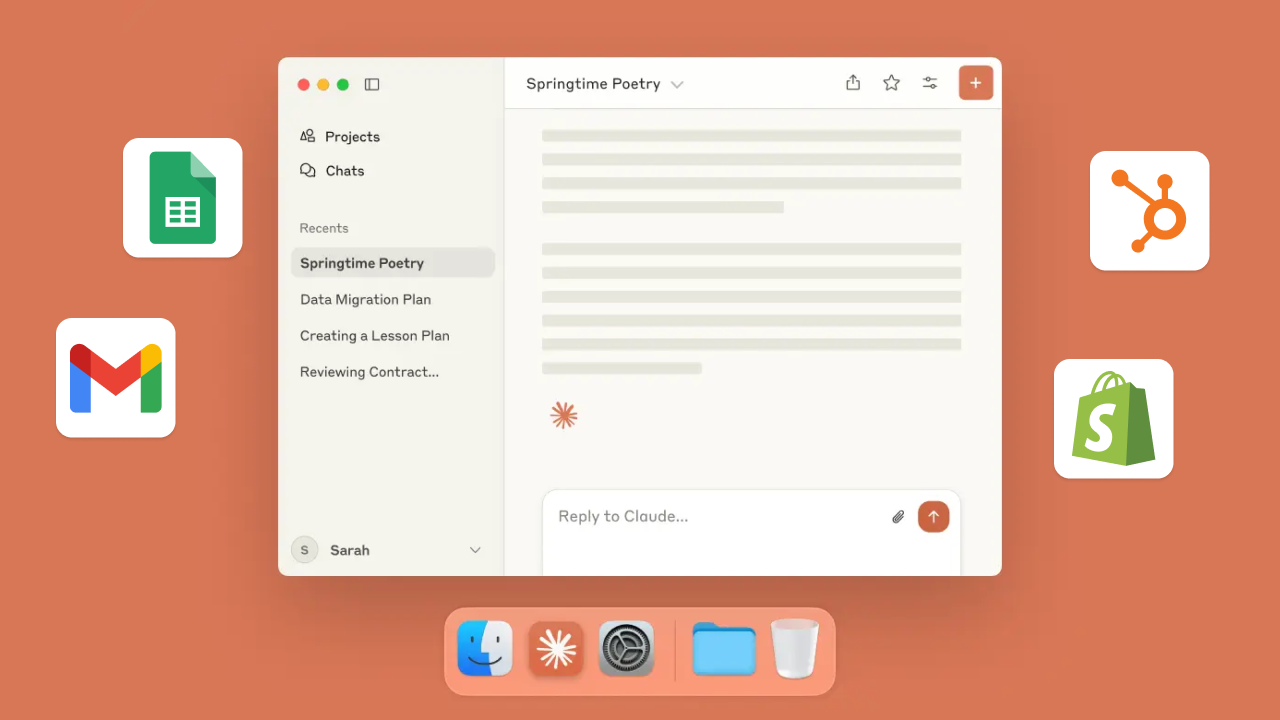
Claude has powerful AI capabilities that can boost productivity and simplify your work. However, unlocking Claude's full potential depends on how well you can connect it to your existing apps and data sources. That's where MCP (Model Context Protocol) integration comes in, enabling seamless connectivity between Claude's AI capabilities and the rest of your workflow.
MCP is an open standard introduced by Anthropic in November 2024 that provides a secure communication layer allowing Claude to both access and interact with your digital tools. Instead of manually jumping between disconnected apps, MCP gives Claude the ability to instantly retrieve the right data—and just as importantly, use the appropriate tools to act on it.
This guide will explain how MCP works and how it can improve interactions between Claude and your apps. We'll walk you through the steps to connect Claude to an MCP server, along with innovative ways to manage these integrations.
By the end, you'll have a clear understanding of how MCP can help you simplify daily tasks.
TL;DR: there's a template for that
Step-by-step: How to connect Claude to the MESA MCP server (no code example)
Time needed: 10 minutes.
MESA MCP simplifies the process with a zero-code approach that connects Claude directly to all your tools on MESA with a single MCP server. This quick setup makes Claude more context-aware of your everyday apps while keeping your credentials safe and secure.
- Start with the MESA MCP trigger
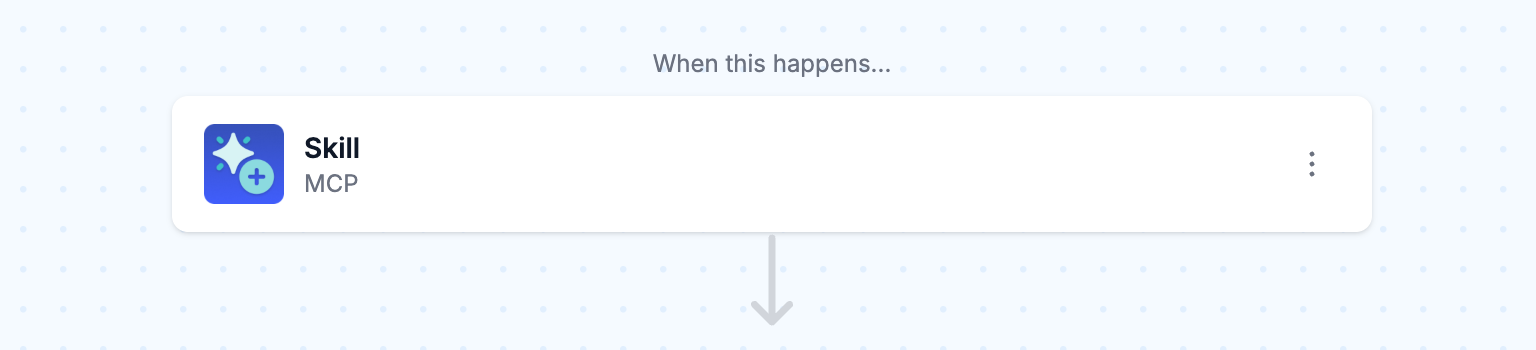
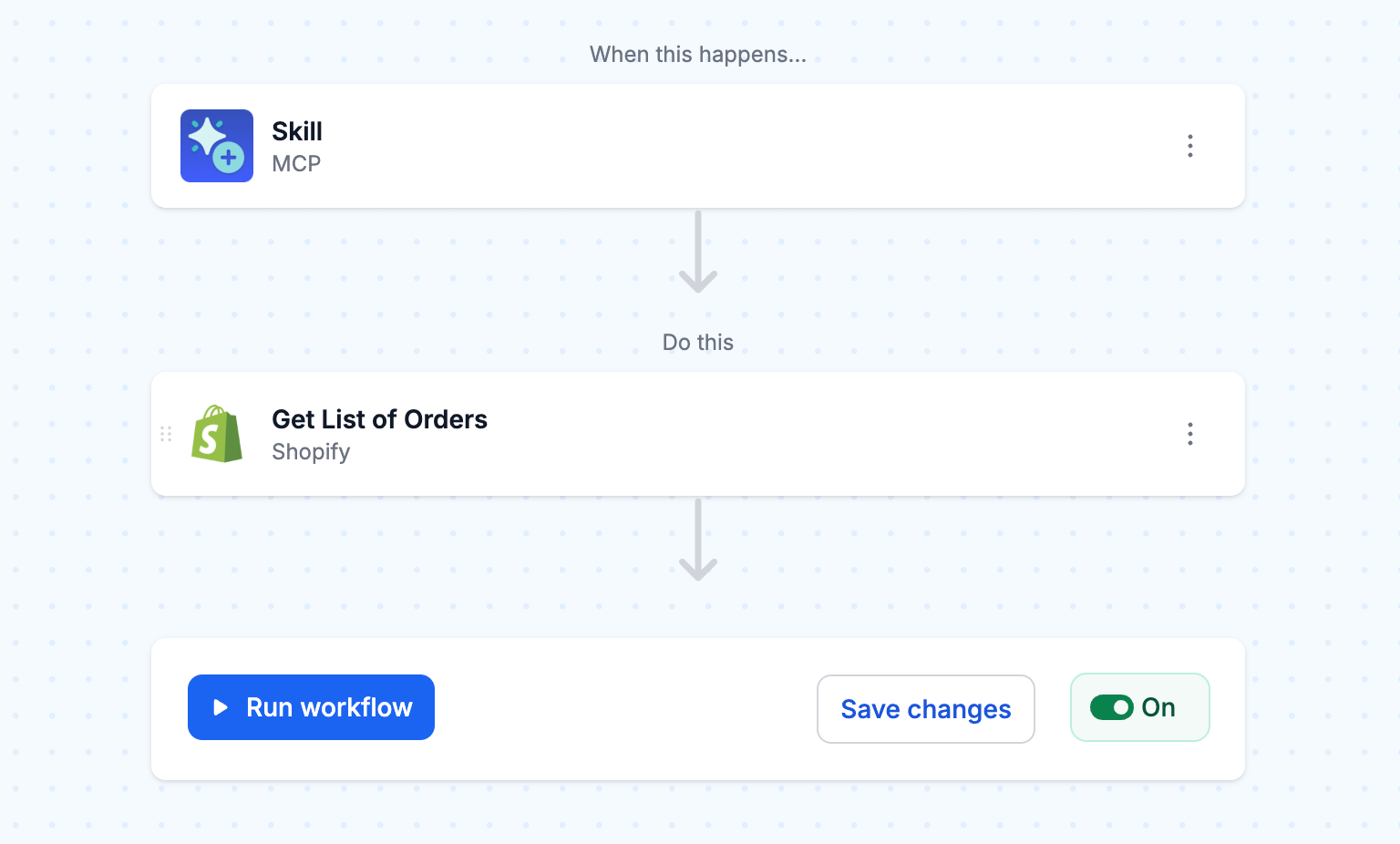
To begin with, create a new workflow in your MESA account and select MCP as the first trigger. This trigger is the glue between Claude and the apps you want to use.
- Choose relevant app actions
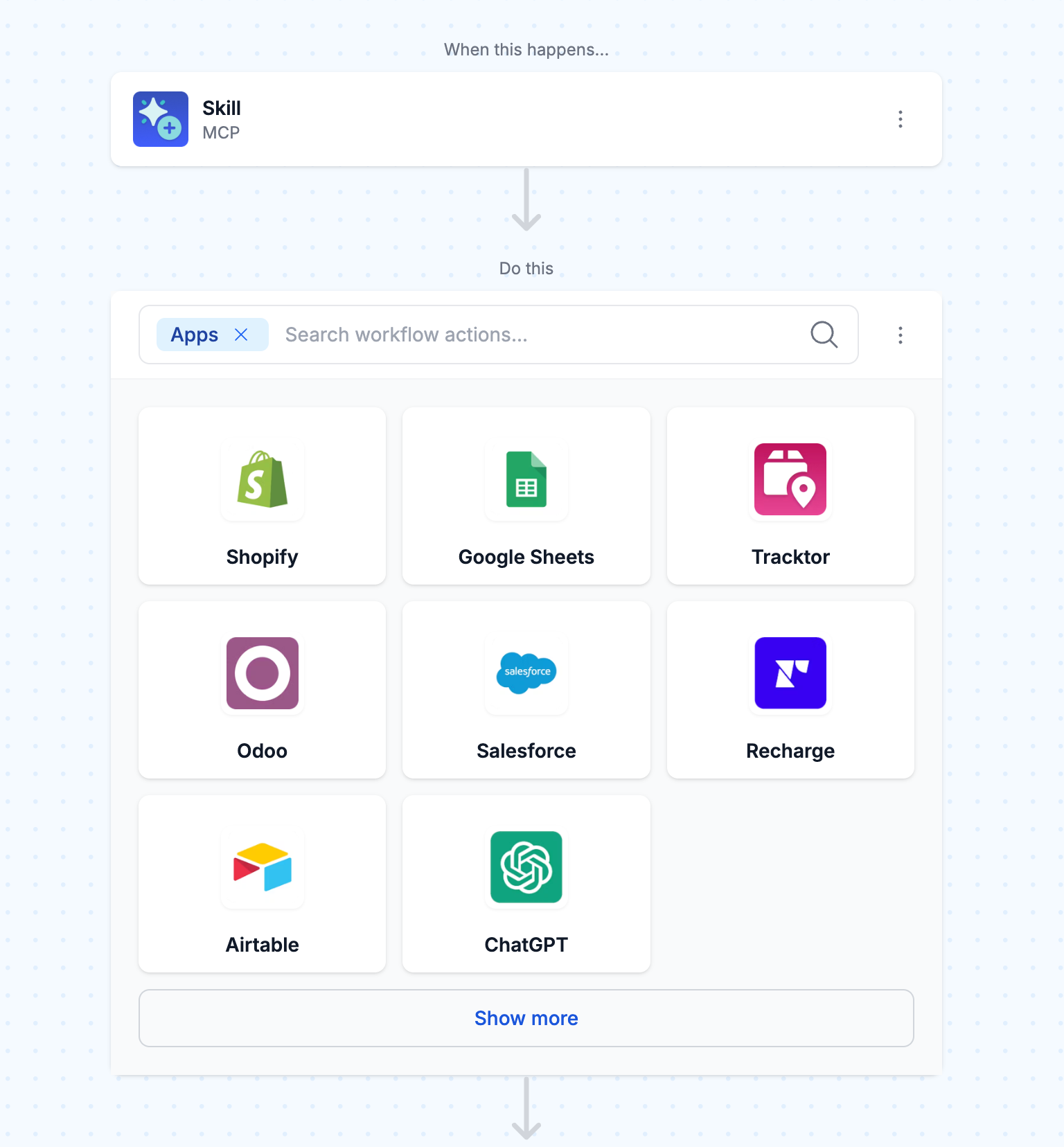
Then, select the app, then actions, Claude will use. Like checking inventory on your Shopify store, sending an email, or updating an Airtable row. Each action corresponds to a action Claude can invoke. Choose actions that match the tools you work with so Claude has the right skills available.
- Optionally, configure MCP trigger parameters
Trigger parameters are the fields that power your workflow. These values act as variables inside Claude—captured at the start of the workflow and passed through to subsequent steps.
Each parameter includes a name (e.g., “Order number”) and a description (e.g., “A unique numeric identifier for a Shopify order”), helping users understand what’s required.
Consequently, by defining clear parameters up front, you make your workflow flexible, reusable, and ready to handle dynamic input every time it runs.
Click "More fields" to open the side sheet and choose "Parameters" to add this to the trigger.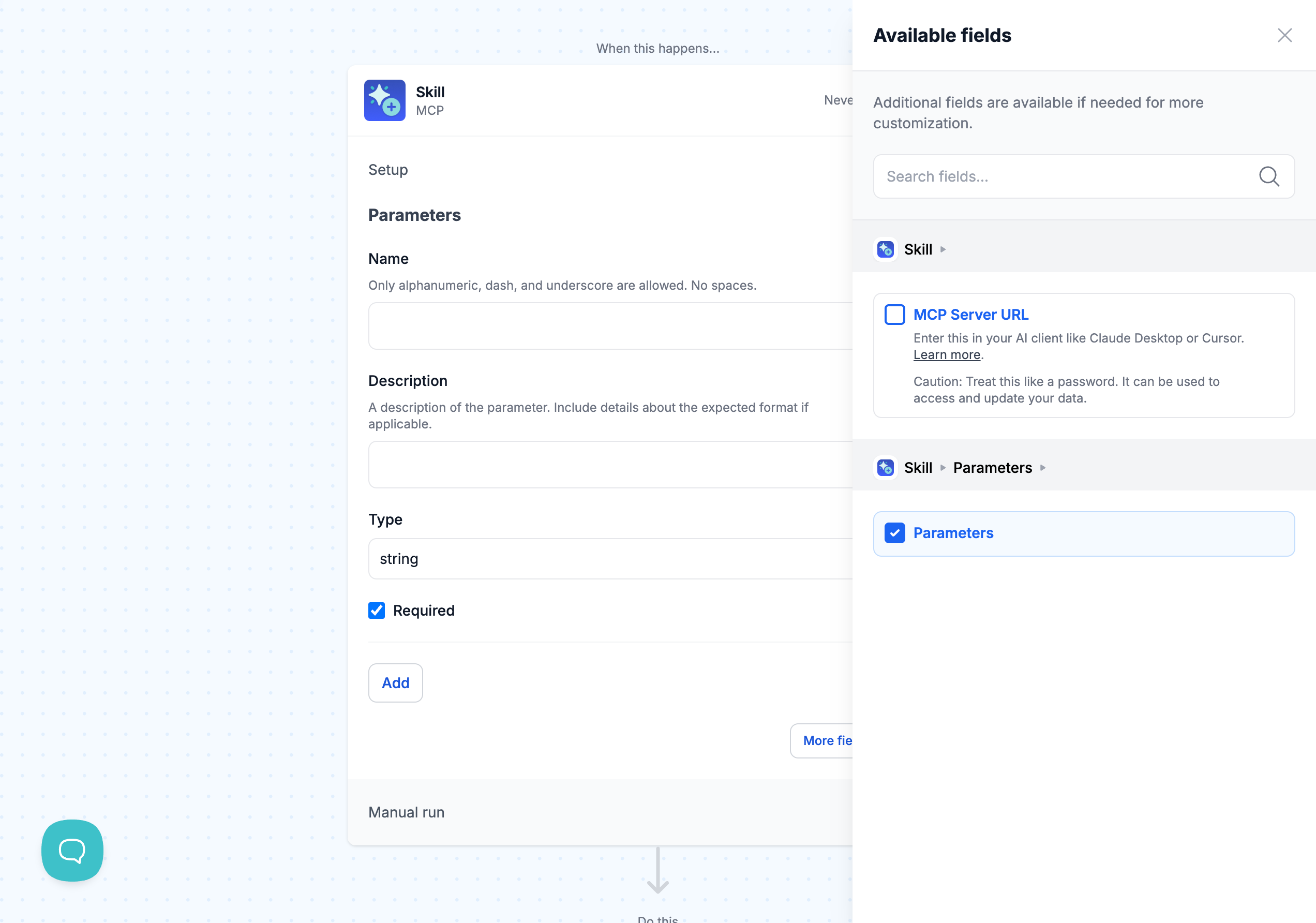
- Turn on your workflow
Once you've defined your skills and optional parameters, turn your workflow "On". This will enable Claude to access your MCP server skills.
- Copy your MCP server URL
Copy the unique MCP Server URL from the trigger—keep it confidential like a password—as Claude will need this information to connect to your MCP endpoint.
Click the "More fields" button from the trigger setup then, click the option to add MCP Server URL to the trigger.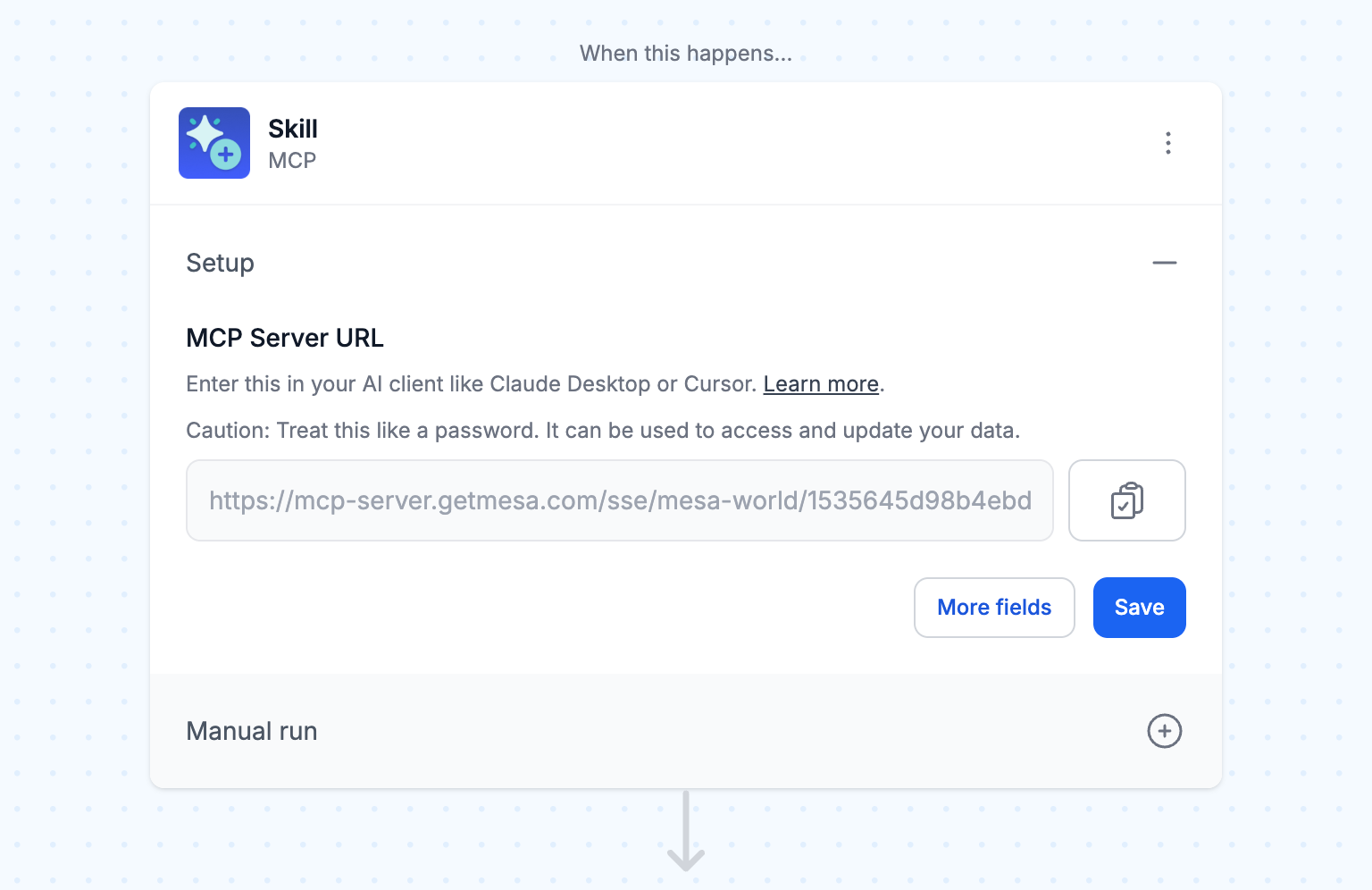
- Navigate to Claude Settings > Connectors
In Claude, go to Settings > Connector.
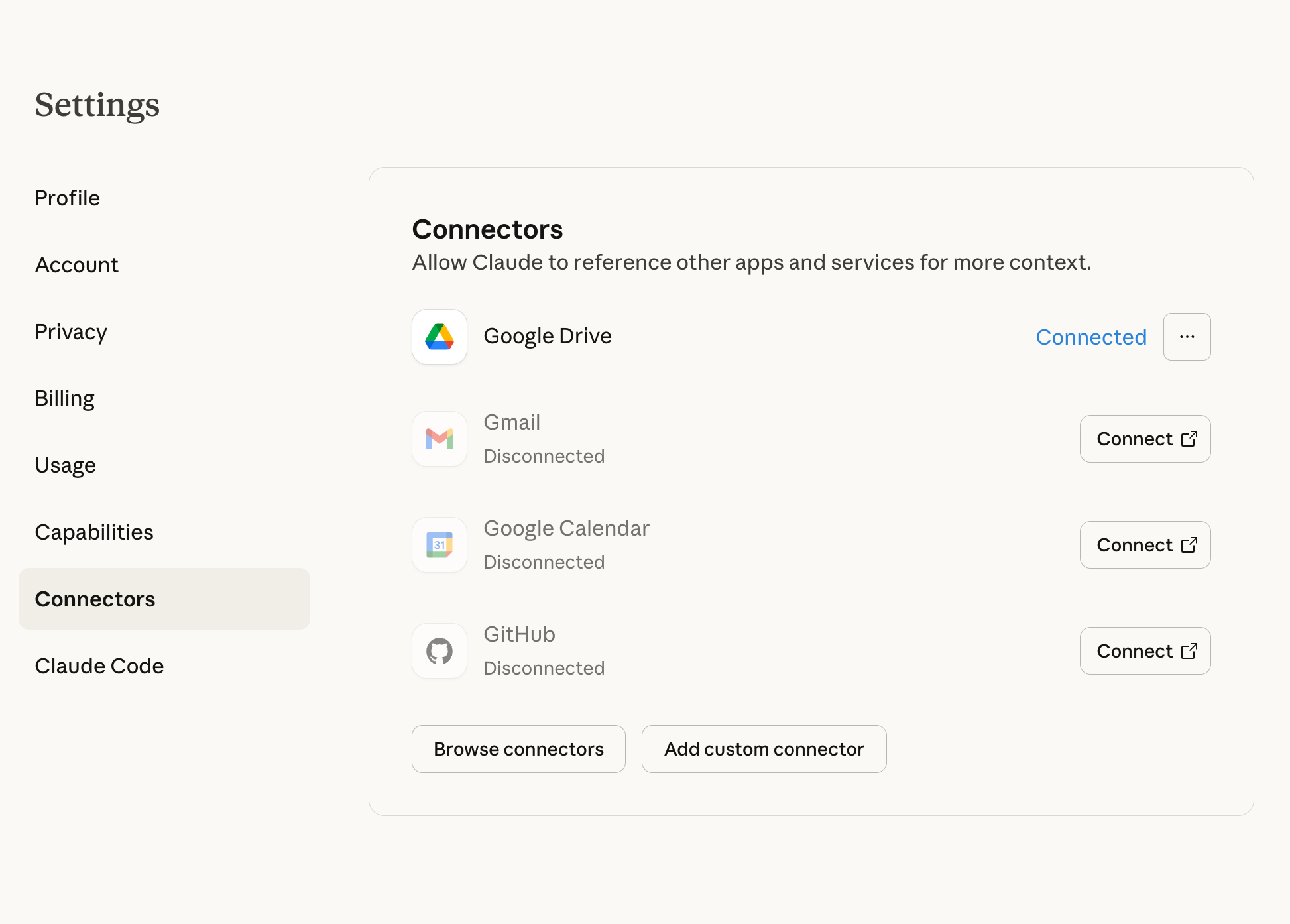
- Add a custom Connector
Click the "Add custom connector" button. In the modal, paste your MESA MCP Server URL. The click, "Add".
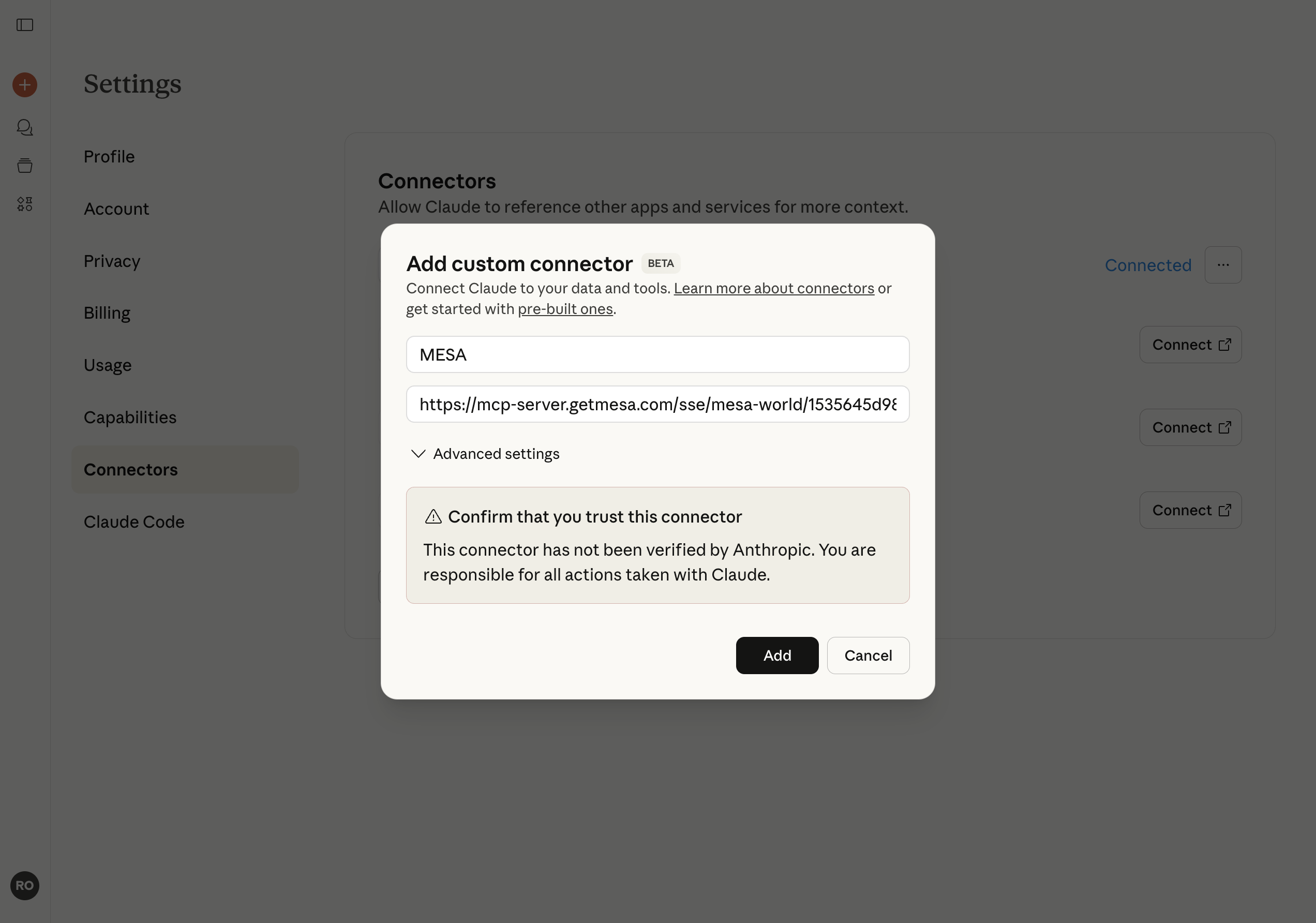
- Manage your connector actions
Click the "Configure" button to reveal all the MCP actions Claude now has access to via your MESA account.
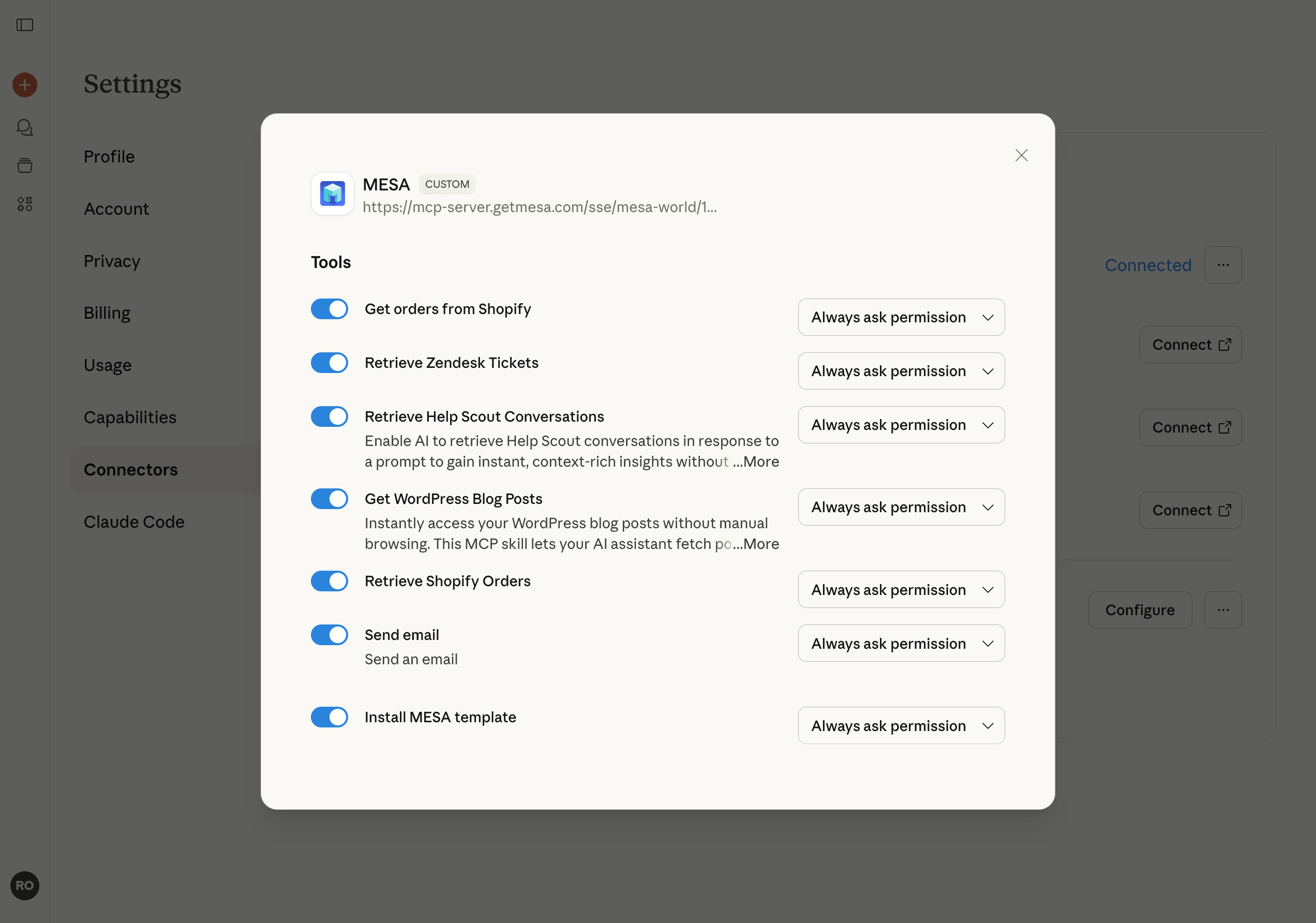
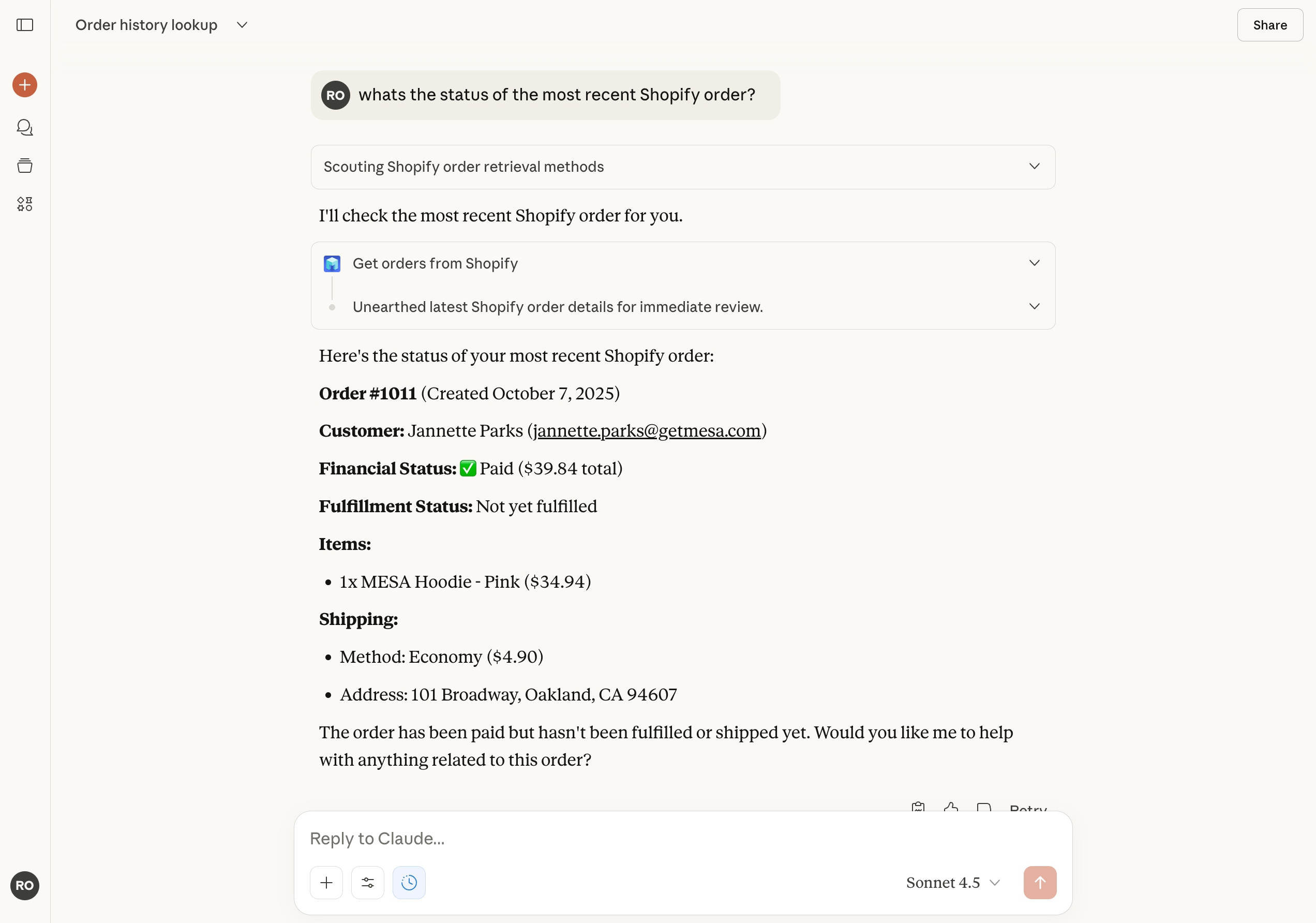
- Chat with Claude
Start interacting with Claude about the actions it can now connect with. Imagine the possibilities!
Ready to use MCP workflow templates
With MESA, add pre-built MCP workflows to get started quickly. Or, create your own MCP actions.
Other 3rd-Party MCP servers
Official Servers by Anthropic
GitHub
GitHub's official MCP server (rewritten in Go). Manage repositories, issues, pull requests, code search, and CI/CD workflows directly through Claude.
Google Drive
Access and search through your Google Drive files, enabling Claude to reference your documents, spreadsheets, and presentations for contextual assistance.
Slack
Send messages, manage channels, and retrieve conversation history. Ideal for automating team communications, creating summaries, and streamlining workspace management.
Puppeteer
Automate browser interactions including web navigation, screenshots, form filling, and data extraction for powerful web automation workflows.
Git
Perform Git operations like commits, branches, and repository management through conversational commands without leaving your AI assistant.
Redis
Interact with Redis key-value stores for caching, session management, and real-time data operations through conversational commands.
Time
Get current time information and perform timezone conversions using IANA timezone names with automatic system detection.nd streamlining workspace management.
PostgreSQL
Query and manage PostgreSQL databases using natural language. Claude can help you write queries, analyze data, and manage schemas with conversational commands.
Puppeteer
Automate browser interactions including web navigation, screenshots, form filling, and data extraction for powerful web automation workflows.
Git
Perform Git operations like commits, branches, and repository management through conversational commands without leaving your AI assistant.
Development & Project Management
Linear (Official Remote) or Community Server
Official Linear remote MCP server for project management and issue tracking. Search, create, and update issues, manage projects, and track sprints through natural language.
Notion (Official)
Official Notion integration enabling AI assistants to interact with workspaces, databases, and pages. Create, read, update pages and manage your knowledge base seamlessly.
Sentry (Official) or via https://mcp.sentry.dev
Official Sentry remote MCP server for accessing performance and error data. Debug issues faster by analyzing stack traces, error patterns, and application monitoring data.
GitLab (Official, Built-in) or Community Server
GitLab's official MCP server is built into GitLab 18.3+. Access via your GitLab instance at https://<gitlab.example.com>/api/v4/mcp for repository management, issues, and MRs.
Web Scraping & Search
Firecrawl (Official)
Official Firecrawl server adds powerful web scraping capabilities with support for crawling, searching, extracting, and processing web content at scale.
Browserbase (Community)
Automate browser interactions in the cloud including web navigation, data extraction, form filling, and comprehensive web automation tasks.
Communication & Productivity
Discord or Alternative
Manage Discord channels, messages, users, and webhooks. Automate server management and community interactions through your Discord bot.
Todoist (Official by Doist) or Community Alternative
Integrate with Todoist to manage tasks, create projects, and organize your todo lists through conversational commands with natural language support.
Cloud Services & Payments
Stripe (Official)
Official Stripe Agent Toolkit with MCP server integration. Handle payments, manage customers, process refunds, and access payment data for building AI-powered commerce applications.
Cloudflare (Official)
Official Cloudflare MCP servers for deploying, configuring, and managing resources including Workers, KV storage, R2 object storage, and D1 databases.
Design & Creative Tools
Figma (Community) (Community Servers List)
Bridge Figma designs with code generation. Enable rapid design-to-code conversion through AI agents for faster prototyping and implementation.
Adobe Illustrator (Community) (Community Servers List)
Automate Adobe Illustrator tasks through JavaScript scripting for programmatic content generation and design automation.
Specialized Tools
Anki or Alternative
Interact with Anki flashcard application for spaced repetition learning, deck management, and knowledge retention through AI-assisted study.
Kubernetes (Community) (Community Servers List)
Manage and interrogate Kubernetes clusters. Deploy applications, check pod status, and troubleshoot cluster issues through natural language.
Why MESA MCP is the smarter way to extend Claude
If you're looking to give your AI assistant real capabilities—without writing code, or scouring infrastructure setup from READ.me docs—MESA MCP is built for you.
With one secure connection, you unlock access to thousands of actions across your favorite tools. No setup sprawl. No code. Just one snippet to plug Claude into a smarter, more capable stack.
MESA makes it easy to:
- Chain skills in a single prompt
- Control access to tools, data, and accounts
- Add approvals for sensitive actions
- Monitor and debug AI behavior
- Scale your automations as fast as your ideas evolve
Whether you're testing an idea or powering production workflows, MESA gives you the flexibility, visibility, and confidence to bring your assistant to life—fast.
Frequently asked questions
How to resolve connection errors from Claude?
Troubleshooting Claude's configuration for each machine can be challenging since it depends on your machine. Check out our technical docs for additional details on resolving standard setup requirements.
Can MCP connect Claude to external systems and APIs?
Yes, MCP (Model Context Protocol) can connect Claude (or any AI agent that supports the MCP standard) to external systems and APIs by acting as a structured, secure interface between the AI and real-world tools, such as Shopify, Airtable, or Notion.
Can I use MCP with Claude on the web, or is it only for desktop?
MCP now works across all three Claude surfaces! Initially launched for Claude Desktop in November 2024, Anthropic expanded support in May 2025 with "Integrations," allowing Claude on the web (claude.ai) to connect to remote MCP servers, and Claude Code (the CLI) supports both local and remote servers via claude mcp add. Desktop and Claude Code users can connect to local servers, while web users on any plan — including Free — can connect to remote hosted servers through the Integrations feature. Free accounts are limited to one custom connector, with higher limits on Pro, Max, Team, and Enterprise.
What are the requirements to use MCP with Claude?
For Claude Desktop: You need the Claude Desktop app, Node.js installed on your machine, and appropriate MCP server configurations in your claude_desktop_config.json file — see our guide to configuring MCP servers in Claude Desktop for the exact file locations and a troubleshooting order. For Claude Code: you need the CLI installed and run claude mcp add from your terminal — see our step-by-step guide to adding an MCP server to Claude Code. For Claude Web: You need access to the Integrations settings under Customize > Connectors. Free accounts can connect too, though they're limited to one custom connector; Pro, Max, Team, and Enterprise plans support more.
What's the difference between local and remote MCP servers?
Local MCP servers run on your own machine and are accessed through Claude Desktop. They're ideal for accessing local files, databases, and tools requiring direct system access. Remote MCP servers are hosted in the cloud and accessible via Claude on the web through Integrations. Remote servers are better for team collaboration, managed services, and tools that don't require local system access.
Can MCP work with AI assistants other than Claude?
Yes! MCP is an open standard designed to work across different AI platforms. While Anthropic created MCP, it's been adopted by other AI providers including OpenAI and Google DeepMind. Development tools like VS Code, Cursor, Replit, and Sourcegraph also support MCP, making it a universal protocol for AI-tool integration.