50+ Best Shopify Flow Templates to Install Right Now (2026)
-
- •
- Last updated: Jan. 27, 2026
- •
- 56 min read

You could spend the next 3 hours building a workflow from scratch, testing conditions, troubleshooting errors, and hoping you got it right. Or you could click a link, customize two settings, and have a proven automation running in your store in under 5 minutes.
That’s the difference between building workflows and installing templates.
Shopify Flow includes 150+ pre-built templates created by Shopify and proven by thousands of merchants worldwide. These aren’t experimental workflows—they’re battle-tested automations handling millions of orders, preventing countless stockouts, and stopping fraud before it happens.
The challenge isn’t finding templates. It’s knowing which ones actually matter for your business.
📘 For a complete overview, see our Complete Shopify Flow Guide
Related guides in this series:

Table of Contents:
What you’ll find in this guide
This is the most comprehensive guide to Shopify Flow templates you’ll find anywhere. We’ve analyzed, ranked, and organized 50+ essential templates so you can:
- See the Top 10 most popular templates installed by merchants worldwide—these solve universal problems every store faces
- Browse by category to find templates matching your specific needs (Order Management, Inventory, Risk Prevention, Customer Engagement, Fulfillment)
- Get direct install links for every template—no hunting through Flow’s interface
- Understand app requirements before installing so you’re not surprised by dependencies
- Learn customization tips to adjust each template for your business
- See real business impact with time savings, revenue protection, and efficiency gains
Whether you’re running your first workflow or your fiftieth, this guide helps you install the right templates, avoid the wrong ones, and skip the templates that sound useful but rarely get used.
Templates vs Examples: What’s the difference?
Before we dive in, let’s clarify two distinct approaches to Shopify Flow:
Templates (this article):
- Pre-built workflows you install with one click
- Created by Shopify, proven by thousands of merchants
- Customize settings (emails, thresholds) and activate
- Setup time: 5-10 minutes per template
- Best for: Common automation needs with proven solutions
Examples (different article):
- Workflow ideas you build from scratch
- Follow step-by-step instructions to create
- Full control over every trigger, condition, and action
- Setup time: 20-60 minutes per workflow
- Best for: Custom business logic or unique requirements
If you want ready-made solutions you can deploy today, you’re in the right place. If you need custom workflows built for unique scenarios, see our Shopify Flow Examples guide.
Ready to automate your store? Let’s start with the templates merchants install most.
Top 10 most popular templates
These templates are installed most frequently by Shopify merchants worldwide. They solve universal problems that nearly every store faces—inventory management, fraud prevention, customer segmentation, and product visibility. Start here for the fastest ROI.
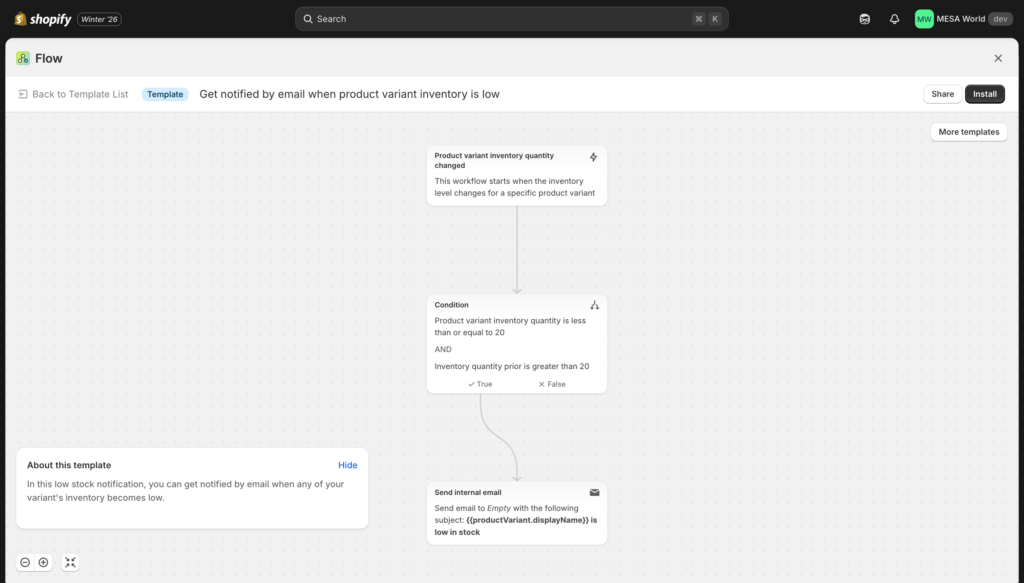
#1: Get notified by email when product variant inventory is low
Sends an automatic email notification when any product variant drops below your specified threshold (default: 10 units), giving you time to reorder before selling out completely.
Business impact:
- Time saved: 2-3 hours/week (eliminates manual inventory checking)
- Stockout prevention: 85-95% reduction in out-of-stock incidents
- Revenue protected: $3,000-8,000/month in prevented lost sales
- Customer satisfaction: Fewer “notify me when back in stock” frustrations
Why it’s #1 most popular: Every store needs inventory alerts. This is the simplest, highest-impact template you can install. Set it once and never worry about surprise stockouts again.
Customization tips:
- Adjust threshold by product velocity: Create multiple versions with different thresholds:
- Fast-movers: Alert at 25 units
- Medium-movers: Alert at 10 units (default)
- Slow-movers: Alert at 5 units
- Add product category to email subject: Makes scanning emails easier when managing large catalogs
- Include product image: Add
{{ product.image }}variable to email body for visual identification - Exclude discontinued products: Add condition “Product does NOT have tag: Discontinued” to avoid alerts for items you’re phasing out
- Send to Slack instead: Replace email action with Slack notification for real-time team visibility
Why the second condition matters: Without checking “Quantity prior ≥ 10,” you’d get an alert every time inventory decreases below threshold—from 9 to 8, 8 to 7, 7 to 6, etc. The prior quantity check ensures you only get ONE alert when inventory crosses your threshold.
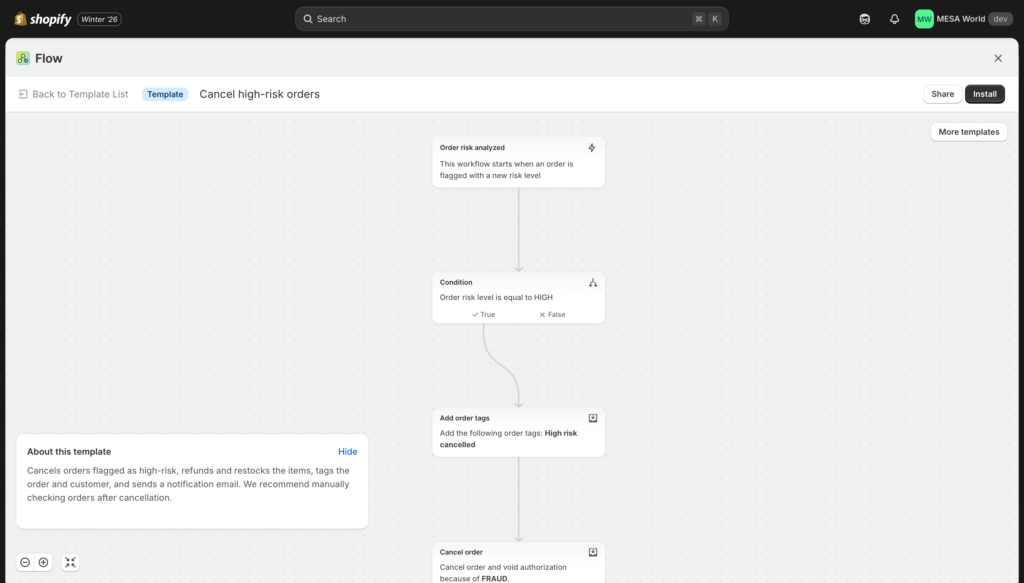
#2: Cancel high-risk orders
Automatically cancels orders flagged as high-risk by Shopify’s built-in fraud analysis, then refunds the customer, restocks inventory, tags both the order and customer for tracking, and sends a notification to your team. Note: Shopify recommends manually reviewing high-risk orders before canceling, so consider using “hold” instead of “cancel” for your situation.
Business impact:
- Chargeback reduction: 40-60% fewer fraudulent orders processed
- Revenue protected: $2,400-5,000/month in prevented fraud losses
- Time saved: 5-8 hours/week on manual fraud review
- False positive awareness: Prevents most obvious fraud while flagging edge cases for review
⚠️ Important consideration: This template immediately cancels high-risk orders. Many merchants prefer to hold orders instead of cancel, allowing manual review of potential false positives. To modify this approach, replace the “Cancel order” action with “Hold fulfillment” and adjust your review process accordingly.
Customization tips:
- Consider holding instead of canceling: Replace cancel action with hold fulfillment to review manually before final decision
- Add geographic risk factors: Include condition “Shipping country code equals [high-risk country]” to catch additional suspicious patterns
- Create tiered response:
- Medium risk: Tag and notify only
- High risk: Hold fulfillment and create support ticket
- Integrate with support tool: Add “Create Gorgias ticket” or “Create Zendesk ticket” action for documented review
- Track patterns: Send data to Google Sheets to identify fraud trends by geography, product type, or time of day
- Exclude VIP customers: Add condition “Customer does NOT have tag: VIP” to prevent accidentally canceling orders from known good customers
Alternative approach: Many merchants use the “Hold SFN fulfillments if risk is high” template (#6) instead, which holds orders for review rather than immediately canceling.
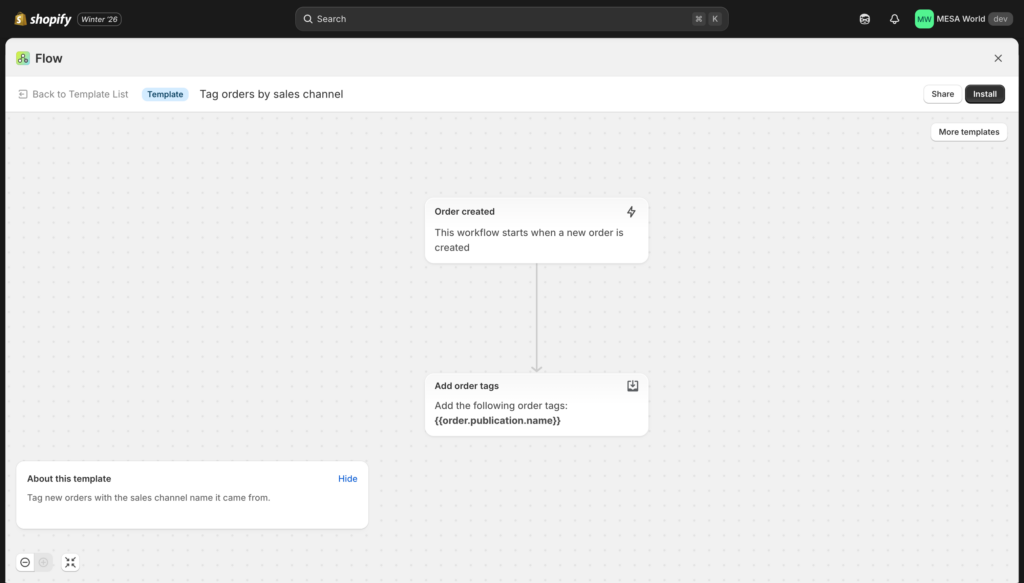
#3: Tag orders by sales channel
Automatically tags every order with its source sales channel—Instagram Shopping, Facebook Shop, Online Store, Point of Sale, Amazon, Buy Button, or any other channel you sell through. Creates clean reporting showing which platforms drive the most revenue and highest average order values.
Business impact:
- Marketing attribution: Clear data on which channels produce actual sales vs just traffic
- Time saved: 1-2 hours/week (eliminates manual channel tracking)
- Ad spend optimization: Know where to increase budget and where to cut
- Channel performance analysis: Compare AOV, conversion rate, and customer LTV by source
Customization tips:
- Standardize naming conventions: Some channels have inconsistent names. Create separate conditions for major channels:
- IF Source name = “instagram” → Tag:
Channel-Instagram - IF Source name = “pos” → Tag:
Channel-POS - IF Source name = “web” → Tag:
Channel-Online-Store - Gives you cleaner, more readable tags
- IF Source name = “instagram” → Tag:
- Add channel-specific follow-up workflows: Once orders are tagged, create conditional workflows:
- Orders tagged “Channel-POS” → Send in-store purchase thank you
- Orders tagged “Channel-Instagram” → Request Instagram story mention from customer
- Orders tagged “Channel-Amazon” → Special packing slip for marketplace orders
- Track in Google Sheets: Send tagged orders to spreadsheet for dashboard creation
- Combine with fulfillment routing: Route Instagram orders to warehouse with branded packaging, POS orders to local fulfillment
- Exclude wholesale channel: Add condition to skip tagging if customer has “Wholesale” tag (you may want different tracking)
Pro tip: Export orders by tag monthly to analyze which channels have highest repeat purchase rates, not just highest initial order volume. A channel with lower volume but higher retention might be more valuable long-term.
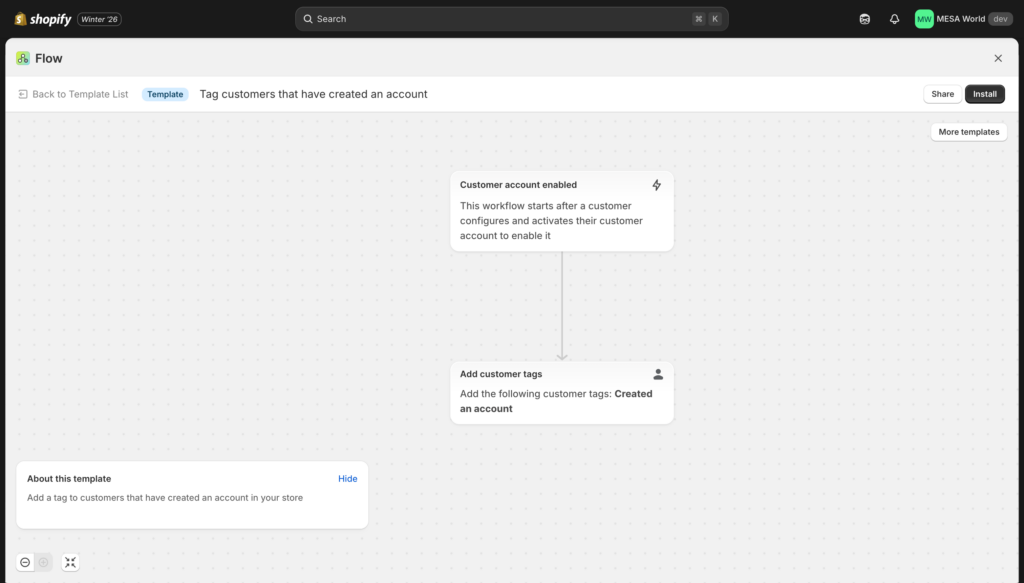
#4: Tag customers that have created an account
Automatically adds a tag to customers who create accounts in your store (vs checking out as guests), enabling you to segment and target account holders with exclusive content, loyalty programs, and personalized campaigns.
Business impact:
- Customer segmentation: Separate engaged customers (with accounts) from one-time guests
- Loyalty program targeting: Identify customers invested enough to create profiles
- Conversion tracking: Measure account creation rate and optimize registration prompts
- Personalization opportunities: Deliver different experiences to registered vs guest customers
Customization tips:
- Trigger welcome email sequence: Connect to Klaviyo, Mailchimp, or other email platform to automatically send welcome series to account holders
- Add to VIP segment for high-value accounts: IF customer has tag “Account-Created” AND total spent > $500 → Tag “VIP-Account”
- Track account creation in CRM: Update HubSpot/Salesforce with account status for sales team visibility
- Offer account-holder perks: Create discount codes or early access offers exclusive to tagged customers
- Include registration date: Tag customers with
Account-Created-{{ "now" | date: "%Y-%m" }}to track cohorts by registration month - Measure conversion impact: Compare repeat purchase rates between “Account-Created” customers vs untagged guests
Why this matters: Customers who create accounts show 35-40% higher lifetime value than guest checkout users. They’re more engaged, easier to re-target, and more likely to become repeat purchasers. This simple tag creates the foundation for account-holder specific campaigns.
Common use case: After tagging, many merchants create a Klaviyo segment “Has tag: Account-Created” and send monthly exclusive offers that drive 15-20% higher open rates than general campaigns.
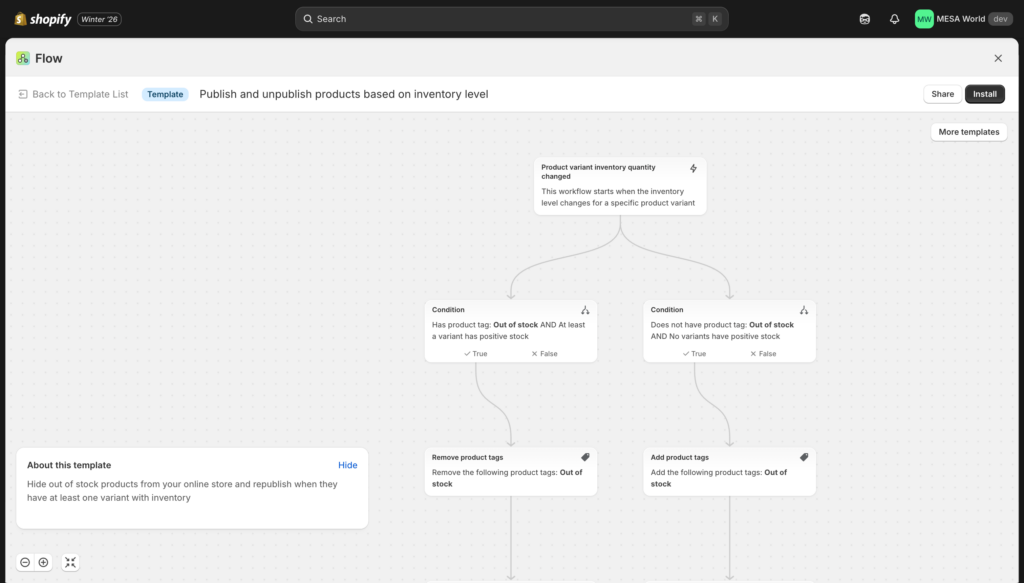
#5: Publish and unpublish products based on inventory level
Automatically hides products from your online store when they go out of stock (inventory hits zero), then automatically makes them visible again when inventory is restocked. Keeps your catalog clean and prevents customer frustration from clicking on unavailable products.
Business impact:
- Conversion rate improvement: 8-12% lift by eliminating dead-end product pages
- Customer experience: Shoppers only see products they can actually buy
- Time saved: 2-3 hours/week (no manual hiding/showing products)
- Reduced support tickets: 40% fewer “when will this be back in stock?” inquiries
Customization tips:
- Multi-variant handling: These templates unpublish the ENTIRE product when ANY variant hits zero. If you sell shirts with 4 sizes and only Medium is out of stock, the whole product disappears. For multi-variant products, consider:
- Keep product published but use theme code to hide unavailable variants
- Only unpublish when ALL variants are out of stock (requires custom workflow)
- Add timestamp tags: Tag products when they go out of stock:
OOS-{{ "now" | date: "%Y-%m-%d" }}to track how long items stay unavailable - Sales channel specific: Unpublish only from Online Store but keep visible in POS if you have in-store inventory
- Add notification: Include email action notifying inventory team when products auto-hide
- Keep product page live with “Coming Soon”: Instead of unpublishing, change product template to show “Out of Stock – Back Soon” message
- Inventory buffer: Trigger unpublish at 2-3 units instead of 0 to prevent overselling during high-traffic periods
Important note: If you use product waitlists or “notify me when back” apps, check if auto-unpublishing affects their functionality. Some apps need products to remain published to capture interest.
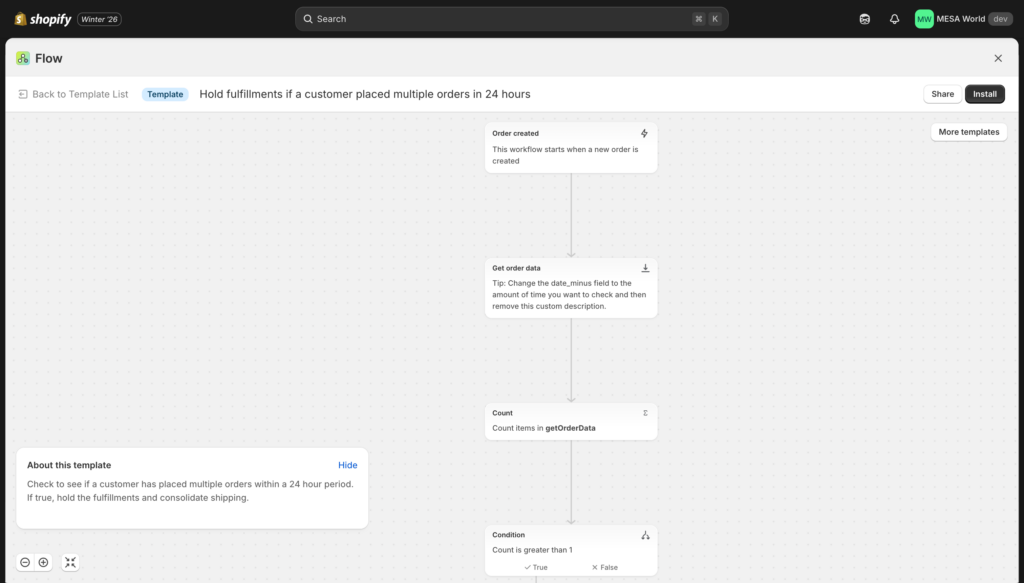
#6: Hold SFN fulfillments if risk is high
Automatically holds fulfillment for orders assigned to Shopify Fulfillment Network (SFN) when Shopify’s fraud analysis flags them as high-risk. Critical for SFN users because once orders ship from SFN warehouses, they cannot be recalled—preventing fulfillment is your only fraud protection.
Business impact:
- Fraud prevention for SFN users: Stops fraudulent orders before they ship (cannot be recalled once sent)
- Chargeback reduction: 50%+ reduction in successful fraud
- Revenue protection: $2,000-4,000/month for average SFN users
- Peace of mind: Automated protection for unmonitored orders
Why this is critical for SFN users: Unlike orders you fulfill yourself or through 3PLs you control, SFN orders cannot be stopped once they enter the fulfillment process. This template is your only automated safeguard against high-risk orders shipping before review.
Customization tips:
- Add immediate notification: Include action to send email/Slack alert to fraud team the moment an order is held
- Create support ticket: Add “Create Gorgias ticket” or “Create Zendesk ticket” with all fraud details for documented review
- Set SLA for review: Add team protocol that held SFN orders must be reviewed within 2 hours (SFN has processing cutoffs)
- Include risk details in hold note: Add order note with
{{ order.riskLevel }}and{{ order.riskAssessments }}so reviewer sees fraud reasoning - Graduated response by risk score:
- Medium risk: Tag for review but allow fulfillment
- High risk: Hold and require manual approval
- Geographic exceptions: Add condition to automatically hold orders to high-risk countries even if Shopify doesn’t flag them
Alternative for non-SFN users: If you don’t use SFN, install the “Cancel high-risk orders” template (#2) or create a custom workflow to hold orders for your fulfillment provider.
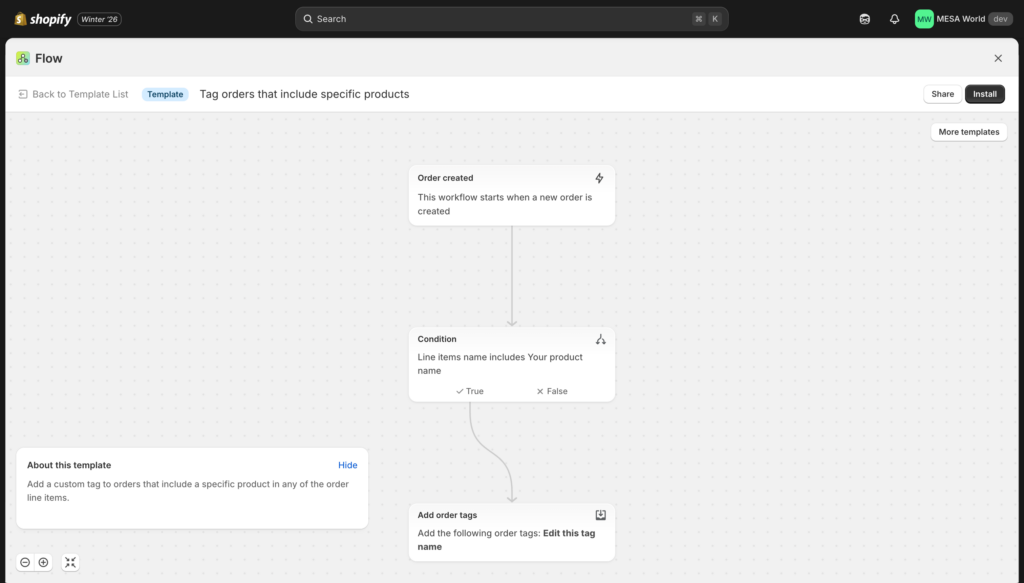
#7: Tag orders that include specific products
Automatically tags orders containing specific products (identified by product ID), enabling special handling, gift wrap instructions, fragile item alerts, or any scenario where certain products need different treatment during fulfillment.
Business impact:
- Fulfillment accuracy: 95%+ compliance with special handling requirements
- Time saved: 3-4 hours/week identifying which orders need special care
- Customer satisfaction: Fragile items properly packed, gift orders properly wrapped
- Error reduction: 80% fewer “wrong packaging” mistakes
Example: If you sell fragile glassware that requires special packaging:
- Product ID: 123456789
- Condition: Line item product ID = 123456789
- Tag: “Contains-Fragile-Glassware”
Warehouse sees tag, knows to use foam packaging and “Fragile” labels.
Customization tips:
- Use product tags instead of IDs: More flexible approach:
- IF Line item product has tag “Fragile” → Tag order “Contains-Fragile”
- IF Line item product has tag “Gift-Eligible” → Tag order “Gift-Available”
- Avoids creating separate workflows for every product
- Multiple product categories: Create tags by handling requirement:
- “Requires-Gift-Wrap” (customer can add gift wrap)
- “Requires-Cold-Pack” (perishables)
- “Requires-Adult-Signature” (alcohol, restricted items)
- “Oversized-Item” (special shipping calculations)
- Trigger specific fulfillment locations: Route orders containing certain products to specialized warehouses
- Add custom packing slip: Include “Generate packing slip template ‘fragile'” action
- Calculate shipping surcharges: Tag orders with heavy/oversized items to apply additional shipping fees
- Create customer notes: Add note visible to customer: “Your order contains fragile items and will be specially packaged”
Finding product IDs: In Shopify Admin → Products → Click product → Product ID is in the URL (/products/123456789)
Pro tip: Many merchants use this template in combination with product tags to create a flexible system: instead of hardcoding specific product IDs, they tag products with handling requirements (“Fragile”, “Gift”, “Cold-Pack”), then create workflows checking for those tags. Makes it easy to add new products without updating workflows.
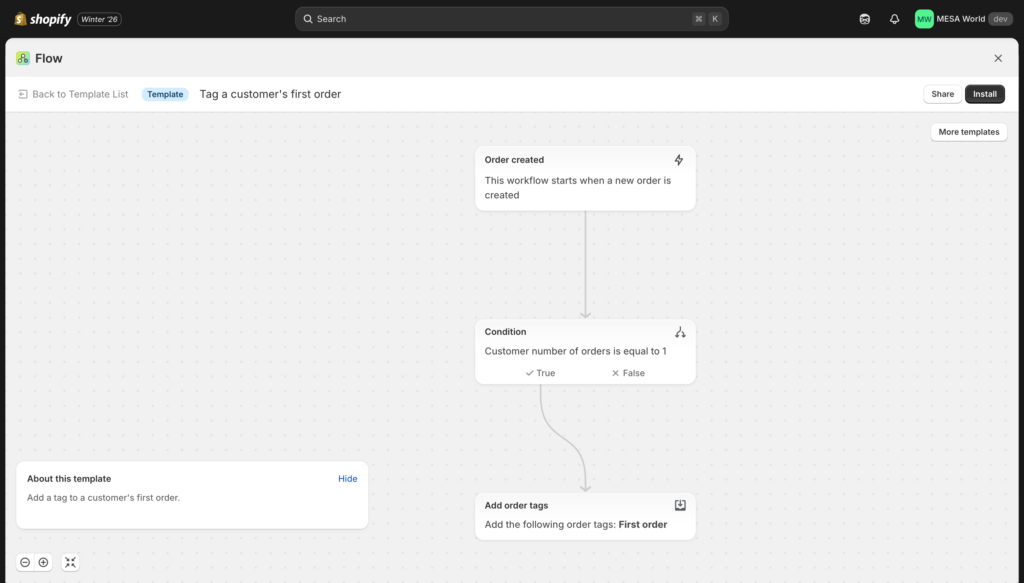
#8: Tag a customer’s first order
Automatically identifies and tags a customer’s very first purchase, creating the foundation for welcome campaigns, first-time buyer analysis, and new customer engagement sequences.
Business impact:
- Welcome campaign foundation: Trigger automated welcome emails that drive 25-30% higher repeat rates
- Customer lifecycle tracking: Measure first-to-second purchase conversion
- Marketing segmentation: Target first-time buyers with educational content vs repeat customers with cross-sells
- Retention optimization: Identify at-risk first-time customers who don’t return
Customization tips:
- Trigger welcome email sequence: Add action to trigger Klaviyo/Mailchimp welcome flow for first-time buyers
- Add product category tags: Segment by first purchase type:
- IF order contains product type “Apparel” → Tag customer “First-Purchase-Apparel”
- IF order contains product type “Home” → Tag customer “First-Purchase-Home”
- Enables category-specific follow-up content
- Include purchase date for anniversary: Tag:
First-Purchase-{{ order.createdAt | date: "%Y-%m" }}to run anniversary campaigns later - Segment by order value:
- IF order total > $100 → Tag “First-Purchase-High-Value” (fast-track to VIP)
- IF order total < $30 → Tag “First-Purchase-Low-Value” (may need education on product benefits)
- Exclude wholesale/B2B: Add condition “Customer does NOT have tag: Wholesale” to avoid sending retail welcome content to business customers
- Add to loyalty program: IF you use LoyaltyLion/Smile/Swell → Automatically enroll first-time buyers and award bonus points
Why this matters: The window between first and second purchase is critical. Customers who buy twice within 60 days have 75% chance of becoming long-term repeat purchasers. Those who don’t buy again within 90 days have only 10% chance of ever returning. This tag enables the follow-up that converts one-time buyers into loyal customers.
Common workflow combination: Many merchants pair this template with “Send thank you email after first purchase” (email platform) and “Award welcome bonus points” (loyalty app) to create a comprehensive first-purchase experience.
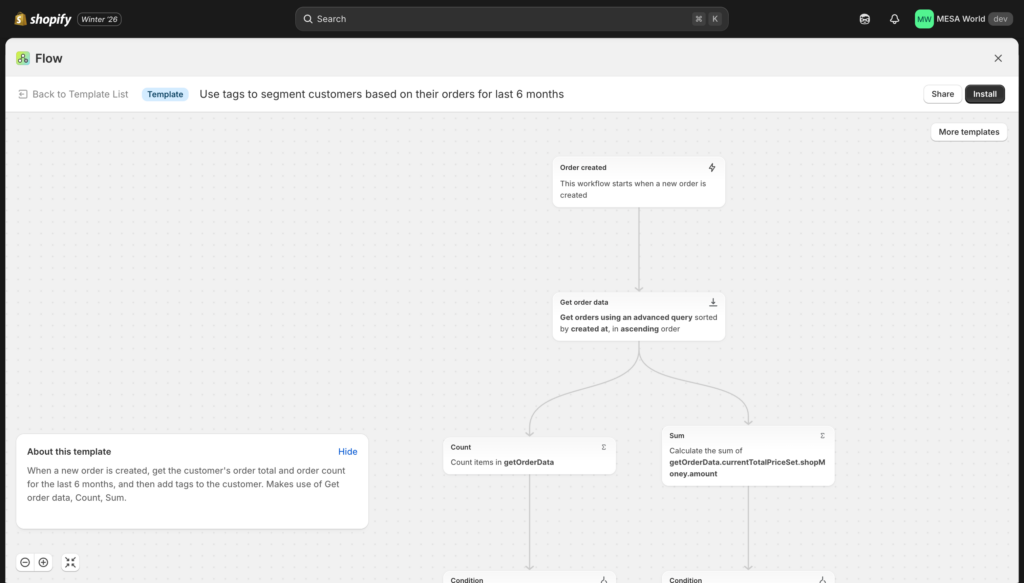
#9: Use tags to segment customers based on their orders for last 6 months
Automatically analyzes each customer’s order history over the past 6 months and adds segmentation tags based on both order count and total spending, creating dynamic customer tiers that update with every purchase.
Business impact:
- Dynamic customer segmentation: Automatically maintains up-to-date customer tiers
- VIP identification: Flags high-value customers for special treatment
- Churn prevention: Identifies customers whose activity is declining
- Campaign targeting: Enables precise audience selection for marketing
Example tag logic:
- 1-2 orders + <$500 total → Tag “Occasional-Buyer”
- 3-5 orders + $500-$1,500 total → Tag “Regular-Customer”
- 6+ orders OR $1,500+ total → Tag “VIP”
Customization tips:
- Adjust time window: Change from 6 months to:
- 3 months for fast-moving consumer goods (skincare, supplements)
- 12 months for durable goods (furniture, electronics)
- Match your typical purchase cycle
- Create more granular tiers:
- Bronze: $100-$500 lifetime value
- Silver: $500-$1,500 LTV
- Gold: $1,500-$5,000 LTV
- Platinum: $5,000+ LTV
- Remove old tags: Add action to remove outdated tier tags before adding new ones (prevents customers from having conflicting tags)
- Sync to email platform: Add action to update Klaviyo/Mailchimp segments based on new tags
- Include order frequency metric:
- IF 6+ orders in 180 days → Tag “Frequent-Buyer”
- IF 1 order in 180 days → Tag “Infrequent-Buyer”
- Geographic segmentation: Combine with location data:
- VIP + California → “VIP-West”
- VIP + New York → “VIP-East”
- Enables regional campaigns
Why this is powerful: Unlike static segments that require manual updates, these tags update automatically with every purchase. A customer who crosses from “Regular” to “VIP” tier gets immediate recognition without anyone lifting a finger.
Pro tip: Many merchants export these tags to their CRM (HubSpot, Salesforce) so sales teams can see customer tier during support interactions, enabling tier-appropriate service levels.
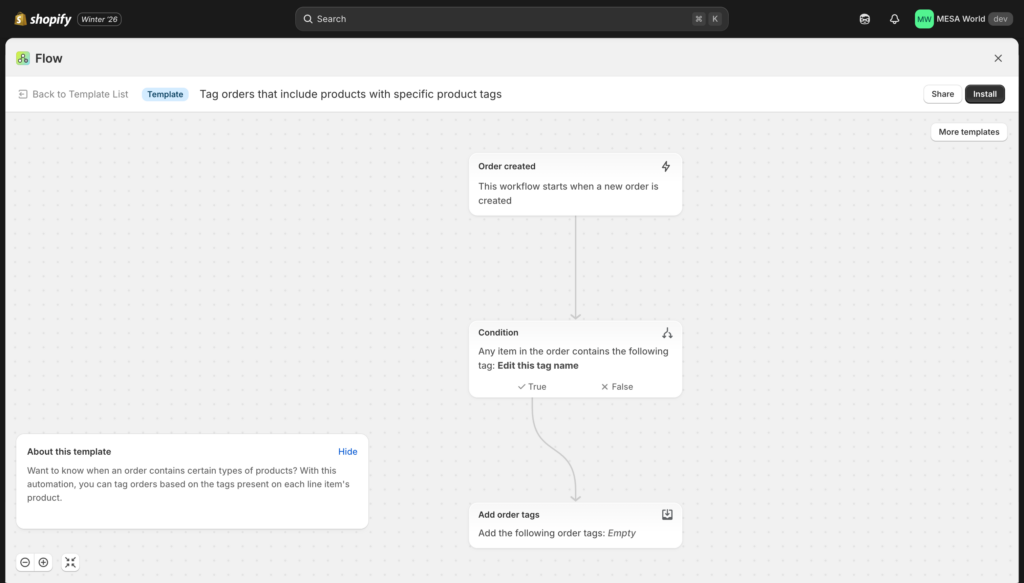
#10: Tag orders that include products with specific product tags
Automatically tags orders based on product tags attached to line items. For example, if an order contains any product tagged “Fragile,” the entire order gets tagged “Contains-Fragile.” More flexible than tagging by specific product IDs because you can add new products to categories without updating workflows.
Business impact:
- Scalable special handling: Tag products once, automatic order tagging forever
- Fulfillment routing: Direct orders to appropriate warehouses or packing stations
- Custom workflows: Trigger different processes based on product characteristics
- Easy maintenance: Add new products to handling categories without touching Flow
Example: You tag products with handling requirements:
- Products tagged “Fragile” → Orders get tagged “Contains-Fragile”
- Products tagged “Cold-Pack” → Orders get tagged “Requires-Cold-Pack”
- Products tagged “Gift-Eligible” → Orders get tagged “Gift-Available”
Customization tips:
- Use for gift wrap detection:
- Products tagged “Gift-Eligible” on product setup
- Order gets tagged “Gift-Available”
- Customer service knows they can offer gift wrap
- Route to specialized fulfillment:
- Products tagged “Requires-Cold-Shipping” → Route to refrigerated warehouse
- Products tagged “Oversized” → Route to freight fulfillment center
- Apply to multiple categories:
- “Contains-Apparel” → Different packing materials
- “Contains-Electronics” → Anti-static packaging
- “Contains-Food” → Food-safe handling procedures
- Combine with customer notes: Add visible note to customer: “Your order contains gift-eligible items. Reply to add gift wrap!”
- Trigger promotional workflows:
- Products tagged “New-Arrival” → Send “Thank you for trying our new product” email
- Products tagged “Bestseller” → Request review after delivery
- Generate custom packing slips: Create different packing slip templates based on product categories
Why this is better than tagging by product ID: With product ID tagging, you create a workflow for each product. With product tag tagging, you create ONE workflow that automatically applies to any product with the relevant tag. Add 50 new fragile products? Just tag them “Fragile” and they’re covered.
You’ve just reviewed the Top 10 most popular templates. These solve universal problems every store faces. Install at least 3 of these this week—we recommend #1 (inventory alerts), #2 or #6 (fraud prevention), and #5 (product visibility). They deliver measurable impact within days.
Ready for more specialized templates? The next section breaks down 30+ additional templates organized by category so you can jump straight to your biggest operational challenge.
Must-have templates by category
Beyond the top 10, these templates address specific operational needs across different business functions. Browse by category to find templates solving your biggest pain points. Each template below is proven by thousands of merchants and available for immediate installation.
Order management templates
Automate order processing, tagging, and special handling for cleaner operations and faster fulfillment.
Tag orders by payment gateway
Automatically tags orders based on which payment method the customer used (Shop Pay, PayPal, Apple Pay, credit card, etc.), enabling payment-specific workflows and reporting.
Customization tips:
- Create reports showing which payment methods have highest order values
- Route Shop Pay orders to priority fulfillment (typically loyal customers)
- Track Apple Pay adoption rate over time
- Add condition to exclude gift card payments from certain promotions
- Combine with fraud workflows (some payment types have higher fraud rates)
Tag orders paid with gift card
Identifies orders paid fully or partially with gift cards and tags them accordingly. Useful for tracking gift card redemption rates, excluding from certain promotions, and measuring gift card program ROI.
Customization tips:
- Track gift card usage in Google Sheets for monthly analysis
- Exclude gift card orders from “first purchase” welcome campaigns (likely not the actual buyer)
- Send special thank-you note to gift card recipients
- Monitor if gift card orders have different return rates
- Tag with partial vs full payment: “Gift-Card-Partial” or “Gift-Card-Full”
Tag orders that used a specific shipping method
Tags orders based on the shipping method selected at checkout (Standard, Express, Overnight, Local Pickup, etc.), enabling fulfillment prioritization and shipping performance analysis.
Customization tips:
- Create “Expedited-Shipping” tag for all express methods to prioritize fulfillment
- Send different confirmation emails based on shipping method selected
- Track which products are frequently purchased with rush shipping
- Add handling fees for certain shipping methods via order tags
- Monitor on-time delivery performance by shipping method
Tag B2B Orders
Automatically identifies and tags orders from B2B companies, enabling special handling, pricing verification, and wholesale-specific workflows. Requires Shopify Plus with B2B features enabled.
Customization tips:
- Route B2B orders to dedicated fulfillment team familiar with wholesale requirements
- Generate commercial invoices automatically for B2B shipments
- Apply different return policies (tag triggers “B2B-Return-Policy” email)
- Send to ERP system for accounting (B2B orders need different GL codes)
- Add payment terms notes (Net 30, Net 60) to order
- Notify account manager when their client places order
Tag orders by currency
Tags every order with the currency used for payment (USD, CAD, EUR, GBP, etc.), essential for multi-currency stores tracking revenue by market and managing currency-specific accounting.
Customization tips:
- Create monthly reports showing revenue by currency
- Route international orders to fulfillment centers in target countries
- Apply currency-specific return policies or shipping rules
- Track exchange rate impact on margins over time
- Segment customers by preferred currency for localized campaigns
- Exclude certain currencies from promotions due to exchange rate volatility
Tag orders created on Point of Sale (POS)
Identifies orders created through Shopify POS (in-store purchases) and tags them, enabling in-store vs online performance comparison and location-specific analysis.
Customization tips:
- Send different thank-you emails to in-store customers (invite back to store, not just online)
- Track which products sell better in-store vs online
- Add location name to tag: “POS-Downtown” vs “POS-Mall-Location”
- Exclude POS orders from certain online-only promotions
- Calculate commission for sales staff (tag includes staff member ID)
- Route POS returns differently than online returns
Using custom attributes (aka line item properties) in conditions and actions
Shows how to check custom line item properties (personalization text, gift messages, custom options) in workflow conditions and use them in tags, emails, and notes. Essential for stores using product customization.
Customization tips:
- Tag orders with “Contains-Personalization” when custom text is added
- Route orders with engraving requests to specialized fulfillment
- Add gift message to packing slip automatically
- Charge rush fees for orders with complex customization
- Send different confirmation emails when custom options selected
- Track which custom options are most popular

Inventory & Product templates
Prevent stockouts, manage product visibility, maintain accurate inventory, and automate product organization.
Send daily email summary with out of stock products
Runs daily on schedule, compiles a list of all products with zero inventory, and emails the summary to your inventory manager. Never lose track of what needs reordering.
Customization tips:
- Run at optimal time (8am so inventory team sees it first thing)
- Include SKU, vendor, and last restock date in email
- Separate by product category (Apparel OOS, Electronics OOS, etc.)
- Add “days out of stock” calculation to prioritize restocking
- Send to Slack channel instead of email for team visibility
- Include sales velocity data (how many would have sold if in stock)
Archive product if all variants are out of stock at all locations
Automatically archives (removes from all channels) products when every variant is out of stock across all fulfillment locations. Keeps catalog clean and prevents customer frustration.
Customization tips:
- Add delay of 7 days (only archive if OOS for a week, not temporary stockouts)
- Send notification before archiving (gives team chance to reorder first)
- Tag products “Archived-Auto” so you know which were automated vs manual
- Create separate workflow to unarchive when inventory returns
- Exclude seasonal products from auto-archiving
- Archive from Online Store only but keep visible in POS
Standardize tagging for new products
Automatically applies consistent tags to newly added products based on title, SKU, or other attributes, ensuring organized catalog structure without manual tagging effort.
Customization tips:
- Tag by collection keywords in title (“Shirt” in title → Tag “Apparel-Shirts”)
- Tag by price point (“Price > $100” → Tag “Premium”)
- Tag by vendor (“Vendor = Nike” → Tag “Brand-Nike”)
- Add seasonal tags based on creation date (created in Oct-Dec → “Holiday-2026”)
- Tag by inventory availability (“Inventory < 50” → Tag “Low-Stock-New”)
- Auto-assign to collections based on tags
Remove new product tag 90 days after product was created
Runs daily, finds products tagged “New” that were created more than 90 days ago, and removes the tag. Keeps “New Arrivals” collection fresh without manual maintenance.
Customization tips:
- Adjust time window (30 days for fast fashion, 180 days for slow-moving categories)
- Send report of products losing “New” tag (helps with merchandising decisions)
- Replace “New” tag with “Core-Collection” tag to maintain organization
- Only remove tag if product has sold at least X units (validates it’s performing)
- Create tiered approach: “New” for 30 days, then “Recent” for 60 days, then remove
- Exclude limited edition products from auto-removal
Merchandise low stock products by adding to a collection
Automatically adds low-stock products to a “Sale” or “Last Chance” collection, then unpublishes them completely when out of stock. Creates urgency while maintaining clean catalog.
Customization tips:
- Create tiered collections: <10 units = “Low Stock”, <5 units = “Last Chance”, 0 = Unpublish
- Add urgency text to product (update metafield with “Only 3 left!”)
- Apply automatic discount when inventory drops below threshold
- Send email campaign featuring low-stock collection weekly
- Remove from sale collection when restocked
- Track conversion rates of products in low-stock collection (urgency impact)
Tag and organize new products by title
Analyzes product titles using keywords and automatically assigns organizational tags and collections. For example, “Men’s Blue Cotton Shirt” gets tagged “Gender-Mens”, “Color-Blue”, “Material-Cotton”, “Type-Shirt”.
Customization tips:
- Build comprehensive keyword dictionary for your product categories
- Use title conventions: always put gender first, color second, etc.
- Tag by season (“Summer” in title → Tag “Season-Summer”)
- Auto-assign to multiple collections based on title analysis
- Handle exceptions (override tags for certain vendors or SKUs)
- Create product naming standards document for team consistency
Tag products that are created with no image
Identifies products added without images (after a delay to allow initial editing) and tags them “Missing-Image” so merchandising team can prioritize photography.
Customization tips:
- Wait 24 hours before tagging (gives team time to add images during initial setup)
- Send daily digest of all missing-image products
- Create Asana/Trello task automatically for photography team
- Tag with urgency level based on product type (apparel needs images urgently)
- Exclude draft products from tagging (work in progress)
- Unpublish products with no image after 7 days
Initiate reorder with vendor when inventory gets low
Sends an email to your vendor/supplier when product inventory drops below reorder point, including SKU, current quantity, reorder quantity needed, and any relevant details.
Customization tips:
- Include lead time reminder in email (“Please ship within 14 days”)
- CC accounting team on high-value reorders
- Add vendor SKU if different from your SKU
- Include sales velocity (“Selling 5 units per day”)
- Send to different vendor email addresses based on product category
- Create reorder template with all necessary info pre-filled
- Track reorder requests in Google Sheets for PO management

Fraud & Risk management templates
Protect revenue, prevent chargebacks, identify suspicious patterns, and maintain secure operations.
Get notified about high risk orders before capturing payment
Sends an email alert when orders are flagged high-risk BEFORE payment is captured, allowing manual review before money changes hands. Requires manual payment capture setting enabled in Shopify.
Customization tips:
- Include all fraud indicators in email (risk score, IP location, billing vs shipping mismatch)
- Create review checklist template for team (5 factors to verify)
- Set SLA for review (must review within 2 hours)
- Add direct links to order admin page for quick access
- Send to Slack for real-time team awareness
- Track false positive rate (how many flagged orders were legitimate)
Cancel and tag orders from deny-listed email addresses
Checks new orders against a list of known fraudulent email addresses and domains you maintain, automatically canceling and tagging matches.
Customization tips:
- Maintain deny list in Google Sheets (easier to update than in Flow)
- Include full emails (“[email protected]”) and domains (“@suspiciousdomain.com”)
- Tag both order and customer for permanent record
- Send alert when order is canceled (manual review for potential false positives)
- Refund immediately but flag customer account
- Add notes explaining cancellation reason for support team context
Tag customers that have a chargeback
Runs hourly, checks all orders with chargeback status, and tags the associated customer. Prevents future fraudulent orders from repeat offenders.
Customization tips:
- Tag with chargeback date for reference: “Chargeback-2026-01”
- Add to permanent deny list (cancel future orders automatically)
- Send alert to customer service (flag account for extra scrutiny)
- Track chargeback patterns (geographic, product type, payment method)
- Include chargeback count if customer has multiple
- Create separate workflows: first chargeback = review, second = auto-cancel
Hold orders if customer placed more than 1 order in last 24 hours
Detects when customers place multiple orders within 24 hours (potential shipping consolidation or fraud pattern) and holds fulfillment on all orders for review.
Customization tips:
- Consider holding at 3+ orders instead of 2 (some legitimate customers split orders)
- Send notification to customer: “We noticed multiple orders – would you like combined shipping?”
- Check if shipping addresses differ (different addresses = higher fraud risk)
- Auto-consolidate if addresses match (saves shipping costs)
- Release holds after 24 hours if no issues found
- Exclude VIP customers from multiple order holds
Cancel orders if customer placed more than 5 orders today
More aggressive fraud prevention that automatically cancels orders when customers exceed 5 orders in a single day, a clear indicator of stolen credit card testing or reseller bot activity.
Customization tips:
- Adjust threshold based on your product type (digital = lower threshold)
- Send human review notification before canceling (potential false positives for bulk buyers)
- Tag customer “Excessive-Orders” for permanent record
- Add IP address tracking (same IP = likely bot, different IPs = might be legitimate business)
- Whitelist known wholesale customers
- Create escalation path: 3 orders = review, 5 orders = hold, 7 orders = auto-cancel
Alert fulfillment when known return abuse customer places order
Tags and notifies fulfillment team when customers who have history of return abuse place new orders, enabling extra documentation and special handling.
Customization tips:
- Define “return abuse” criteria (3+ returns, specific return reasons)
- Add “Document-Order-Contents” tag to trigger photo documentation before shipping
- Include return history in notification (how many times, why)
- Consider hold for manager approval on high-value orders
- Tag packages with “Verify contents before acceptance” for carrier
- Track if return abuse continues despite awareness

Customer engagement templates
Build loyalty, segment customers, personalize experiences, and increase lifetime value.
Add customer tags when they order certain products
Automatically tags customers based on products they purchase (by SKU or product tag), creating behavioral segments for targeted marketing campaigns.
Customization tips:
- Create product-based segments: “Purchased-Skincare”, “Purchased-Supplements”
- Use for cross-sell campaigns (bought Product A → offer Product B)
- Track customer preferences over time (dairy-free products → tag “Dairy-Free-Customer”)
- Combine with email platform to trigger category-specific content
- Tag by price point purchased (“Purchased-Premium” vs “Purchased-Budget”)
- Use for replenishment reminders (consumables need reorder timing)
Organize customers by lifetime spend tiers
Creates spending-based customer tiers (Bronze/Silver/Gold/Platinum or dollar-based ranges) by analyzing total amount spent, updating with each purchase.
Customization tips:
- Define tiers matching your economics: <$200 = Standard, $200-$500 = Silver, $500-$1500 = Gold, $1500+ = Platinum
- Remove old tier tags before adding new ones (prevents conflicting tags)
- Trigger tier-specific email campaigns (Gold tier gets early access)
- Offer tier-based discounts (Platinum = 15% off always)
- Send “congrats on new tier” email when customers level up
- Display tier status in customer account portal (if using apps)
Organize customers by order count tiers
Similar to spend tiers but based on number of orders instead of dollars spent. Identifies your most frequent buyers regardless of order value.
Customization tips:
- Define tiers: 1 order = New, 2-3 = Occasional, 4-6 = Regular, 7+ = Loyal
- Combine with spend tiers (high frequency + high value = VIP)
- Track frequency trends (4 orders in 6 months = engaged)
- Send different campaigns based on frequency (frequent buyers get new product launches)
- Offer subscription discounts to frequent buyers
- Measure churn by tracking when frequent buyers slow down
Tag first-time customers that converted quickly
Identifies customers who purchased within X days of account creation or first site visit, signaling high intent and likelihood of becoming repeat customers.
Customization tips:
- Define “quick conversion” (within 1 day = hot lead, within 7 days = warm)
- Add customer note with conversion details (visited 3 times before buying)
- Fast-track to loyalty program with bonus points
- Send personalized follow-up within 48 hours
- Track which products drive fastest conversions
- Compare lifetime value of quick vs slow converters
Tag customers that have purchased in-person
Identifies customers who have made purchases through Shopify POS (in-store), enabling omnichannel customer recognition and location-based marketing.
Customization tips:
- Tag with specific store location (“POS-Downtown-Store”)
- Send in-store exclusive offers to POS customers
- Track if POS customers also shop online (omnichannel behavior)
- Invite POS customers to store events
- Measure in-store vs online AOV per customer
- Create VIP experiences for high-value in-store customers
Tag employee customer accounts by email domain
Automatically identifies employee accounts by email domain (@yourcompany.com) and tags them, enabling employee discounts, exclusion from marketing metrics, and internal testing.
Customization tips:
- Exclude from all marketing emails (employees aren’t real customers)
- Apply automatic employee discount (20% off all orders)
- Remove from revenue reports (track separately)
- Tag by department if using subdepartments (@marketing.company.com)
- Allow free shipping for employee orders
- Track employee purchase patterns (product testing feedback)
Tag customers by preferred currency
Tags customers with the currency they used for payment on every order, building preference profiles for multi-currency stores.
Customization tips:
- Use for marketing segmentation (EUR customers = European campaigns)
- Optimize ad spend by currency performance
- Route to fulfillment centers in customer’s region
- Apply currency-specific promotions
- Track if customers switch currencies (may indicate travel or relocation)
- Calculate true margins after exchange rate fluctuations
Delete inactive customers
Removes customers who are over 5 years old and have never placed an order (abandoned account creations), keeping database clean and GDPR-compliant.
Customization tips:
- Adjust timeline (3 years for faster cleanup, 7 years for conservative approach)
- Send “we’ll delete your account” warning email 30 days before
- Exclude customers with wishlist items or active subscriptions
- Keep customers who’ve engaged recently (opened emails, visited site)
- Only delete if email address is unverified (may be typos anyway)
- Export data before deletion for records
⚠️ Use carefully: This permanently deletes customer data. Ensure compliance with your data retention policies.

Fulfillment & Operations templates
Speed fulfillment, prevent errors, coordinate logistics, and optimize operational efficiency.
Email logistics team when orders need to be expedited
Detects orders with expedited or overnight shipping selected and immediately notifies warehouse/fulfillment team via email, ensuring priority handling.
Customization tips:
- Add Slack notification for real-time alerts
- Include customer phone number for delivery coordination
- Tag orders “Expedited” for easy filtering in order list
- Calculate SLA deadline in email (must ship by 2pm for overnight)
- Route to dedicated expedited fulfillment station
- Charge handling fee for rush orders (add note explaining fee)
Hold fulfillments if customer placed multiple orders in 24 hours
Consolidation opportunity detector—holds all fulfillments when customers place multiple orders within 24 hours so warehouse can ship together and save on shipping costs.
Customization tips:
- Send customer notification: “We can combine shipping—would you like that?”
- Auto-release holds after 24 hours if no consolidation requested
- Calculate shipping savings and share with customer
- Only consolidate if shipping to same address
- Exclude expedited orders from consolidation (time sensitive)
- Track consolidation savings monthly (ROI of template)
Submit fulfillment request for paid orders using specified service
For stores using third-party fulfillment services, automatically submits fulfillment requests when orders are paid, require shipping, and match the specified fulfillment service.
Customization tips:
- Add condition to verify inventory is allocated before requesting fulfillment
- Include special handling notes in fulfillment request
- Route by product type (hazmat to specialized fulfiller)
- Hold high-risk orders even if paid (fraud check first)
- Send confirmation to customer once fulfillment requested
- Track fulfillment SLA compliance (request time to ship time)
Fulfill any digital items in an order
Automatically fulfills digital products (downloads, gift cards, digital subscriptions) immediately after purchase since they don’t require physical shipping.
Customization tips:
- Fulfill immediately for paid orders only (prevent fraud)
- Send download links in custom fulfillment email
- Track digital product fulfillment separately from physical
- Auto-fulfill gift cards instantly (customer wants immediate use)
- Add note indicating digital fulfillment (support team reference)
- Combine with order splitting (physical items wait, digital items ship instantly)
Hold fulfillments based on total order value
Places fulfillment holds on orders exceeding a specified dollar amount (e.g., $1,000+) for fraud review before allowing high-value shipments.
Customization tips:
- Set threshold matching your fraud tolerance ($1000 is common)
- Lower threshold for international orders (higher fraud risk)
- Add notification to fraud team for immediate review
- Include risk score in decision (High risk + high value = definitely hold)
- Auto-release after 4 hours if risk is acceptable
- Track false positive rate (legitimate customers delayed)
Add order tag with assigned fulfillment location name
Tags orders with the name of the fulfillment location assigned to handle them, enabling location-specific performance tracking and reporting.
Customization tips:
- Use for multi-location performance analysis (which warehouse is fastest?)
- Route customer service inquiries to location-specific teams
- Track inventory allocation accuracy by location
- Compare shipping costs by fulfillment location
- Measure on-time delivery rate by warehouse
- Identify which locations handle which product categories
You’ve now explored 30+ category-specific templates. These solve operational challenges across order management, inventory, fraud prevention, customer engagement, and fulfillment. Install templates matching your current pain points, test for a week, then add more.
Next: Discover app-powered templates that unlock advanced capabilities through third-party integrations.
App-powered templates
These templates require specific third-party apps but unlock powerful capabilities beyond Flow’s native features. Install the required app first, then activate the template. Many are available through the Flow template browser by filtering by app name.

Email marketing & Abandoned cart templates
Recover lost sales and engage customers through automated email campaigns.
Recover abandoned checkout
Sends an email 10 hours after a customer reaches checkout but doesn’t complete their purchase, encouraging them to finish. Only sends to customers subscribed to marketing by default.
Customization tips:
- Adjust timing based on your audience (4 hours for impulse buys, 24 hours for considered purchases)
- Create series: First email at 1 hour, second at 24 hours, third at 72 hours
- Include cart contents with images in email for visual reminder
- Add urgency (“Only 3 left in stock!”)
- Offer discount only on third email (not first—some customers just need reminder)
- Exclude orders over $1000 (high-value carts need personal outreach)
- Test subject lines: “You left something behind” vs “Still interested?”
Recover abandoned cart
Sends marketing email when customer adds products to cart but doesn’t proceed to checkout. Excludes customers who received abandoned checkout, cart, or product browse emails in last 14 days to prevent over-mailing.
Customization tips:
- Wait 2-4 hours before sending (customer might still be shopping)
- Include product recommendations based on cart contents
- Show social proof (“500 customers bought this today”)
- Create cart value tiers: <$50 = gentle reminder, $50-$200 = add urgency, $200+ = personal outreach
- Exclude if customer has active checkout (upgraded from cart to checkout)
- A/B test email creative (plain text vs designed)
- Track cart abandonment rate by traffic source
Convert abandoned product browse
Sends marketing email to customers who viewed a product but didn’t add to cart. Excludes customers who received other abandoned emails in last 14 days. Requires at least one product in your store.
Customization tips:
- Wait 24 hours (give customer time to decide organically)
- Only target high-value products (skip browse emails for <$20 items)
- Include similar product recommendations (“Others also viewed…”)
- Segment by customer type: first-time browsers vs returning customers
- Show reviews/ratings to build confidence
- Exclude if customer subsequently added item to cart or purchased
- Test frequency: weekly digest vs real-time per-product
Welcome new subscribers with discount email
Sends new subscribers a welcome email with discount code when they subscribe through a form on your online store. Excludes customers who subscribe at checkout to prevent sending discount right after purchase.
Customization tips:
- Personalize with subscriber’s name and browsing history
- Include bestsellers or products related to opt-in page
- Set discount expiration (7 days creates urgency)
- A/B test discount amount (10% vs 15% vs $10 off)
- Segment by opt-in location (blog subscribers vs homepage vs product page)
- Include brand story and value proposition
- Add social proof (customer count, reviews, press mentions)
Review & feedback templates
Collect product reviews, respond to feedback, and build social proof.
Send review request after delivery
Triggers review platform to send review request at optimal time after order delivery (typically 7-14 days depending on product type).
Customization tips:
- Adjust timing by product category: consumables 7 days, durables 14-21 days, apparel 10 days
- Exclude customers tagged as negative reviewers (poor experience previously)
- Include order-specific details (product names, purchase date)
- Offer incentive for review (enter to win, loyalty points)
- Send reminder if no review after 7 days
- Track review request to review submission conversion rate
- Only request reviews for fulfilled orders (verify delivery status)
Get notified when you receive negative reviews
Sends email alert when negative review (1-2 stars typically) is submitted through your review platform, enabling immediate response to unhappy customers.
Customization tips:
- Set threshold (1-2 stars = immediate alert, 3 stars = daily digest)
- Include full review content and customer contact info in notification
- Create response protocol checklist for team
- Send to customer service manager, not entire team
- Add Slack notification for real-time awareness
- Track negative review patterns (specific products, seasonal issues)
- Auto-create support ticket for follow-up
Loyalty & rewards templates
Automate point awards, tier management, and customer incentives.
Reward loyalty points after review submission
Automatically awards loyalty points to customers who submit product reviews, incentivizing user-generated content and social proof.
Customization tips:
- Award more points for photo/video reviews (50 points vs 25 for text only)
- Set minimum review length (50+ characters) to prevent spam
- Award bonus points for first review from new customers
- Cap points per month to prevent gaming system
- Only award for verified purchasers
- Bonus points for 5-star reviews with photos
- Track points awarded to review submission correlation
Award points for subscription signup
Automatically awards loyalty points when customers start a subscription, encouraging recurring revenue model adoption.
Customization tips:
- Award larger point bonus for longer subscription commitments (quarterly vs monthly)
- One-time bonus on first subscription only
- Award monthly points for active subscriptions (ongoing reward)
- Bonus points if customer converts from one-time to subscription
- Track subscription retention rate by loyalty tier
- Offer “points + subscription discount” combo
- Award points to referrer if they refer subscription customer
Tag and reward VIP tier customers
Automatically tags customers and awards bonus points when they reach VIP spending tier, creating gamification and encouraging higher spend.
Customization tips:
- Send “congratulations” email when customer reaches new tier
- Award tier-specific perks (VIP = free shipping, early access)
- Display tier status in customer account
- Create tier progression notifications (80% to Gold tier!)
- Time-limited tier status (must maintain spend to keep tier)
- Tier-specific product recommendations
- Track tier upgrade rate and revenue impact
Customer support templates
Automate ticket creation, route inquiries, and streamline support operations.
Create support ticket for negative reviews
Automatically creates customer support ticket in Gorgias, Zendesk, or other platform when 1-2 star review is received, ensuring unhappy customers get proactive outreach.
Customization tips:
- Assign tickets to specific agent or team based on product category
- Set priority level (1-star = urgent, 2-star = high)
- Include full review content and order details in ticket
- Add tags for easier filtering (“Negative-Review”, product name)
- Create review response template for agents
- Track time to response and resolution rate
- Escalate if customer doesn’t respond to initial outreach
Create task when product inventory is low
Adds task to Asana, Trello, or project management tool when variant inventory drops below threshold, ensuring inventory team has actionable task list.
Customization tips:
- Assign to specific team member responsible for that product category
- Set due date based on vendor lead time (7 days, 14 days, etc.)
- Include reorder quantity calculation in task description
- Add priority level based on sales velocity
- Create board columns: “Need to Order”, “Ordered”, “In Transit”, “Received”
- Include vendor contact info in task
- Track task completion time vs stockout rate
Notify customer support about split fulfillments
Sends email or creates ticket when orders are tagged “Split Fulfillment” (shipping from multiple locations), alerting support team to potential customer confusion about multiple tracking numbers.
Customization tips:
- Include both tracking numbers in notification
- Add expected delivery dates for each shipment
- Create customer communication template for support team
- Proactively email customer explaining split shipment
- Track split fulfillment rate by product combination
- Calculate shipping cost increase from splitting
- Consider consolidation rules to reduce splits
Spreadsheet & Data tracking templates
Export order data, track metrics, and create custom reports in Google Sheets.
Add line items to Google Sheets when order placed
Loops through each line item in an order and adds product data to Google Sheet row, creating detailed sales database for custom reporting.
Customization tips:
- Include SKU, product name, quantity, price, variant, customer email
- Create separate sheets for different date ranges or product categories
- Use for inventory forecasting (track sales velocity)
- Calculate margins by including cost data
- Build pivot tables for product performance analysis
- Track which products are frequently purchased together
- Add conditional formatting for low-margin items
Add international orders to spreadsheet
Adds row to Google Sheet for every international order with shipping country, order value, and customs details for streamlined international operations management.
Customization tips:
- Include HS codes, duties estimates, restricted item flags
- Separate sheets by region (EU, APAC, LATAM)
- Track international shipping costs vs domestic
- Calculate average delivery time by country
- Flag countries with high return/fraud rates
- Include currency and exchange rate at time of order
- Use for monthly international revenue reporting
Track negative reviews in spreadsheet
Adds negative product reviews (1-3 stars) to Google Sheet with review content, rating, product, customer email, and date for trend analysis.
Customization tips:
- Create dashboard showing negative reviews by product
- Track sentiment keywords (broken, disappointed, late, etc.)
- Calculate resolution rate (followed up vs ignored)
- Identify products with increasing negative trend
- Compare negative review rate by sales channel
- Track seasonal patterns in negative reviews
- Share weekly digest with product team
Communication templates
Send notifications via SMS, Slack, WhatsApp, or other channels.
Send SMS order confirmation
Sends automated SMS notification to customer when order is created, providing immediate confirmation and building trust.
Customization tips:
- Include order number and total in SMS
- Add tracking link (when available)
- Limit to customers who opted into SMS marketing
- Create tiered messaging: Standard orders = confirmation only, Expedited = confirmation + priority handling note
- A/B test SMS vs email for confirmation preference
- Track delivery rate and customer responses
- Comply with SMS regulations (TCPA, opt-out instructions)
Send Slack message when high-risk order received
Sends real-time Slack notification to fraud team when high-risk order is created, enabling immediate review and response.
Customization tips:
- Include risk factors, order value, customer location, billing vs shipping mismatch
- Add direct link to order admin page for one-click access
- Use threaded replies for team discussion
- Tag specific team member on high-value high-risk orders
- Track average review time from notification to decision
- Create separate channels by risk level (medium-risk vs high-risk)
- Include previous order history if customer has chargeback record
Send WhatsApp message when order fulfilled
Sends WhatsApp notification when order ships, providing tracking information through customer’s preferred messaging platform.
Customization tips:
- Include carrier name and tracking number
- Add estimated delivery date
- Only send if customer opted into WhatsApp notifications
- Personalize with product name and quantity
- Include customer service contact info
- Follow up with delivery confirmation message
- A/B test WhatsApp vs SMS for engagement rates
App-powered templates unlock capabilities beyond Flow’s native features. If you use Klaviyo, Gorgias, LoyaltyLion, Judge.me, or other popular apps, search for templates specific to those integrations in Flow’s template browser.
Next: Explore B2B templates designed specifically for Shopify Plus merchants with wholesale operations.
B2B templates (Shopify Plus)
Shopify Plus merchants with B2B features enabled can use these specialized templates for company management, wholesale operations, and business buyer workflows. All templates in this section require Shopify Plus and B2B features to be activated.
Get notified and set up companies created by account requests
Sends internal email when B2B company account request is submitted, then automatically updates company checkout settings, sends B2B access emails to approved contacts, and configures payment terms.
Customization tips:
- Create approval workflow (hold company creation until credit check complete)
- Auto-assign sales rep based on company location or industry
- Set default payment terms by company size (Net 30 for established, prepay for new)
- Include company registration details in notification (tax ID, business type)
- Add to CRM automatically with company profile data
- Create onboarding checklist for new B2B customers
- Track time from application to first order
Send internal email when B2B order placed
Sends notification to sales team or account manager when B2B company places order, including company name, order value, payment terms, and shipping details.
Customization tips:
- Route to specific account manager assigned to that company
- Include company’s credit limit and current balance in email
- Flag orders exceeding typical order size (potential error or large purchase)
- Add company’s preferred delivery instructions
- CC accounting on orders with special payment terms
- Include year-to-date order volume for context
- Escalate orders over $10K to sales director
Tag B2B Orders
Automatically tags orders from B2B companies with “B2B” or custom tag, enabling separate reporting, fulfillment workflows, and accounting treatment.
Customization tips:
- Tag with company name: “B2B-Acme-Corp”
- Add payment terms to tag: “B2B-Net30” vs “B2B-Prepaid”
- Route to B2B fulfillment team familiar with commercial invoicing
- Generate commercial packing slips (different format than retail)
- Track B2B vs D2C revenue separately
- Apply B2B-specific return policies
- Include purchase order number in tag if provided
Allow ordering for companies created by account requests
Automatically assigns ordering permission to companies when they’re created through B2B account request system, streamlining approval process.
Customization tips:
- Add approval step for high-risk industries or new companies
- Set initial order limit ($5K until credit established)
- Require credit application before enabling ordering
- Auto-approve for existing customers converting to B2B
- Send welcome email with ordering instructions
- Include catalog access restrictions (some products B2B only)
- Track time from company creation to first order
Send B2B order invoice to multiple email addresses
Sends invoices for B2B orders to multiple email addresses stored in company location metafields (accounting, AP department, manager) instead of just primary contact.
Customization tips:
- Store email addresses in metafields:
invoice.email1,invoice.email2,invoice.email3 - Create different email lists by company department
- Include payment terms and due date prominently in invoice
- Attach PDF invoice (not just email body)
- CC sales rep for visibility
- Send reminders as due date approaches
- Track which contacts actually process payments (optimize email list)
Create company on account approval
Works with Helium Customer Fields app. Automatically creates company, assigns company location (address), assigns customer as company contact, assigns role, and copies customer metafield values to company when pending customer is approved.
Customization tips:
- Set default company settings based on customer type
- Auto-assign payment terms from customer application
- Create company catalog restrictions (only show wholesale products)
- Set initial credit limit based on application details
- Add company to appropriate customer segment
- Send welcome package with B2B ordering instructions
- Track conversion rate from application to active buyer
Send B2B access email to approved customer
When customers with specific tag are given permission to place company orders, automatically sends Shopify’s B2B access email to customer, then removes the customer tag.
Customization tips:
- Include ordering instructions and catalog access details
- Add sales rep contact information
- Send during business hours (avoid weekend/evening emails)
- Include training video links for B2B portal
- CC internal team for visibility
- Track email open rate and first order time
- Follow up if no order placed within 14 days
B2B templates streamline wholesale operations for Plus merchants. These templates handle company onboarding, order notifications, invoicing, and access management automatically. If you’re managing B2B operations manually, these templates can save 10-15 hours per week.
Template implementation & Best practices
Installing and customizing Shopify Flow templates is straightforward, but managing a library of 10, 20, or 30+ automated workflows requires strategy. This section covers the operational aspects of working with templates—from customization to maintenance—so your automation runs smoothly as you scale.

Customizing templates for your business
Pre-built templates provide an excellent foundation, but you’ll need to adjust them for your specific business rules. Here’s how to customize effectively:
Adjust Threshold Values: Templates use placeholder numbers that won’t match your reality. Common adjustments
- Inventory alerts: Change from “< 10 units” to match your actual reorder point
- VIP order threshold: Adjust “$500” based on your average order value
- Time windows: Modify “24 hours” for consolidation based on your fulfillment schedule
Refine Condition Logic: Add conditions that reflect your business model
- Geographic rules: “Don’t consolidate international orders”
- Product exclusions: “Skip this workflow for subscription items”
- Customer segments: “Only apply to retail customers, not wholesale”
- Seasonal adjustments: “Increase inventory thresholds during Q4”
Customize Notifications: Generic template notifications need personalization
- Replace placeholder email addresses with your team’s actual contacts
- Add Slack channel webhooks for your workspace
- Include relevant context in message bodies (order links, customer history)
- Set up different notification recipients for different product categories
Naming Convention Standards: When managing multiple templates, consistent naming prevents confusion
- Good: “VIP Orders – Email Sales Team ($500+)”
- Bad: “Workflow 1” or “New Workflow Copy 3”
- Include: Category, action, and key condition in the name
- Use prefixes for easy sorting: “ORDER-” “INV-” “CUST-“

Avoiding common pitfalls
The most common issues merchants face when scaling their template library:
Template Conflicts: Multiple workflows can trigger on the same event, creating conflicts
- Problem: Two workflows both tag orders “Review Required” based on different conditions
- Solution: Consolidate similar workflows or use mutually exclusive conditions
- Check for: Workflows that modify the same fields or tags simultaneously
Notification Fatigue: Automating notifications is powerful, but can overwhelm your team
- Problem: Sales team receives 50+ Slack messages per day from various workflows
- Solution: Consolidate notifications into daily digests or use priority-based routing
- Best practice: Audit notification volume monthly—if your team starts ignoring alerts, you’ve automated too much
Over-Automation Syndrome: Not everything should be automated
- Keep manual: First-time customer interactions, complex returns, personalized thank-you notes
- Automate: Data entry, tagging, alerts, routine follow-ups, inventory checks
- Ask: “Does this task benefit from a human touch?” If yes, leave it manual
Testing in Production: Without a staging environment, you’re testing on live data
- Risk: Accidentally sending customer notifications or modifying real orders
- Mitigation: Start workflows “paused” and monitor runs before activating
- Practice: Use conditional “test mode” tags—only run actions if order is tagged “test”
- MESA advantage: Built-in testing environment for risk-free experimentation
Forgotten Workflows: Templates you installed 6 months ago may no longer be relevant
- Problem: Seasonal Black Friday workflow still running in March
- Solution: Monthly workflow audits (see below)
Maintaining your workflows
As your automation grows, establish maintenance routines:
Monthly Workflow Audit (30 minutes)
- Review workflow run history—which templates haven’t triggered in 30 days?
- Check for error rates—workflows failing >5% of runs need attention
- Verify notification recipients are still correct (team members change)
- Disable seasonal workflows that are out of season
Quarterly Optimization Review (2 hours)
- Analyze time savings—are templates delivering expected ROI?
- Look for consolidation opportunities—can 3 similar workflows become 1?
- Update conditions based on business changes (new product lines, markets)
- Review third-party app integrations—any breaking changes from updates?
Documentation Requirements
- Purpose: What problem does this solve?
- Owner: Who’s responsible for maintaining it?
- Dependencies: Which apps/integrations does it rely on?
- Last modified: When was it updated and why?
- Edge cases: Known scenarios where it doesn’t apply
Store this in a shared document (Google Sheets, Notion, or Airtable) accessible to your entire team.
Team Coordination Protocols
- Change requests: Don’t modify live workflows without notifying the team
- Testing protocol: Always test changes before pushing to production
- Emergency contacts: Who can disable workflows if something breaks?
- Ownership matrix: Who owns order workflows? Inventory? Customer engagement?

As order volume increases, some templates need adjustment:
- <100 orders/day: Basic templates work fine
- 100-500 orders/day: Add error handling and notification consolidation
- 500+ orders/day: Consider MESA for better performance and advanced features
For advanced automation needs, explore our how to extend Flow guide.
Frequently asked questions
Shopify Flow templates are pre-built automation workflows that handle repetitive store tasks. Each template includes a trigger (what starts it), conditions (when to act), and actions (what happens). Templates automate order processing, inventory alerts, customer tagging, fraud prevention, and more. You can use templates as-is or customize them for your specific business needs. Flow is available on all Shopify plans, not just Plus.
Yes, Shopify Flow templates are completely free on all Shopify plans (Basic, Shopify, Advanced, and Plus). There’s no limit to how many templates you can run simultaneously. However, some templates require third-party apps (like LoyaltyLion, Gorgias, or Yotpo) that may have their own costs. Advanced templates using MESA require a MESA subscription starting at $20/month, with a 7-day free trial available.
No coding is required for basic Shopify Flow templates. The visual workflow builder uses drag-and-drop components where you select triggers, set conditions using dropdown menus, and choose actions from a list. If you can write “if order total is greater than $500, then tag the customer,” you can use Flow templates. Advanced customization with MESA may require basic logic understanding but still no code.
There’s no limit to the number of active Shopify Flow templates you can run simultaneously. Most merchants start with 3-5 templates and gradually expand to 20-30+ workflows as they identify more automation opportunities. However, managing too many workflows without proper organization can create confusion. Use clear naming conventions and conduct monthly audits to keep your template library manageable and effective.
Shopify Flow templates cannot break your store’s core functionality, but poorly configured workflows can create issues like incorrect tagging, duplicate notifications, or unintended order holds. Always test templates before activating them by reviewing the workflow logic and monitoring the first few runs. Start templates in “paused” mode, verify conditions are correct, and enable error notifications. If a template malfunctions, simply turn it off—no permanent damage occurs.
Shopify Flow offers 31 native triggers and basic actions (tagging, emails, holds). MESA provides thousands of triggers including “Order Updated” and “Customer Updated,” plus advanced actions like CRM syncing, Google Sheets integration, SMS, Slack, and custom code execution. Flow is free but limited; MESA starts at $12/month with more powerful capabilities. Many merchants use both: Flow for simple workflows, MESA for advanced integrations.
Start with the Low Stock Alerts template (beginner-friendly, prevents stockouts) and High-Value Order Recognition template (improves VIP customer experience). These two workflows save 5+ hours weekly and deliver immediate ROI. If fraud is a concern, prioritize the Fraud Risk Management template. Choose templates addressing your biggest time drain: order processing, inventory management, or customer engagement. Add 1-2 templates weekly rather than implementing everything at once.
Yes, all Shopify Flow templates are fully customizable. You can modify triggers, adjust condition thresholds (like changing “$500” to “$250”), add additional conditions using AND/OR logic, change notification recipients, update tag names, and add extra actions. Templates serve as starting points—customize them to match your business rules, product categories, customer segments, and team workflows. Most merchants modify at least one aspect of each template they install.
Yes, but it depends on whether the app provides a “Flow connector.” Apps like Yotpo, LoyaltyLion, Gorgias, Recharge, and AfterShip offer native Flow integration, letting you use their events as triggers and their features as actions. Apps without Flow connectors require MESA to bridge the connection. Check an app’s documentation for “Shopify Flow” integration before installing. Over 100 apps currently support Flow triggers and actions.
Basic templates take 5-10 minutes to install and customize. You select the template, adjust condition values for your business, configure notification recipients, and activate. Intermediate templates with multiple conditions require 15-30 minutes. Advanced multi-step workflows may take 1-2 hours to properly configure and test. Budget an additional 15-30 minutes for monitoring the first few workflow runs to ensure everything works correctly before fully deploying.
Yes, Shopify Flow is available on all Shopify plans: Basic, Shopify, Advanced, and Plus. Previously, Flow was Plus-exclusive, but Shopify opened it to all merchants. All plan levels access the same templates and workflow builder. However, some B2B-specific templates require Shopify Plus because they depend on features like company accounts and location management that are Plus-only. Standard order, inventory, and customer templates work on all plans.
Flow includes error monitoring that notifies you when workflows fail. Common causes include app integrations breaking (app uninstalled or disconnected), API changes from Shopify updates, condition logic errors, or missing data fields. Check your workflow run history to identify the failure point. Most issues resolve by updating app connections, adjusting outdated conditions, or reinstalling the template. Create an error notification workflow to catch problems immediately via email or Slack.
Yes, multiple templates can run simultaneously and often complement each other. For example, run both “VIP Order Recognition” and “Fraud Prevention” templates—one tags high-value orders while the other catches risky transactions. However, avoid templates with conflicting actions (two workflows trying to set different tags on the same condition). Review workflow logic before combining templates. If templates serve similar purposes, consolidate them into one comprehensive workflow instead of running duplicates.
Yes, Shopify Flow includes B2B-specific templates for company management, wholesale pricing, payment terms, and bulk ordering. B2B templates leverage company accounts and location features available on Shopify Plus. Examples include enabling ordering for new company locations, routing B2B orders to specific fulfillment centers, and managing customer tier pricing. B2B stores benefit from combining company-specific templates with standard order and inventory workflows for comprehensive automation.
Monitor workflow runs in the Shopify Flow dashboard under “Recent runs.” Each run shows which trigger fired, which conditions were evaluated (true/false), and which actions executed. Review the first 10-20 runs after activating a template to verify correct behavior. Check that tags are applied properly, notifications reach the right people, and conditions trigger as expected. Set up error notifications to alert you if workflows fail. Monthly audits help catch drift over time.
Start with templates whenever possible—they’re proven, tested, and quick to deploy. Build from scratch only when: (1) no template fits your need, (2) you have unique business logic, or (3) you’re combining multiple templates into one complex workflow. See our Shopify Flow Examples guide for build-from-scratch tutorials.
Conclusion
You’ve just explored 50+ proven Shopify Flow templates that merchants use to automate everything from fraud prevention and inventory management to customer segmentation and fulfillment operations. Each template represents hours of development work by Shopify, tested by thousands of stores, and refined based on real-world usage.
The five templates that deliver immediate impact for nearly every store:
- Get notified when product variant inventory is low – Prevents stockouts before they cost you sales
- Cancel high-risk orders – Stops fraud automatically, reducing chargebacks by 40-60%
- Tag orders by sales channel – Shows which platforms actually drive revenue
- Publish and unpublish products based on inventory – Keeps your catalog clean and conversion rates high
- Tag a customer’s first order – Foundation for welcome campaigns that increase repeat purchase rates
Install these five templates this week. They require minimal customization—just update email addresses and adjust a few thresholds—and deliver measurable results within days.
When templates aren’t enough
Templates solve 80% of common automation needs. But if you need workflows that:
- Connect external systems (CRMs, Google Sheets, Slack, project management)
- Run on schedules (daily reports, weekly checks, monthly summaries)
- Query historical data (find customers inactive for 90 days)
- Perform complex calculations (sales velocity, dynamic thresholds)
- Require testing environments before going live
Then Flow’s native capabilities may not be sufficient. Consider MESA, which extends automation beyond Flow’s limitations with 500+ pre-built templates, advanced scheduling, external integrations, and a proper testing sandbox. Many merchants use both: Flow for Shopify-native automation, MESA for everything else.
See our Shopify Flow Alternatives guide to understand when upgrading makes sense.
The real cost of not automating
Every hour you spend manually checking inventory levels, reviewing fraud alerts, tagging orders, or segmenting customers is an hour not spent on strategic work that grows your business. The merchants seeing the most success don’t just install one or two templates—they systematically automate every repetitive task that doesn’t require human judgment.
Here’s what’s at stake:
Without inventory alerts: Average store experiences 3-5 stockouts per month, losing $1,200-$3,000 in missed sales
Without fraud prevention: Chargebacks cost 2-3x the order value when you factor in fees, lost product, and processing time
Without customer segmentation: Marketing campaigns get 40-60% lower engagement rates vs properly segmented campaigns
Without order automation: Fulfillment team spends 5-8 hours weekly identifying rush orders, special handling, and priority customers
The templates in this guide collectively save 15-20 hours per week for the average store. That’s nearly an extra full-time employee’s worth of productivity—for free.
Stop planning, start automating
You now have everything you need: direct links to 50+ templates, customization guidance, implementation roadmap, and clear explanations of what each template does. The only thing standing between you and automated operations is clicking “Install.”
Don’t overthink it. Don’t wait for the perfect moment. Don’t try to plan the ideal combination of templates. The Top 10 section is waiting. Pick one and deploy it in the next 5 minutes.
Your future self will thank you.