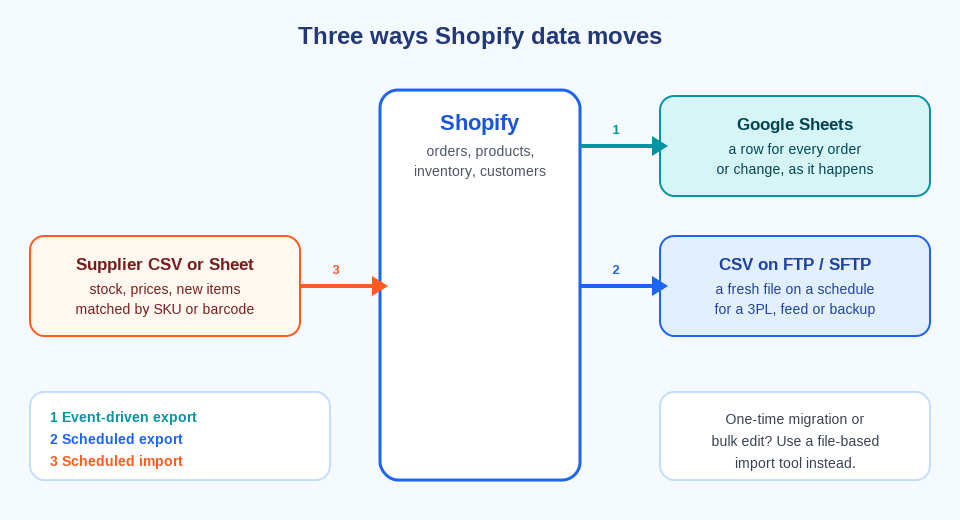
Shopify data sync means keeping your store's orders, products, inventory and customers in step with the spreadsheets, files and servers your team and partners work from, without exporting and pasting by hand. There are three ways that data moves: out of Shopify as things happen (a Google Sheets row for every new order), out of Shopify on a schedule (a fresh CSV on an FTP or SFTP server every night), and into Shopify on a schedule (stock and prices from a supplier's file). Shopify's own Export and Import buttons handle one-off jobs; anything that has to happen every day, or every time an order comes in, needs an automation.
This guide covers all three, what each is good for, and the ready-made MESA templates and step-by-step tutorials for each.
TL;DR: there's a template for that
Which kind of sync do you need?
| Job | Direction | What starts it | Typical destination or source | Template to start from |
|---|---|---|---|---|
| Log every order for reporting or a shared tracker | Shopify to sheet | Order created | Google Sheets | Send Shopify Orders to Google Sheets |
| Send a 3PL, marketplace or reporting tool a product file | Shopify to file | Schedule | CSV on FTP or SFTP | Export Shopify Products to a CSV on FTP on a Schedule |
| Apply a supplier's stock counts | File to Shopify | Schedule (new file or row) | CSV on FTP or SFTP | Update Shopify Inventory from CSV Files On Your FTP Server |
| Create products your team lists in a sheet | Sheet to Shopify | Row created | Google Sheets | Create Shopify Products from Google Sheets Rows |
| Keep a copy of your catalog and customer list | Shopify to file | Schedule (weekly) | Google Drive | Back Up Shopify Products and Customers to Google Drive Weekly |
| Migrate from another platform, or one big bulk edit | File to Shopify | You, once | CSV or Excel | Shopify's importer or a bulk import app (see below) |
What Shopify's built-in export and import already do
Every Shopify admin can export products, orders and customers to CSV and import products and customers from CSV. For a one-time job, that is often all you need. Two limits matter once the job repeats.
First, exports are manual and sometimes slow. You open the Orders or Products page, filter, and click Export each time. Shopify's help center notes that large order exports are emailed rather than downloaded:
"If you select to export more than 51 orders or to export orders by date, then the CSV file is emailed to you and the store owner."Shopify Help Center, Exporting orders
The same page says an export of 400,000 items can take around four hours. Product exports have their own variant-based rules: if any single product in your selection has more than 100 variants, the file is emailed instead of downloaded, and very large exports can time out (Shopify Help Center, Exporting products).
Second, Shopify has no built-in connection to Google Sheets or to an FTP or SFTP server, so nothing lands where your warehouse, accountant or supplier picks it up unless someone moves the file. Our guide to setting up Shopify FTP and SFTP access covers that gap in detail. For the native CSV flows themselves, see how to import customers into Shopify from a CSV file and how to import orders to Shopify using CSV files.
1. Event-driven: send Shopify data to Google Sheets as it happens
This is the most common data sync, and the one MESA merchants start with most. A workflow runs on a Shopify trigger (Order Created, Order Updated, Product Updated) and adds or updates a Google Sheets row. The sheet is never more than a few seconds behind the store, and nobody has to remember to export.
Good uses:
- Order logs and reporting. One row per order, or per line item, with customer, shipping and SKU details for pivot tables your team already understands. Start with how to connect Shopify to Google Sheets.
- Keeping rows current when orders change. Refunds, edits and fulfillments update the existing row instead of adding a duplicate. See how to sync Shopify order changes to Google Sheets.
- Status-based exports. Only write the order once it's delivered, or once it's tagged. See exporting orders to Google Sheets when they're delivered.
- Tax and regional reporting. Orders filtered by state and date, as in how to export Shopify orders by state and date.
- Team trackers. A form submission plus the matching order, logged to a sheet the support team works from, as in tracking warranty claims with a form and Google Sheets.
Two things to decide up front: whether a row is an order or a line item (line items make SKU reporting easy, orders make revenue totals easy), and which column is the unique key (the order ID or line item ID) so later updates find the right row.
2. Scheduled exports: a fresh CSV on FTP or SFTP
Warehouses, 3PLs, marketplaces, ERPs and reporting tools often don't want a login to your store. They want a file, in a known format, in a known folder, at a known time. A scheduled export runs on a Schedule trigger (hourly, nightly, weekly), reads products or orders from Shopify, and writes them to a CSV on your FTP or SFTP server with MESA's FTP actions (Save FTP file, or Add or Update Rows in CSV to update rows by SKU so the file stays current).
Good uses:
- Product and inventory feeds for a 3PL or marketplace. The full walkthrough is how to schedule a Shopify product CSV export to FTP.
- Order files for a fulfillment partner that imports a CSV instead of reading Shopify directly.
- Snapshots of your catalog and customer list to a server or drive you own.
Agree on the column layout with whoever reads the file before you build. Most failed feeds come from a renamed column or a changed date format, not from the transfer itself.
3. Scheduled imports: apply a supplier feed or sheet to Shopify
This is the reverse direction. A supplier or distributor drops a CSV on an FTP server (or your team edits a Google Sheet), and a workflow reads it and updates Shopify. MESA's FTP triggers can fetch the whole file on a schedule or run once per row (Fetch CSV File Row Created); Google Sheets can trigger on Row Created or Row Updated. Each row is matched to a Shopify variant, usually by SKU or barcode, and the stock level, price or product is updated.
Good uses:
- Supplier stock counts. See how to connect an FTP inventory feed to update Shopify products, or import product inventory by barcode using FTP when your supplier keys its file by barcode instead of SKU.
- Price lists. See how to update Shopify product prices from a CSV file on an FTP server.
- New products from a sheet. A merchandiser adds a row, and a draft product appears in Shopify, using the Create Shopify Products from Google Sheets Rows template.
- New items from a supplier catalog. The Import Supplier Product Feeds Into Shopify From FTP template creates drafts for SKUs you don't carry yet and updates the ones you do.
Imports change your live store, so build in two safeguards: skip rows whose SKU doesn't match a Shopify variant (and log them somewhere you'll see), and get alerted when the supplier stops uploading. The Alert Slack When a Scheduled Supplier Feed File Is Missing or Stale template does the second, since a feed that silently stops is worse than one that errors.
When a bulk import app is the better tool
Not every data job is a sync. Moving a store from Magento, WooCommerce or BigCommerce, cloning one Shopify store into another, or rewriting 20,000 products once are file-based jobs, and a dedicated bulk import and export app is built for them. Matrixify is the most widely used: its Shopify App Store listing has a 4.9 rating from 1,919 reviews, supports Excel, CSV and Google Sheets files, handles platform migrations, and can schedule repeating import and export jobs (Matrixify on the Shopify App Store). Its paid plans start at $20 a month, with a free plan limited to 10 items per file.
The difference is the unit of work. A bulk app moves a whole file at a time, on a schedule or on demand. A workflow tool like MESA moves one record at a time, when something happens, and can do other things along the way: look up a value, skip a row, tag the order, post to Slack, or ask an AI step to clean up a description before the product is created. If your job is "move this file," a bulk app fits. If it's "every time X happens, put Y over there," a workflow fits. Plenty of stores use both.
How to choose and set up your first sync
- Name the reader of the data. A person reading a sheet, a partner's system reading a file, or Shopify itself reading a supplier's file. That tells you the direction and the destination.
- Pick the trigger. If the data has to be current within minutes (orders for a packing team), use a Shopify event. If a partner expects a file at a set time, use a schedule.
- Pick the key. Order ID, line item ID, SKU or barcode. Every update depends on finding the right row or variant.
- Start from a template. Install one from the table above, connect Google Sheets or your FTP server, and map columns to fields.
- Test on a handful of records. Place a test order, or upload a three-row CSV, and check the result before you point it at real volume.
FAQs
What is Shopify data sync?
It's keeping Shopify data (orders, products, inventory, customers) and an outside place (a Google Sheet, a CSV on an FTP or SFTP server, a drive) matching automatically. It can run out of Shopify as events happen, out of Shopify on a schedule, or into Shopify from a supplier file or sheet.
Can Shopify sync with Google Sheets natively?
No. Shopify exports CSV files you can open in Google Sheets, but there's no built-in live connection. An automation app adds that: for example, a MESA workflow that adds a row whenever an order is created.
Does Shopify support FTP or SFTP?
Shopify doesn't offer FTP access to your store data. To send files to, or read files from, an FTP or SFTP server, you need an app that connects to the server and reads or writes Shopify data on your behalf.
How often can a scheduled export or import run?
As often as the job needs, from hourly to weekly. Match it to how often the other side reads or writes the file: a 3PL that imports once a night needs one fresh file before that import, not one every hour.
Should I use Matrixify or MESA for Shopify data?
Use a bulk import app like Matrixify for one-time migrations, store copies and large one-off edits. Use a workflow tool like MESA when data has to move every time something happens in the store, or when the move needs extra steps like filtering, lookups or notifications.