Discord is a good place for a team or a community to talk and a bad place to be on call. If the one message that matters (a customer escalation in #support, a "site is down" in #ops, a moderator shouting @here) lands while you're away from the app, it waits alongside every other unread badge until you next open it. A text message doesn't wait like that.
This guide builds a Discord-to-SMS workflow in MESA that texts a phone when someone pings a specific role (or uses @everyone/@here) in a channel you choose. It's five steps, and most of the work is in two details people usually find out the hard way: Discord's rules about what message text a connected app is allowed to read, and SMS's 160-character ceiling.
TL;DR: there's a template for that
What you're building
MESA's Discord connector is action-only. It can post, read, pin, and manage messages, but there is no "new message posted" trigger to start a workflow from. So instead of waiting to be told about a message, the workflow goes and looks: a Schedule trigger runs it on a recurring interval, it reads every message posted since the last run, keeps the ones that ping the people you care about, and texts them.
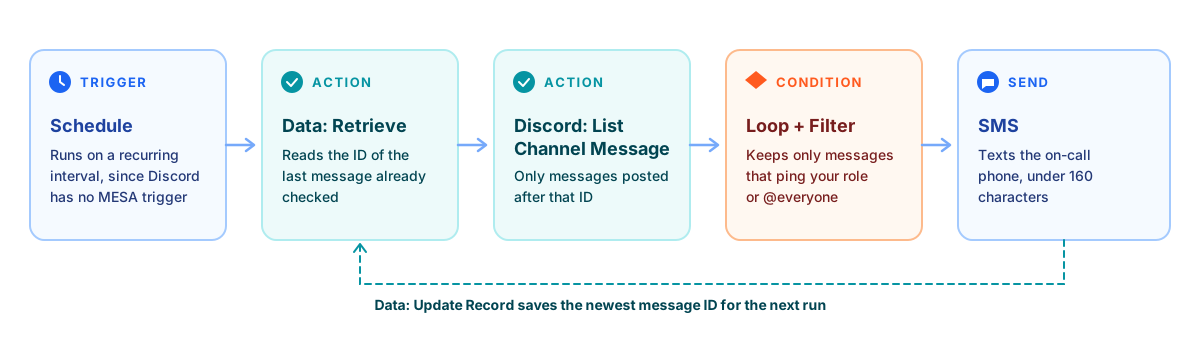
The Data steps on either side are what make this safe to run repeatedly. Without them, every run would re-read the same recent messages and text you about the same ping over and over.
Before you start
- Connect Discord to MESA. Click Connect with Discord in any Discord step, pick the server, and authorize. MESA's Discord connection docs cover the "You need to verify your account" error some people hit here.
- Make sure MESA can see the channel. Discord only returns a channel's history to an app that has permission to view it and read its history. If it lacks the second one, the request doesn't fail, it just comes back empty, which is the most confusing possible symptom.
- Get the channel ID and role ID. Turn on Developer Mode in Discord (User Settings → Advanced), then right-click the channel and choose Copy Channel ID. Do the same on the role in Server Settings → Roles to copy its ID.
- Get consent for every number you'll text. This is usually your own phone or your team's, which is the easy case. It still has to be a number that agreed to receive the texts (more on that below).
"If the current user is missing the READ_MESSAGE_HISTORY permission in the channel, then no messages will be returned."Discord Developer Docs, Get Channel Messages
The message-content catch (read this before you design the filter)
The obvious version of this workflow is "text me any message containing the word urgent." Whether that works depends on something outside your control. Discord treats message text as privileged data for connected apps. An app has to be approved for the MESSAGE_CONTENT intent to read it, and without it Discord blanks out the text of other people's messages:
"Apps without the intent will receive empty values in fields that contain user-inputted content"Discord Developer Docs, Message Content Intent
Discord's own list of exceptions includes messages the app sends itself, DMs with the app, and messages in which the app is mentioned. What it doesn't blank out are the structural fields on every message: who wrote it (author), when (timestamp), whether it pinged everyone (mention_everyone), and which roles it pinged (mention_roles).
So this guide filters on mentions, not keywords. That turns out to be the better design anyway. A role mention is a deliberate "I need this group" signal that the sender chose to make, while keyword-matching free text generates false alarms the first time someone writes "not urgent, whenever you get a chance." When you run your first test below, check whether content comes back filled in. If it does, you can add it to the text as a bonus. If it's empty, the workflow still does its job.
Build the workflow step by step
1. Start with a Schedule trigger
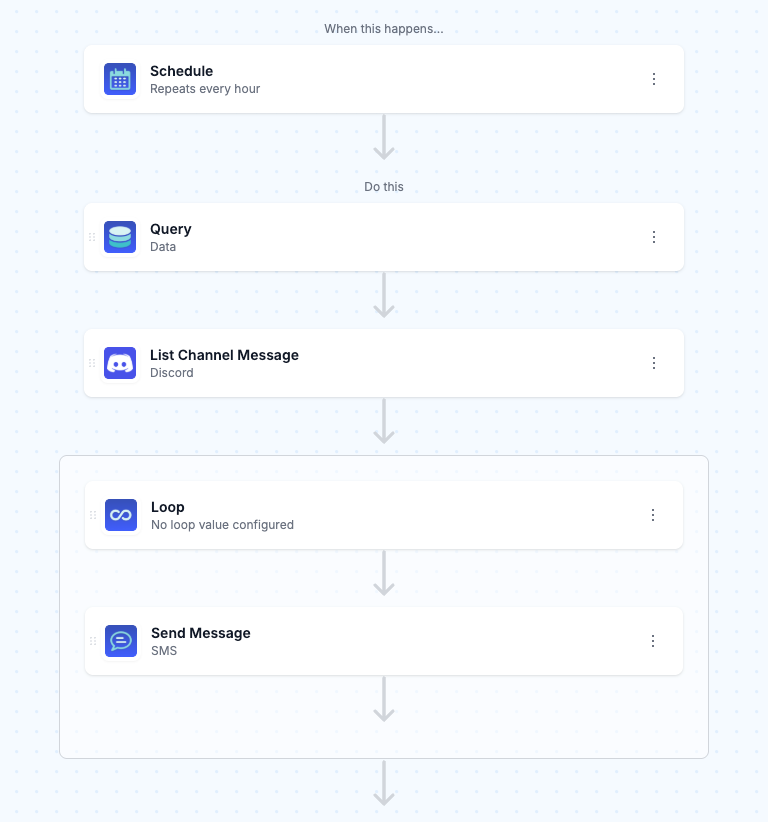
Create a new workflow in MESA and choose the Schedule trigger set to Recurring. The interval you pick is the worst-case delay between a ping and your phone buzzing, so match it to how urgent the channel really is. A #site-down channel deserves the tightest interval your plan offers. A #wholesale-inquiries channel is probably fine hourly.
2. Read the last-checked message ID
Add a Data step that retrieves a single row from a small table, for example discord_sms_cursor, with a channel_id column and a last_message_id column (type Text, since Discord IDs are long numeric strings). The Data tool persists values between runs, so this row remembers how far through the channel the previous run got.
Seed the row by hand before the first run: copy the ID of the most recent message in the channel (right-click it → Copy Message ID) into last_message_id. If you skip this, the first run has no starting point, reads up to the latest 50 messages, and may text you about pings from last week.
3. Fetch only the messages posted since then
Add a Discord step using the List Channel Message action. Set the channel ID, and set after to the last_message_id variable from step 2. Discord's endpoint accepts after, before, or around (only one at a time), plus a limit between 1 and 100 that defaults to 50. Set limit to 100 so a busy stretch between runs doesn't silently drop messages.
One detail matters for step 5: Discord returns the list newest first. The first item in the array is the most recent message, which is the ID you'll save for next time.
4. Loop over the messages and keep only the pings
Add a Loop over the messages returned in step 3, and inside it, a Filter with two rules joined by OR:
mention_rolescontains your on-call role's IDmention_everyoneequalstrue
Two rules worth adding with AND if they apply to you. Exclude messages whose author.bot is true, so another bot's automated @here doesn't wake you up, including a MESA workflow that posts into the same channel. And if only certain people should be able to page you, restrict author.id with is in and a list of their user IDs. MESA's filter values are case-sensitive, which doesn't matter for IDs but will matter if you later add text rules.
5. Send the text, and keep it under 160 characters
Inside the loop, after the filter, add the SMS step. Enter the phone number to text and a message built from the loop item's fields, something like:
Discord ping in #ops from {{ author.username }}: {{ content | truncate: 80 }}
The truncate filter is not optional polish. MESA's SMS tool has a hard ceiling, and going over it doesn't split the message, it cancels it:
"If your message is longer than 160 characters, the task will be marked as Fail and no message will be sent."MESA docs, SMS tool
That limit applies after variables are filled in, so a template that looks short in the editor can blow past 160 characters once a long username and message get dropped into it. Budget the fixed text, give usernames some room, and truncate the message body to whatever's left. If content came back empty in your test, drop it and send the channel and author on their own. "Discord ping in #ops from dana" is plenty to get you to open the app.
Finally, after the loop ends, add a Data step that updates the cursor row's last_message_id to the ID of the first (newest) message from step 3. Put a Filter in front of it that only continues if step 3 returned at least one message. Otherwise an empty run would overwrite a good cursor with a blank one.
Test it before you trust it
- Post a message in the channel that mentions your on-call role, then run the workflow manually.
- Open the run and look at the List Channel Message output. Confirm your message is there and check whether
contentis filled in or empty. That tells you which SMS template to use. - Confirm the text arrived and was under 160 characters. If the SMS step shows Fail, the rendered message was too long.
- Check the cursor row in the Data tab now holds your test message's ID. Run the workflow again straight away: nothing should be sent.
- Post a plain message with no mention and run it once more. Again, nothing should be sent.
That last pair of checks is the one people skip, and it's the one that catches the two failure modes that actually hurt: duplicate texts and false alarms.
SMS limits and rules to know
- US and Canada only. MESA's built-in SMS tool only sends to numbers in the United States and Canada, and every message comes from the same shared number, +1 510 567 7078. Save it as a contact ("Discord alerts") so the texts are recognizable at a glance.
- It's a premium step. SMS is one of MESA's premium actions, with a limited number included for free. See plans and billing. This is another reason to filter tightly: every ping that gets through costs one.
- Opt-in is required, even for internal alerts. MESA requires messages to follow the carriers' code of conduct and the CTIA's opt-in guidelines, and it suspends accounts that send unsolicited messages. Texting your own team's on-call phones with their agreement is squarely inside that. Texting community members who never asked for it isn't.
- Need longer messages or other countries? MESA's docs point to the Twilio connector instead, which charges per message and takes more setup but lifts the built-in tool's constraints.
Going the other way: one alert, both channels
Plenty of people searching for "Discord to SMS" actually want the reverse: when something happens in the store, tell the team in Discord and text whoever's on call. That one is simpler because there's no polling involved. A Shopify trigger starts the workflow, and Discord's Create Channel Message and the SMS step both run as actions off the same event. The Shopify-to-Discord inventory alerts guide covers the Discord half, and our broader guide to automating Discord messages walks through the trigger and message-formatting options. Adding an SMS step after the Discord one is the only change.
FAQs
Can Discord send notifications as text messages on its own?
Discord doesn't have a setting that forwards channel messages to an SMS number. Its notifications go through the Discord app itself. To get a real text, something outside Discord has to read the channel and send the SMS, which is what this workflow does.
Why is the message text empty in my Discord step's output?
Discord blanks out the text of other users' messages for apps that aren't approved for its privileged MESSAGE_CONTENT intent, except in a few cases, such as messages that mention the app. Fields like author, mention_roles, and mention_everyone are still returned, which is why this workflow filters on mentions rather than keywords.
How quickly will I get the text after someone pings the role?
Within one Schedule interval, plus a few seconds to run. Because MESA's Discord connector has no message trigger, the workflow checks on a schedule rather than being notified instantly. Set the interval to match how urgent the channel is.
Can I text more than one person?
Yes. Add a second SMS step with the other number, or use a Paths step to text different people depending on which role was mentioned, for example @ops texts the ops lead and @support texts whoever's covering support. Each text counts as its own premium action.
Why did my SMS step fail?
The most common cause is length. The built-in SMS tool fails the task instead of sending if the message is over 160 characters after variables are filled in. The other is the destination: it only sends to US and Canadian numbers. Truncate the variable parts of the message, and use the Twilio connector for international numbers.