
Something breaks in your store at 2pm and nobody hears about it until 6. An order gets flagged as high risk and ships anyway. A best-seller hits zero and stays on the homepage for four hours. Nobody was ignoring the problem — nobody was looking at it, because the signal was sitting in the Shopify admin and the team lives in Slack.
Shopify Flow can close that gap itself, without a middleman. Here's exactly how, what belongs in the message, the four alerts worth building first, and the four places Flow's Slack action runs out of road.
TL;DR: there's a template for that
The short answer
Yes. Shopify Flow has a native Send Slack message action — a built-in connector, not a workaround. You don't need an incoming webhook, a middleware app, or a line of code, and it works with any Flow trigger.
It also doesn't cost anything. Flow is a free app available on the Basic, Grow, Advanced, and Plus plans, so Shopify-to-Slack alerting is included in whatever you're already paying. Two things to know before you build: you have to add FlowBot to each Slack channel by hand, and the traffic only moves one direction — Shopify can talk to Slack, but nothing anyone types in Slack can start a workflow going the other way.
Worth saying plainly, because a lot of write-ups still get this wrong: Flow is not Shopify Plus-only, and you do not need the Send HTTP request action to reach Slack. The plan gates in Flow are narrower than that, and we'll cover the one that does matter below.
Set it up once, then reuse it everywhere
The connection is account-level, so you do this once and every future workflow can use it:
- Open a workflow and add the action. In Flow, add a step, choose Send Slack message, and click through to connect Flow to your Slack account. You'll authorize it in Slack the same way you'd authorize any app.
- Add FlowBot to the channel. This is the step everyone misses. In Slack, open the channel details, go to Integrations, click Add an app, search for FlowBot, and add it. Do this for every channel you plan to post into.
- Fill in the channel. The field is Channel or member ID. For a named channel, type
#ops-alerts. For a channel without a name, copy its ID from the channel details and prefix it with$. - Write the message, then turn the workflow on and place a test order (or trip the trigger some other way) before you trust it.
Shopify's own documentation is blunt about the two prerequisites:
"To begin using the Slack action, you must first connect Flow to your Slack account. After you have connected to Slack, you must add the FlowBot to any Slack channel where you plan to post messages."Shopify Help Center, Send Slack message
If messages silently stop arriving later, FlowBot is almost always the reason — a channel got recreated, someone removed the app, or the Slack connection needs re-authorizing. The fix merchants land on in the Shopify community thread on this is to disconnect Slack inside the Flow action, refresh the editor, reconnect, and re-add FlowBot to the channel.
What to actually put in the message
The message field accepts Slack's own formatting, so an alert can look like something a person wrote rather than a log line:
"You can format your message using Slack's mrkdwn syntax, similar to Markdown. For example, use this formatting to add a link:
<http://www.example.com|This message is a link>"Shopify Help Center, Send Slack message
That link syntax is the important one. Slack's mrkdwn format is not quite Markdown — links are angle-bracketed with a pipe, bold is single asterisks, and italics are underscores. Get the link format right and you can drop a one-click path straight into the Shopify admin, which is the difference between an alert someone acts on and an alert someone has to go hunting behind.
Three habits that make these messages useful:
- Lead with the decision, not the event. "High-risk order #1042 — $480, review before fulfilling" beats "An order was analyzed for risk."
- Include the numbers you'd otherwise go look up. Order total, SKU, current quantity, customer email. If the reader has to open the admin to know whether this matters, the alert only did half its job.
- Always link into the admin. Build the URL from the trigger's variables so it goes to the specific order or product, not the dashboard.
You can reference data from the trigger in the message using Flow's variable syntax, the same way you would in any other Flow action field. If you haven't used those before, our Shopify Flow guide walks through how variables and conditions fit together.
Four Slack alerts worth building first
The Send Slack message action pairs with any Flow trigger, which is a large menu. These four earn their keep in almost every store.
1. A high-risk order just landed
Flow's Order risk analyzed trigger fires after Shopify scores a new order. Add a condition on the risk level, tag the order so it's findable later, and post it to the channel where someone will actually see it before the warehouse picks it.
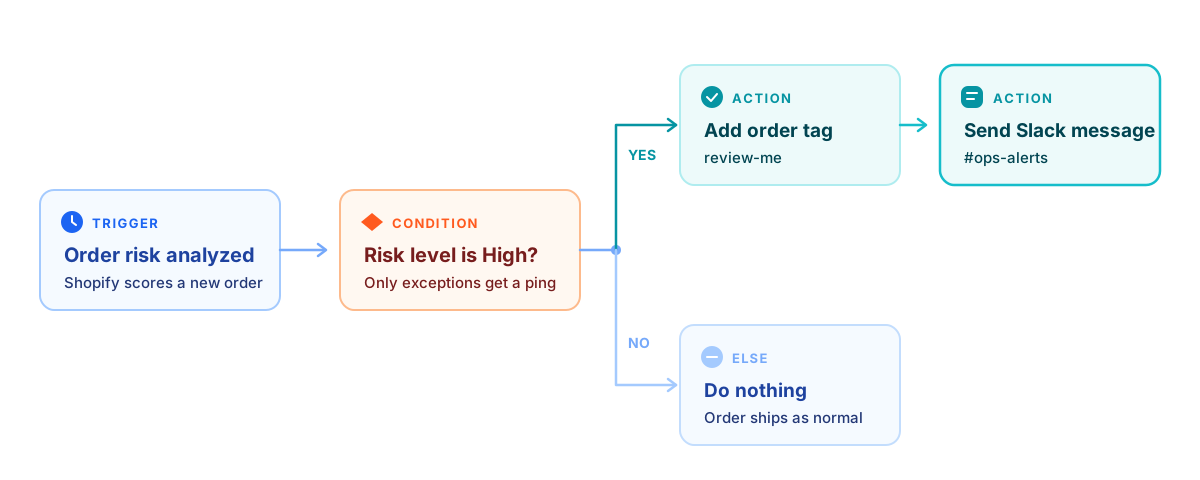
That condition step is the whole design. Without it you get every order in Slack; with it you get only the ones that need a human.
2. A best-seller drops out of stock
Use Product variant out of stock for the hard stop, or Product variant inventory quantity changed with a condition if you'd rather be warned at 10 units than at zero. Gate it to the products that matter — a tag like core-range works fine as the filter — or the channel becomes noise the first time a long-tail variant sells out.
3. A refund crosses a threshold
Refund created plus a condition on the amount gives finance and support a shared, dated record of every large refund without anyone building a report. The Return requested and Return approved triggers do the same job on the returns side.
4. A workflow itself fails
Flow has a Workflow error occurred trigger, and it's the most underused one in the list. Point it at a Slack channel and your automations tell you when they stop working, instead of failing quietly for a week while everyone assumes the tagging still runs.
The rule that keeps the channel alive
Alert on exceptions, not on activity. A Slack channel that gets a message for every order is muted within a week, and a muted channel is worse than no channel — it looks like coverage while providing none. Put a condition in front of every alert, split routine notifications away from things that need action (#store-feed versus #ops-alerts), and delete any alert nobody has responded to in a month. We go deeper on that design question in our guide to automating Slack messages.
Where Flow's Slack action stops
Four real limits, in the order stores tend to hit them.
It only goes one direction
Flow has a Slack action but no Slack trigger. Nothing said or clicked in Slack can start a Flow workflow, so anything shaped like "reply in the thread to approve this discount" or "type a SKU to check stock" is out of scope. Flow's trigger list is Shopify events plus Scheduled time and Workflow error occurred — Slack isn't in it.
It only knows what Shopify knows
The alert you want is often about something that happened somewhere else: a Gorgias ticket escalating, a Recharge payment failing, a supplier's stock file landing on an SFTP server, a competitor changing price. Flow can't see any of it, so it can't tell Slack about it.
On Basic, there's no escape hatch
The usual workaround for anything Flow can't do natively is Send HTTP request — and that action is the one with a real plan gate. Shopify's documentation states that stores on the Grow, Advanced, and Plus plans can use it, which leaves Basic out. Separately, tasks created by custom partner apps are Plus-only. So the Slack action itself is available to everyone, but the "build around it" option isn't. If you're extending Flow rather than replacing it, our guide on extending Shopify Flow covers both directions.
No buttons, no threads, no approvals
The action posts a chat message. It doesn't post interactive Slack blocks with approve/reject buttons, it doesn't reply into an existing thread to keep a running incident in one place, and it doesn't wait for a response before continuing. Approval workflows — the "manager signs off before this refund goes out" pattern — need something that can receive a reply, and Flow can't.
When to reach past Flow
If your alerts are Shopify events going one way into a channel, Flow is the right tool and you're done. Reach for a general automation platform when you need one of the things above: an alert built from data Flow can't see, a message assembled from two or three systems, a Slack step that starts something rather than ends it, or richer message formatting than a single chat post.
That's the line MESA sits on. It uses the same Shopify triggers Flow does, adds triggers Flow doesn't have — other apps, schedules, inbound webhooks — and can run the Slack step anywhere in a longer sequence rather than only at the end. The Send Shopify Order Details to Slack template is the fastest way to see the difference: same order-created event, but you choose which fields go into the message and set the conditions that decide whether it sends at all.
Worth being honest about the trade: if Flow already does the job, adding another tool to do the same job is a cost, not an upgrade. Start with Flow's native action. Move when you hit one of the four walls, not before.
FAQs
Can Shopify Flow send Slack messages?
Yes. Shopify Flow includes a native Send Slack message action that posts a chat message to a Slack channel, and it works with any Flow trigger. You connect Flow to your Slack account once, add FlowBot to each channel you want to post into, then enter a channel (#ops-alerts) and your message text. No webhook, middleware, or code is involved, and Flow is free on every Shopify plan.
Do I need Shopify Plus to send Slack messages from Flow?
No. Shopify Flow is a free app available on Basic, Grow, Advanced, and Plus, and the Send Slack message action isn't restricted to a plan. The plan gates inside Flow are narrower: the Send HTTP request action requires Grow, Advanced, or Plus, and tasks created by custom partner apps require Plus. Usage limits also scale with the API limits attached to your plan.
Why isn't FlowBot posting to my Slack channel?
Almost always because FlowBot isn't in that channel. Adding it is a manual step — open the channel details in Slack, go to Integrations, choose Add an app, and add FlowBot — and it has to be repeated for every channel, including any created after you set up the connection. If FlowBot is already there and messages still aren't arriving, disconnect Slack from inside the Flow action, refresh the Flow editor, reconnect, and re-add the bot.
Can Shopify Flow send a Slack DM instead of a channel message?
The field is labelled "Channel or member ID," but the only formats Shopify documents are channel ones: #channel-name for a named channel, or the channel ID prefixed with $ for an unnamed one. FlowBot also has to be added wherever it posts. If a specific person needs an alert, the predictable setup is a small private channel with that person and FlowBot in it, rather than relying on DM behavior Shopify doesn't document.
Can Slack trigger a Shopify Flow workflow?
No. Flow has a Slack action but no Slack trigger, so the connection is one-way: Shopify events can post into Slack, but nothing typed or clicked in Slack can start a workflow. Approval flows, slash commands, and "reply to confirm" patterns need a platform that can receive an inbound request — Flow's triggers are Shopify events plus Scheduled time and Workflow error occurred.