
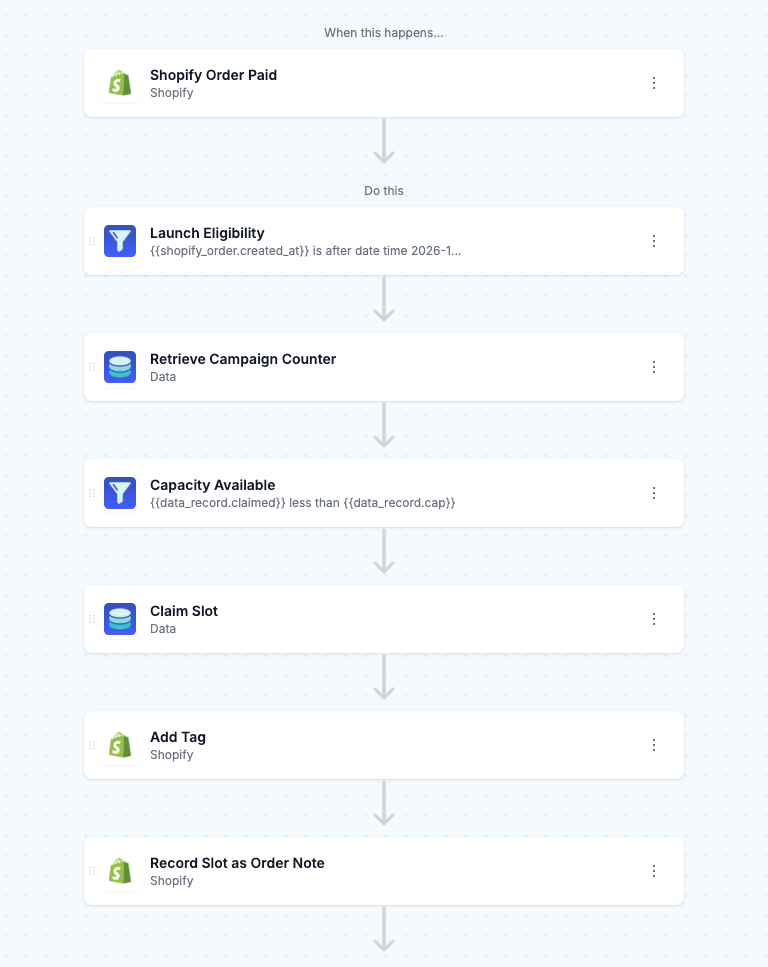
A capped promotion is a counting problem wearing a marketing costume. If you promise an extended two-year warranty to the first 150 paid orders after a launch date, something has to keep a running total that survives between orders, decide whether each new order still fits under the cap, stop cleanly at 150, and not hand out slot 151 because two people checked out in the same second. In MESA that is one workflow with seven billable steps after the trigger, plus a second, much smaller workflow that gives a slot back when an order gets refunded.
This one came out of a real conversation on our site. A merchant was planning a launch where the first 150 valid paid orders would receive an extended two-year warranty: a store-wide counter running 0 to 150, a hard stop at exactly 150 qualifying orders, an OPENING-2Y-WARRANTY tag on each winning order, and a custom event pushed into Klaviyo to fire the warranty confirmation email. Their sharpest question was the one most "just use a counter" answers skip: what actually stops the limit from being exceeded when several orders are paid at nearly the same time? That answer is below, and it is not the part of MESA you would expect.
TL;DR: there's a template for that
What "the first 150" actually has to survive
Four things break the naive version of this build, and all four are worth naming before you open the builder.
- State between runs. Each order arrives as its own isolated workflow run. Nothing carries over from the last one unless you deliberately write it down somewhere.
- Orders that shouldn't count. A pre-launch order that gets paid late, a cancelled order, a test order you placed yourself. Each one quietly eats a slot if the filter is sloppy.
- Simultaneous checkouts. Launch day is exactly when two orders land in the same second, and a read-then-write counter is the classic place that goes wrong.
- Refunds. If order 47 is refunded in full an hour later, did a slot open back up? That's a policy decision, and whichever way you answer it, the automation has to match.
Set up the counter table first
MESA's built-in Data tool is a private database attached to your account, and it exists specifically so a workflow can leave a note for the next run. That's the whole mechanism here: one table, one row, one number.
Create the table from inside a Data Create Record step in a scratch workflow (that's where tables get defined in MESA — you name the table and its columns in the step itself). Call it campaign_counter and give it three columns:
campaign— Text. The campaign key, for exampleopening-2y-warranty. You want this because your next capped promotion should reuse the same table rather than needing a new one.claimed— Integer. The running count. Seed it at0.cap— Integer. Set it to150. Storing the limit as data instead of hard-coding it in a Filter means you can raise or lower the cap mid-campaign without editing the workflow.
MESA adds mesa_id, mesa_created_at and mesa_updated_at automatically. Run that scratch workflow once to create the single seed row, then check it under My account → Data → View Data before you go any further. One row, claimed at zero.
Get the column names and types right the first time. Once the workflow is saved, MESA locks column names and types in the interface so that other workflows using the same table don't break underneath you — changing them afterwards means running an ALTER query from the Data settings page rather than clicking a field.
The workflow, step by step
Eight steps including the trigger. Every one of them is a stock trigger or action in MESA's Shopify and Klaviyo connectors plus the built-in Data and Filter tools — no custom code, and nothing here is gated behind a Pro-only connector.
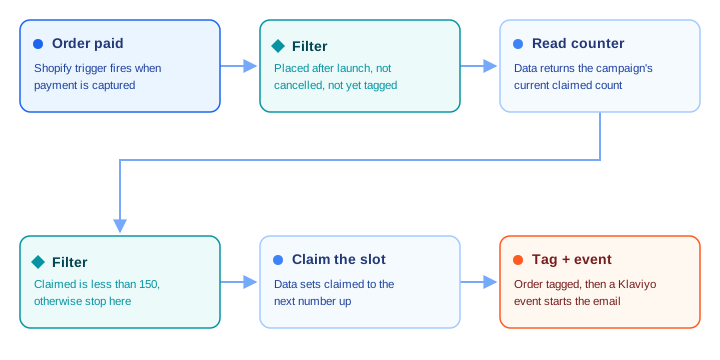
1. Shopify: Order Paid
Use the Order Paid trigger, which fires when an order is processed, rather than Order Created. A warranty is a real financial commitment, and Order Created fires when the order record is created regardless of whether payment has been captured — which includes pending orders and orders on payment terms that may never be paid at all. Making payment capture the gate means a slot is only ever spent on money that actually arrived.
2. Filter: the three things that disqualify an order
One Filter step with three rules joined by AND, using the Additional Rules checkbox under More fields:
- The order's Created at is after your launch date and time. Note this is created at, not the moment the trigger fired — an order placed the night before launch but captured the next morning would otherwise sneak in through the back door.
- The order's Cancelled at is empty.
- The order's Tags does not contain
OPENING-2Y-WARRANTY. This one looks redundant. It isn't, and the section on replays below explains why.
Filter's date conditions are literal — "Is after [date/time]" compares against the value you give it, so be deliberate about which timezone your launch moment is expressed in. If your store is in Pacific time and you type a bare date, confirm what that resolves to before launch day rather than after.
3. Data: Retrieve Record
Add a Data Retrieve Record action pointed at campaign_counter, matching on campaign equals opening-2y-warranty. It returns the single seed row, and the rest of the workflow can now reference claimed and cap as variables.
4. Filter: is the cap still open?
A second Filter, one rule: claimed is less than cap. Compare the two variables against each other rather than typing 150 into the condition, so that raising the cap later is a one-cell edit in the Data table instead of a workflow change that needs re-testing mid-campaign.
Orders that arrive after the cap fills stop here, three steps in. They cost you a little usage and nothing else.
5. Data: Update Record — claim the slot
Now the important one. A Data Update Record action against the same row, setting claimed to {{data.claimed | plus: 1}} — MESA's fields support Liquid templating, and plus is a standard Liquid filter, so the arithmetic happens inline with no Transform or Custom Code step needed. Substitute your Data step's actual key for data.
Put this step before the tag and the Klaviyo event, not after. The slot is claimed the moment the count goes up; everything downstream is just delivery. If the Klaviyo step fails and you replay it, the count is already correct and nothing is double-spent.
6. Shopify: Order Add Tag
An Order Add Tag action adding OPENING-2Y-WARRANTY to the triggering order. This is the durable, human-visible record: it shows up in the Shopify admin, it's filterable in the orders list, and it's what your support team will search when a customer emails in six months asking whether they got the extended warranty. If you're doing more of this kind of thing, our guide to Shopify tags and auto-tagging at scale covers the conventions worth settling on early.
7. Shopify: Create or Update Order Note Attribute
Optional, and worth it. A note attribute appears in the Additional details section of the order page in the admin, which is where a support agent is already looking. Write the slot number into it — warranty_slot set to {{data.claimed | plus: 1}}, the same expression as step 5. "You were number 112 of 150" is a far better answer to a customer than "yes, you qualified," and it's free to capture now and impossible to reconstruct later.
If you'd rather keep it out of the customer-facing admin notes area entirely, Set Order Metafield works the same way and is the better choice if anything downstream needs to read the value programmatically.
8. Klaviyo: Create Event
Finally, Klaviyo's Create Event action. Set the Metric Name to something unambiguous like Opening Warranty Granted, fill in the Profile's Email field with the order's email variable, and add Properties for anything the email template needs — order number, slot number, warranty end date. In Klaviyo, build a flow triggered on that metric.
Pushing a custom event rather than adding the customer to a list is the right call here: the event carries the order-specific properties with it, and it fires once per qualifying order instead of mutating a profile's list membership. If Klaviyo is central to your stack, ten more Shopify-to-Klaviyo workflows are worth a look for the same event-driven pattern applied elsewhere.
Can two simultaneous orders both take slot 150?
This is the question that sinks most DIY versions of this build, and the honest answer is that the protection doesn't come from the Data tool at all. MESA's documentation makes no atomicity claim about Data steps. The guarantee comes one level down, from how MESA processes work in the first place.
"To ensure proper message ordering and to prevent rate limit issues with third-party APIs, by default all stores process one automation run at a time."MESA's queue documentation
Every trigger lands in a durable, per-store queue, and that queue is First In First Out. Two orders paid in the same second do not race each other through your workflow — they line up, and the second one doesn't start until the first one has finished writing claimed = 150. The read-then-write counter that would be genuinely unsafe in a parallel system is safe here because nothing is parallel.
There is one way to lose that property, and it's a setting you have to have asked for:
"Increasing parallel workers increases throughput but means runs are no longer guaranteed to complete in strict arrival order relative to each other."MESA's queue and retries FAQ
If you've previously asked MESA support to raise parallel workers for your store, say so before launching a capped campaign. Worker counts can be set per workflow as well as per store, so the fix is to keep this one workflow on the default single-worker setting while everything else runs wide. That is a support request, not a toggle in the builder.
The replay trap, and the one-line guard against it
Rule 3 in step 2 — tags does not contain OPENING-2Y-WARRANTY — exists for a scenario the queue can't protect you from: replaying a run by hand.
Automatic replay retries only the step that failed, so it's harmless here. But the Activity tab's manual bulk action is Replay the entire workflow, which starts over from the top. Replay a run that already incremented the counter and you'll spend a second slot on an order that already had one. The tag check catches it: the order is already tagged, the Filter stops the run at step two, and the count stays honest. MESA's own documentation recommends exactly this shape — tag or flag the object after your update step, then filter on that tag at the start of the workflow so a re-triggered run exits early.
Giving a slot back when an order is refunded
A second, four-step workflow handles the other direction. Whether you want it at all is a business decision — some campaigns treat a refunded order as a burned slot and move on — but if slot 47 should return to the pool, here's the shape:
- Refund Created trigger, which fires when a refund is created in your store.
- Retrieve Order to pull the full order record the refund belongs to.
- A Filter with two rules: the order's tags contain
OPENING-2Y-WARRANTY(so you never decrement for a refund on an order that never claimed a slot), and the refunded amount equals the order total (so partial refunds — a shipping adjustment, a single returned item — don't hand back a slot the customer is still holding). - Retrieve Record and Update Record to set
claimedto{{data.claimed | minus: 1}}, and an Order Remove Tag to stripOPENING-2Y-WARRANTYso the order's state matches reality.
Removing the tag matters more than it looks. It keeps the Shopify admin truthful, and it means the count in your Data table and the count of tagged orders in Shopify stay reconcilable — which is how you'll audit the campaign afterwards.
What this actually costs in MESA tasks
Worth doing the arithmetic before you pick a plan, because capped-campaign workflows are step-heavy by nature and the math is not intuitive.
"Typically, every step in a workflow will count as a task if it runs, except Loops and Paths."MESA's plans and billing documentation
A fully qualifying order runs seven steps after the trigger: two Filters, two Data steps, the tag, the note attribute, and the Klaviyo event. That's roughly 1,050 tasks to award all 150 slots. Every order that arrives after the cap fills costs three (Filter, Retrieve Record, Filter), and every pre-launch or cancelled order costs one. On a launch that draws 600 paid orders in the month, you're looking at something in the neighbourhood of 2,400 tasks.
MESA's Basic plan includes 500 tasks a month at $12, which this workflow alone blows through before it reaches slot 75. Flex, at $29 for 10,000 tasks, is the realistic floor for a campaign at this size. None of the steps here are Premium tasks either — that surcharge applies to MESA's built-in Email, SMS, AI, Image and Weather tools, and Klaviyo's Create Event is a normal connector action.
Before you switch it on
- Confirm the seed row exists and reads zero. A Retrieve Record step that matches nothing will not fail loudly enough to save you on launch morning.
- Test the whole path end to end with a real paid order — a low-value product, a real payment, a real refund afterwards. Then reset
claimedto zero by hand before going live, and delete the test order's tag. - Test the cap itself. Temporarily set
capto2, place three orders, and confirm the third one stops. This takes ten minutes and is the only way to know the Filter comparison is pointed at the right variables. - Tell support if you expect a spike. MESA's documentation is explicit that a store's queue moves into a separate bulk queue beyond 10,000 pending messages, and that it's worth flagging a flash sale in advance so processing capacity can be tuned. A capped-warranty launch is exactly that kind of event.
- Write the cap into the storefront copy as a fact you can defend. The counter is only as trustworthy as the filters feeding it — the build above is honest about which orders count, and your marketing copy should say the same thing.
FAQs
Does MESA guarantee the counter can't exceed 150 under simultaneous payments?
Not through the Data tool — MESA's documentation makes no atomicity claim about Data steps specifically. The protection comes from the queue: each store processes one automation run at a time by default, in FIFO order, so simultaneous orders are serialized rather than raced. That default is what makes a read-then-write counter safe. If your store or workflow has had parallel queue workers raised by MESA support, that assumption no longer holds and this workflow should be kept at a single worker.
Can I do this with Shopify Flow instead?
Partly, and more than most people assume. Shopify Flow is free on every Shopify plan — not Plus-only, despite how often that gets repeated — and it has an Update shop metafield action, so a store-wide counter surviving between runs is genuinely buildable there. Two things push this particular campaign to MESA anyway. A single metafield value is a worse home for campaign state than a table you can query, which matters the moment you want to run two capped promotions at once or audit one afterwards. And Flow's built-in connectors are Slack, spreadsheets and text generation — reaching Klaviyo with a custom event depends on whether that app has registered its own Flow actions, where in MESA it's a stock Create Event step.
What happens to order 151?
It runs the first three steps, fails the cap Filter, and stops. No tag, no Klaviyo event, no change to the counter, and nothing visible to the customer. If you want the near-misses recorded, swap that Filter for a Paths step with two branches — under the cap, and at the cap — and have the second branch write the order to a separate Data table or a Google Sheet. That list is exactly who a consolation offer should go to.
Can the same counter run two campaigns at once?
Yes. That's what the campaign column is for. Each campaign gets its own row with its own claimed and cap, and each workflow's Retrieve Record step matches on its own campaign key. One table, many capped promotions, no extra setup.
Which MESA steps does this use?
Shopify's Order Paid and Refund Created triggers; its Retrieve Order, Order Add Tag, Order Remove Tag, Create or Update Order Note Attribute and Set Order Metafield actions; Klaviyo's Create Event action; and the built-in Data (Retrieve Record, Update Record, Create Record) and Filter tools. No Pro-tier connectors and no Custom Code.