
You can paste a product description into ChatGPT and ask for a better one. What ChatGPT can't do on its own is look inside your Shopify store: it doesn't know what sold yesterday, which variants are about to sell out, or which orders still need a tag before they ship. MCP (Model Context Protocol) is how you give it that access, and MESA's MCP trigger lets you do it without running a server or writing code.
This guide connects a Shopify store to ChatGPT through MESA, step by step. You'll build a tool that reads your orders, add your MESA MCP server to ChatGPT once, and then add more tools (a low-stock check and an order tagger) that show up in the same connection.
TL;DR: there's a template for that
How ChatGPT talks to your Shopify store
MCP is an open standard for connecting AI assistants to outside tools. An MCP server publishes a list of tools, each with a name, a description, and the inputs it accepts. When you ask ChatGPT something one of those tools can answer, ChatGPT calls it, reads what comes back, and answers you from that data.
With MESA, each tool is a workflow that starts with the MCP trigger. The trigger defines the tool's inputs (MESA calls them parameters), the Shopify steps after it do the work, and the result goes back to ChatGPT. You add your MESA MCP server to ChatGPT once, and every MCP workflow you turn on after that appears as another tool. Our guide to MCP automation for ecommerce covers the concept in more depth.
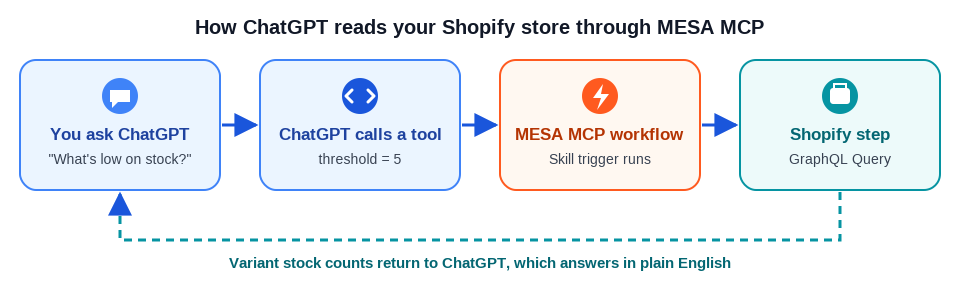
Two things follow from this design. ChatGPT can only do what your workflows allow, so a read-only workflow can never change your store, and you decide exactly which Shopify fields come back. Both matter more with ChatGPT than you might expect, for reasons covered below.
What you need before you start
- A Shopify store connected to MESA. MESA's Shopify connector covers orders, products and variants, customers, inventory levels, and tags, plus a GraphQL Query action for anything the named actions don't cover.
- A paid ChatGPT plan with developer mode. Custom MCP servers are added through ChatGPT's developer mode, which OpenAI offers on Plus, Pro, Business, Enterprise, and Edu plans, not on the free plan. On Business, Enterprise, and Edu, a workspace admin has to allow it first. See OpenAI's article on developer mode and MCP apps in ChatGPT for the current plan list.
- About 15 minutes for the first tool. Each one after that takes a few minutes, since the ChatGPT side is already done.
Step 1: Build an order lookup tool
Start with orders, because that's what most merchants ask about first: what sold, and what still needs attention?
- Create a workflow and add the MCP trigger. In MESA, create a new workflow, search for MCP, and select it as the trigger.
- Add parameters. Add
start_dateandend_date(the window the orders were placed in). Give each a plain description, such as "The earliest order date to include, as YYYY-MM-DD." ChatGPT reads these descriptions to decide what to pass in. - Add the Shopify step. Add Shopify's Get List of Orders action and map the two parameters into its created-at filters.
- Name and describe the workflow. Something like "List Shopify Orders by Date," with a description of what it returns. MESA's MCP docs recommend being as explicit as possible here, because the assistant picks a tool by its name and description, and that's what tells two similar tools apart.
- Turn the workflow on.
That's the whole tool: one trigger and one Shopify step. The template below sets it up with the date parameters already in place.
Return only the fields ChatGPT needs
A Shopify order carries far more data than most questions need: addresses, every line item's tax and discount detail, fulfillments, and transactions. Everything you return takes up room in the conversation's context. MESA's docs name oversized responses as the usual cause of an interrupted answer and suggest returning only specific fields or limiting the number of results. For most order questions, the order name, date, customer, total, financial and fulfillment status, tags, and each item's title and quantity are enough.
There's a time limit too. MESA's docs say "there is also a limit of 60 seconds per request, even if your plan allows longer requests," and a request that runs longer times out with no response. A tight date range keeps you well inside both limits.
Step 2: Add your MESA MCP server to ChatGPT
You do this once, no matter how many MCP workflows you build.
- Copy your server URL from MESA. Open the MCP trigger, click "More fields," and add the MCP Server URL. It includes your account's ID and key, so keep it private.
- Turn on developer mode in ChatGPT. As of October 2026 the switch is under Settings, then Security and login, in the ChatGPT web app. If the Add menu on the Plugins page lets you add a custom MCP server, it's on. OpenAI renamed Connectors to Plugins in 2026, so older guides that point to Settings, then Connectors, then Advanced are out of date.
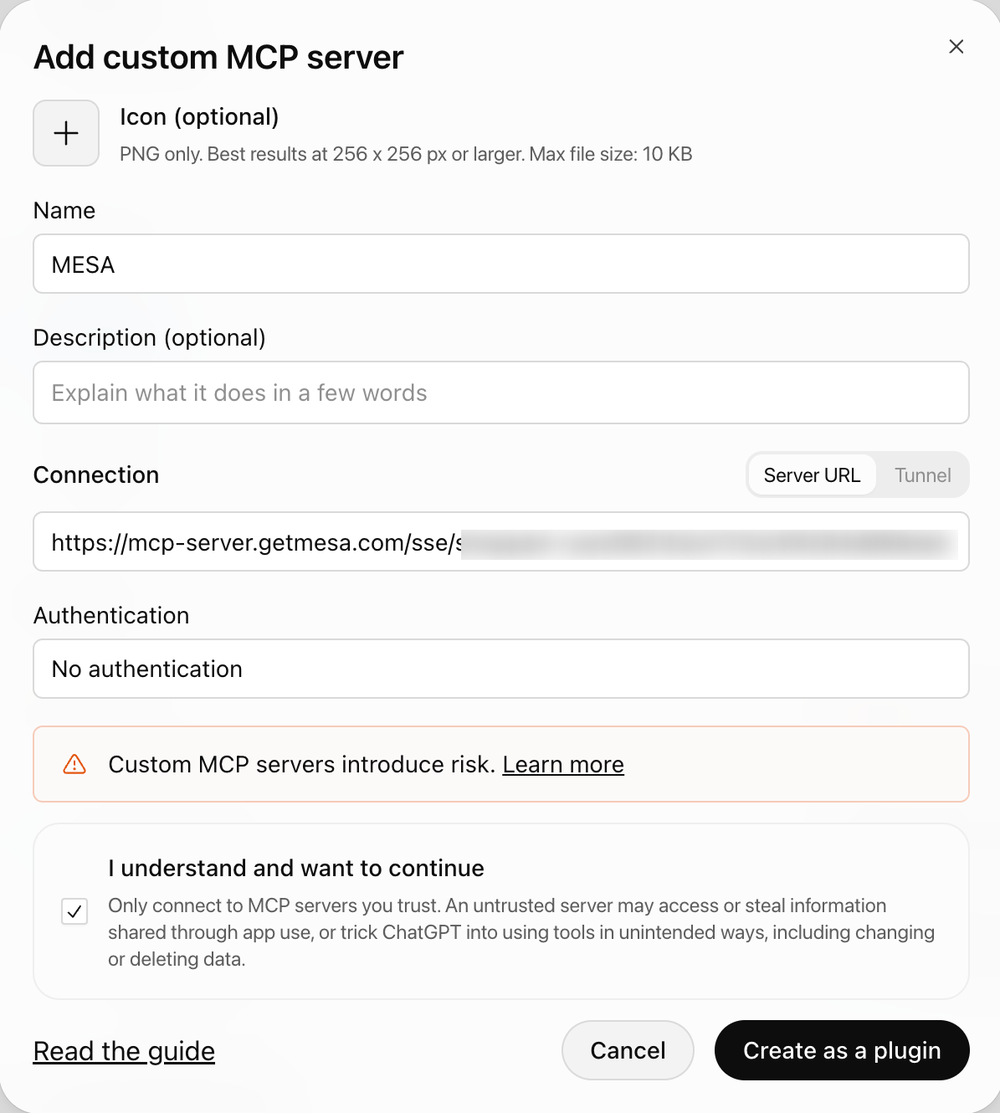
- Add MESA as a custom MCP server. On the Plugins page, open the Add menu at the top right to bring up the Add custom MCP server dialog. Name it "MESA" (the description is optional), paste the MESA URL under Connection as the Server URL, and set Authentication to No authentication, since the key is already part of the URL. Check "I understand and want to continue," then click Create as a plugin. OpenAI's guide to connecting an MCP server to ChatGPT walks through the same screen.
- Check the tool list. ChatGPT reads your MESA MCP workflows and lists them as the app's tools. If the order tool isn't there, confirm the workflow is turned on in MESA.
"Treat your MCP Configuration JSON like a password. It can be used to access and update your data."MESA MCP documentation
On a Business, Enterprise, or Edu workspace, a new MCP app starts as a draft that only its creator can use until an admin publishes it to the workspace. If you also use Claude, the same MESA URL works there; our guide to connecting Claude to an MCP server covers that side.
Step 3: Ask ChatGPT about your store
Start a new chat, type @ in the message box and choose your MESA app (or just ask, and ChatGPT will reach for it when a question fits). Some questions that work well with the order tool:
- "How many orders did we get last week, and what was the total?"
- "Which orders from the last three days are paid but not fulfilled yet?"
- "What were our five best-selling products in September?"
ChatGPT shows you which tool it called and with what inputs. To see exactly what came back, open the workflow's activity log in MESA. That's the fastest way to fix a tool that returns the wrong orders or too many fields.
Need more questions to try? Our copy-ready prompts for running a Shopify store with MCP cover orders, inventory, customers and product edits, each paired with the MESA tool it needs. They're written for Claude, but the same MCP tools answer them in ChatGPT.
Add more Shopify tools
Each new MCP workflow becomes another tool in the same ChatGPT app. Two that pair well with the order tool:
Check what's low on stock
Add a threshold parameter to an MCP trigger and follow it with Shopify's GraphQL Query action, querying product variants whose inventory quantity is at or below that number and returning only the product title, variant, SKU, and count. Then ask "What has five or fewer left?" or "Which SKUs are sold out?" before you place a supplier order. The quantity is each variant's total across locations, so if you stock several warehouses, ask the tool for a single location's levels instead.
Tag orders from a chat
Read-only tools are the safe place to start. When you're ready for ChatGPT to make changes, give it one narrow write tool rather than broad access: an MCP trigger with order_id and tag parameters, followed by Shopify's Order Add Tag action. You can then say "Tag the three unfulfilled orders from Friday as priority," and ChatGPT looks them up with the order tool and tags them with this one.
Keep ChatGPT's confirmation prompts on for write tools, so you approve each change before it runs, and turn off any tool you don't want available in a given chat from the app's settings. Because each MESA workflow does exactly one job, the worst a mistaken call can do is limited to that job.
ChatGPT with MCP, or a scheduled workflow?
MCP is for questions and one-off actions you think of in the moment. If you find yourself asking ChatGPT the same thing every morning, such as "what's low on stock," a normal MESA workflow on a schedule that posts the answer to Slack or email is faster and doesn't depend on you remembering to ask. Many merchants end up with both: scheduled workflows for the routine, and ChatGPT with MCP for everything they couldn't predict.
FAQs
Can ChatGPT connect to my Shopify store?
Yes. On a paid ChatGPT plan with developer mode turned on, you can add an MCP server as an app. MESA's MCP server exposes Shopify workflows you build as tools ChatGPT can call to read orders, check inventory, or make specific changes like adding a tag.
Does this work on the free ChatGPT plan?
No. Adding a custom MCP server needs developer mode, which OpenAI offers on Plus, Pro, Business, Enterprise, and Edu plans. On Business, Enterprise, and Edu, an admin has to allow it.
Can ChatGPT change my store without asking?
It can only run the workflows you've turned on, and only within what each one does. A read-only order tool can't edit anything. For write tools, keep ChatGPT's confirmations on so you approve each change, and keep every write workflow narrow.
Do I need to reconnect ChatGPT for each new tool?
No. You add your MESA MCP server to ChatGPT once. Every MCP workflow you turn on afterward appears as another tool in the same app.
Why did ChatGPT get no answer from the tool?
Usually the workflow took longer than MESA's 60-second limit per request or returned too much data. Narrow the date range, limit the number of results, and return fewer fields.