To bulk create and update Shopify products from Google Sheets, connect the sheet to Shopify with two small workflows: one that creates a product whenever a new row is added, and one that updates the matching product (by Product ID or SKU) whenever an existing row is edited. Your team keeps working in the spreadsheet it already uses, and Shopify follows along, without exporting and re-importing CSV files.
This guide covers when Shopify's own tools are enough, how to set up each workflow in MESA, how to lay out the sheet so nothing breaks, and the mistakes that cause bad data to reach a live store.
TL;DR: there's a template for that
What Shopify's bulk editor and CSV import already do
Shopify gives you two built-in ways to change many products at once. The bulk editor in the admin opens selected products in a spreadsheet-style grid where you can change fields such as prices or sales channel visibility (Shopify Help Center, Bulk editing products). The product CSV import creates products from a file, and with "Overwrite products with matching handles" checked, it updates existing ones too.
For a one-time cleanup, use them. They get awkward when edits are ongoing, for three reasons:
- The data lives somewhere else. Merchandisers, buyers and suppliers often keep the real product list in a shared Google Sheet. Every change has to be copied into the admin or exported into a CSV by hand.
- Overwrite imports are blunt. Shopify's own docs warn that blank cells overwrite live values:
"If a non-required column is blank in the CSV, then the matching value in your product list is overwritten as blank."Shopify Help Center, Importing products
- Variant changes can break things. The same page notes that changing an option value in an import deletes the existing variant IDs and creates new ones, which can break apps that reference those variants. Product CSV files are also capped at 15 MB.
A sheet-to-Shopify workflow works the other way around: one row changes, one product changes, and only the fields you mapped are touched. It's one of the patterns in our guide to Shopify data sync between Google Sheets, CSV files and FTP, which also covers the reverse direction.
How the two workflows fit together
Creating and updating are separate jobs with separate triggers in MESA's Google Sheets connector, so you run them as two workflows on the same sheet (or on two tabs):
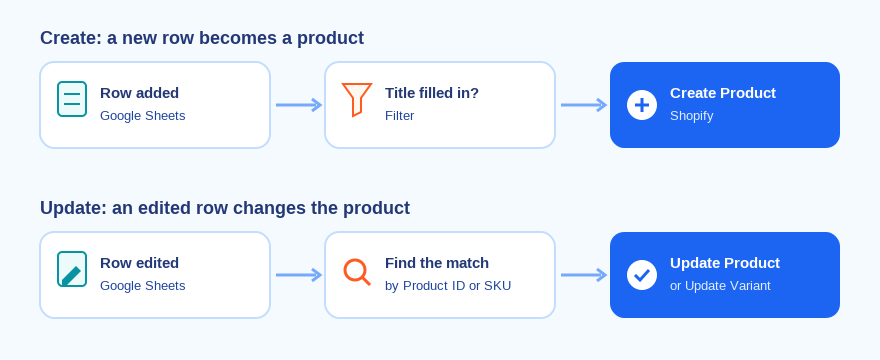
- Create: the Row Created trigger checks the sheet for new rows on a schedule (hourly by default in the template, and adjustable), and each new row becomes a Shopify product.
- Update: the Row Updated (Advanced) trigger fires when someone edits a row. It needs a short script pasted into the sheet's Apps Script editor, which MESA gives you during setup, so edits are sent to MESA as they happen.
Workflow 1: Create Shopify products from new rows
The Create Shopify Products from Google Sheets Rows template is already built for this. It has three steps:
- Google Sheets: Row Created. MESA creates the spreadsheet in your Google Drive with the columns you pick, so the headers match the fields from the start.
- Filter. Continues only if the Title column isn't empty. That lets your team keep notes, section headers or half-finished rows in the sheet without creating junk products.
- Shopify: Create Product. Maps each column to a product field: title, description (HTML is allowed), vendor, product type, tags (comma-separated), and the variant's option value, price, compare-at price, SKU and barcode.
Two things to know before you paste in 300 rows. Each row creates a product with a single variant, so a product with sizes or colors needs the workflow extended with a Create Product Variant step per extra variant. And invalid data, like "$19.99" with a currency symbol in the price column, makes that row's product creation fail. Enter prices as plain decimals.
A practical tip: create new products as drafts by setting the status field, then publish them after someone checks photos and descriptions. A bulk paste can't then put an unfinished product in front of customers.
Workflow 2: Update existing products when a row changes
The Update Shopify Products from Google Sheets template handles edits. When a row changes, it looks up the product by the Product ID in that row, then runs Shopify's Update Product action with the row's title, description, product type, vendor, price, compare-at price and SKU.
The update workflow needs each row to carry the Shopify Product ID, so the sheet has to start as a copy of your catalog. The easiest way is to run a Time Travel on a products-to-Sheets workflow once, which writes every existing product into the sheet with its ID. After that, edit away.
Every edited row starts its own run. If you paste a new value down a whole column, MESA works through those runs one product at a time, so a large change takes a few minutes rather than happening instantly. If one row has bad data, Shopify rejects that update and the other rows still go through. Fix the cell and edit it again to retry.
Update only prices, matched by SKU
Most ongoing edits are price changes. If your price list comes from a buyer or supplier, it's keyed by SKU, not by Shopify's Product ID, and you don't want a price edit to also rewrite the title and description. For that, use Set Shopify Variant Prices by SKU From a Google Sheet: it finds the variant with the row's SKU (Retrieve Product Variant Details from SKU), skips rows with no match or no price, and updates only that variant's price and compare-at price.
If the price file arrives as a CSV on a server instead of in a sheet, the same idea works on a schedule: see how to update Shopify product prices from a CSV file on an FTP server.
How to lay out the sheet
Most sync problems are really sheet problems. A layout that holds up:
| Column | Used by | Format |
|---|---|---|
| Product ID | Update | Filled in by the Time Travel or by the create workflow. Never typed by hand. |
| Title | Create, update | Plain text. Blank means the create workflow skips the row. |
| Description | Create, update | HTML allowed |
| Vendor, Product Type | Create, update | Plain text |
| Tags | Create | Comma-separated |
| SKU | Create, update, price-by-SKU | Unique per variant |
| Price, Compare At Price | Create, update, price-by-SKU | Decimal with no currency symbol, e.g. 24.00 |
| Barcode | Create | UPC or EAN digits |
Freeze the header row and don't rename headers after the workflow is mapped, since the mapping follows the header names. If several people edit the sheet, lock the Product ID column with a protected range so nobody breaks the match.
Mistakes that push bad data to Shopify
- Running export and import on the same sheet. A workflow that writes Shopify product changes into the sheet, plus one that writes sheet edits back to Shopify, will trigger each other in a loop. That's why the update template says it can't run at the same time as "Send new and updated Shopify products to Google Sheets." Use the export once (or on a separate tab) to seed the sheet, then turn it off.
- Duplicate SKUs. A lookup by SKU returns one variant. If two variants share a SKU, the wrong one can get the price. Clean duplicates up before turning on a SKU-matched workflow.
- Prices that come from formulas. The Row Updated script reacts to edits made in the sheet, so a price that changes only because a formula recalculated may never reach Shopify. Paste values into the columns the workflow reads.
- Testing on the live sheet. Try the workflow on a copy of the sheet with two or three test products first, and check MESA's run log before you point it at the full catalog.
Etsy sellers can use the same pattern on the other side of the counter: bulk editing Etsy listings from a Google Sheet follows the same seed-the-sheet-then-edit approach.
When a bulk import app is a better fit
A row-by-row workflow is the right tool when edits keep coming: new products every week, prices that change with a supplier list, a team that already lives in the spreadsheet. For a one-time job, such as moving 20,000 products from another platform or rebuilding variants across the whole catalog, a file-based bulk import app or Shopify's own CSV import is faster, because it handles the whole file in one pass. Plenty of stores use both: a bulk app for the migration, and a sheet workflow for the edits that follow.
FAQs
Can I bulk create and update Shopify products from Google Sheets?
Yes. Shopify has no built-in Google Sheets connection, but a workflow tool like MESA can create a product for every new row (Row Created trigger plus Create Product) and update the matching product whenever a row is edited (Row Updated (Advanced) trigger plus Update Product or Update Product Variant).
Does Shopify have a bulk product editor?
Yes. The bulk editor in the Shopify admin lets you change fields like price or sales channel visibility on many selected products at once. It works well for one-off edits in the admin, but it doesn't read from a spreadsheet your team maintains elsewhere.
Will updating from a sheet erase fields I leave blank?
Only the fields you map in the workflow are sent to Shopify. With an overwrite CSV import, blank cells in included columns do overwrite live values, which is the main reason to use a mapped workflow for ongoing edits.
How do I get my existing products into the sheet first?
Run a products-to-Google-Sheets workflow once with Time Travel, which writes every existing product and its Product ID into the sheet. Turn that export off before you turn on the update workflow so the two don't trigger each other.
Can I update prices by SKU instead of Product ID?
Yes. Look up the variant with Shopify's Retrieve Product Variant Details from SKU action, then run Update Product Variant with the new price. Make sure every SKU in the sheet is unique.