Amazon's new "Buy for Me" feature has blindsided independent online retailers. Without warning or permission, Amazon began scraping product listings from stores across the web and making them available to Amazon shoppers. When someone purchases one of these items, Amazon's AI agent places a regular order on your store—complete with an Amazon email address and shipping information.
For many Shopify merchants, the first sign of this program was an unusual order with a buyforme.amazon@... email address. No partnership. No agreement. Just Amazon using your inventory as their own.
If you're one of the merchants caught in this mess, this step-by-step tutorial will show you how to build a Shopify automation that blocks these orders before they process—and optionally, how to send Amazon a message letting them know you're opting out.
Time to Complete: 10-15 minutes
Difficulty Level: Beginner
Cost: Free with MESA trial, then starting at $20/month
TL;DR: there's a template for that
What is Amazon "Buy for Me"?
Amazon's "Buy for Me" is an AI-powered shopping tool that launched in late 2025 and expands the Amazon marketplace by scraping products from independent retailers across the web. When an Amazon customer searches for a product not directly sold by Amazon or its marketplace sellers, the AI agent can locate that product on external websites and purchase it on the customer's behalf.
Here's how it works from the customer's perspective: They search for a product on Amazon, see results that include items from your store, click to purchase, and Amazon's AI handles the rest. The AI agent navigates to your website, adds the item to cart, fills in shipping information, and completes checkout—all without human intervention.
From your perspective as the merchant, you simply receive what looks like a regular order, except the customer email contains "buyforme.amazon" and the shipping address is an Amazon fulfillment center or customer address.
According to reports from CNBC and Modern Retail, Amazon launched this feature without requiring merchants to opt in. Instead, the default position is that Amazon can scrape and resell any publicly available products unless merchants explicitly opt out. This has caused significant controversy in the ecommerce community, particularly among Shopify merchants who discovered their products listed on Amazon without their knowledge or consent.
As CNBC reported in early January 2026:
Amazon's AI shopping tool is sparking backlash from some online retailers who say they never agreed to participate in the program.
Why merchants are upset
This isn't just about Amazon being Amazon. There are legitimate business concerns that affect real revenue and customer relationships. Here's what merchants are dealing with:
1. Loss of customer relationship
When Amazon places the order, you never interact with the actual customer. You can't build a relationship, offer support, encourage repeat purchases, or add them to your email list. The customer thinks they bought from Amazon, not you. You're invisible in the transaction.
As one brand founder told Modern Retail:
It feels like Amazon is using our catalog as their product catalog. We spent years building our brand and customer base, and now Amazon is inserting themselves as the middleman without asking.
2. Pricing and margin erosion
Amazon controls the final sale price on their platform. While you receive your listed website price, Amazon may undercut your pricing to Amazon customers or add their own markup. You have no visibility into what customers actually pay or what margin Amazon is taking. Independent brands report seeing their products listed at prices different from their own website with no explanation.
3. Inventory management issues
Your inventory system doesn't know these are Amazon orders. If you're running low on stock or managing multiple sales channels, these surprise orders can create fulfillment headaches and overselling situations. According to merchants on Reddit, some received dozens of Buy for Me orders during Black Friday without warning, creating unexpected strain on inventory and fulfillment capacity.
4. Brand control and presentation
Your products appear on Amazon with whatever description, images, or context Amazon's scraping tool captured. You have zero control over how your brand is represented to these customers. Modern Retail noted that some brands found their products listed with incorrect descriptions, outdated images, or inappropriate categorization.
5. Return and support complexity
If something goes wrong with the order, who handles it? The customer contacts Amazon, but you're the one who fulfilled it. This creates a messy support situation where nobody owns the customer experience. Merchants report customers leaving negative Amazon reviews for issues completely outside the merchant's control—like shipping delays caused by Amazon's fulfillment process.
6. No consent or Partnership agreement
Perhaps most frustrating is that Amazon never asked. GeekWire spoke with several independent brand owners who described feeling "blindsided" by the program. As one merchant told them: "If Amazon wants to partner with us, we're open to conversations. But don't just scrape our site and start reselling our products. That's not a partnership—it's exploitation."
The Reddit thread discussing this issue is filled with merchants sharing similar experiences. One comment summed it up:
Amazon is essentially dropshipping our products without our permission, taking a cut, and we have no control over the customer experience or relationship. How is this even legal?
For independent merchants who've spent years building direct relationships with customers, optimizing their own websites, and establishing their brand identity, Amazon's Buy for Me program feels like having someone set up a competing storefront using your inventory without permission.
Step-by-step: Building your Amazon order blocker
Before building this automation, make sure you have:
- A Shopify store with admin access
- A MESA account connected to your Shopify store (sign up for a free 7-day trial at getmesa.com)
- 5-10 minutes to set up the workflow
- Optional: Access to your email if you want to add the automatic opt-out notification
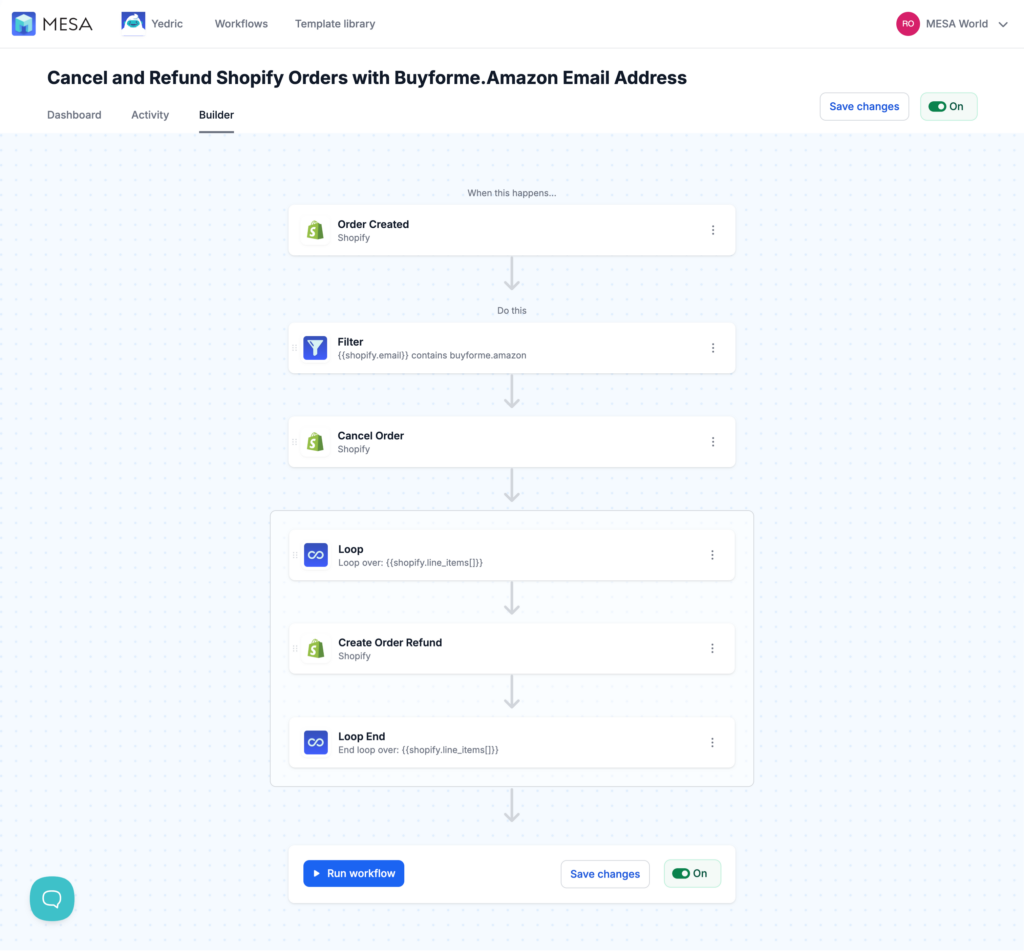
Time needed: 5 minutes.
Once set up, this workflow automatically:
• Monitors every new order created in your Shopify store
• Identifies Amazon Buy for Me orders by checking if the customer email contains "buyforme.amazon"
• Cancels the order immediately before any fulfillment or processing begins
• Issues a full refund so the payment authorization doesn't capture
• Optional: Sends an opt-out email to Amazon's brand team
The entire process happens in seconds, completely hands-free. You'll never need to manually review or cancel these orders again.
- Access your MESA Dashboard
Log into your MESA account and navigate to your workflows. If you haven't connected MESA to your Shopify store yet, you'll be prompted to install the MESA app from the Shopify App Store and authorize the connection. This takes about 60 seconds.
Once connected, you'll see your MESA dashboard with a "Create Workflow" or "New Workflow" button.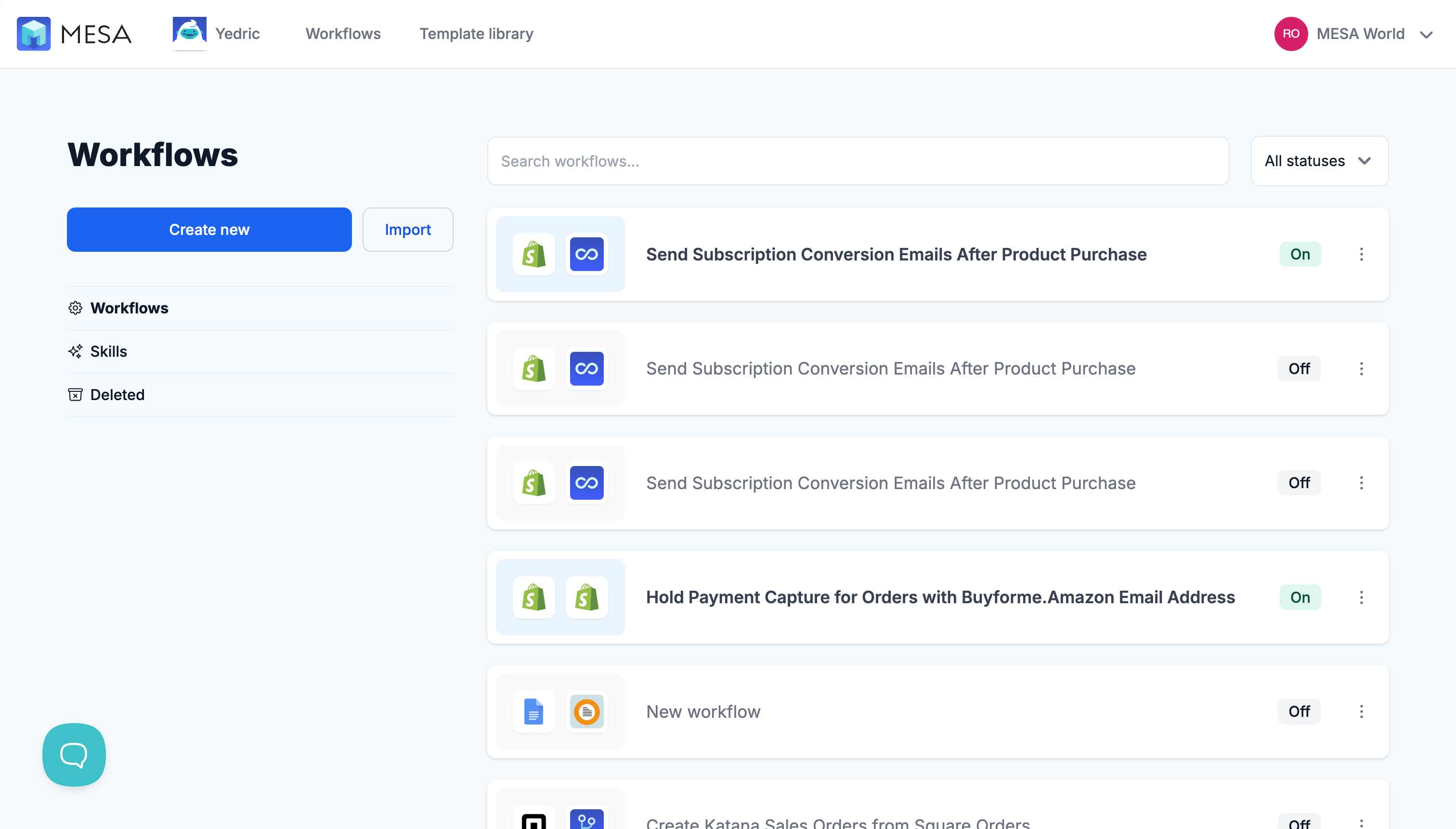
- Create a New Workflow
Click the "Create Workflow" button to open the workflow builder.
You can simply tell MESA what to create and let it setup the workflow step-by-step with given suggestions. Simply type:
"Prevent capture of payment for any order with a buyforme.amazon email address".
Then click through adding steps and MESA will add suggested steps comepleting this workflow for you.
Or, click Skip to manually create this workflow. MESA will then present you with a blank canvas where you'll add each step of your automation.
You'll be building this workflow with four components:
• A trigger (when does this run?)
• A filter (which orders should this affect?)
• A cancel action (what happens to the order?)
• A refund action (how do we return the payment?)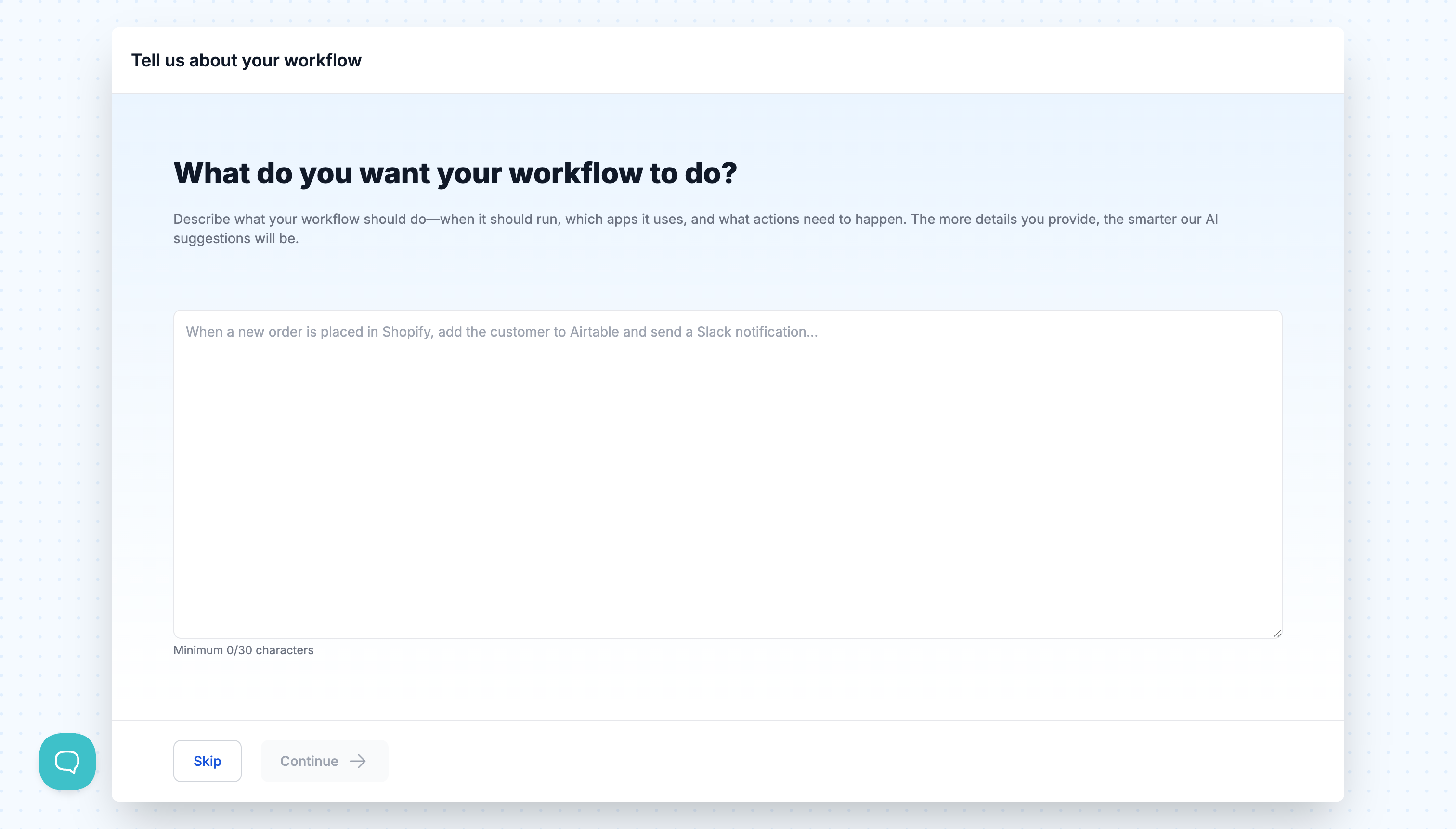
- Add your trigger – Shopify Order Created
The trigger is what starts your automation. For this workflow, you want to check every single order as it comes in.
Here's how to set it up:
• Click "Add Step" or the plus icon to add your first step
• Select "Shopify" from the list of available apps
• Choose "Order" as the entity type
• Select "Order Created" as the action
What this does: This trigger fires every time a new order is created in your Shopify store, regardless of the sales channel, payment method, or customer. The workflow will evaluate every order against the filter you'll set up next.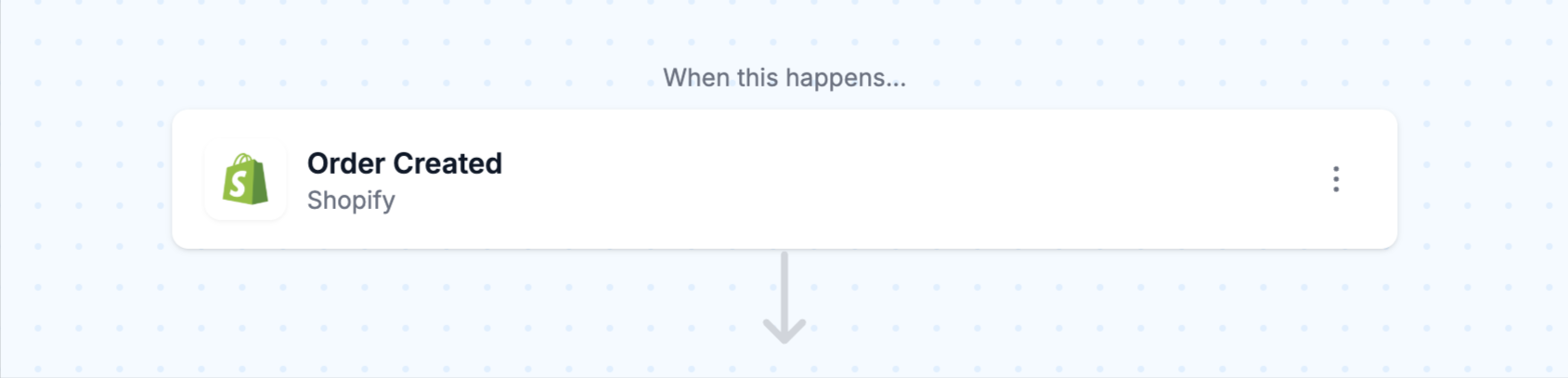
- Add a Filter – Check for Amazon email addresses
Now you'll add the logic that identifies Amazon Buy for Me orders. This is done with a filter step that checks the customer's email address.
Here's how to set it up:
• Click "Add Step" below your trigger
• Select "Filter" from the list of step types
• Configure the filter with these settings:
Field A: Click the variable picker and select Shopify > Email (this references the customer email from the order)
Comparison: Select "contains" from the dropdown
Field B: Type: buyforme.amazon
What this does: This filter checks if the customer email contains the text "buyforme.amazon". If it does, the workflow continues to the next steps (cancel and refund). If it doesn't, the workflow stops here and the order processes normally.
Why "contains" instead of "equals"? Amazon uses various formats for their Buy for Me email addresses (like buyforme.amazon+[uniqueid]@amazonshipping.com). Using "contains" ensures you catch all variations rather than having to match the exact email format.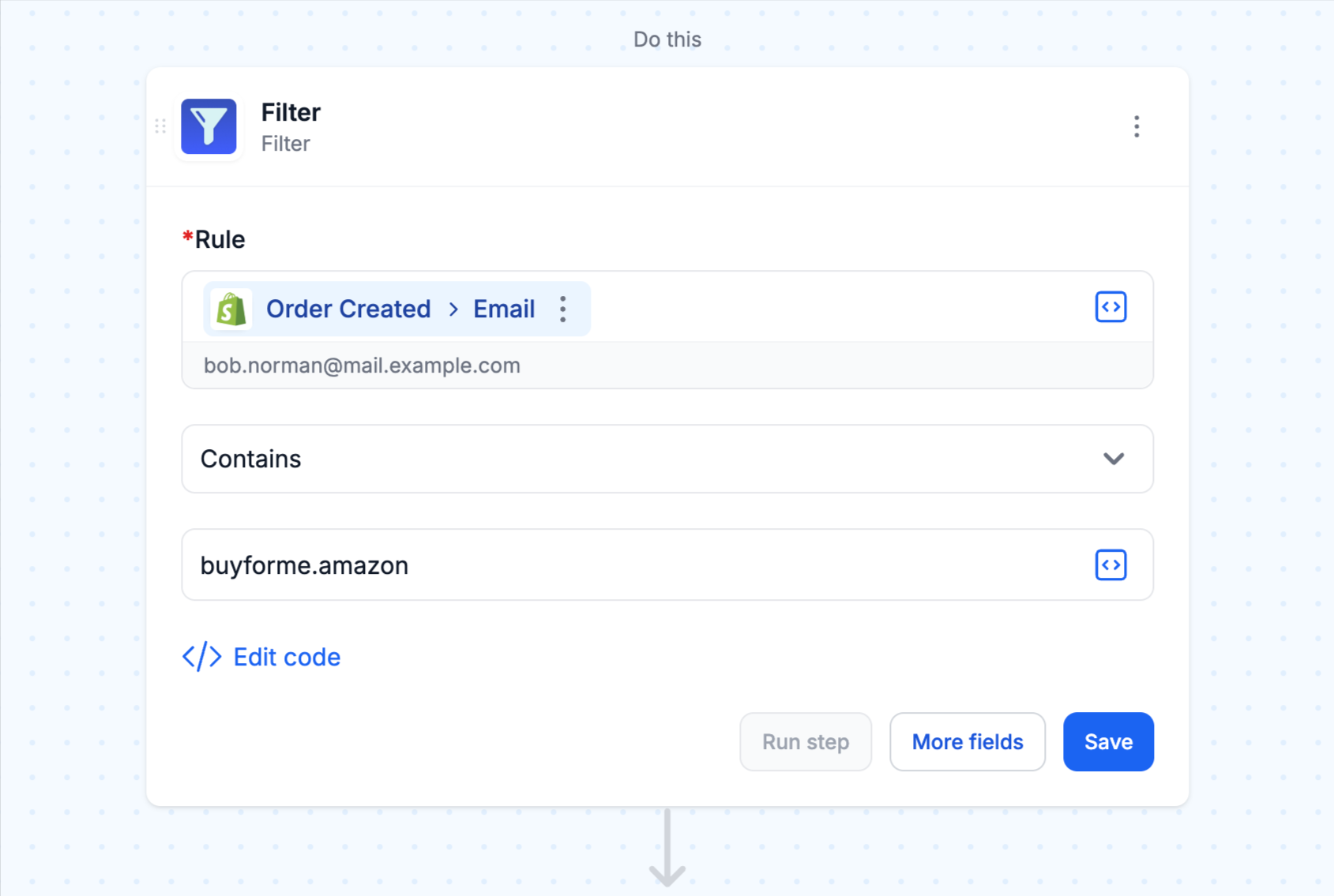
- Add Cancel Order action
Now you'll add the action that cancels any order that passes through your filter.
Here's how to set it up:
• Click "Add Step" below your filter
• Select "Shopify" from the list of apps
• Choose "Order" as the entity
• Select "Cancel Order" as the action
• Configure the required Order ID field: Click the variable picker and select Shopify > ID from the side sheet.
What this does: This step sends a cancel request to Shopify for the order that triggered the workflow. Shopify will mark the order as "Cancelled" in your admin panel.
Important note: Canceling an order in Shopify doesn't automatically refund the payment authorization. That's why you need the next step.
Optional 'More Fields':
Reason: You can optionally add a cancellation reason like "Customer" or "Other"—this helps with your internal reporting
Email: You can choose whether to notify the customer (in this case, the Amazon agent) about the cancellation
For Amazon orders, you probably don't want to send them a cancellation email since they'll figure it out when the order doesn't ship. Leave this unchecked.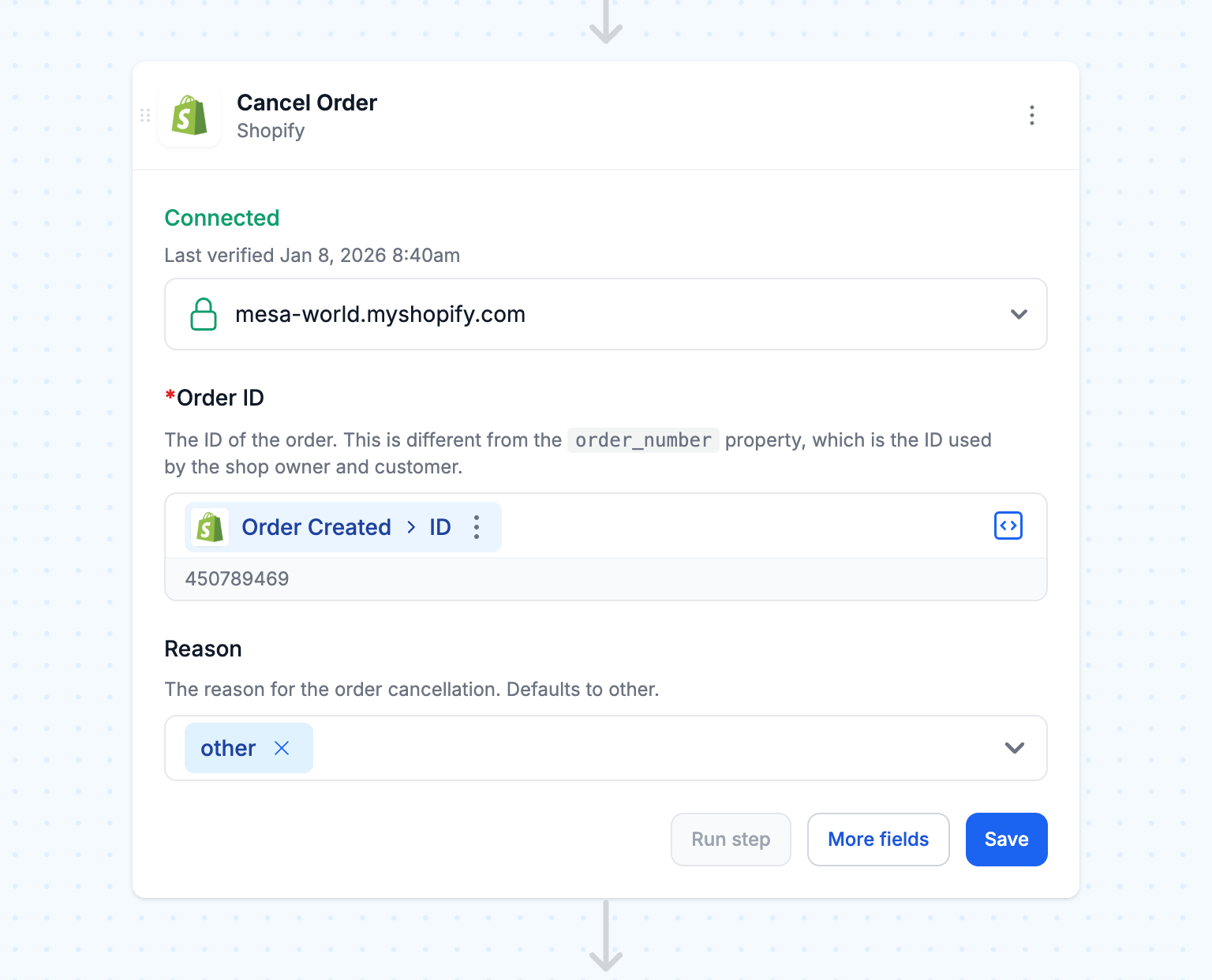
- Add a Loop to process Line Items
Before you create the refund, you need to add a loop step that processes each line item in the order individually. This ensures every product in the order gets properly refunded, even if the order contains multiple items.
Here's how to set it up:
• Click "Add Step" below your cancel order action
• Select "Loop" from the list of step types
• Configure the loop: Click the variable picker and select Shopify > Line Items from the side sheet
What this does: This loop step iterates through every line item (product) in the cancelled order. If an Amazon order contains 3 different products, the loop will run 3 times—once for each product. This is important because Shopify's refund API processes refunds at the line item level, not the order level.
Why you need this: Without a loop, you'd need to create a generic refund that might not properly account for partial refunds, quantity differences, or variant-specific pricing. The loop ensures precision—each product gets its exact refund amount based on its actual price and quantity.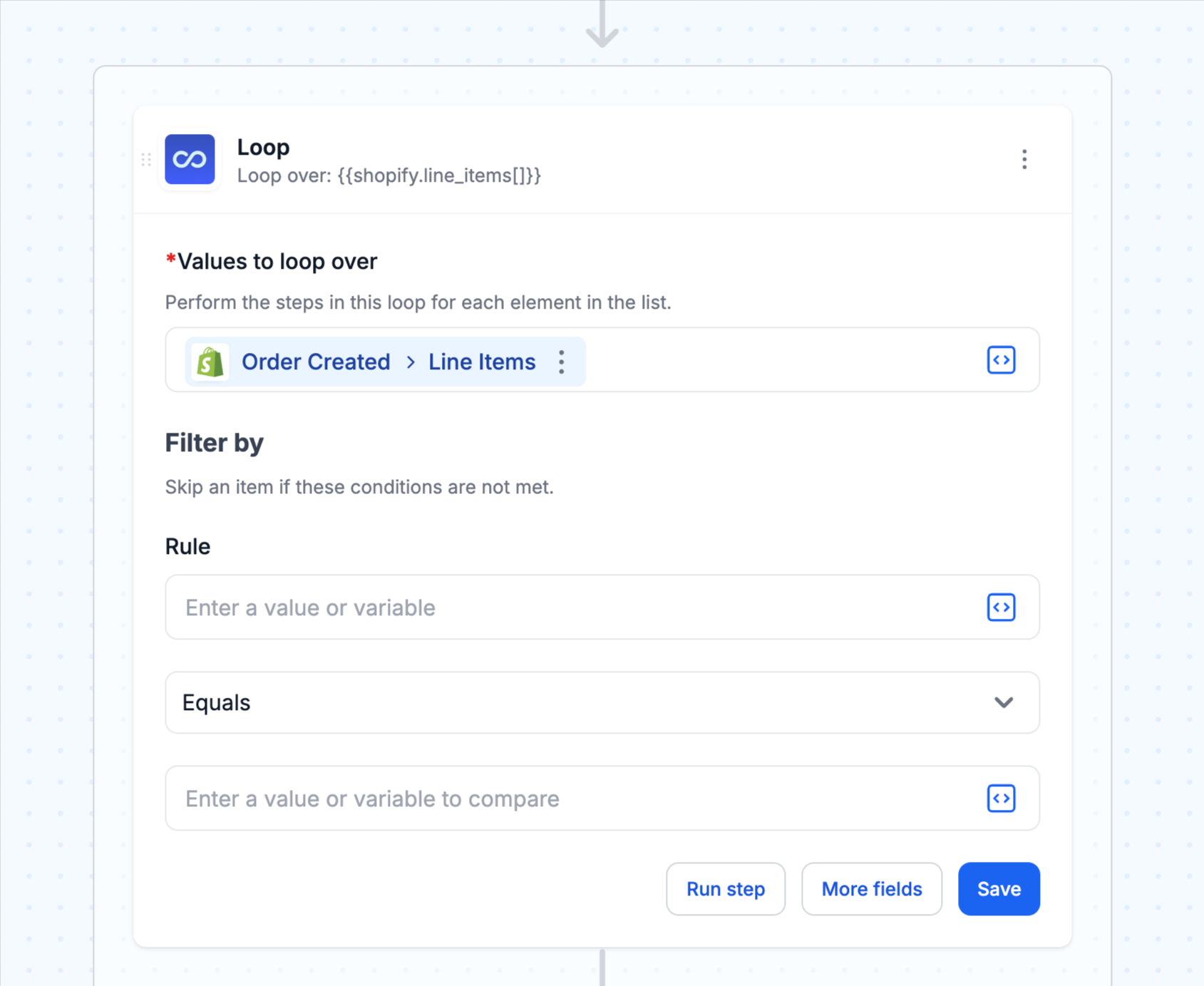
- Add Create Refund action
Now you'll add the refund action that runs inside your loop, processing each line item individually.
Here's how to set it up:
• Click "Add Step" below your loop (the refund step will automatically be inside the loop)
• Select "Shopify" from the list of apps
• Choose "Refund" as the entity type
• Select "Create" as the action
• Configure the refund with these specific settings:
Order ID: Click the variable picker and selectShopify > ID
Line Item ID: Click the variable picker and selectLoop > ID
Quantity: Click the variable picker and selectLoop > Quantity
Discrepancy Reason: Select "Other" from the dropdown
Full Refund Shipping: Check this box to refund shipping costs
What this does: This step creates a refund automation for one specific line item in the order. Because it's inside the loop, it runs multiple times—once for each product. The{{loop.id}}and{{loop.quantity}}variables reference the current item being processed in the loop.
Why "Full Refund Shipping"? Since you're cancelling the entire order, the customer should get their shipping cost refunded too. Setting this to "true" ensures shipping charges are returned on the first line item refund.
Important: Make sure this refund step appears indented or nested under the loop in your workflow visualization. If it's not inside the loop, it won't process correctly.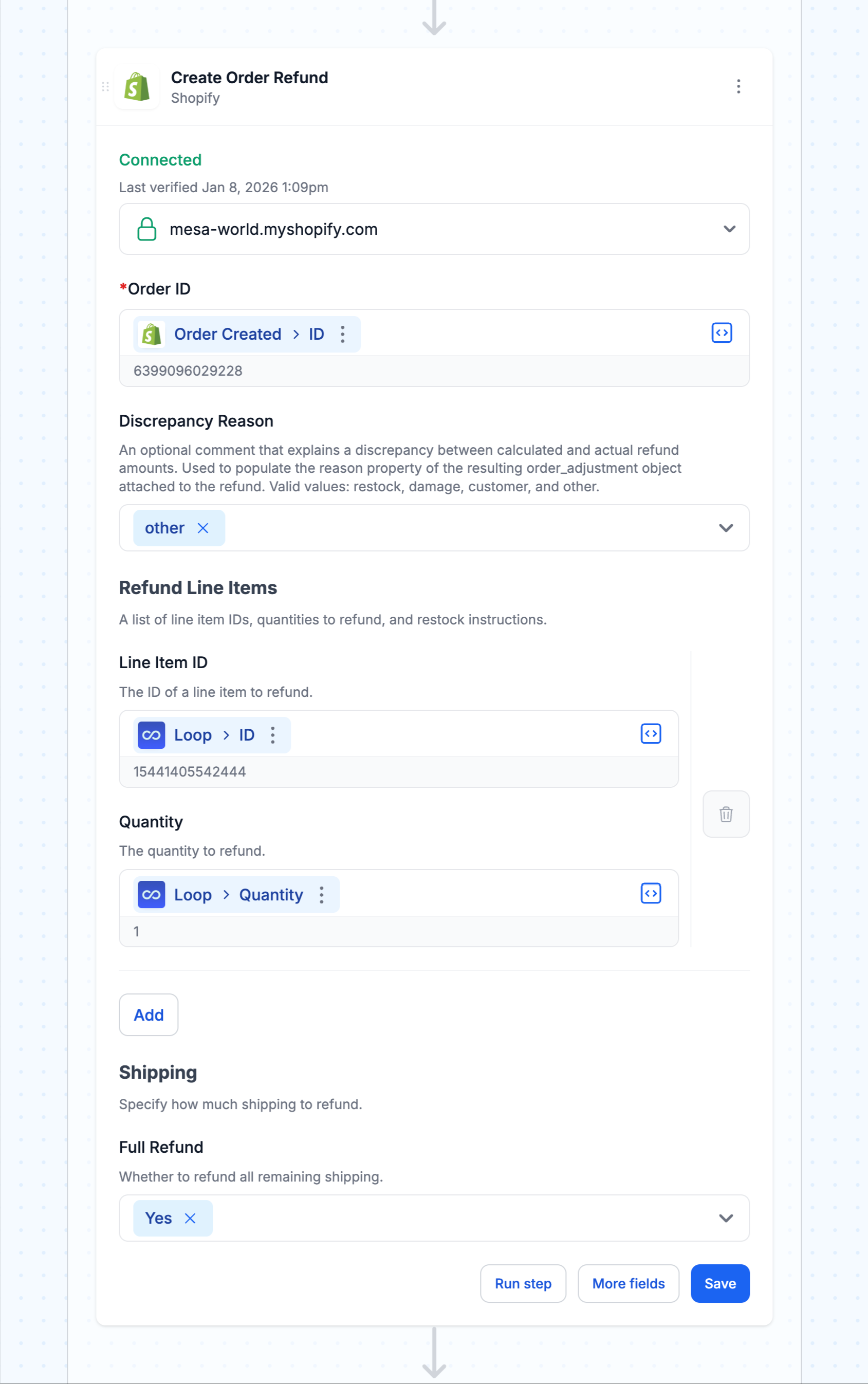
- Name and turn "On" your workflow
Now that all four steps are in place, you need to name your workflow and turn it on.
At the top of the workflow builder, click the workflow title (it probably says "Untitled Workflow")
Give it a clear name like "Block Amazon Buy for Me Orders"
Click the "Enable" toggle switch in the top right corner to activate the workflow
What happens next: Your workflow is now live and monitoring every new order. The moment an order comes in with a "buyforme.amazon" email address, it will automatically cancel and refund within seconds.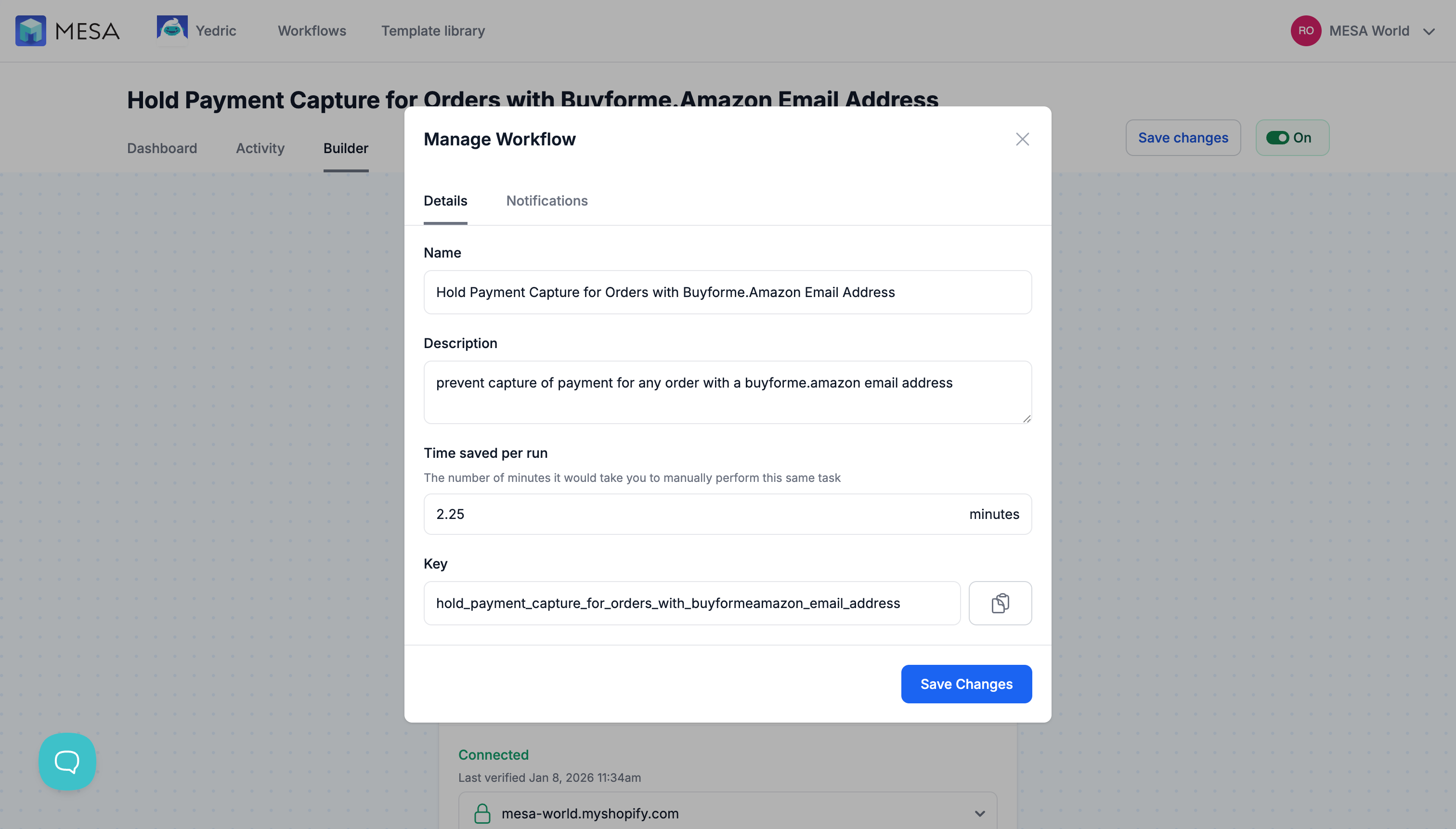
- Test your workflow (Recommended)
Before you rely on this automation, it's smart to test it to make sure everything works correctly.
Here's how to test:
• In MESA, expand the Order Created trigger and click "Manual run" to
• MESA will show you the most recent orders from your store
• Look for an order with a normal customer email (not an Amazon email)
• Click "Run step" with that order
What you should see: The workflow should run through the trigger and hit the filter, but then stop because the email doesn't contain "buyforme.amazon". The order should NOT be cancelled. This confirms your filter is working correctly.
Testing with a real Amazon order: If you've already received an Amazon Buy for Me order, you can use MESA's Time Travel feature to run the workflow against that past order to see it cancel and refund in action. However, be aware this will actually cancel the historical order if it hasn't been already.
Alternative testing method: You can temporarily change the filter to check for your own test email, place a test order, watch it cancel, then change the filter back to "buyforme.amazon".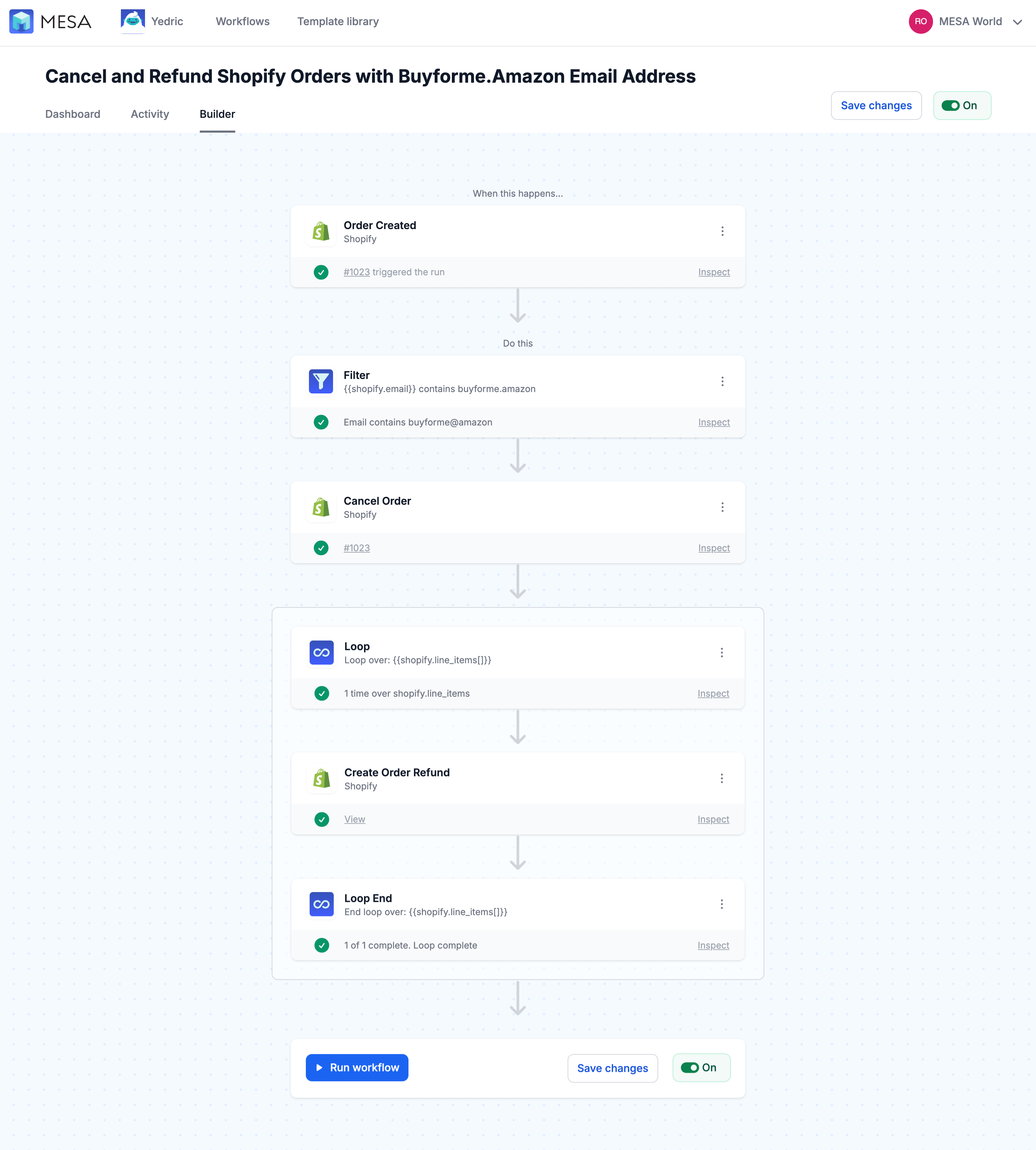
Taking it further: Add an automatic Opt-Out email to Amazon
If you want to go beyond just blocking orders and formally request that Amazon stop scraping your products, you can add an email notification step to your workflow. This email will automatically send to Amazon's brand team every time you block one of their orders.
Step 10 (Optional): Add email notification
Here's how to extend your automation with an opt-out email:
- In your workflow, click "Add Step" after the filter step (before the cancel order step)
- Select "Email" from the list of apps
- Choose "Send Email" as the action
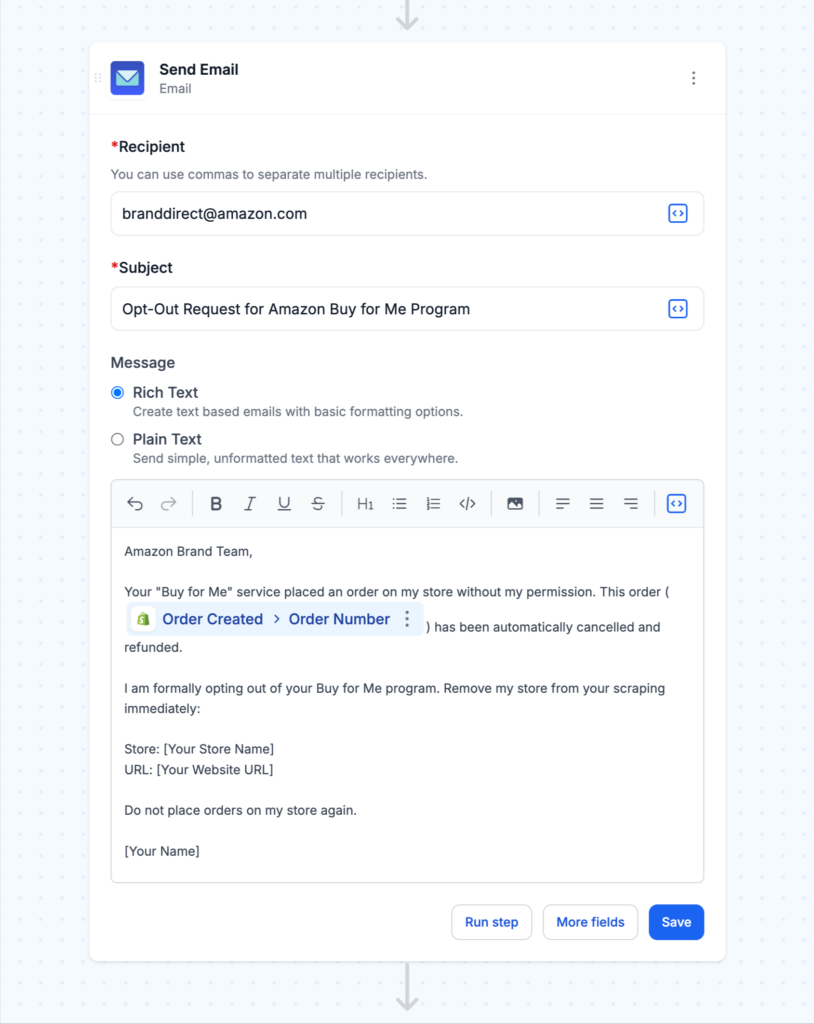
- Configure the email:
- To:
branddirect@amazon.com - Subject:
Opt-Out Request for Amazon Buy for Me Program - Body: Compose your message (see templates below)
- To:
Email template option 1 (Professional):
To Whom It May Concern:

I am writing to formally opt out of Amazon's "Buy for Me" program.

Store Name: [Your Store Name]
Website: [Your Website URL]
Order Number: {{shopify.order_number}}
Date: {{shopify.created_at}}

I do not consent to Amazon scraping, listing, or reselling products from my website. I do not authorize Amazon or its agents to place orders on my behalf or on behalf of Amazon customers.

Please remove all products from my website from Amazon's "Buy for Me" catalog immediately and confirm this action in writing.

This order has been automatically cancelled and refunded.

Regards,
[Your Name]
[Your Title]
Email template option 2 (Direct):
Amazon Brand Team,

Your "Buy for Me" service placed an order on my store without my permission. This order ({{shopify.order_number}}) has been automatically cancelled and refunded.

I am formally opting out of your Buy for Me program. Remove my store from your scraping immediately:

Store: [Your Store Name]
URL: [Your Website URL]

Do not place orders on my store again.

[Your Name]
What this does: Every time the workflow identifies and blocks an Amazon order, it will also send this email to Amazon's brand relations team. This creates a paper trail of your opt-out requests and makes your position clear.
Using Shopify variables: Notice the {{shopify.order_number}} and {{shopify.created_at}} in the templates? These are dynamic variables that MESA will replace with the actual order information. You can include other details like {{shopify.email}} or {{shopify.total_price}} if you want to provide more context in your opt-out emails.
Sending as yourself: Make sure to configure the "From" email address to use your own business email, not a generic MESA address. This makes the opt-out request more official and ensures any responses come back to you.
Verifying your workflow is working
After you've enabled your workflow, here's how to confirm it's running correctly:
Check workflow status
- Go to your MESA workflow dashboard
- Find your "Block Amazon Buy for Me Orders" workflow
- Look for the status indicator—it should show as "Enabled" or "Active"
- Check the "Last Run" timestamp to see when it last processed an order

Monitor workflow activity
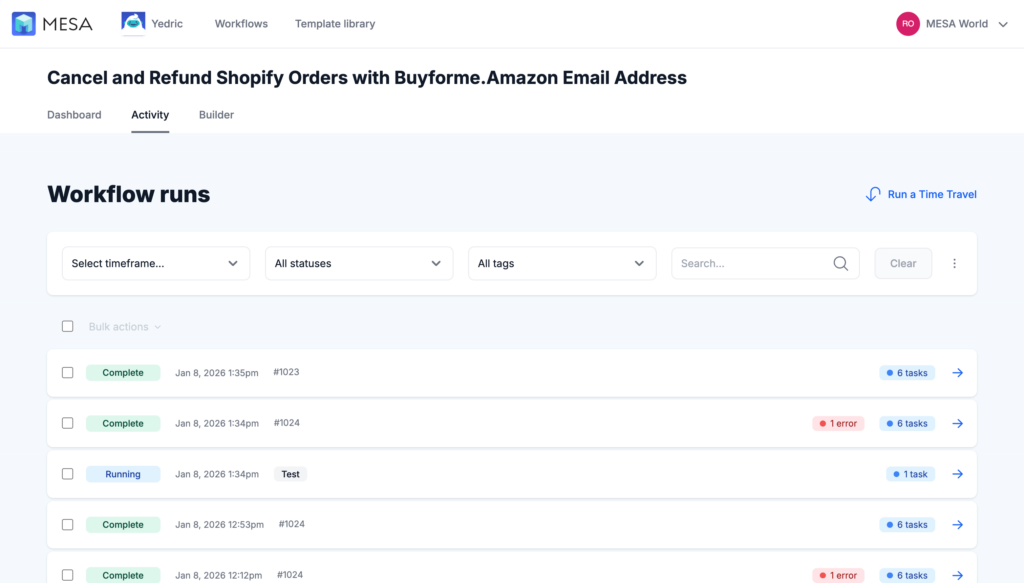
MESA keeps a log of every time your workflow runs. To view this:
- Click on your workflow to open it
- Navigate to the "Activity" tab
- You'll see a record of each order that triggered the workflow
- Click on any log entry to see the step-by-step execution and whether each step succeeded
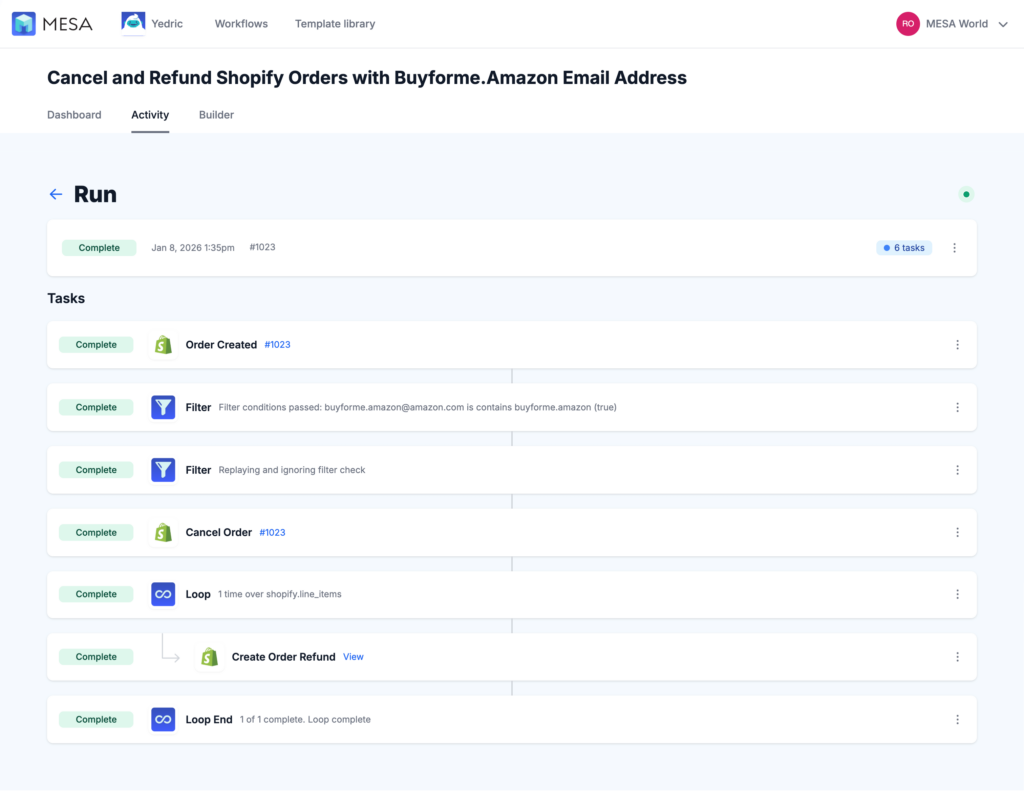
What successful execution looks like
When an Amazon Buy for Me order comes through, you should see:
- Trigger fires: Order created event captured
- Filter passes: Email check returns true
- Cancel succeeds: Order status changed to "Cancelled"
- Refund succeeds: Refund created and processed
- Email sent (if configured): Opt-out notification delivered to Amazon
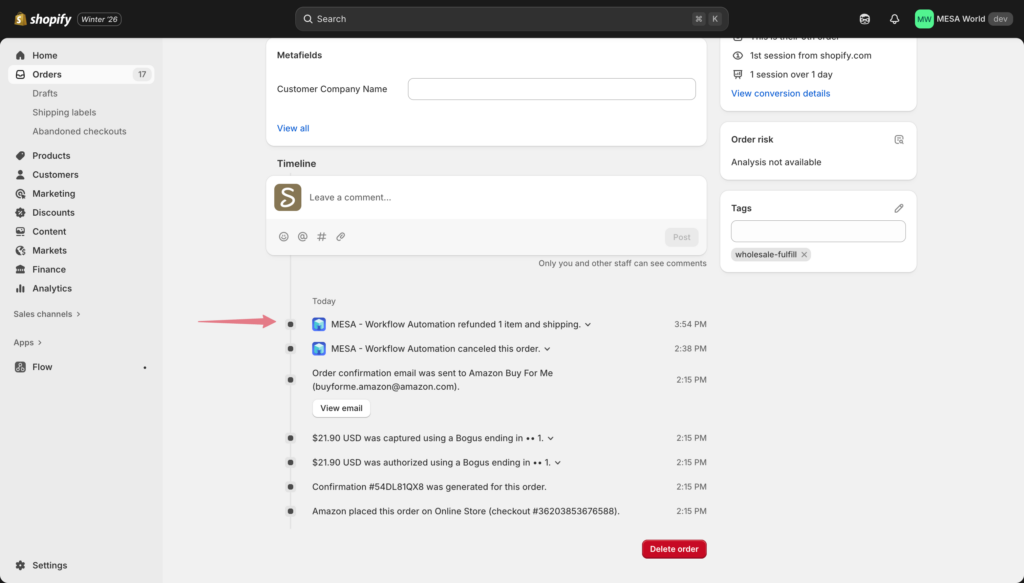
Check your Shopify orders
In your Shopify admin, any cancelled Amazon orders should show:
- Order status: "Cancelled"
- Payment status: "Refunded"
- Timeline showing the cancellation and refund happened within seconds of order creation
Troubleshooting common issues
Issue: Workflow isn't triggering on new orders
Possible causes:
- Workflow is disabled (check the toggle switch)
- MESA isn't connected to Shopify properly
Solution:
- Verify the workflow status shows "Enabled"
- Check your MESA integrations to ensure Shopify is connected
- Try disconnecting and reconnecting Shopify in your MESA settings
Issue: Orders are getting through the filter
Possible causes:
- Amazon changed their email format
- Filter comparison is set incorrectly
Solution:
- Check the actual email address on the Amazon order
- Verify your filter uses "contains" not "equals"
- Update the filter text if Amazon is using a different pattern than "buyforme.amazon"
Issue: Order cancels but doesn't refund
Possible causes:
- Payment hasn't been captured yet (this is actually fine)
- Refund step isn't configured correctly
Solution:
- Check that the refund step is using the correct order ID variable:
{{shopify.id}} - Verify the refund step comes after the cancel step in your workflow
- Check Shopify's payment status—if it shows "Authorized" instead of "Paid", the authorization will automatically drop without needing a refund
Issue: Email isn't sending to Amazon
Possible causes:
- Email step is configured incorrectly
- Email step is positioned after cancel/refund instead of after the filter
Solution:
- Verify the recipient email is exactly:
branddirect@amazon.com - Check that the email step comes before or alongside the cancel step
- Look at your workflow logs to see if the email step executed
- Verify you've set a "From" email address in the email configuration
Frequently asked questions
Will this affect legitimate customer orders?
No. This workflow specifically filters for the "buyforme.amazon" email pattern that Amazon uses for its Buy for Me orders. Regular customer orders will process normally. Your workflow only takes action when it detects Amazon's specific email format.
How quickly does the cancellation happen?
The entire process—from order creation to cancellation and refund—happens in under 30 seconds. Most of the time it's nearly instantaneous. Your workflow is monitoring orders in real-time, so Amazon orders are caught before you even see them in your admin panel.
What happens to the customer on Amazon's side?
From the Amazon customer's perspective, their order will show as unfulfillable or cancelled. Amazon will need to issue them a refund and explain why the order couldn't be completed. This is Amazon's problem to solve with their customer, not yours.
Can I customize which orders get blocked?
Yes. You can modify the filter in your MESA workflow to be more specific. For example, you could:
• Block only orders above a certain dollar amount
• Block only certain product types
• Block based on shipping address patterns
• Add multiple conditions using AND/OR logic
What if Amazon changes their email format?
You can easily update the filter in your MESA workflow to match any new pattern Amazon uses. If you notice Amazon orders slipping through with a different email format, just edit the filter step and update the text you're checking for.
Will this create problems with Amazon?
You're not obligated to fulfill orders for Amazon's Buy for Me program. You didn't agree to participate, so declining these orders is entirely within your rights as a business owner. Many merchants are doing exactly this.
Can I still sell on Amazon separately?
Absolutely. This workflow only blocks the unsolicited Buy for Me orders where Amazon is acting as an intermediary without your consent. If you have a direct relationship with Amazon Seller Central or Vendor Central, those are completely separate sales channels that won't be affected.
Will Amazon stop scraping my products after I opt out?
The effectiveness of opt-out emails is still unclear, as this program is relatively new and Amazon hasn't published detailed opt-out procedures. However, documenting your opt-out requests creates a paper trail and makes your legal position clear. According to GeekWire, some brands have successfully negotiated removal from the program after formal requests.
How much does MESA cost to run this workflow?
MESA offers a 7-day free trial where you can test this workflow at no cost. After that, plans start at $20/month. The workflow itself is very lightweight and won't consume significant task credits even if you're processing hundreds of orders per day.
Why do I need a loop instead of a single refund?
Shopify's refund API is designed to work at the line item level, not the order level. By looping through each line item and creating individual refunds, you ensure:
• Accurate refund amounts for each product
• Proper handling of orders with multiple items
• Correct quantity tracking for each variant
• Better refund records in your Shopify admin
Without the loop, attempting to refund a multi-item order could fail or create incomplete refunds. The loop ensures precision regardless of order complexity.
What if an order has 20 different products?
The loop will process all 20, creating individual refunds for each one. MESA handles this efficiently—loops can process hundreds of items without issues. The workflow might take a few seconds longer for large orders, but it will complete successfully.
Can I see which orders were blocked?
Yes. MESA maintains a complete activity log showing every order that triggered your workflow. You can review this log anytime to see exactly which orders were cancelled and when. Shopify also marks these orders as cancelled in your order history.
What you've built
By following this tutorial, you've created an automated system that:
- Monitors every order in real-time as it's placed
- Identifies Amazon's unauthorized purchases using email pattern recognition
- Blocks fulfillment by cancelling orders instantly
- Protects your revenue by processing automatic refunds
- Documents your opt-out with automatic emails to Amazon (if you added that step)
This isn't just a quick fix. You've built a sustainable solution that protects your store 24/7 without requiring any ongoing management. The workflow runs silently in the background, handling Amazon orders so you can focus on serving your actual customers.
Why this matters for independent merchants
Amazon's Buy for Me program represents a fundamental shift in how large platforms interact with independent retailers. It's the latest example of a tech giant deciding that opt-out (rather than opt-in) is an acceptable default for using your business as their inventory source.
The merchants discussing this issue on Reddit aren't anti-Amazon. Many sell through Amazon's marketplace willingly. The issue is consent. As one merchant put it:
If Amazon wants to work with us, they should ask. Not just take.
By setting up this automation, you're taking back control of your customer relationships, your inventory, and your brand. You're deciding who you do business with and on what terms. And you're doing it efficiently, using the same kind of automation technology that companies like Amazon use to operate at scale.
Get started with MESA
If you haven't already set up this workflow, you can start a free 7-day trial of MESA and have it running in about 15 minutes by following the steps above.
MESA specializes in Shopify automation and makes it easy to build powerful workflows without writing code. Whether you're blocking unwanted orders, automating customer communication, or streamlining your fulfillment process, MESA gives you the tools to multiply your impact without multiplying your effort.
Try MESA free for 7 days and take control of who you do business with.
Need help setting up this workflow? Have questions about customizing it for your specific needs? Reach out to our support team—we're here to help adjust this workflow and protect your business.