
🚀 July was a heavy-lifting month. The Shopify connector got a ground-up rebuild on Shopify's GraphQL Admin API, workflows learned how to trigger other workflows, MESA's AI assistant moved to Yedric and started suggesting what to do based on the page you're on, and picking the right variable got a whole lot quicker.
Here's everything new with MESA this month:
🛍️ Shopify v2, rebuilt on GraphQL
We've completely rebuilt MESA's Shopify connector on Shopify's modern GraphQL Admin API. This is more than a REST-to-GraphQL swap: Shopify v2 does everything v1 did, and adds new actions across a dozen areas that the REST Admin API simply couldn't reach.
A few of the highlights:
- Returns — create, request, approve, decline, process, cancel, and close returns, calculate refund outcomes, generate return shipping labels, and restock returned inventory
- Metaobjects and metafields — create, update, delete, and list metaobjects, manage metaobject definitions, and link metafields to metaobject lists
- Gift cards — credit, debit, deactivate, and count
- Discounts — create and update discount codes, delete automatic discounts, and look up a discount by its code
- Content — create, update, and delete blog articles, and moderate comments
- Marketing — marketing activities and marketing engagement
- Checkout recovery — an Abandoned Checkout trigger, plus an abandoned checkout list
- Analytics — ShopifyQL query support
There are new triggers to match: Abandoned Checkout Created, Return Processed, Return Updated, and Reverse Delivery Deliverable Attached.
Building with Shopify feels better too. MESA is now smarter about required nested fields — add an object like a metafield or a line item and any required child fields come along automatically, so you're not hunting for the one buried field that's blocking a save.
Why GraphQL? Shopify has been steadily deprecating REST endpoints while releasing new functionality exclusively through GraphQL. Rebuilding the connector on GraphQL keeps MESA in step with Shopify's roadmap and gets you access to new platform capabilities much sooner. It also cleared out a stack of two dozen long-standing feature requests in one go.
When you create a workflow, Version 2 is the default. You'll still see a Version 1 option as a fallback while we monitor the rollout, but we highly recommend Version 2 for all new workflows — assuming the rollout stays quiet, Version 1 will be retired in a future release.
🔁 One workflow can now trigger another
There's a new built-in tool in MESA: Relay. Its one action, Trigger workflow, lets a workflow kick off another workflow — so shared logic like a notification, a tagging routine, or an approval step can live in one place and be called from everywhere else, instead of being rebuilt in every workflow that needs it.
Pick the workflow you want to run, then pass along whatever data it needs using tokens from earlier steps.
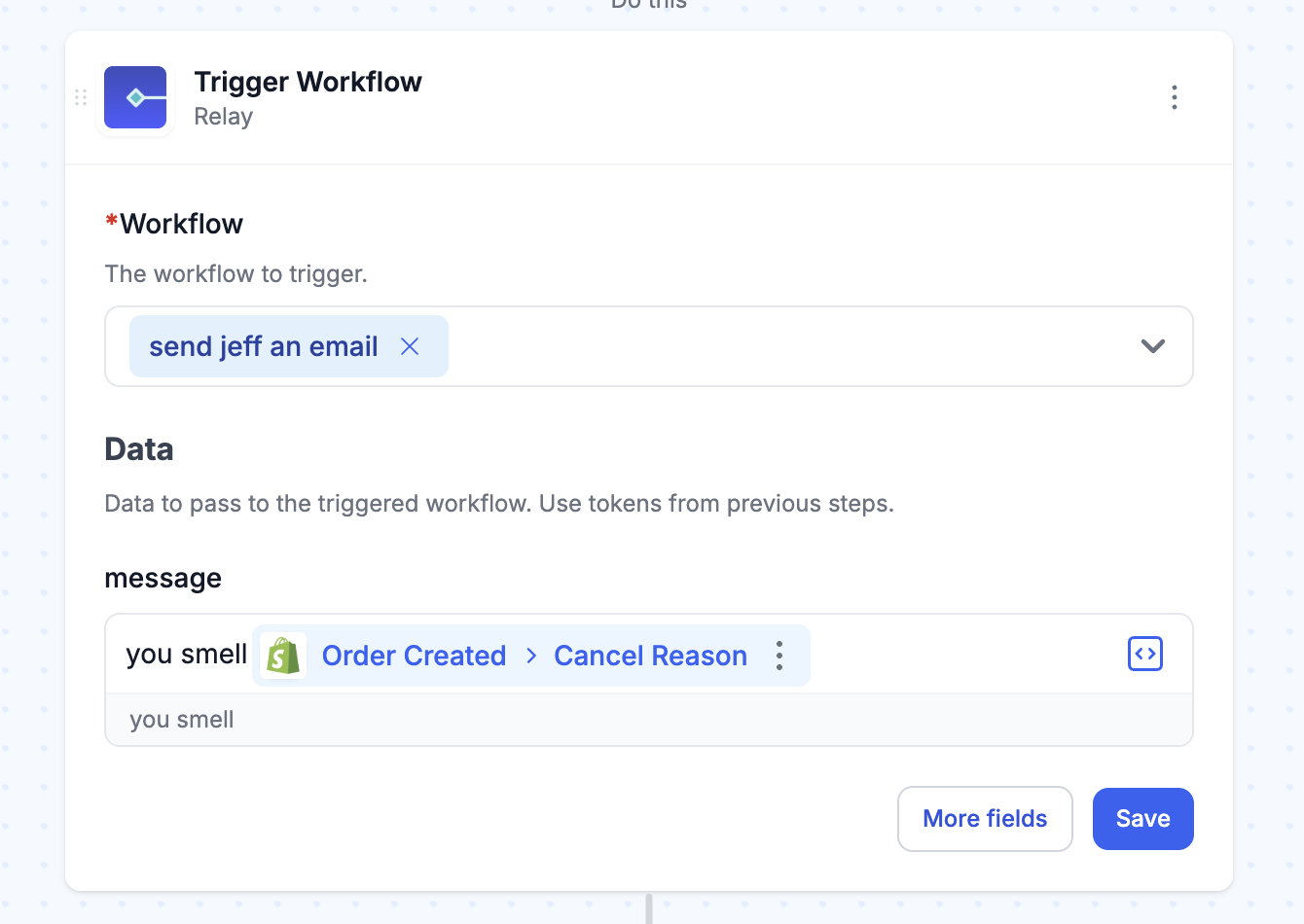
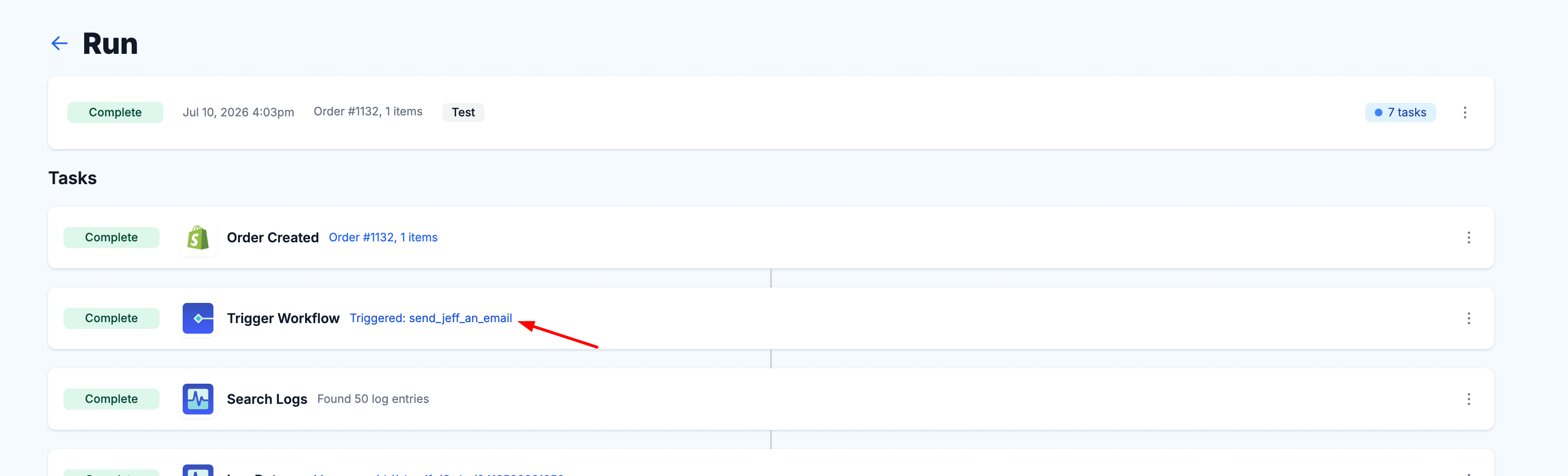
Every Relay step records itself in the Activity list with a link straight to the run details of the workflow it triggered, so you can follow a chain from one end to the other without losing the thread.
Relay was one of the most popular requests in our feature backlog, and it's live for everyone now.
🤖 Yedric now powers MESA's AI assistant
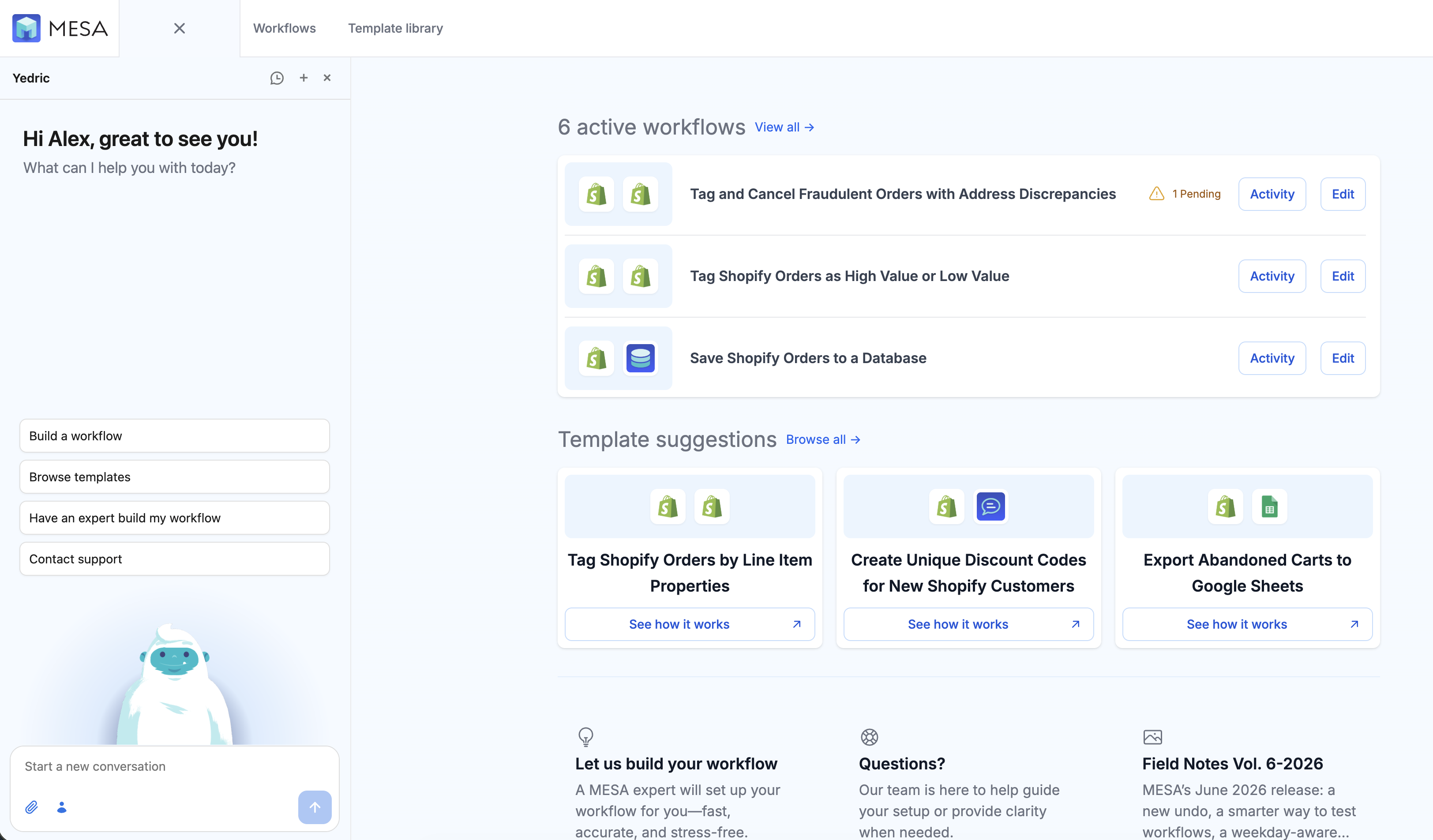
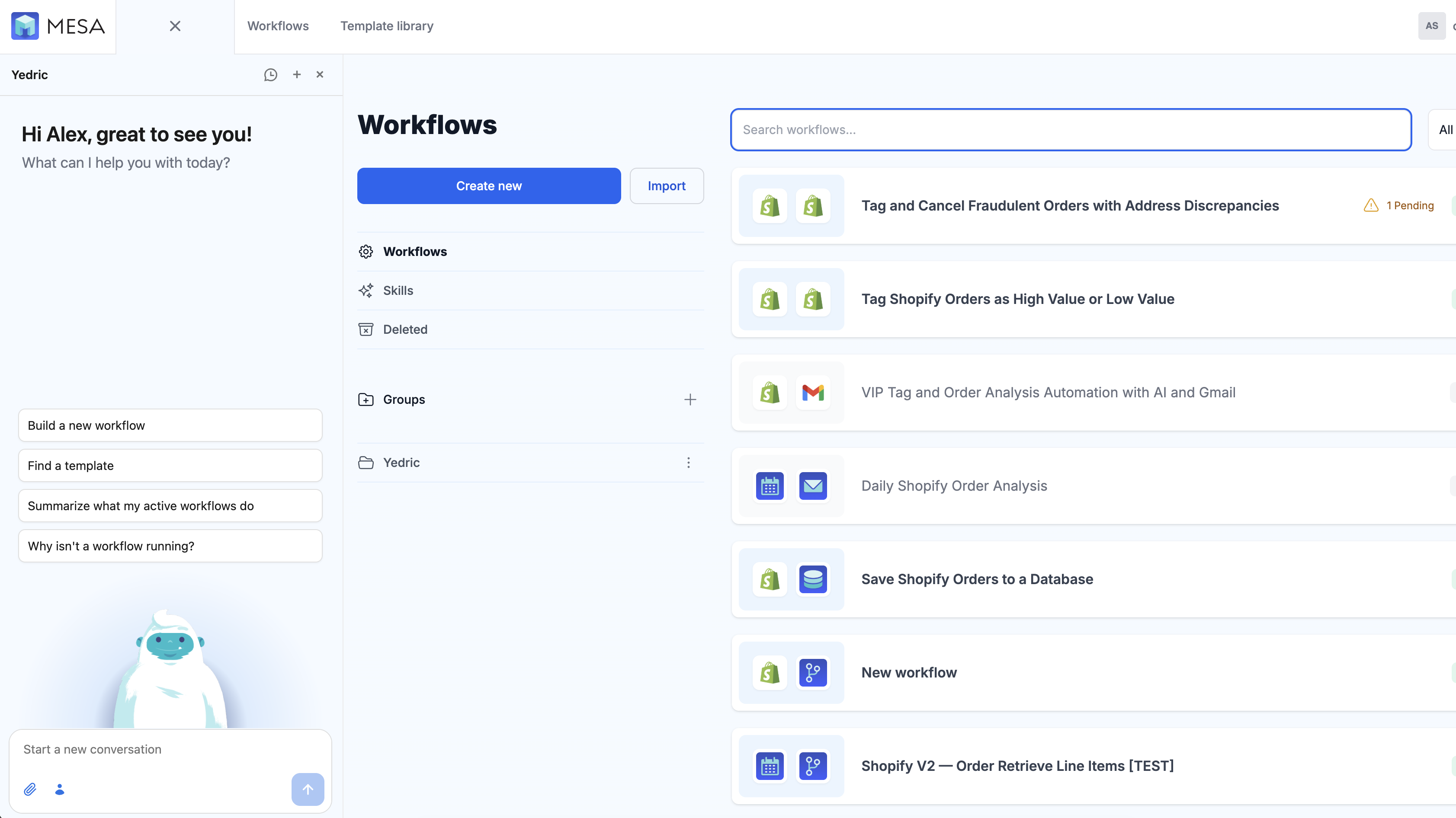
MESA's in-app assistant now runs on Yedric, which brings a general bump in capability and one change you'll spot immediately: page prompts. Instead of a blank chat box, the assistant opens with a short list of things worth doing from wherever you happen to be standing in the app.
From the home page, that's the getting-started moves — build a workflow, browse templates, have an expert build one for you, or contact support.
On the workflows list, the prompts shift to the whole-account view: build a new workflow, find a template, summarize what your active workflows do, or figure out why one isn't running.
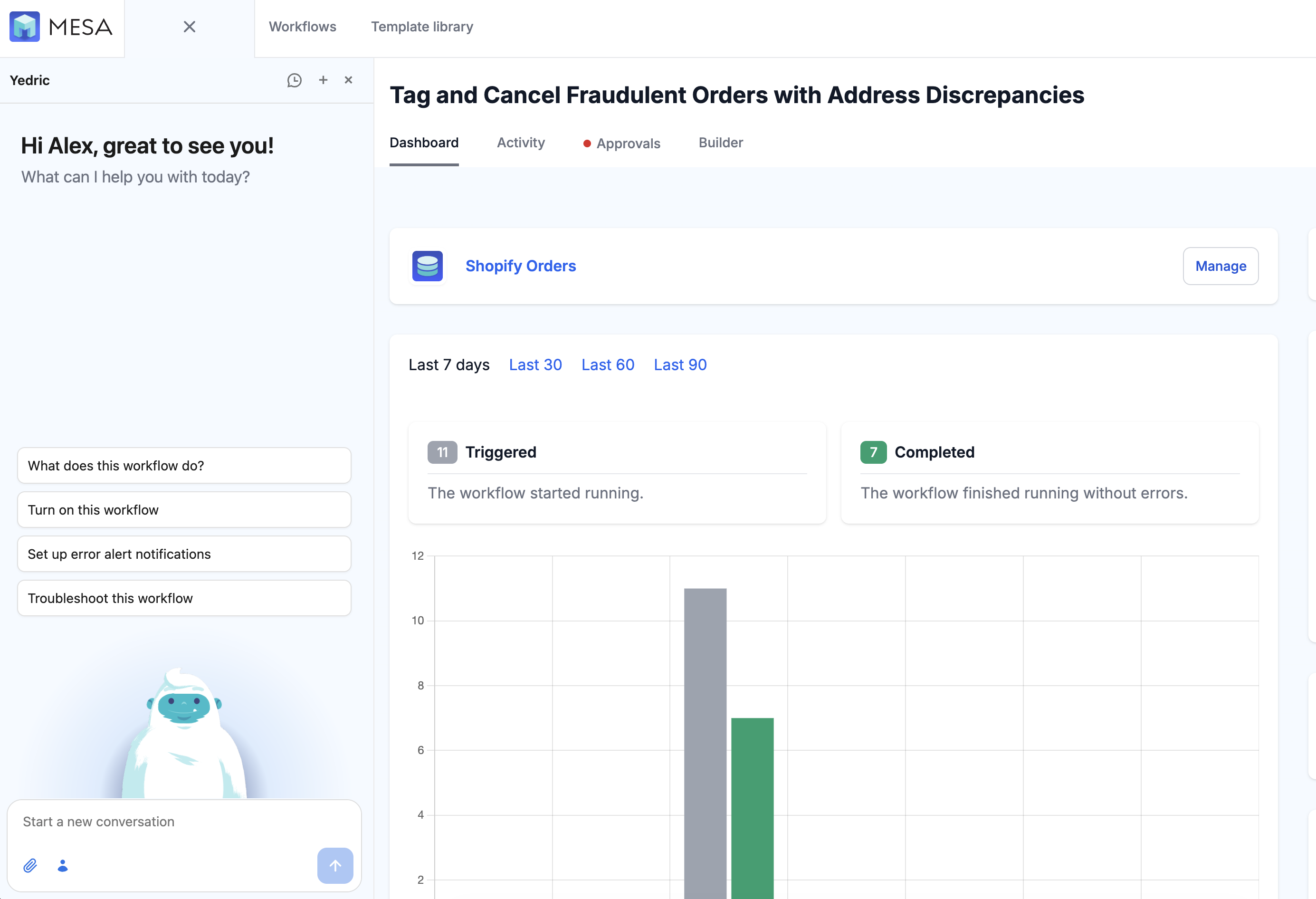
Open a single workflow's dashboard and they narrow again — explain what this workflow does, turn it on, set up error alert notifications, or troubleshoot it.
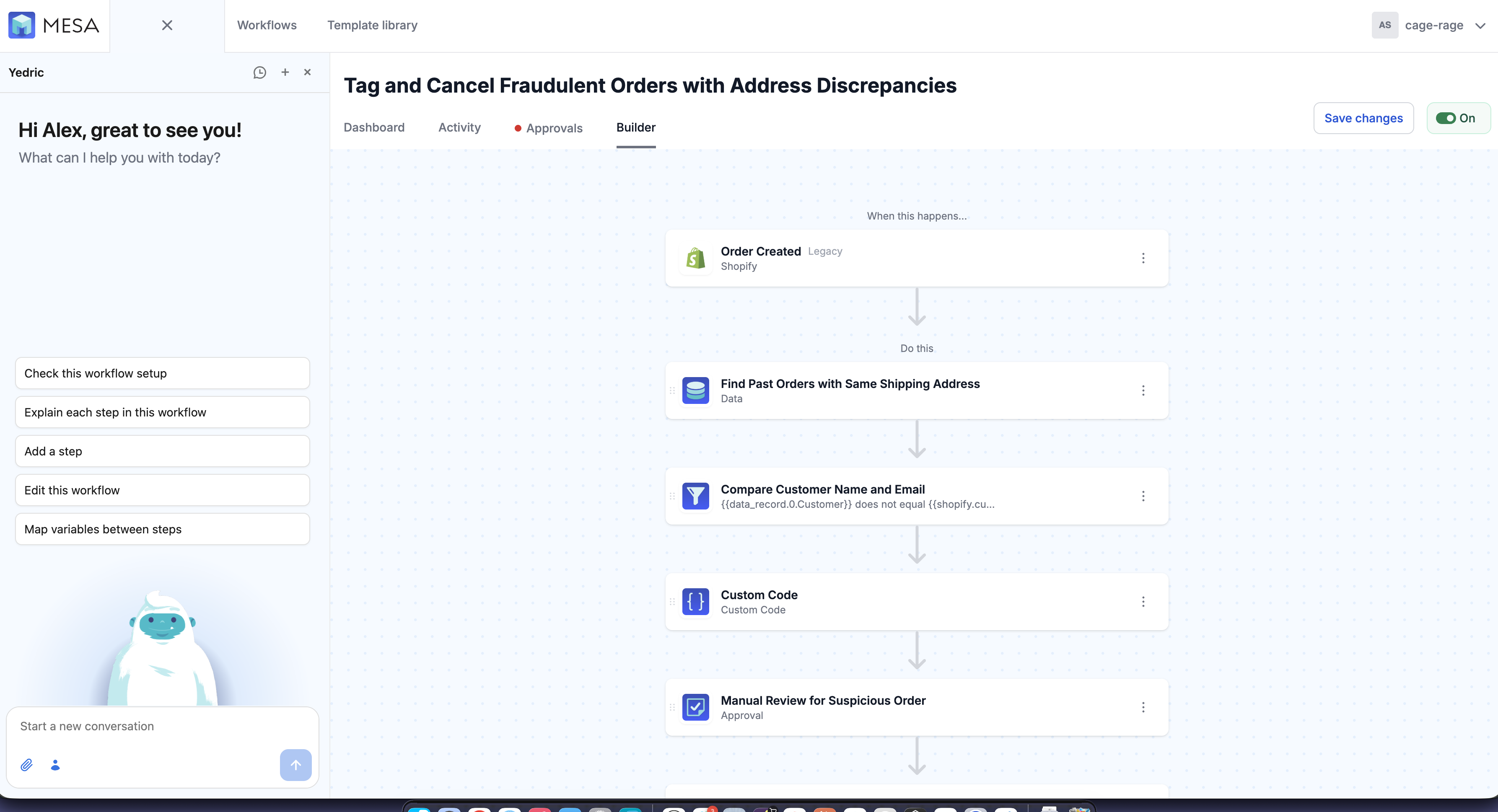
In the builder, the prompts are about the workflow in front of you: check the setup, explain each step, add a step, edit the workflow, or map variables between steps.
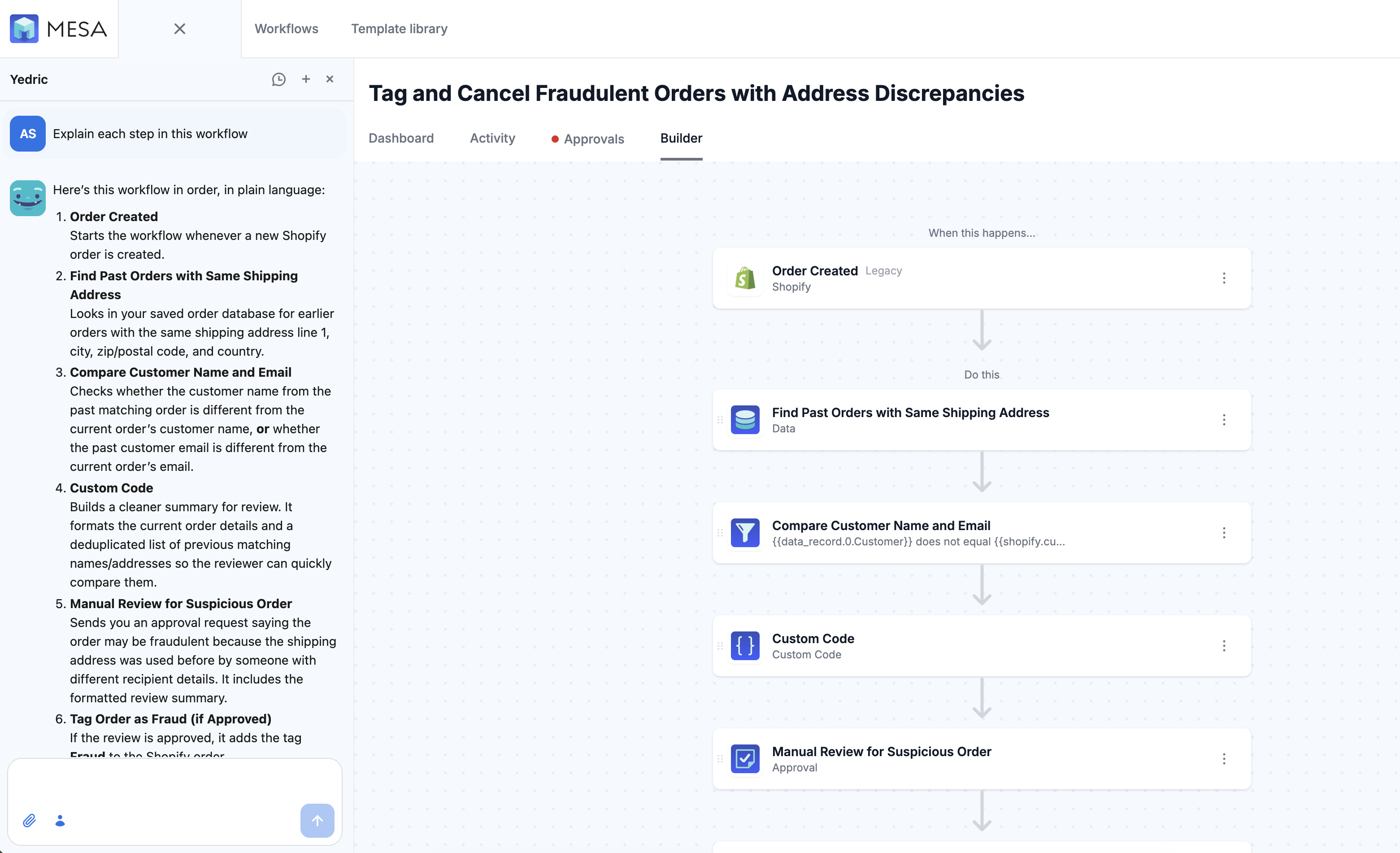
Ask for that explanation and you get a plain-language walkthrough of the workflow in order — what each step is doing and why it's there. Handy for a workflow you inherited, or one you wrote six months ago.
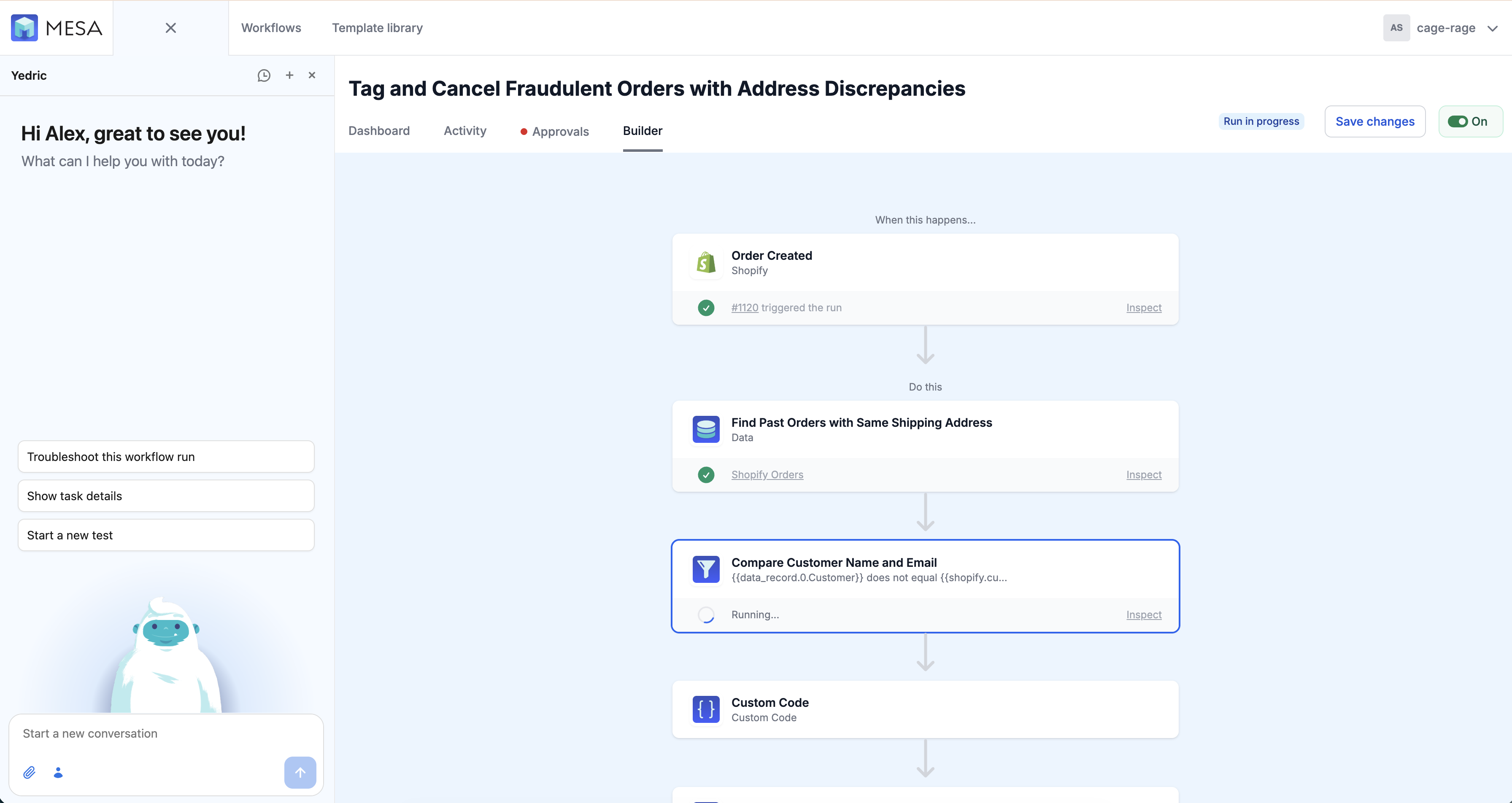
And while a run is underway, the prompts follow along — troubleshoot this run, show task details, or start a new test.
🧩 Recommended variables, right under the field
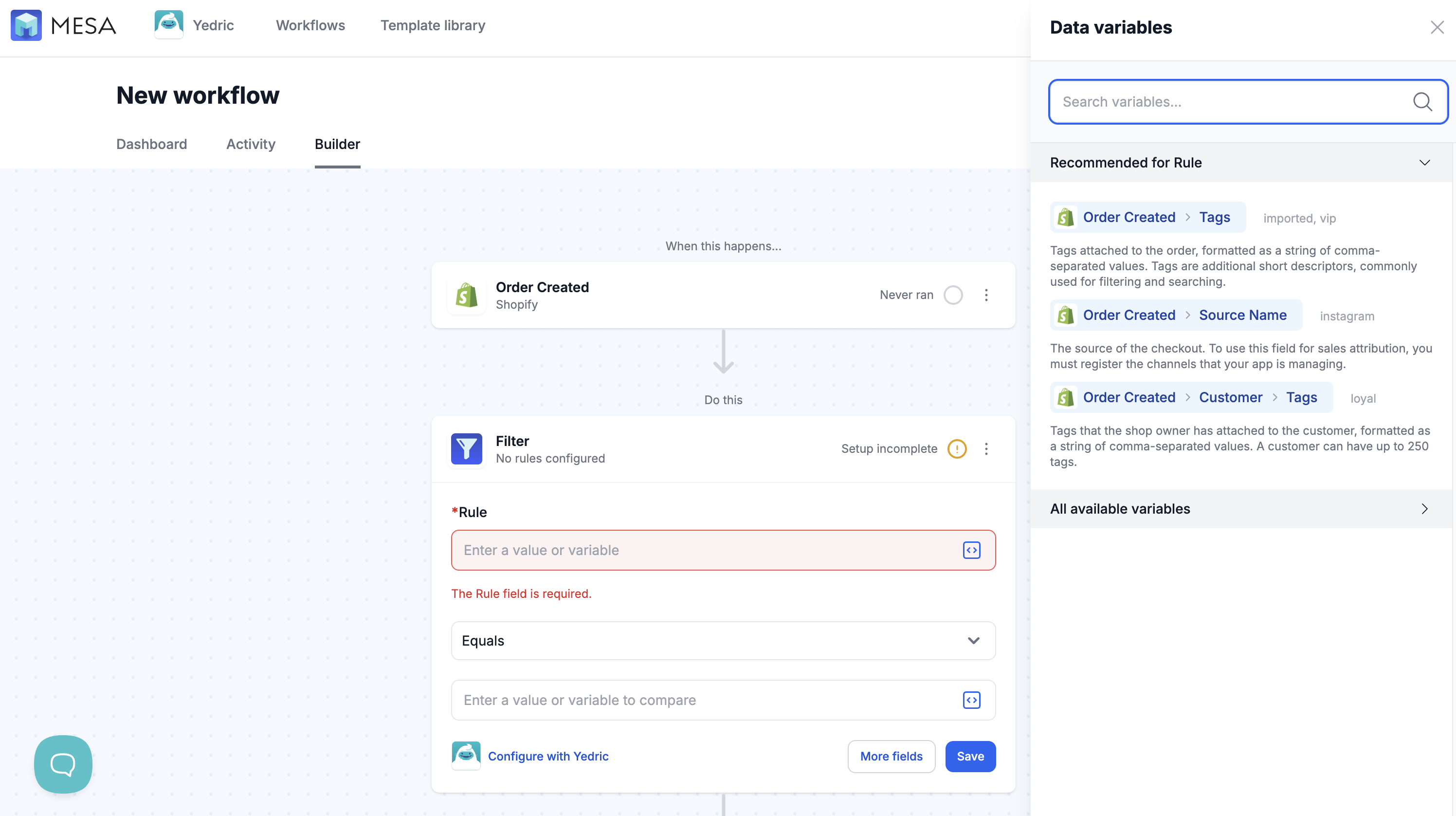
Fields that have variables available now show a short Recommended list in a dropdown right underneath them, so the variable you probably want is one click away instead of a trip to the sidebar.
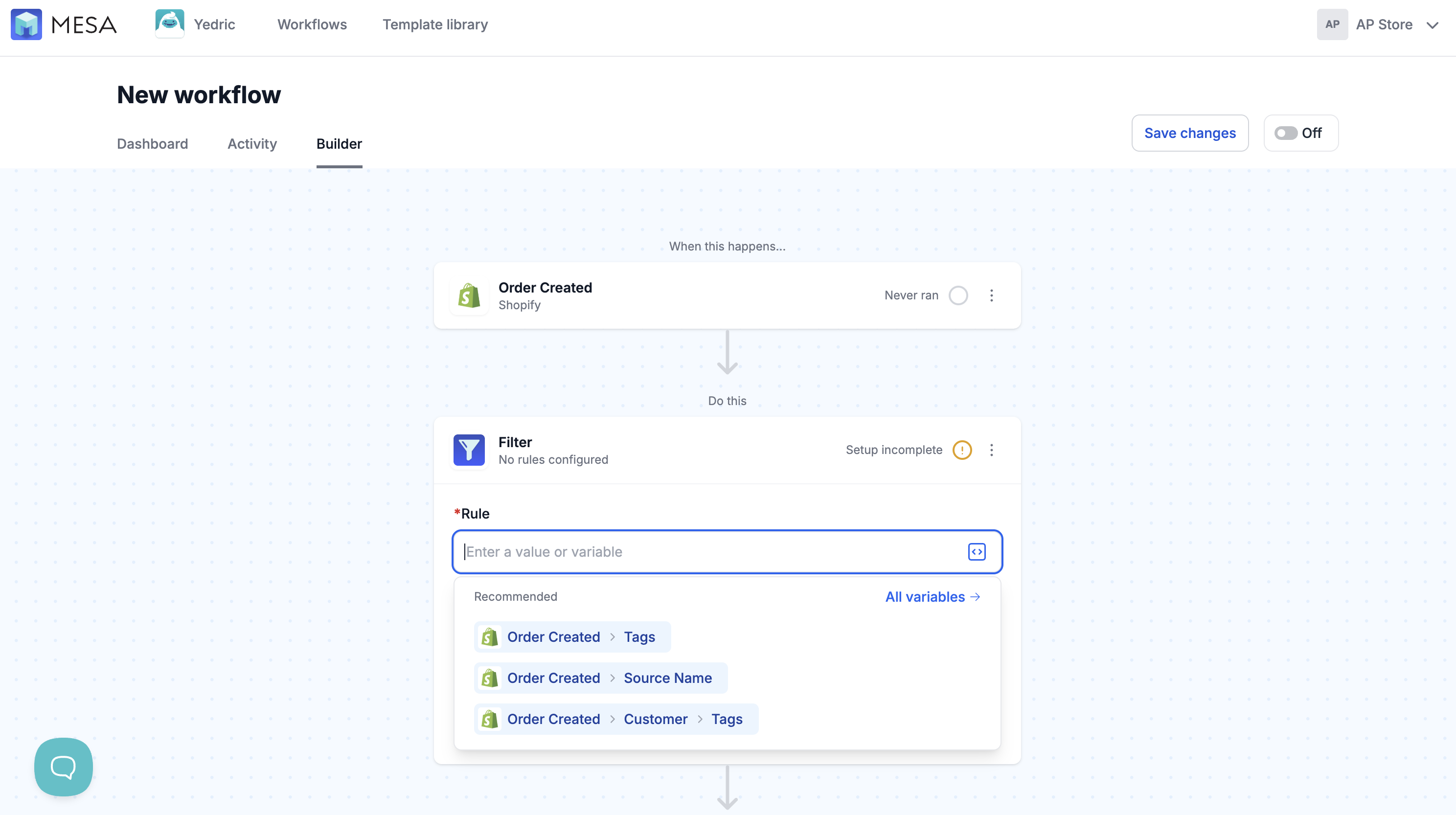
These are the same recommendations you already see in the Variables sidebar, just without the descriptions and examples. Click All variables → to open the sidebar and get the full picture, including what each variable means and a sample value.
Another one straight off the feature request list.
🎵 ShopPad July '26 Playlist
The ShopPad July '26 Playlist is here, straight from the team:
Bonus: there's also a YouTube playlist with the actual music videos, so you get the full experience.