
Two merchants asked MESA the same question this summer, in very different words. One runs an Etsy shop and wanted every new listing to land on a specific Pinterest board automatically — main photo, title, description, and a link back to the listing. The other wanted something narrower: when a customer leaves a five-star Yotpo review, turn that review into a Pin.
Those are the same workflow wearing two different hats. Something happens in one app, MESA grabs an image and some text, and Pinterest gets a new Pin. Neither needs code, and both land at four steps or fewer. Below are both builds, plus the part that actually trips people up — making your text fit Pinterest's fields.
TL;DR: there's a template for that
Build the last step first
Both workflows end in the same place: Pinterest's Create Pin action. Configure that step first, because its fields tell you exactly what every step before it has to produce. You need a board to post to, an image, a title, a description, and a destination link. If any of those is missing upstream, the Pin either fails or publishes half-formed.
The title and description are where automated pins usually break. Pinterest caps a Pin title at 100 characters, which almost no Etsy listing title respects. The description is more generous than most automation guides claim — you'll still see 500 quoted a lot, but Pinterest's current Pin specs page says:
"Enter up to 800 characters."Pinterest Help Center
800 characters is plenty of room for a listing description or a full review quote, so the description rarely needs trimming. The 100-character title almost always does.
Workflow 1: turn every new Etsy listing into a Pin
This is the one the Etsy seller asked for, and it's the simpler of the two because Etsy's own trigger does the hard part.

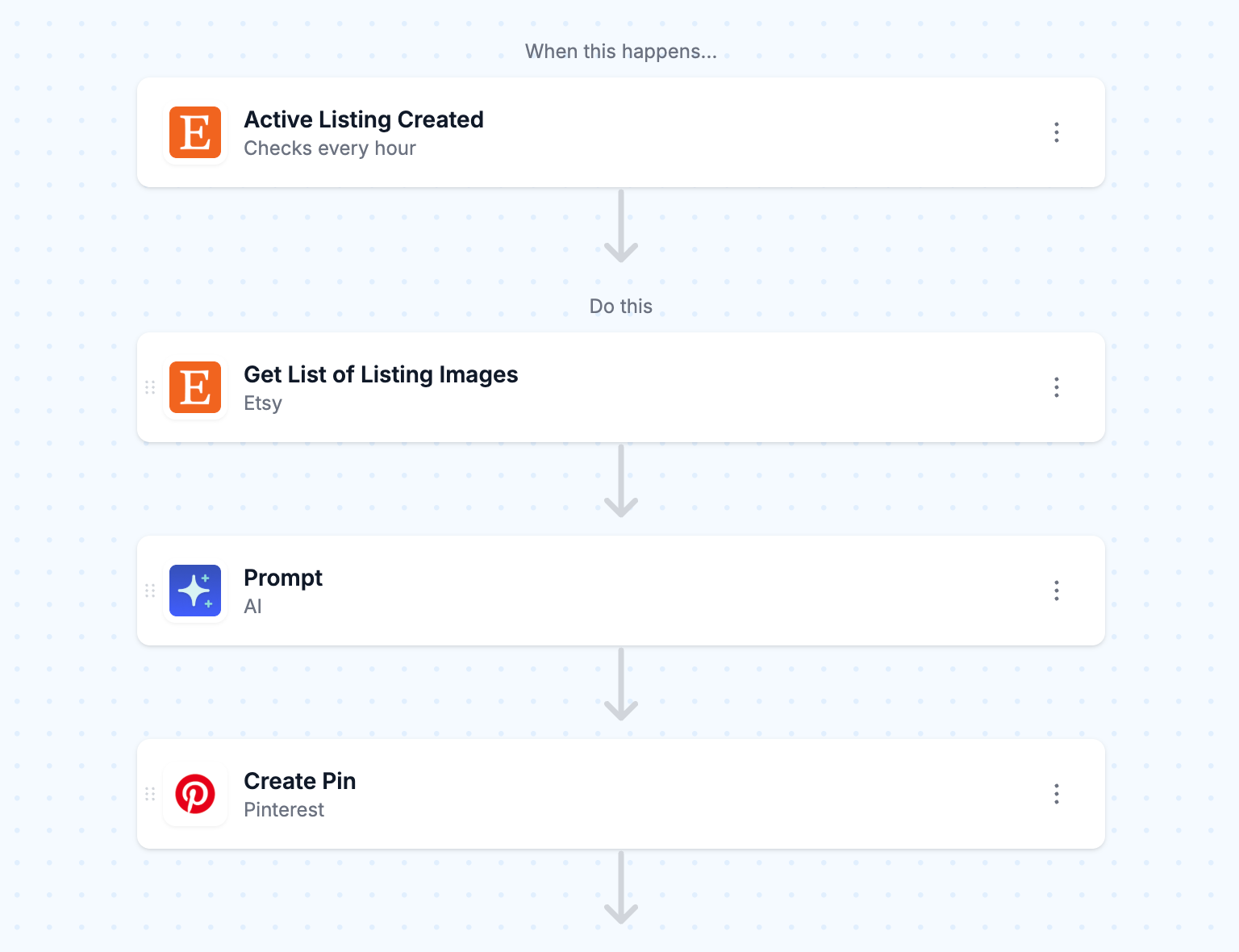
The Etsy-to-Pinterest steps
- Trigger — Etsy, Active Listing Created. Fires when a listing goes active in your shop. Note the word active: saving a draft won't start the workflow, which is what you want, since drafts aren't ready to promote.
- Etsy — Get List of Listing Images. The trigger hands you the listing, but not its photos. This action takes the listing ID and returns the image URLs. The first one is your Pin image.
- AI — shorten the title. MESA's built-in AI tool runs on GPT-4o with no separate OpenAI account to manage. Give it a prompt like "Rewrite this Etsy listing title in under 100 characters, keeping the most searchable terms," and pass the listing title in. It's a premium step, so it draws on premium task credits.
- Pinterest — Create Pin. Board is whichever one you picked. Image is the URL from step 2. Title is the AI output from step 3. Description is the listing description. Link is the listing URL, which is the whole point — a Pin with no destination just decorates someone else's feed.
Skip the build if you can
You don't have to assemble this one by hand. MESA already ships it as a template, and the version in the library adds a second AI step that condenses the description too. If you'd rather read the long version first — including why Pinterest's "claim your shop" option doesn't work for Etsy sellers — there's a full walkthrough of the Etsy-to-Pinterest workflow that covers scheduling, category filtering, and the Rich Pins limitation in more depth than this post does. It pairs well with the broader guide to automating an Etsy shop if listings-to-Pinterest is just the first thing on your list.
Workflow 2: turn a five-star Yotpo review into a Pin
No template exists for this one, so you build it. It's still four steps, but two of them need thought: deciding which reviews qualify, and finding an image, since a review doesn't come with one.

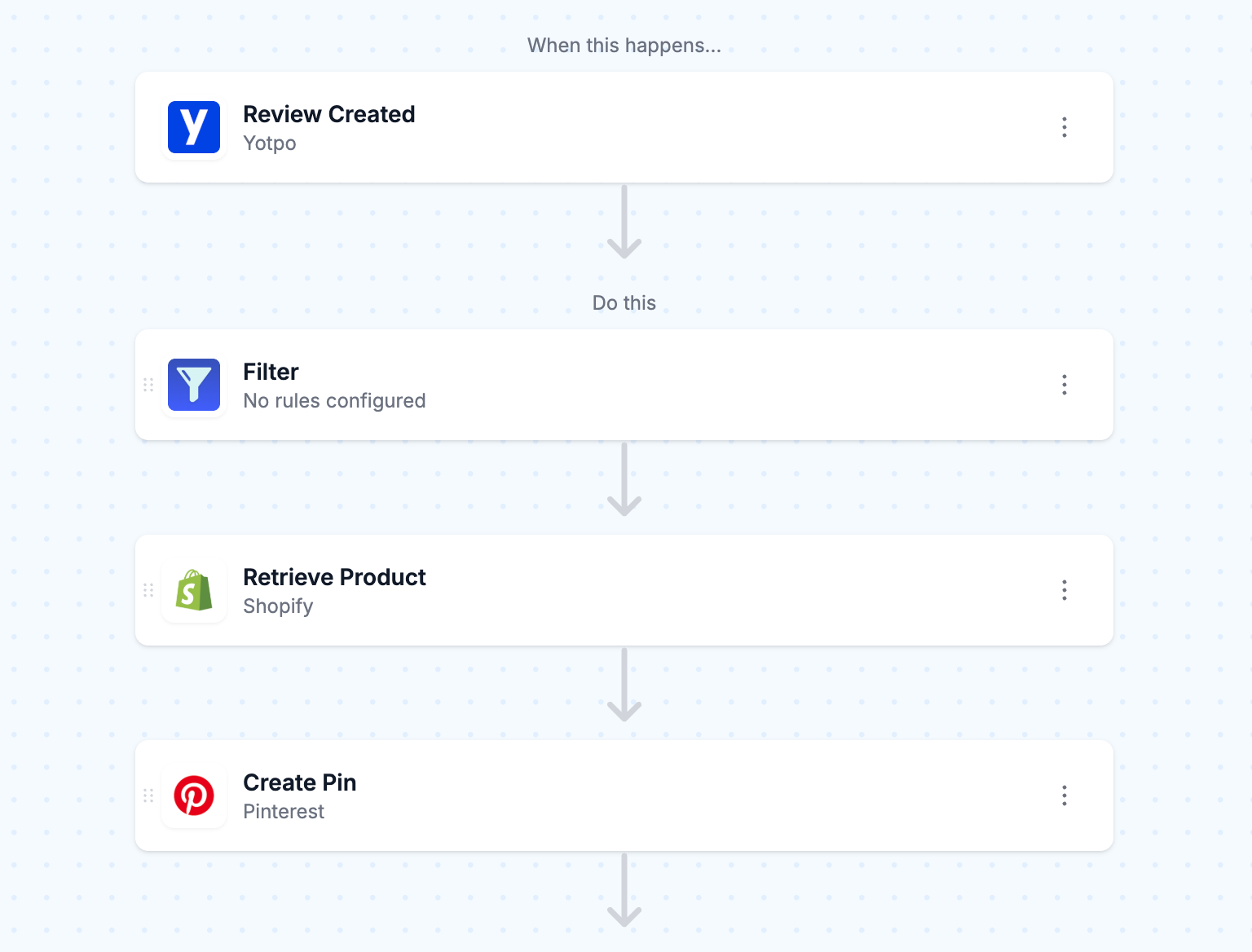
The Yotpo-to-Pinterest steps
- Trigger — Yotpo, Review Created. MESA's Yotpo connector fires on every new review, one star through five. The filtering is your job, not the trigger's.
- Filter — keep only the ones worth pinning. The Filter tool stops the workflow when its conditions aren't met, and it offers 19 conditions across AND/OR rule sets. Two rules matter here:
scoreequals 5, anddeletedis false. Both are real fields on Yotpo's review object, wherescoreis the star rating anddeletedtracks whether a review has been unpublished in moderation. Skipping the second rule means you can publish a Pin quoting a review your team later pulls down. - Shopify — Retrieve Product. The review carries a
sku, not a picture. Use it to pull the product, then take its featured image URL for the Pin. If you'd rather see this half of the flow already wired up, the Shopify product-to-Pinterest template uses the same product-image-to-Create-Pin handoff and is worth opening alongside your build. - Pinterest — Create Pin. Image is the product photo. Title can be the product name plus something short like "Five stars" — you have 100 characters, and the review's own
titlefield is usually a good fit. Description is the reviewcontent, which will almost always land inside 800 characters. Link goes to the product page.
The image problem, and two ways around it
A product photo with a review quote invisible underneath it is a weak Pin. Pinterest's description field is real, but it isn't what people see while scrolling. Two options:
- Overlay the quote on the image. MESA's Image tool has an Add Overlay operation for exactly this — drop the review text onto the product photo before the Create Pin step, and the quote becomes part of the visual instead of metadata nobody reads.
- Pin to a dedicated board. A board called something like "What customers say" gives the quote context even when the image is a plain product shot. Cheaper to set up, less striking in a feed.
Don't pin every five-star review
A store with steady review volume can generate several five-star reviews a day, and pinning all of them turns a board into noise. A few ways to throttle it, in rough order of how much work they are:
- Add a Filter rule requiring the review's
contentto be longer than some minimum — a two-word "Great!" makes a bad Pin no matter how many stars it carries. - Require
reviewer_typeto beverified_buyer, so you're only promoting reviews tied to a real purchase. - Restrict it to a handful of hero products rather than the whole catalog.
One caution if you go looking for a shortcut here: Yotpo's Top Three 5-Star Reviews endpoint, which MESA exposes as the List Top Reviews action, isn't a safe source for auto-publishing. Yotpo's own documentation is explicit that it "returns results for published and unpublished 5-Star Reviews alike," per its API reference. Trigger on Review Created and filter yourself instead.
Which one to build first
If you sell on Etsy, build workflow 1 — it's a template install, and new listings are a reliable, self-refreshing source of Pins. If you're on Shopify with reviews already flowing into Yotpo, workflow 2 gives you something the listings workflow can't: social proof in the Pin itself. Stores running both channels can run both, pointed at different boards, and never touch either again.
The Yotpo side is also worth a sanity check on your review setup before you automate on top of it. If you're still deciding what's collecting your reviews, our rundown of Shopify product review apps covers what each one exposes to tools like MESA.
FAQs
Do I need a Pinterest business account?
Yes. Pinterest requires a business account to access its API, which is what MESA uses to publish on your behalf. Converting a personal account is free, and Pinterest walks through it in its business account guide. You connect it to MESA once, then pick the destination board inside the Create Pin step.
Can MESA pin to different boards depending on the product?
Yes, and this is where the Filter tool earns its place. Add rules that route a listing or review to a specific board based on its tags, product type, or Etsy shop section. The cleanest version is one workflow per board, each with a Filter at the top; the compact version is a single workflow with a Paths step branching to several Create Pin steps.
What happens if a Pin fails to publish?
MESA logs the run and the error rather than silently dropping it. The most common cause on these two workflows is an image URL the earlier step didn't return — an Etsy listing published without photos, or a Shopify product with no featured image. A Filter checking that the image URL isn't empty, placed right before Create Pin, catches both.
Will these workflows repost old listings or old reviews?
No. Both are event triggers, not scheduled scans, so they only act on things created after you turn the workflow on. If you want your back catalog pinned too, that's a separate one-time job rather than something these workflows will do on their own.
Does the Yotpo workflow work with Yotpo Loyalty?
Yotpo Loyalty is a separate connector in MESA from Yotpo reviews, with its own triggers around points and rewards. The review workflow described here uses the reviews connector. You can chain the two — awarding points when a review gets pinned, for instance — but they're configured independently.