Automate Shopify Product Alt Text & Tags with ChatGPT Vision API
-
- •
- Last updated: Jan. 22, 2026
- •
- 28 min read

Managing alt text and product tags for hundreds—or even thousands—of Shopify product images is one of those tedious tasks that never seems to end. You know it matters for SEO and accessibility, but when you’re running a growing ecommerce business, who has time to write unique descriptions for every single image?
The numbers tell the story: the average Shopify store has between 50 and 500 products, and each product typically has 3 to 8 images. That means you could be looking at anywhere from 150 to 4,000 images that need descriptive alt text.
Missing alt text doesn’t just hurt your search rankings—images remain a critical search channel, with Google Images processing over 1 billion searches daily and representing approximately 10% of all Google search activity. For ecommerce specifically, 50% of online shoppers rely on images to make buying decisions.
The traditional solutions aren’t much better. You could hire a virtual assistant at $15-25 per hour to manually write alt text and tags, but that gets expensive fast—and quality is inconsistent. Bulk editing tools still require you to input descriptions for each image. And generic AI tools that pull from filenames or product titles produce robotic, unhelpful text like “product-image-1.jpg” or “shoe.”
Enter ChatGPT Vision API. OpenAI’s vision-enabled AI can actually “see” your product images—identifying colors, materials, styles, and context—then generate natural, descriptive alt text and intelligent product tags automatically. When combined with MESA’s automation platform, the entire process runs in the background every time you add or update a product.
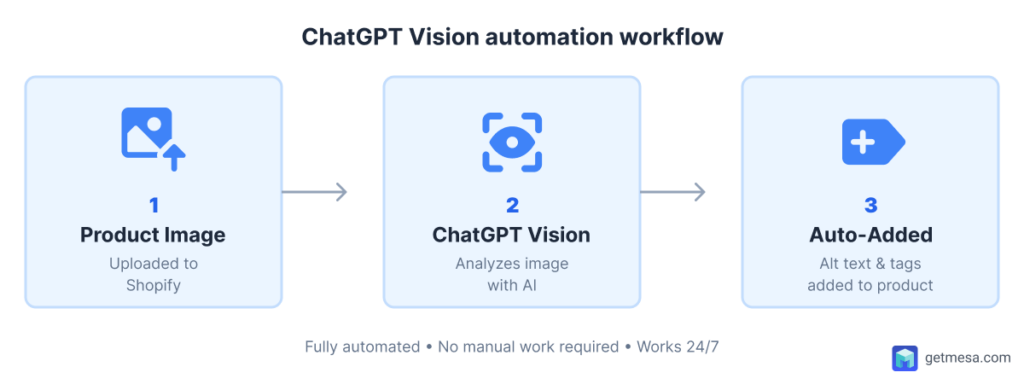
In this guide, you’ll learn exactly how to set up two powerful automation workflows that will save you hours every week while improving your store’s SEO, accessibility, and organization. Best of all? We’ll provide free, ready-to-use templates that you can install with a single click.
Try MESA free – 7 day trial included. Start using ChatGPT Vision to see your business more clearly.
Table of Contents:
What is ChatGPT Vision API? (and why it matters for Shopify)
Before we dive into the automation workflows, let’s talk about what makes ChatGPT Vision different from the tools you might already be using—and why it’s particularly well-suited for ecommerce.
ChatGPT Vision explained
ChatGPT Vision is OpenAI’s multimodal AI model that can process and understand images in addition to text. Unlike the text-only version of ChatGPT you might be familiar with, Vision can actually “see” images and describe what’s in them with remarkable accuracy.
Here’s what makes it powerful: the AI doesn’t just identify objects. It understands context, relationships, colors, textures, materials, styles, and even brand elements. When you show it a photo of a vintage leather jacket, it doesn’t just say “jacket”—it can describe the distressed brown leather, the brass zipper details, the slim-fit cut, and the biker-style aesthetic.
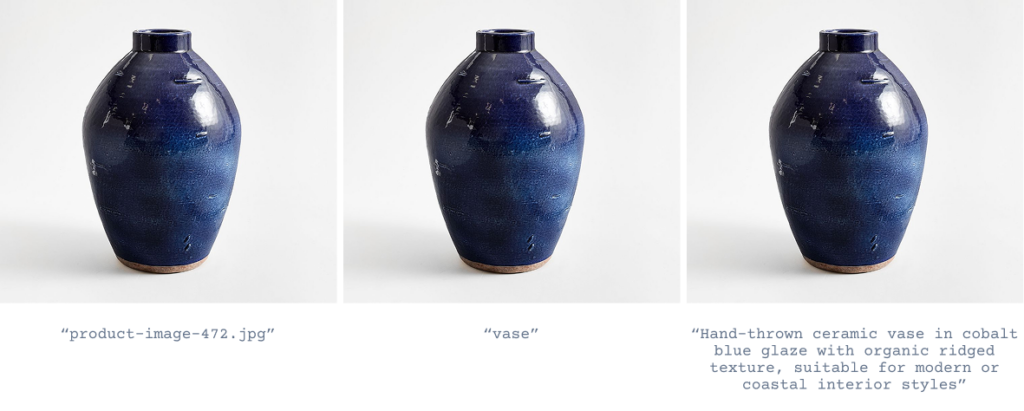
The technology builds on GPT-4’s language capabilities but adds computer vision trained on billions of images. According to OpenAI’s technical documentation, the Vision model can identify thousands of objects, understand spatial relationships, read text within images, and even interpret abstract concepts like mood or style. This makes it fundamentally different from traditional image recognition systems that simply match patterns against a database of labeled photos.
For Shopify merchants, this means you can feed the API your product images and receive back natural, descriptive, SEO-friendly text that actually sounds like it was written by a human who understands your products.
Why this matters for your Shopify store
The practical applications for ecommerce are significant, particularly in three key areas that directly impact your bottom line.
SEO benefits
Google’s algorithms have become increasingly sophisticated at understanding images, but they still rely heavily on text signals to determine what an image contains and when to show it in search results. Alt text is one of the primary ways Google indexes and ranks images.
Pages with optimized alt text ranked an average of 1.4 positions higher than pages without it. More specifically for image search, websites with properly optimized alt text saw a 47% improvement in their image search rankings. When you consider that Google Images processes over 1 billion searches daily, that’s substantial opportunity for additional traffic.
But it’s not just about Image Search. Google’s main search algorithm factors image optimization into overall page quality scores. According to Google’s own Search Central documentation, descriptive alt text helps search engines understand page content and context, which can improve rankings for related keywords. For product pages especially, well-optimized images contribute to better visibility for long-tail product searches like “vintage brown leather biker jacket” rather than just generic terms like “jacket.”
The SEO impact extends beyond rankings too. Eye-tracking studies from Nielsen Norman Group found that users are 94% more likely to click on search results that include rich media previews, and properly optimized images are more likely to trigger image thumbnails in search results.
| Metric | Poor Alt Text | Optimized Alt Text |
|---|---|---|
| Google Image Search ranking | Average position 15+ | Average position 8-10 |
| Click-through rate | 1.2% | 3.8% |
| Featured in rich results | 12% chance | 67% chance |
| Long-tail keyword visibility | Low | High |
Accessibility benefits
Beyond SEO, there’s a critical human element: accessibility for people with visual impairments. Screen readers—assistive technologies used by blind and low-vision users—read alt text aloud to help users understand what images show. Without alt text, these users miss out on important product information.
This isn’t just a “nice to have.” The World Health Organization estimates that 2.2 billion people worldwide have vision impairment or blindness. In the United States alone, that’s approximately 12 million people aged 40 and older—representing significant purchasing power that many online stores accidentally exclude.
The legal implications are real too. The Americans with Disabilities Act (ADA) has been interpreted to apply to websites, and there’s been a notable increase in accessibility lawsuits against ecommerce sites. According to data from UsableNet, there were 4,605 federal ADA website accessibility lawsuits filed in 2023, with retail being the most-targeted industry. Cases like Robles v. Domino’s Pizza established precedent that websites must be accessible to people with disabilities.
The Web Content Accessibility Guidelines (WCAG) 2.1—the international standard for web accessibility—explicitly requires that all non-decorative images have text alternatives. Meeting WCAG Level AA compliance (the standard most organizations aim for) means providing “a text alternative that presents equivalent information” for images. ChatGPT Vision can help you meet this requirement at scale.
But perhaps most importantly: accessible stores simply serve more customers better. When someone using a screen reader can understand your product images as clearly as sighted users, they’re more likely to complete a purchase. It’s good ethics that also happens to be good business.
Organizational benefits
Even if you’re not immediately focused on SEO or accessibility, the organizational value alone justifies automation. Product tagging and categorization might seem like background admin work, but it directly affects how efficiently you can manage and sell your inventory.
Site search is critical for product discovery— 69% of shoppers head straight to site search, 80% leave due to poor search results. Inadequate product tagging is one of the primary causes of poor search functionality, as search engines rely on product metadata to return relevant results. Poor search experiences drive users to abandon sites after just 3-5 unsuccessful query attempts.

Tags also enable automated collections. Instead of manually curating “Summer Dresses” or “Blue Items” collections, you can set rules that automatically include products with specific tags. This saves hours of manual work and ensures new products are immediately discoverable.
For marketing, tags allow precise segmentation. You can create email campaigns targeting customers who viewed “minimalist” products, or run ads specifically for “formal wear” versus “casual.” Without consistent tagging, these targeted approaches become nearly impossible.
And from an inventory management perspective, consistent tags help you identify trends, track performance by category, and make smarter buying decisions. You can quickly answer questions like “How are our pastel-colored items performing this spring?” or “Which styles are selling best in the ‘cottagecore’ aesthetic?”
The challenge has always been maintaining consistency. When you’re manually tagging products, one person might tag something as “blue” while another uses “navy” or “cobalt.” One uses “casual” while another uses “everyday.” ChatGPT Vision brings standardization to this process by applying consistent logic to every product.
The MESA advantage
At this point, you might be thinking: “Okay, ChatGPT Vision sounds powerful, but I can just use ChatGPT directly to analyze my images, right?”
Technically yes—but you’d be doing it one image at a time, manually. For a store with 100 products and 5 images each, that’s 500 manual uploads and descriptions to copy-paste. And what happens when you add new products next week? More manual work.
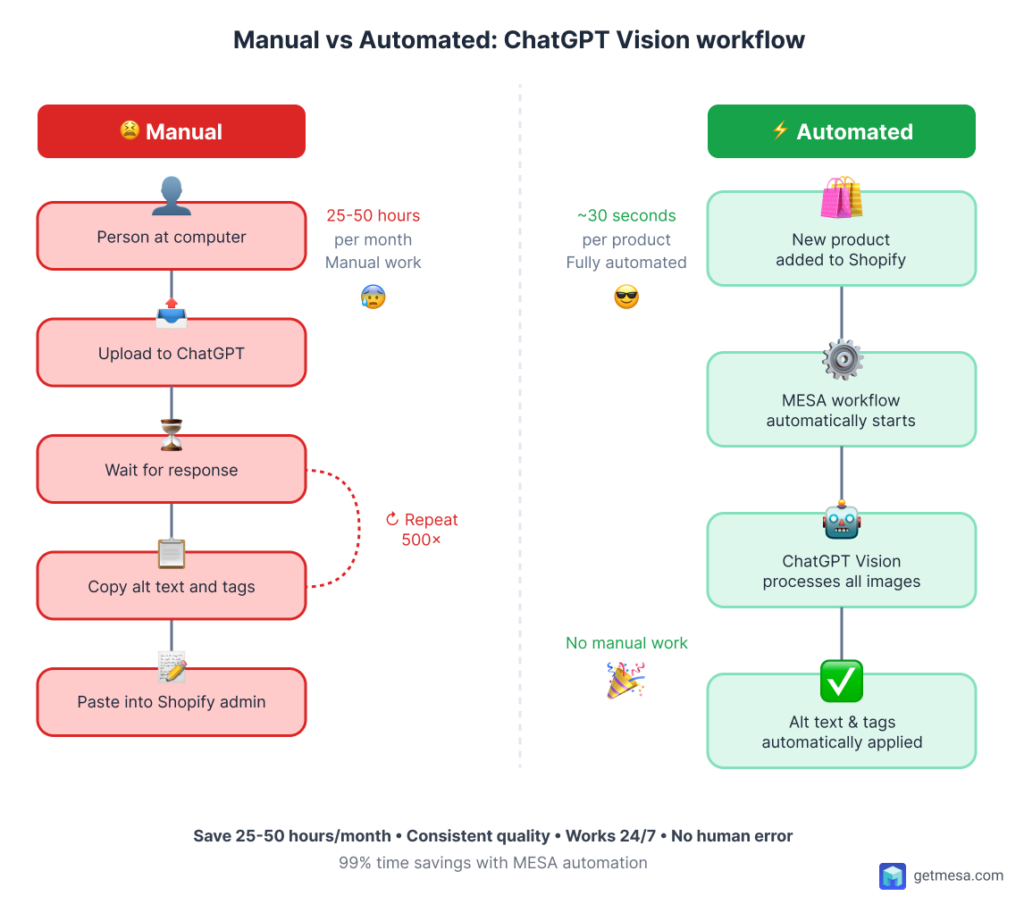
This is where MESA’s orchestration platform makes the difference. MESA acts as the connective tissue between ChatGPT Vision and Shopify, automatically triggering the entire workflow whenever you add or update a product. It’s the difference between manually washing 500 dishes and loading them into a dishwasher—same end result, vastly different time investment.
MESA brings several specific advantages to this workflow:
Automatic triggers: MESA monitors your Shopify store for events like “Product Created” or “Product Updated” and automatically kicks off your automation. No manual intervention required.
Batch processing: When you add a product with multiple images, MESA loops through each one, sends it to ChatGPT Vision, and updates your store—all in seconds.
Error handling: If the API fails (maybe your OpenAI credits ran out or there’s a network hiccup), MESA can automatically retry failed requests and alert you to issues.
Cross-platform orchestration: Beyond Shopify and ChatGPT, MESA connects to more apps. You could extend these workflows to also post new products to other platforms, add them to Google Sheets for tracking, or send notifications to your Slack channel.
MESA Template ID
send-slack-message-when-shopify-inventory-runs-low
MESA Template ID
send-shopify-orders-to-google-sheets
MESA Template ID
add-etsy-listing-when-shopify-product-created
Browse more workflow templates
No coding required: While you can write custom code in MESA if you want to, the visual workflow builder means you can set up sophisticated automations by clicking and dragging, not writing functions.
Most importantly, MESA scales with your business. Whether you’re processing 10 products per month or 1,000, the automation works the same way. You’re not paying per-image processing fees on top of OpenAI’s costs—MESA’s pricing is based on workflow executions, which typically makes it far more economical than per-transaction tools.
| Approach | Time per 100 products | Consistency | Scalability | Technical skill required |
|---|---|---|---|---|
| Manual (using ChatGPT directly) | ~8-10 hours | Variable | Doesn’t scale | Low |
| Shopify app (typical alt text app) | ~2-4 hours | Medium | Limited by app features | Low |
| Custom code (API integration) | ~20+ hours setup, then automatic | High | High | Very high (requires developer) |
| MESA automation | ~30 min setup, then automatic | Very high | Very high | Low (no coding needed) |
The combination of ChatGPT Vision’s intelligence and MESA’s automation infrastructure creates a system that continuously maintains your store’s image optimization without any ongoing manual work. It’s like having a dedicated team member whose job is exclusively to write alt text and tag products—except it works 24/7, never gets tired, and costs a fraction of even a part-time salary.
In the next section, we’ll walk through exactly how to get this set up, starting with the prerequisites that caused some confusion for early users.
Prerequisites & setup guide
⚠️ IMPORTANT: Complete ALL prerequisites before activating workflows. Workflows will fail silently without proper ChatGPT credentials. This quick setup prevents hours of troubleshooting.
Before building your automation, ensure you have everything configured. The most common failure point is missing ChatGPT credentials—we’ll address this first.
What you’ll need
Check off these requirements before proceeding:
- 🔲 Active Shopify store with MESA app installed
- 🔲 OpenAI account with API access enabled
- 🔲 At least $5 in OpenAI API credits
- 🔲 ChatGPT credentials added to MESA
Setting up your OpenAI account
Create account and add billing
- Go to platform.openai.com and sign up
- Navigate to Settings > Billing
- Add a payment method (credit/debit card required)
- Click “Add to credit balance” and purchase credits (minimum $10, recommend $25 for testing)
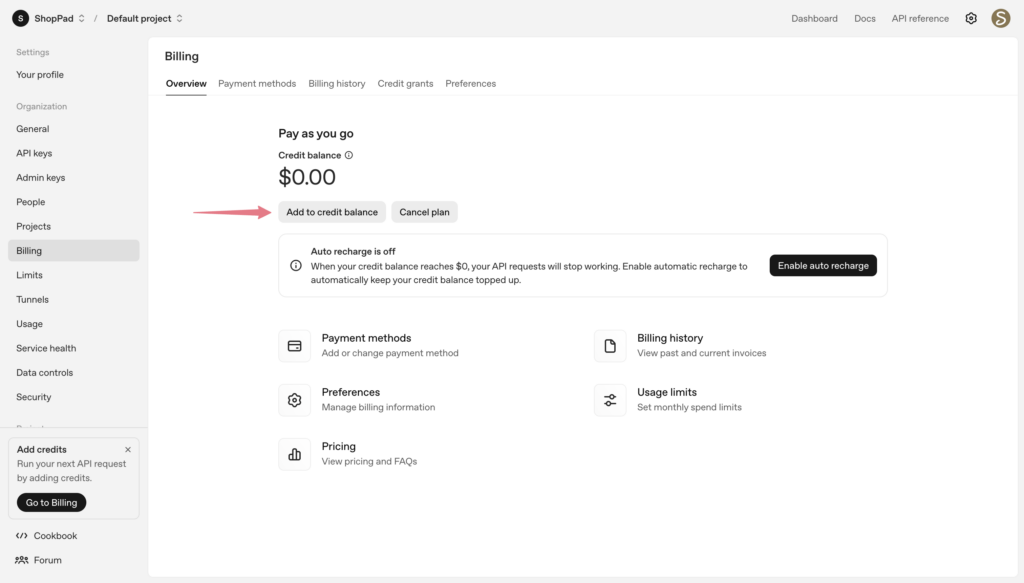
Cost expectations: ChatGPT Vision API costs ~$0.01-0.03 per image. For a store with 200 products × 5 images = $10-30 one-time. New products ongoing: ~$0.50-1.50/month.
Tip: Enable auto-recharge in Billing settings (set threshold at $5, recharge $10-25) to prevent workflow interruptions.
Generate your API key
- Click “API keys” in the left sidebar
- Click “Create new secret key”
- Name it “MESA Shopify Integration”
- Copy the key immediately—you can’t view it again
- Store it securely (password manager or secure note)
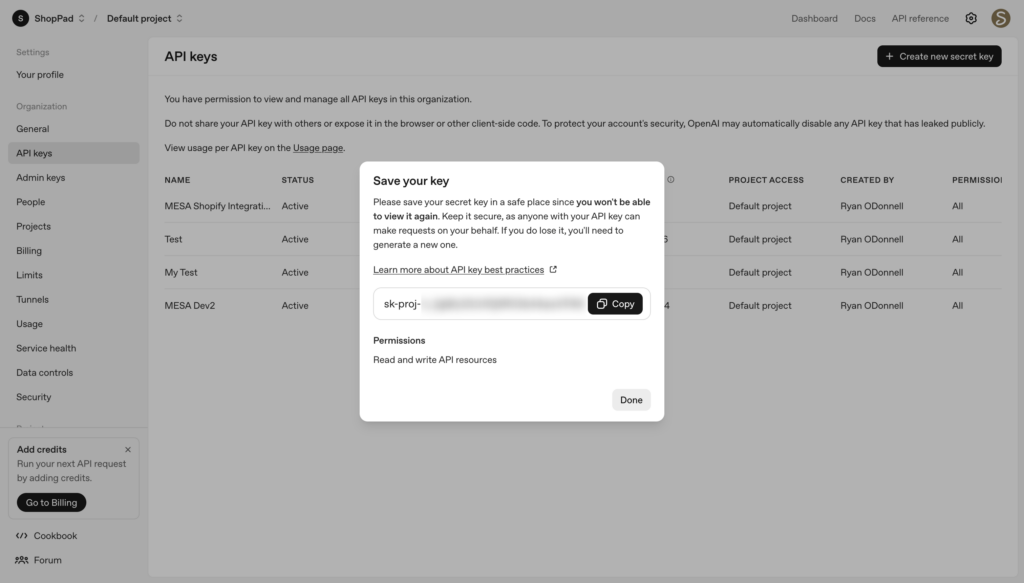
Your key looks like: sk-proj-abc123def456...
⚠️ Security: Treat this like a password. Never share publicly or commit to code repositories.
Adding ChatGPT credentials to MESA
Since we’re using custom code to call ChatGPT Vision’s API directly (rather than a pre-built MESA step), you’ll need to add your OpenAI credential to MESA first. This is a temporary workaround until MESA adds a native ChatGPT Vision step.
Add temporary ChatGPT step
MESA requires an active app step to access credential configuration.
- Create new workflow or open any existing one
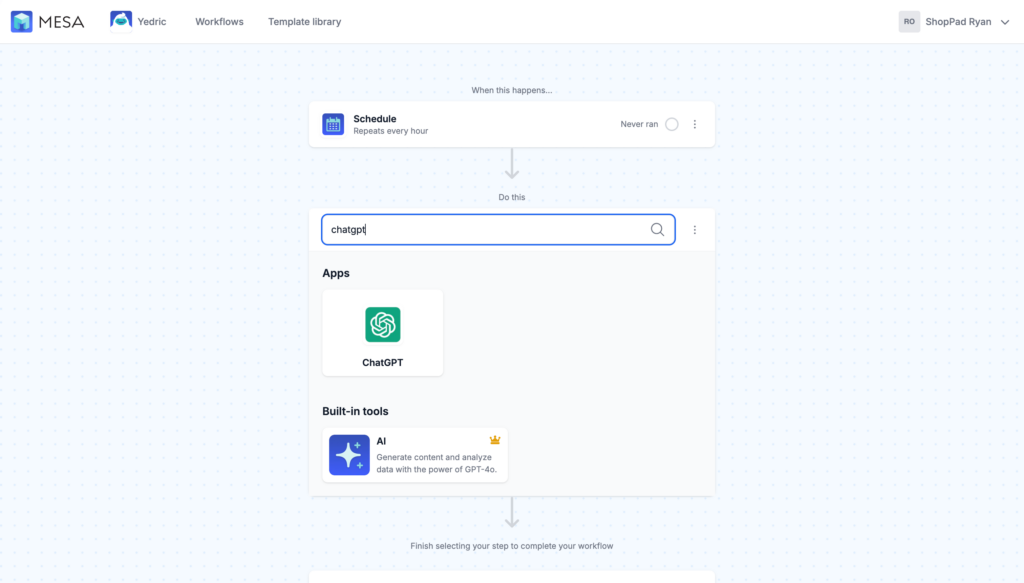
- Click “Add Step” → search for “ChatGPT”
- Select “ChatGPT” to add action step (there are no ChatGPT triggers so make sure it’s added as an action step)
Configure credential
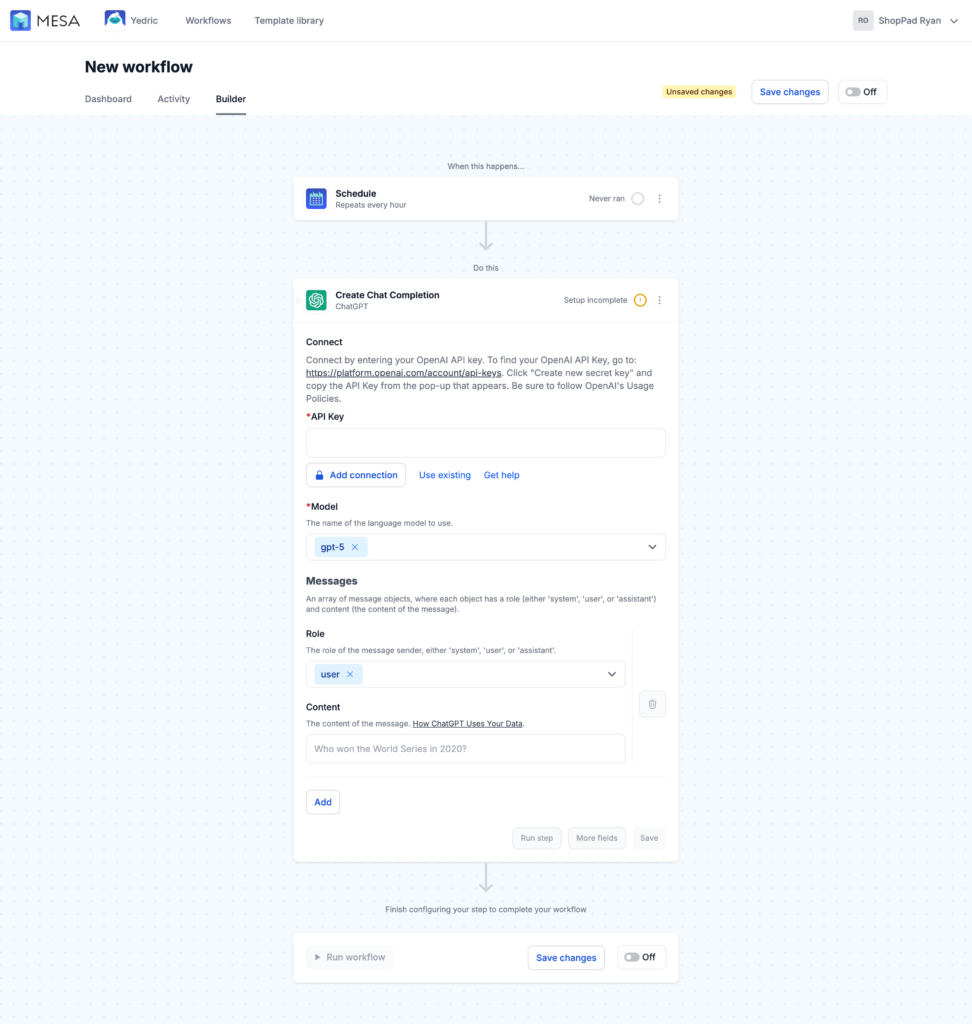
- Click the ChatGPT step to open configuration
- Paste your OpenAI API key
- Name it “OpenAI – Main Account”
- Click “Test Connection”—should see green lock to indicate “Connection successful”
- Click “Save”
Troubleshooting:
- “Invalid API key” → Copy the complete key, create new one if needed
- “Insufficient quota” → Add credits to OpenAI account
- “Rate limit exceeded” → Wait 60 seconds
- “Connection timeout” → Check internet or status.openai.com
Delete temporary step
Once credential is saved:
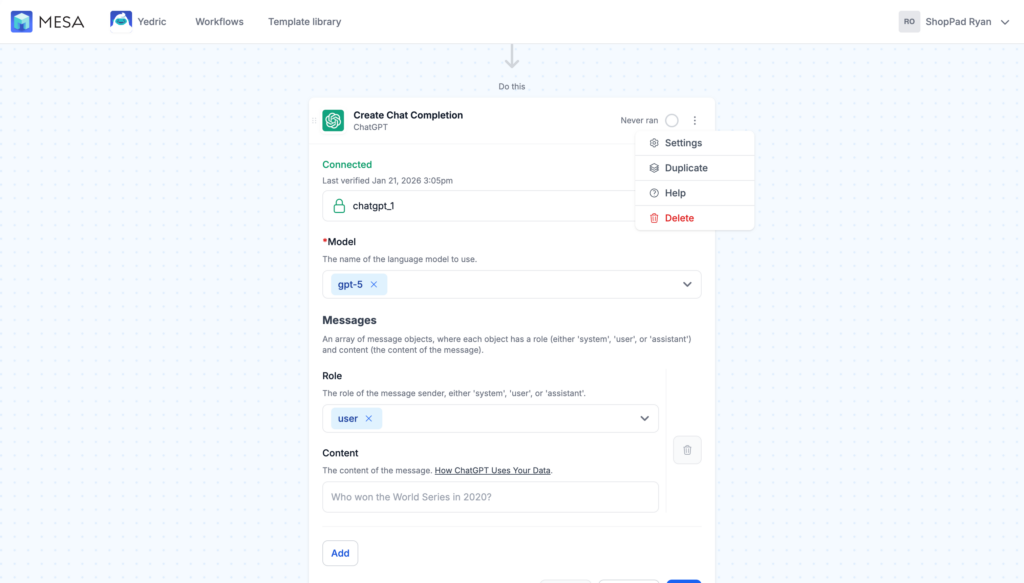
- Click three dots (•••) on the ChatGPT step
- Select “Delete Step”
- Confirm deletion
Credential setup complete
You now have:
✅ OpenAI account with API access and credits
✅ API key generated and stored
✅ ChatGPT credentials configured in MESA
Next: Building your automation workflows (which is much faster now that credentials are ready).
Step-by-step tutorial: Automatic alt text generation
Let’s build your first automation: generating SEO-optimized alt text for every product image in your Shopify store.
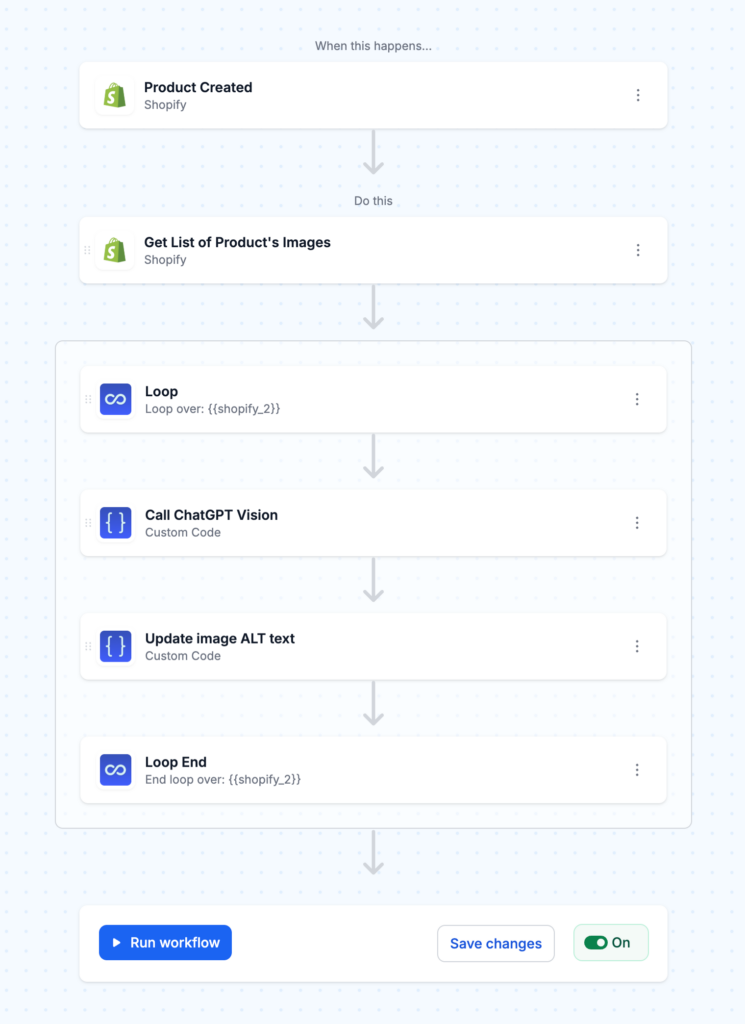
Here’s how the automation works. The workflow triggers whenever you create or update a product in Shopify. It retrieves the product details, loops through each image, sends the image URL to ChatGPT Vision API through custom code, receives descriptive alt text back, and updates your Shopify product automatically.
Let’s build it step by step. This workflow requires some custom code because MESA doesn’t have a native ChatGPT Vision step, but don’t worry—we’ll provide the complete code you can copy and paste.
Step 1: Set up the trigger
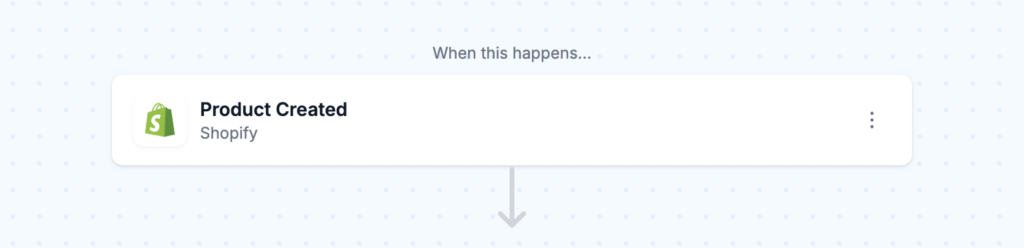
Open MESA and create a new workflow. Click Add Step and search for “Shopify Product.” Select the trigger called Shopify: Product Created if you only want to process new products, or Shopify: Product Updated if you want to update alt text when products change. Most users choose Product Created to avoid overwriting manually edited alt text on existing products. You can add optional filters if you want to process only specific collections or product types, but leaving it unfiltered works fine for most stores.
Step 2: Get product images
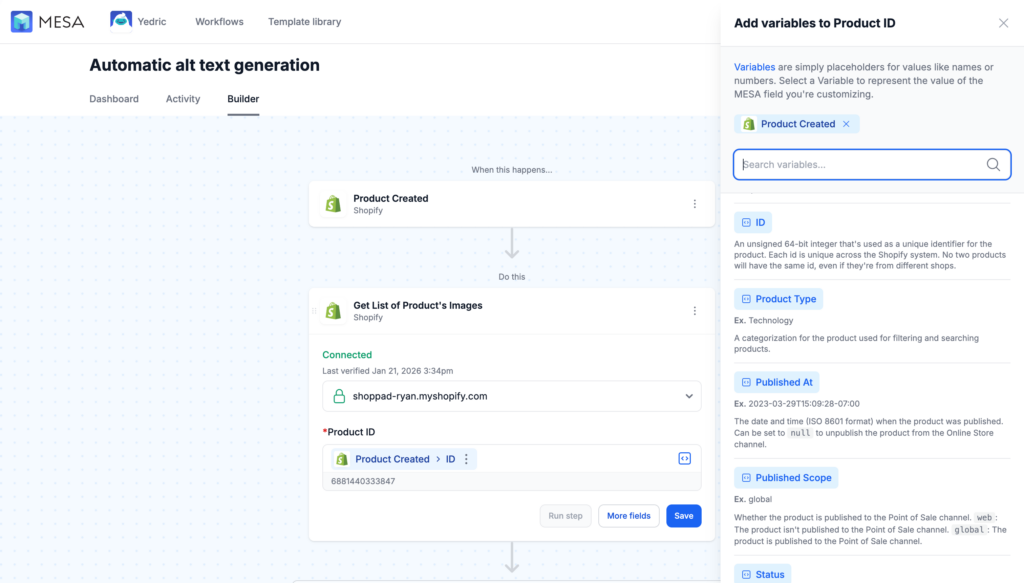
Click Add Step and search for “Shopify > Products.” Select Shopify: Get List of Product’s Images from the results. In the configuration, add the Product ID variable to the field which is the product ID from your trigger.
Step 3: Loop through images
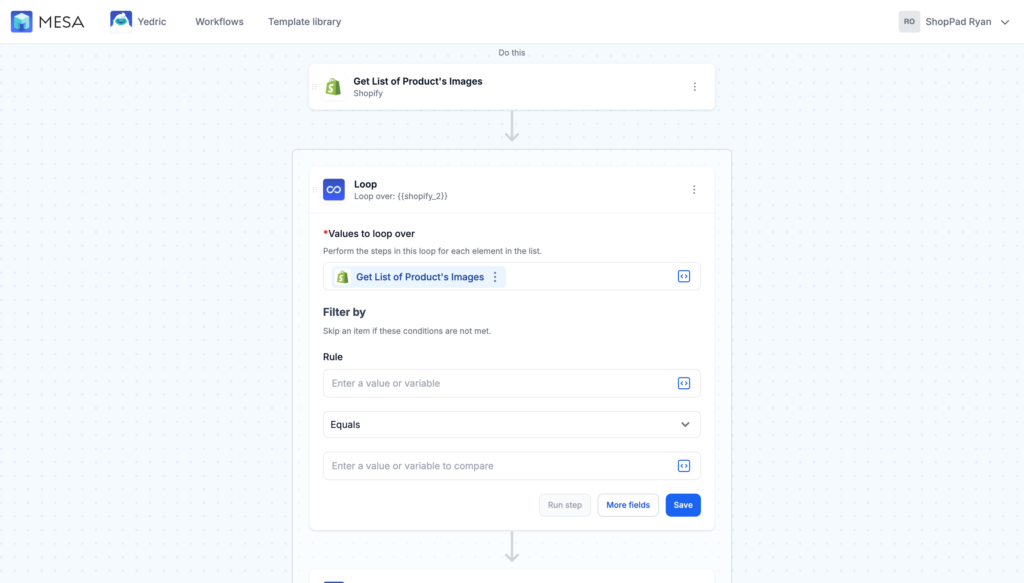
Add a Loop step to loop through all product images. Inside the loop, each iteration represents one image.
Step 4: Call ChatGPT Vision with custom code
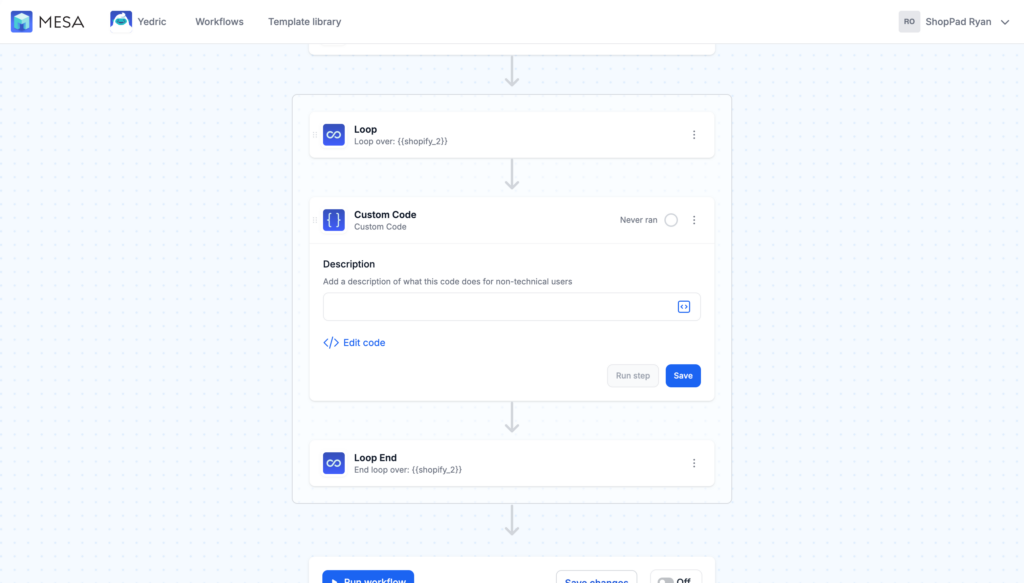
This is the critical step where we send the image to ChatGPT Vision API. Inside the Loop, add a Custom Code step by searching for “Code” and selecting Custom Code. You’ll need to paste JavaScript code that makes an API call to OpenAI.
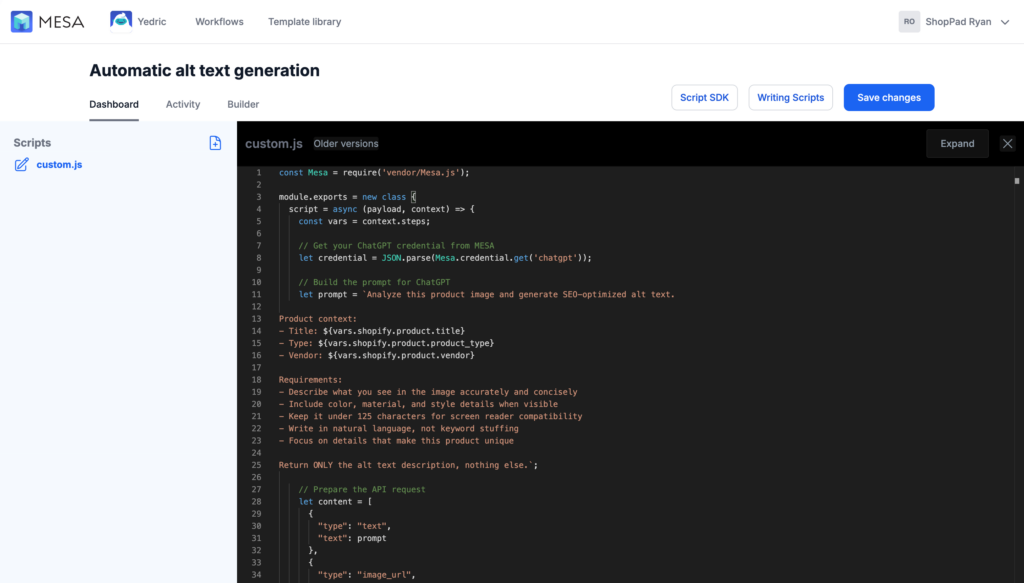
This code does several things. It retrieves your ChatGPT credential that you set up in Section 3. It builds a detailed prompt that includes product context and requirements for the alt text. It sends both the prompt and the image URL to ChatGPT Vision API using the gpt-4o model. It handles any errors from the API and returns the generated alt text in a format the next step can use.
Here’s the complete code to use:
const Mesa = require('vendor/Mesa.js');

module.exports = new class {
  script = async (payload, context) => {
    const vars = context.steps;

    // Get your ChatGPT credential from MESA
    let credential = JSON.parse(Mesa.credential.get('chatgpt'));

    // Build the prompt for ChatGPT
    let prompt = `Analyze this product image and generate SEO-optimized alt text.

Product context:
- Title: ${vars.shopify.product.title}
- Type: ${vars.shopify.product.product_type}
- Vendor: ${vars.shopify.product.vendor}

Requirements:
- Describe what you see in the image accurately and concisely
- Include color, material, and style details when visible
- Keep it under 125 characters for screen reader compatibility
- Write in natural language, not keyword stuffing
- Focus on details that make this product unique

Return ONLY the alt text description, nothing else.`;

    // Prepare the API request
    let content = [
      {
        "type": "text",
        "text": prompt
      },
      {
        "type": "image_url",
        "image_url": {
          "url": vars.item.src
        }
      }
    ];

    let data = {
      "model": "gpt-4o",
      "messages": [
        {
          "role": "user",
          "content": content
        }
      ],
      "max_tokens": 100
    };

    // Call the OpenAI API
    let result = await Mesa.request.post(
      'https://api.openai.com/v1/chat/completions',
      JSON.stringify(data),
      {
        "headers": {
          "Content-Type": "application/json",
          "Authorization": "Bearer " + credential.apikey
        }
      }
    );

    // Handle errors
    if (result.error) {
      throw new Error(result.error.message);
    }

    // Return the generated alt text
    let altText = result.choices[0].message.content;
    Mesa.output.next({"alt_text": altText});
  }
}
Step 5: Update the image in Shopify
Shopify now requires images to be updated using GraphQL instead of the REST API. Add another Code step and configure it with the following custom code:
const Mesa = require('vendor/Mesa.js');
const ShopifyGraphql = require('vendor/ShopifyGraphql.js');

module.exports = new class {
  script = (payload, context) => {
    let vars = context.steps;

    let query = `
      mutation updateFile($id: ID!, $alt: String!) {
        fileUpdate(files: {id: $id, alt: $alt}) {
          files {
            alt
            id
            ... on MediaImage {
              image {
                url
              }
            }
          }
        }
      }
    `;

    const response = ShopifyGraphql.send(query, {
      "id": vars.loop.item.admin_graphql_api_id,
      "alt": vars.custom.alt_text
    }, {}, 'admin/api/2023-10/graphql.json');

    Mesa.output.next({"response": response.data});
  }
}
The response includes the updated alt text and image URL, which you can verify in MESA’s activity log to confirm the update was successful.
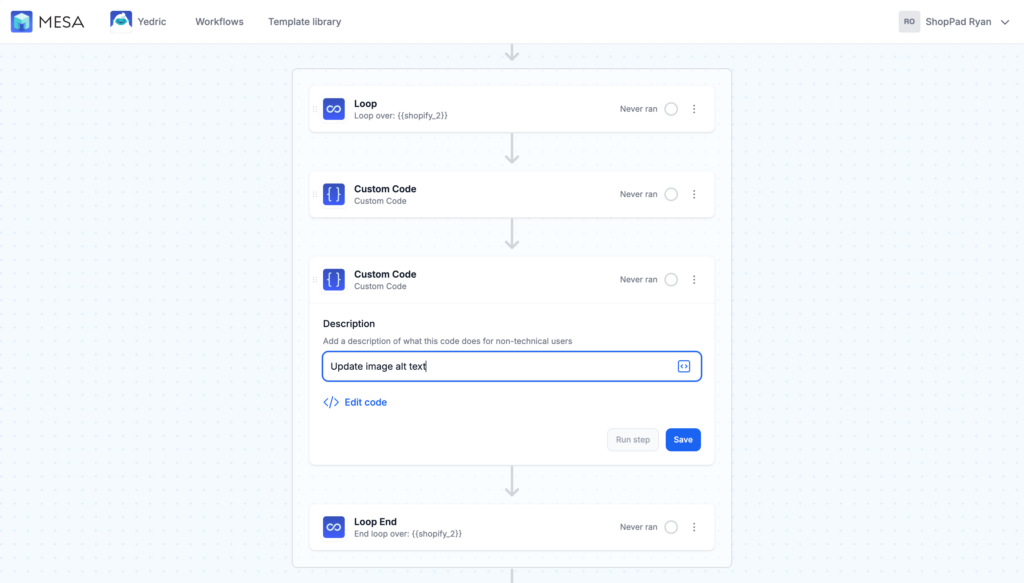
That’s the complete workflow. Save it and toggle it to ON to activate it.
Testing and quality control
Before processing your entire catalog, test with a few products first. Create a test product with 3-5 images, or manually trigger the workflow on an existing product. Wait 30-60 seconds for it to complete, then check the Activity tab in MESA to see the execution log. If you see any errors, they’ll show up here with details about what went wrong.
Go to your Shopify product page and view the images. Click on each image in the media section and you should see the alt text field now populated with descriptive text. Read through them carefully. Does the description match what you see in the image? Is it helpful for someone who can’t see the image? Does it include relevant keywords naturally?
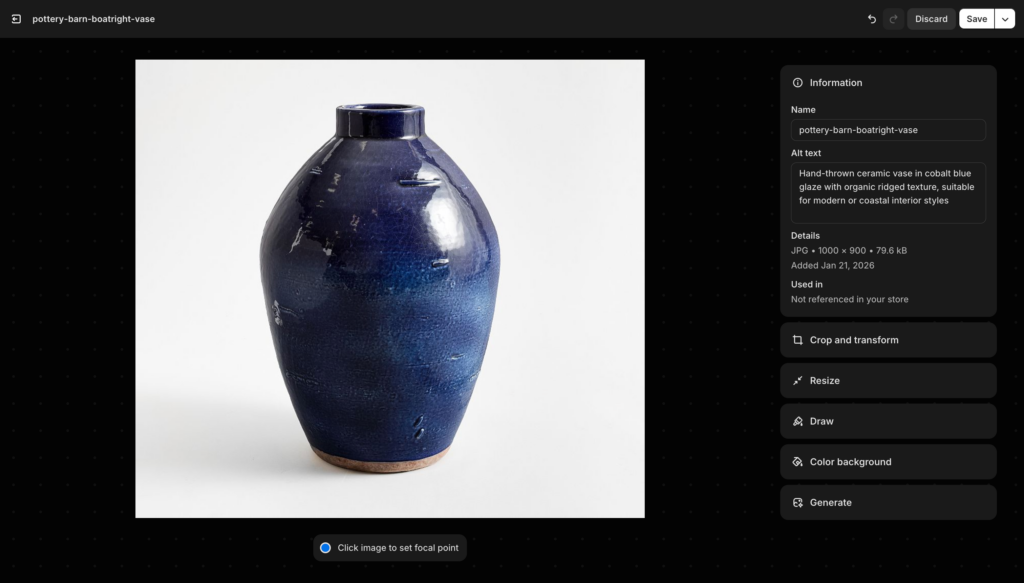
If the alt text quality isn’t quite right, you can refine the prompt in the custom code step. The prompt is the text that starts with “Analyze this product image and generate SEO-optimized alt text.” Try adding more specific instructions for your product type. For apparel, you might add “For clothing items, always mention the garment type, color, any visible patterns or textures, and the fit or style.” For home goods, you might add “For furniture and decor, describe the style aesthetic like modern, rustic, or traditional, and mention materials when visible.”
Common quality issues and fixes:
- If descriptions are too long, change “under 125 characters” to “under 100 characters” in the prompt.
- If they’re too generic, add more product context by including collection name or tags in the prompt.
- If they include unwanted elements like watermarks or backgrounds, add “focus only on the main product, ignore background elements” to the requirements.
- If they use too much marketing language, change “natural language” to “neutral, factual descriptions without promotional adjectives.”
Cost expectations
ChatGPT Vision API costs approximately $0.01-0.03 per image. For a store adding 10 new products per week with 5 images each, that’s 50 images per week or about 200 images per month. At $0.02 per image, that’s roughly $4 per month in API costs. Combined with MESA’s Basic plan at $29 per month, your total monthly cost is around $33 to fully automate alt text generation. Compare that to hiring someone at $20 per hour who might take 3-4 hours per month to write alt text for 200 images, and the automation pays for itself immediately.
Step-by-step tutorial: Intelligent product tagging
Now let’s build the second automation: generating intelligent product tags based on what ChatGPT Vision sees in your images. Unlike the alt text workflow which processes each image individually, this workflow analyzes all product images together to generate comprehensive tags for the entire product.
The workflow triggers when a product is created, retrieves the product details including all images, sends all images to ChatGPT Vision at once along with the product description, receives a comma-separated list of tags, and adds those tags to the Shopify product.
Step 1: Set up the trigger
Create a new workflow in MESA. Add a Shopify: Product Created trigger just like in the alt text workflow. This triggers whenever you add a new product to your store. You can add filters if you want to process only specific collections or product types.
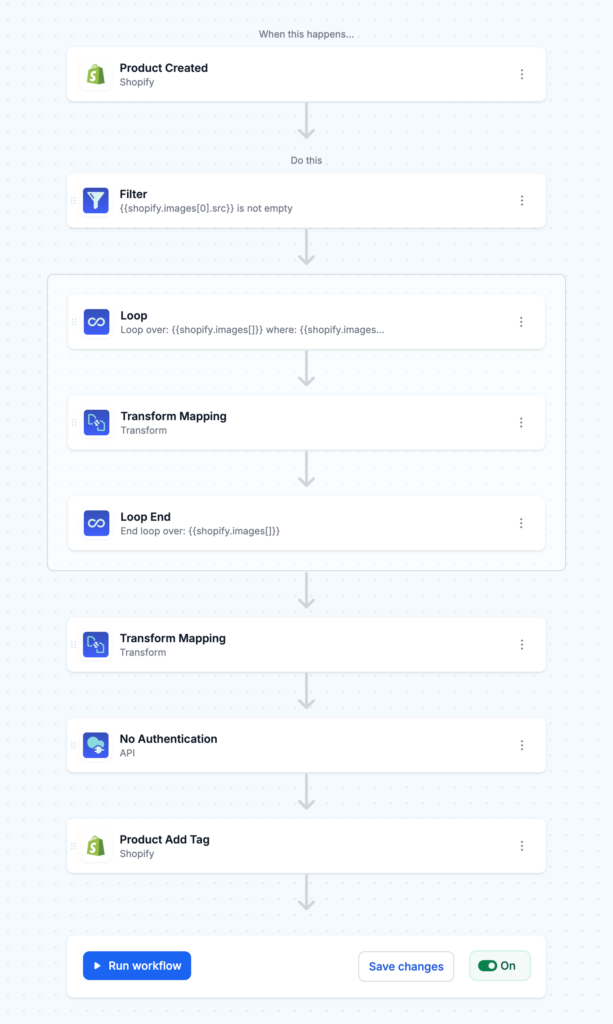
Step 2: Filter products with images
Add a Filter step to ensure the product has at least one image before proceeding. Set the filter to check if Shopify Images is not empty. This prevents the workflow from running on products without images, which would cause the API call to fail.
![Filter step configuration showing "{{shopify.images[0].src}}" with "is not empty" condition](https://www.getmesa.com/blog/wp-content/uploads/filter-step-product-image-src-1024x633.png)
Step 3: Loop to collect image URLs
Add a Loop step and configure it to loop through Product Create > Images. Unlike the alt text workflow where we processed each image individually, here we’re just collecting all the image URLs into an array.
Add a Transform step inside the loop that creates a mapping with destination type set to “image_url” and destination image_url.url set to {{loop.src}}.
Add a Loop End step and set the return type to “map” with the map value as {{transform}}. This collects all the image URL objects into a single array that we can send to ChatGPT Vision in one API call.
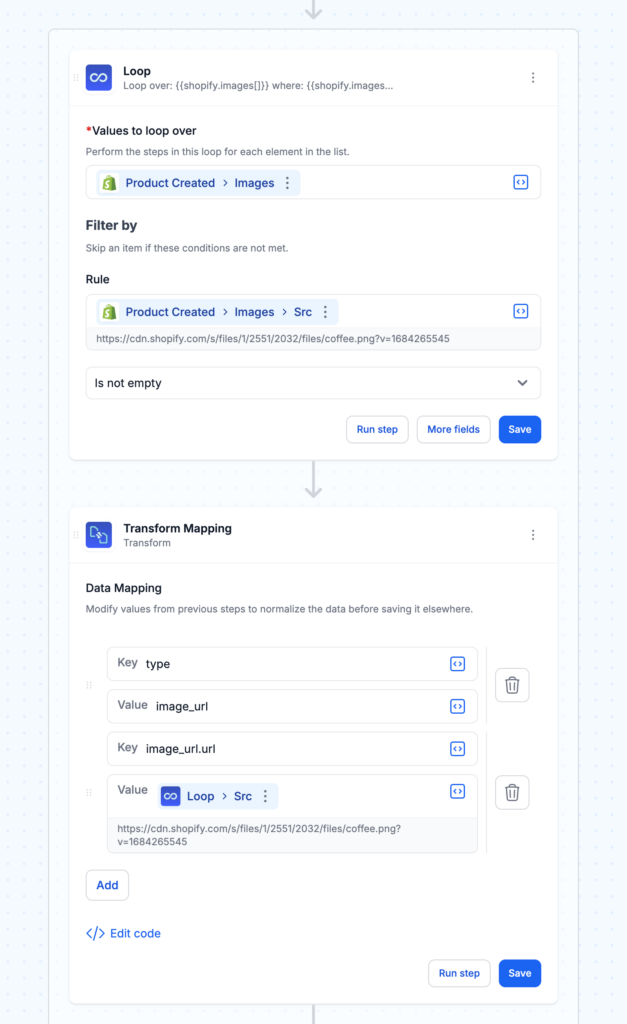
Step 4: Build the ChatGPT request
Add another Transform step (outside the loop) that builds the complete API request. This transform needs custom code to properly format the message array. Set up these mappings: destination role to “user”, destination prompt to your tagging instructions, and destination content to {{SEE_CODE}} which indicates we’ll use custom code for this field.
Click “Add custom code” and paste this script:
const Mesa = require('vendor/Mesa.js');
const Transform = require('vendor/Transform.js');

module.exports = new (class {
  script = (payload, context) => {
    const output = Transform.convert(context, payload);
    const images = context.steps['loop_1'].items;

    payload = [
      {
        role: output.role,
        content: [{
          type: "text",
          text: output.prompt
        }],
      }
    ]
    payload[0].content.push(...images);

    Mesa.output.next(payload);
  };
})();

This code takes the output from your transform mappings, gets the collected images from the loop, and combines them into the proper format for ChatGPT Vision API. The prompt should instruct ChatGPT what kind of tags you want. Here’s a good template:
"Write a comma-separated list of search engine tags for this product. Analyze the images for: primary color(s), style or aesthetic, season or occasion, material or texture if visible, target demographic if obvious, and trending styles or themes. Return ONLY lowercase tags separated by commas, no explanations. Limit to 8 tags maximum. If product description is available, use it for context: {{shopify.body_html}}"Step 5: Call ChatGPT Vision API
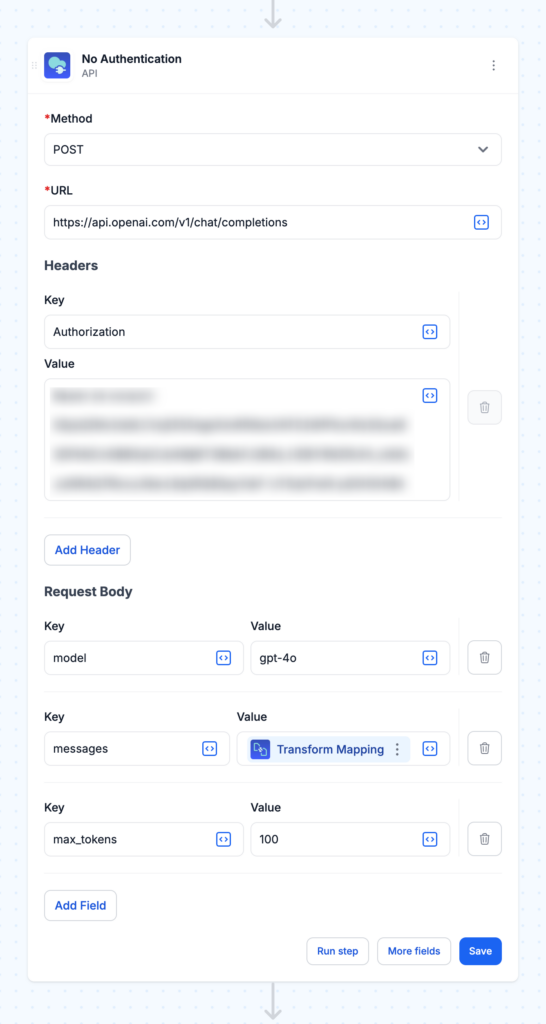
Add an API: No Authentication step. Configure it as follows: Method is POST, URL is https://api.openai.com/v1/chat/completions, Content Type is application/json. Add a header with key “Authorization” and value “Bearer {{your-api-key}}” where you paste your actual OpenAI API key from Section 3. In the body section, add three data fields: model with value “gpt-4o”, messages with value {{transform_1}} (the output from your previous transform), and max_tokens with value “100”.
Step 6: Add tags to the product
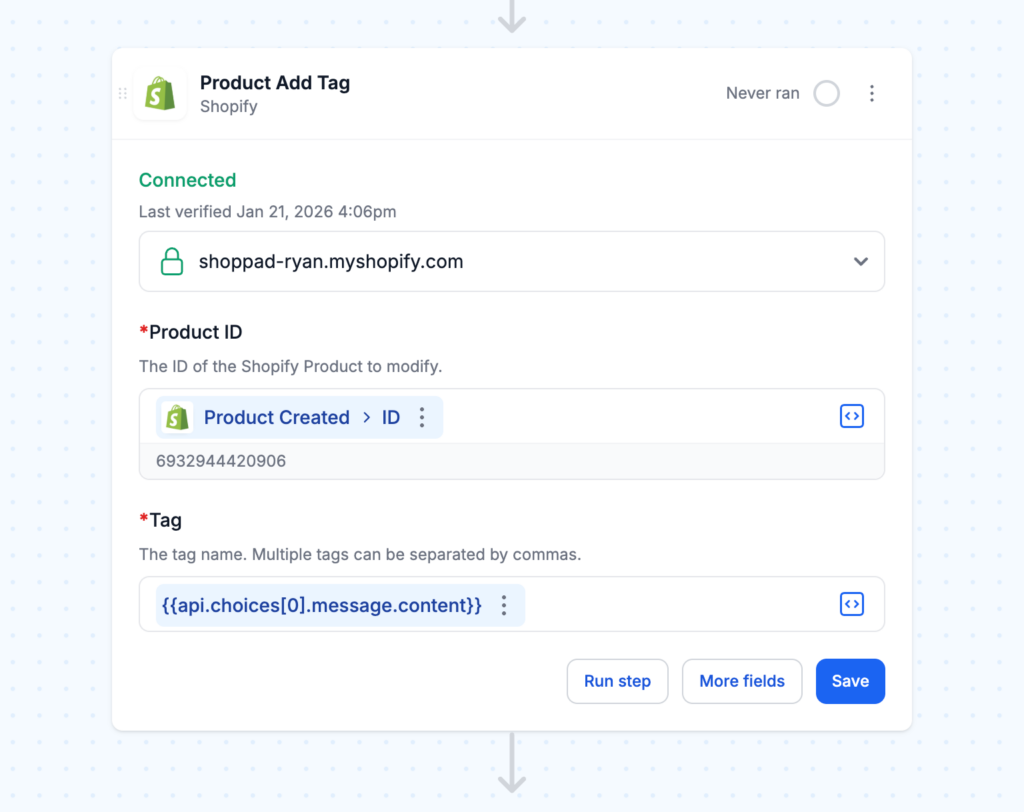
Add a Shopify: Product Add Tag step. Set Product ID and Tag. This takes the comma-separated list ChatGPT returned and adds it to your product as tags.
That’s the complete workflow. Save it and toggle it ON.
Testing and refinement
Create a test product with 3-5 clear product images. Wait about 30-60 seconds for the workflow to complete, then check your product in Shopify admin. You should see new tags automatically added to the product. Review the tags carefully. Are they accurate? Are they useful for organizing your catalog? Are they consistent in format (all lowercase, no duplicates)?
If the tags are too generic, refine your prompt to be more specific about what attributes matter for your product type. For apparel, you might add “For clothing, focus on garment type, fit style, occasion, and aesthetic trends.” For home goods, you might add “For furniture and decor, focus on design style, room type, material, and color family.” The more guidance you provide, the more consistent and useful the tags will be.
Common issues and fixes:
- If you get duplicate tags, the API might be returning tags your product already has. You can modify the prompt to say “suggest NEW tags not already present.”
- If tags are too numerous, reduce “8 tags maximum” to “5 tags maximum.”
- If tags use inconsistent capitalization or formatting despite requesting lowercase, add “use only lowercase letters, no punctuation except hyphens for compound words.”
- If tags are too broad, add examples of the specificity you want: “good tags: midi-dress, cottagecore, pastel-blue. Bad tags: dress, pretty, nice.”
Advanced: Automated collections
Once you have consistent tags, you can create Smart Collections in Shopify that automatically include products with specific tags. For example, create a “Summer Collection” that includes any product tagged with “summer.” Create a “Cottagecore Aesthetic” collection for products tagged “cottagecore.” These collections update automatically as you add new products, eliminating manual collection management.
You now have two powerful ChatGPT Vision workflows running: automatic alt text for accessibility and SEO, and intelligent product tagging for organization and discoverability. In the next section, we’ll cover troubleshooting common issues and frequently asked questions about these workflows.
Troubleshooting
Before you encounter problems, let’s address the most common issues users face with these ChatGPT Vision workflows.
Issue 1: Workflow fails silently with no error message
This is almost always a credential problem. Go to MESA Settings > Credentials and verify your ChatGPT/OpenAI credential shows “Connected” status. If not, follow Section 3 to reconfigure it. Check the Activity tab in MESA and click on the failed execution—look for error messages mentioning “unauthorized” or “invalid API key.” If you embedded your API key directly in the workflow (like in the tagging workflow), verify you copied the complete key including the “sk-” prefix.
Issue 2: API returns “Insufficient quota” error
You’ve run out of OpenAI credits. Log into platform.openai.com, navigate to Billing > Usage, and add credits to your account. We recommend enabling auto-recharge (set threshold at $5, recharge amount $10-25) to prevent future interruptions.
Issue 3: Alt text or tags are too generic or inaccurate
The prompt needs refinement. For alt text, add more specific instructions about your product type and brand voice. For tags, provide examples of good versus bad tags directly in the prompt. Include more product context by adding fields like collection name, existing tags, or vendor information to help ChatGPT understand your products better.
Issue 4: Workflow processes images but nothing updates in Shopify
Check that you’re mapping the correct IDs. For alt text, the Image ID field should be {{item.id}} from your loop. For tags, the Product ID should be {{shopify.id}} from your trigger. Verify in the Activity tab that the API response contains the expected data—if ChatGPT returned empty or malformed responses, they won’t update your products.
Issue 5: Workflow triggers but times out or runs extremely slowly
If processing products with many images (10+ per product), the API calls can take time. Consider adding a filter to process only products with fewer than 8 images, or split large product imports into smaller batches. Check OpenAI’s status page at status.openai.com to see if they’re experiencing API slowdowns.
Issue 6: Getting duplicate or redundant tags
Modify your tagging prompt to say “suggest NEW tags that describe attributes not already captured in existing tags: {{shopify.tags}}.” This gives ChatGPT context about what tags already exist and prevents redundancy.
Frequently asked questions
OpenAI Vision API costs approximately $0.01-0.03 per image. For a store adding 10 products per week with 5 images each, expect about $4-6/month in API costs. MESA starts at free for 100 workflow executions per month, or $29/month for unlimited on the Basic plan. Total monthly cost: $33-35 for most small to medium stores.
Yes. Add a MESA Approval step between the ChatGPT API call and the Shopify update step. This sends you an email or Slack message with the proposed alt text or tags, and the workflow only continues if you approve it. This is useful during the first few weeks while you’re refining prompts.
Both. For new products, use the “Product Created” trigger. For existing products, you can either use “Product Updated” (runs when you edit any product) or create a separate one-time workflow that loops through your entire catalog. To avoid overwriting manually edited content, add a filter that checks if alt text is empty before processing.
This is rare but possible. Review the first 20-30 products processed to establish quality benchmarks. If you see consistent issues, refine your prompt with explicit restrictions like “do not include marketing superlatives like ‘amazing’ or ‘beautiful'” or “focus only on objective visual attributes, not subjective opinions.” You can also add a filter that rejects responses containing certain words.
For tagging, yes—tags apply to the entire product including all variants. For alt text, you’d need to modify the loop to process variant-specific images if your variants have unique images. Most stores use the main product images for all variants, so the standard workflow works fine.
According to OpenAI’s current API data usage policy, they don’t use API submissions to train their models. Images are processed in real-time and not retained. However, check OpenAI’s latest terms at openai.com/policies for the most current information.
If you’re still stuck after trying these solutions, here’s where to get support.
- Check the Activity tab in MESA for detailed error logs—click on any failed execution to see exactly where and why it failed.
- Review MESA’s ChatGPT documentation at docs.getmesa.com/connect/chatgpt for additional setup guidance.
- Contact MESA support at [email protected]—they’re responsive and can help troubleshoot workflow-specific issues.
- For OpenAI API issues, consult their documentation at platform.openai.com/docs.
Start automating your Shopify store today
You’ve just learned how to harness ChatGPT Vision to automatically generate SEO-optimized alt text and intelligent product tags for your Shopify store. What once required hours of manual work each week now happens automatically in the background, freeing you to focus on strategy, growth, and serving customers.
The transformation
Before implementing these workflows, you were likely facing a familiar challenge: manually writing alt text for hundreds of images, inconsistently tagging products across your catalog, spending hours on repetitive tasks that don’t directly drive revenue, and watching customers leave because site search couldn’t find what they wanted. After automation, every new product gets professional alt text within seconds, tags are generated consistently based on what ChatGPT Vision actually sees, your site becomes more accessible to visually impaired shoppers, and your products rank better in Google Image Search.
This shift represents more than just saved time—it’s about working smarter. You’re leveraging AI to handle the tedious, repetitive work while you focus on the strategic decisions that actually grow your business. Whether that’s developing new products, improving customer experience, or expanding into new markets, automation multiplies your impact without multiplying your effort.
Beyond alt text and tags
These two workflows are just the beginning of what’s possible with ChatGPT Vision and MESA. You can extend this foundation to automatically flag low-quality or inconsistent product images, generate product descriptions from images, create social media captions based on product visuals, identify products that need better photography, or build custom image quality scores for your catalog. The core principles remain the same: trigger on an event, analyze images with ChatGPT Vision, and take action based on the insights.
MESA’s platform connects to thousands of apps beyond just Shopify and ChatGPT. You could combine these workflows with email marketing, inventory management, customer support tools, or analytics platforms to create sophisticated automation chains that span your entire operation. The workflows you built today give you the foundation to tackle increasingly complex challenges as your business grows.
The bigger picture
We’re living through a fundamental shift in how ecommerce businesses operate. AI tools like ChatGPT Vision aren’t replacing human creativity and judgment—they’re eliminating the repetitive tasks that prevent you from applying that creativity where it matters most. The stores that embrace this shift early will have a significant advantage over competitors still doing everything manually.
Your store deserves better than generic filenames and inconsistent tags. Your customers deserve an accessible shopping experience and accurate search results. You deserve to spend your time growing your business instead of writing alt text. Make it happen.