

Shopify Flow Google Sheets for Smarter Ops
-
- •
- Last updated: Jun. 10, 2026
- •
- 10 min read

If you’re searching for the best way to use shopify flow google sheets together, the short answer is this: Shopify Flow can automatically send store events and operational data into Google Sheets, giving your team a lightweight reporting layer without constant copying, exporting, or manual updates. For merchants, that means faster visibility into orders, fulfillment, survey responses, tags, exceptions, and inventory-related activity – especially when teams need a shared place to work from.
The catch is that basic Shopify Flow + Google Sheets setups are often brittle. They can break on formatting, permissions, rate limits, or changing business logic. That’s why many growing brands start with Flow, then look for a more flexible automation layer when operations become more complex.
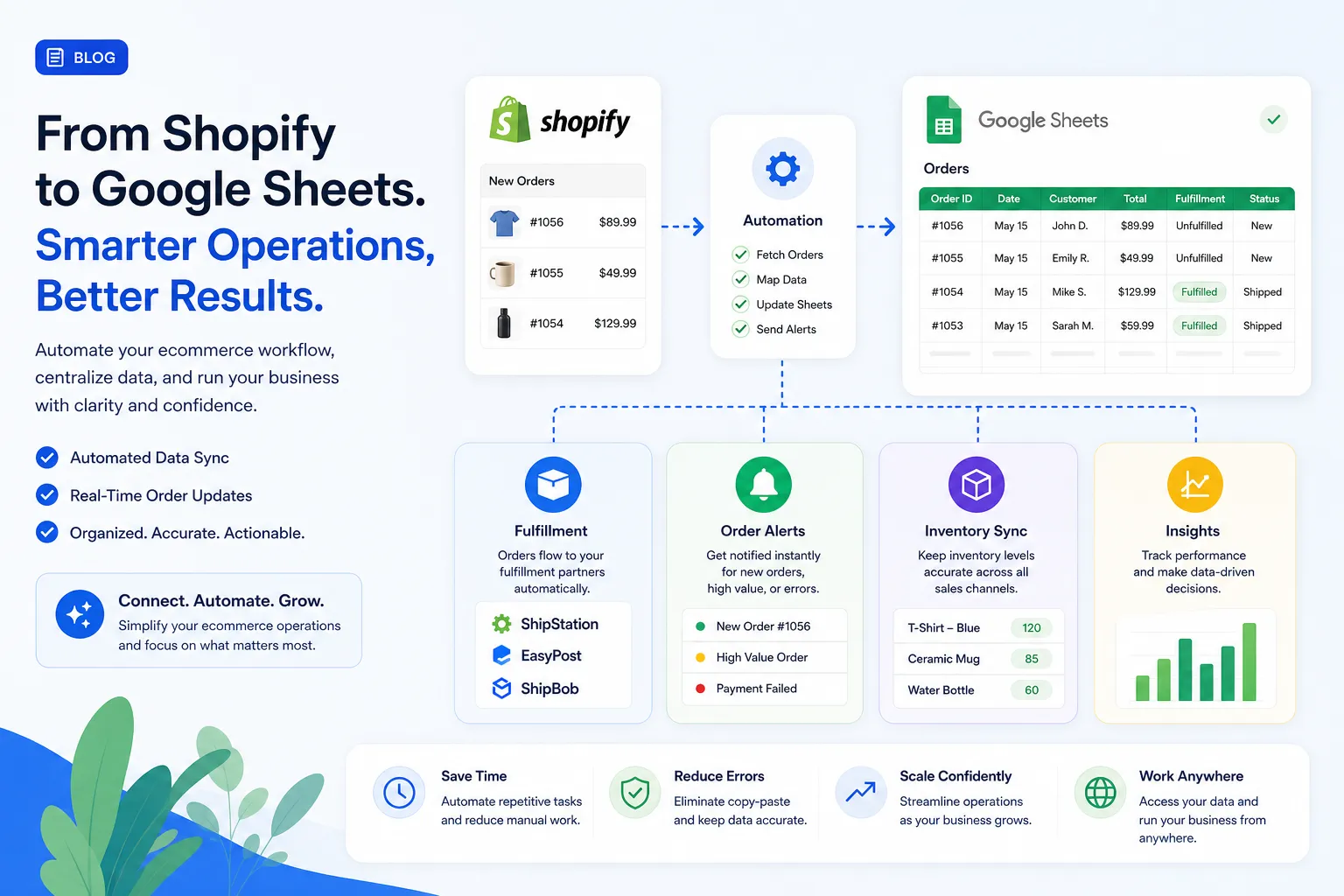
Table of Contents:
Why merchants pair Shopify Flow with Google Sheets
Google Sheets remains one of the simplest ways to give operations, fulfillment, support, and marketing teams a live view of what’s happening in a Shopify store. It’s familiar, collaborative, and easy to adapt without waiting on engineering resources.
For merchants, this combination usually solves one of four problems:
-
Data visibility: teams want store events in a shared spreadsheet.
-
Operational coordination: teams need a working list for exceptions and follow-up.
-
Lighter reporting: teams want useful reporting without building a full BI stack.
-
Cross-functional workflows: non-technical users need data to move automatically between tools.
Typical examples include:
-
Logging every new order to a shared sheet
-
Sending tagged orders into an exceptions tracker
-
Recording survey or attribution responses for analysis
-
Tracking fulfillment delays or risky orders
-
Maintaining a simple inventory or preorder oversight sheet
-
Creating a queue for customer follow-up after specific order events
This is why Shopify merchants often explore broader data integration automation for ecommerce once manual work starts piling up.
“The Google Sheets API imposes… 300 write requests per minute per project and 60 write requests per minute per user per project.” – Google Developers
That limit matters. For low-volume or moderate operational logging, Sheets can be extremely useful. But if your workflows become high-frequency or business-critical, you need to think beyond “just append a row.”
What Shopify Flow actually does with Google Sheets
Shopify Flow includes an Add row to spreadsheet action that appends a single row of data to a Google Sheet. According to Shopify Help Center documentation for Add row to spreadsheet, you provide:
-
The spreadsheet URL
-
The tab name
-
The row contents as a comma-separated list
That sounds simple – and it is, at first.
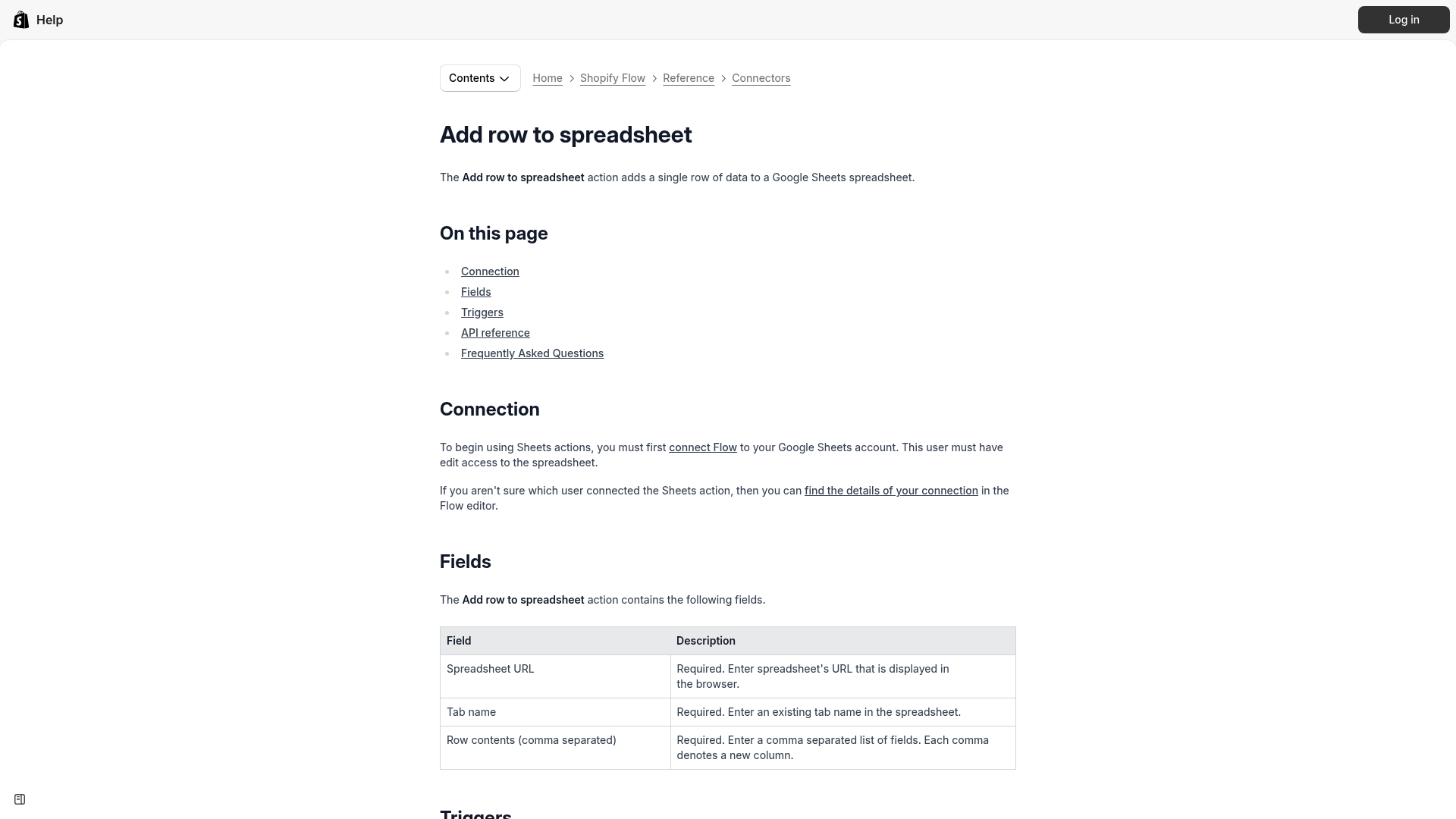
The important detail is that Flow’s row input is comma separated. If your data includes commas, Google Sheets may split one value across multiple columns. Shopify specifically recommends using Liquid filters like replace: ",", " " to prevent that.
That’s the first sign that this setup is useful, but not always resilient.
Where this setup works best
Shopify Flow + Google Sheets is strongest when you need simple, readable, low-friction visibility.
Best-fit use cases
|
Use case |
Why it works well in Sheets |
|---|---|
|
Daily order logging |
Easy to review, filter, and share |
|
Exception tracking |
Teams can sort by issue type or assignee |
|
Survey response capture |
Good for lightweight analysis |
|
Returns or fulfillment queues |
Shared operational list for action |
|
VIP or wholesale order monitoring |
Fast visibility for support and ops |
|
Custom exports for stakeholders |
Familiar spreadsheet format |
Examples merchants care about
Order tracking and handoff
When a high-value order is placed, Flow can add a row to a sheet used by support or fulfillment. That row might include order number, customer name, total, shipping method, and tag status.
Post-purchase survey response logging
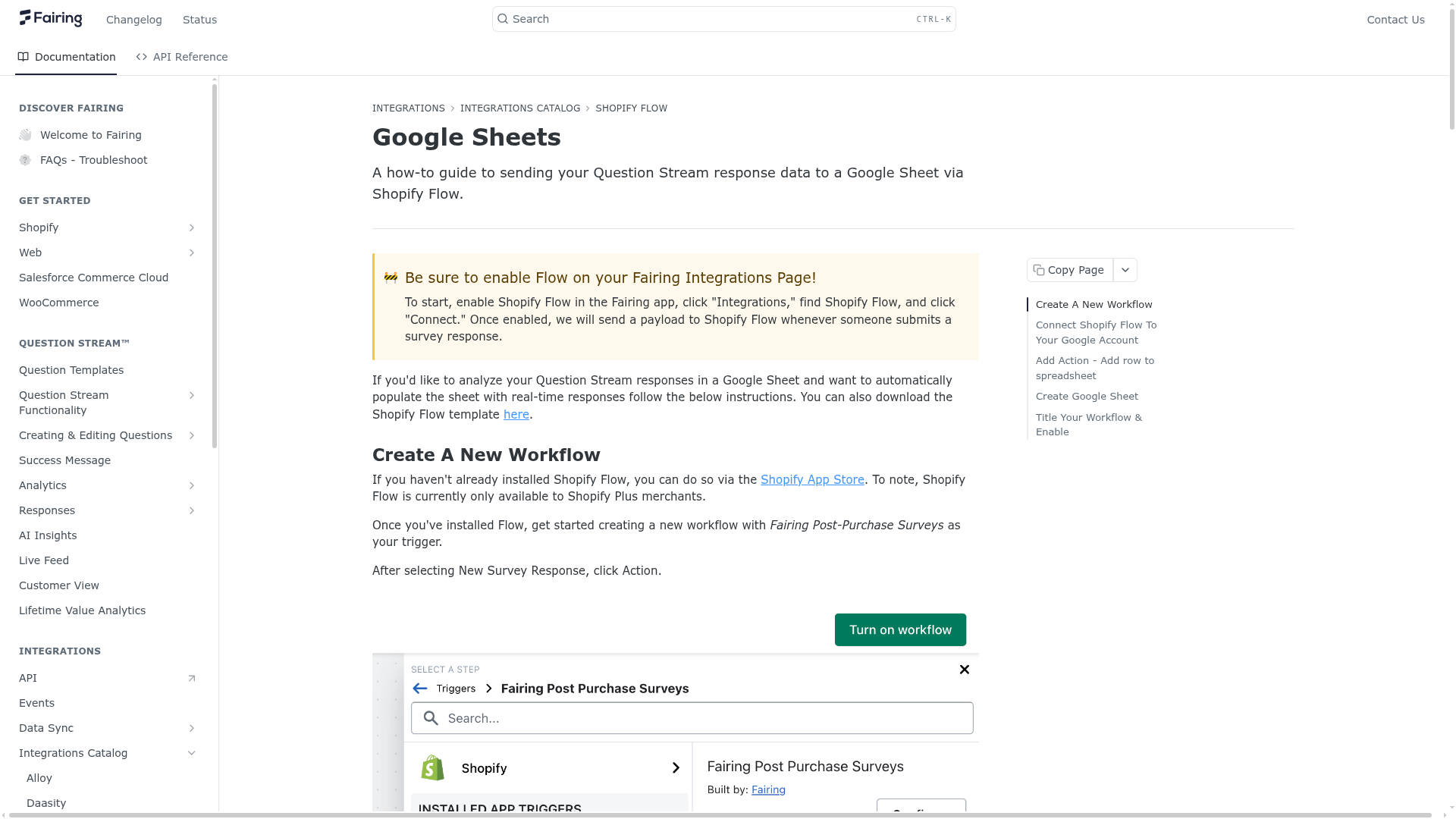
Fairing’s guide shows how merchants can use Shopify Flow to send survey response data into Google Sheets for real-time analysis. According to Fairing’s Shopify Flow Google Sheets guide, the workflow lets merchants capture fields like question, response, order ID, customer ID, and timestamps.
Inventory oversight
Some teams log low-stock events, preorder orders, or backorder flags to Sheets so purchasing and operations can monitor issues without digging into Shopify all day.
Customer follow-up workflows
You can push order events or tags to a spreadsheet that support or CX teams use to manage outreach.
The operational benefits merchants actually get
Most articles talk about “automation” in vague terms. In practice, merchants care about a few very specific benefits.
Faster visibility without exports
Instead of exporting order or response data manually, teams can see new rows appear in real time. This reduces lag between an event happening in Shopify and someone taking action.
Fewer copy-paste errors
Manual spreadsheet work seems harmless until a team scales. Even small error rates become expensive.
“Even trained staff can have a manual data entry error rate between 1% and 4%.” – DigiParser
For ecommerce teams managing fulfillment exceptions, attribution tracking, survey analysis, or customer follow-up, reducing manual entry matters because bad data creates bad decisions.
Better cross-team coordination
Operations wants one view. Support wants another. Marketing wants response or attribution data. A live spreadsheet can act as a shared control panel when teams are not all working inside the same software every hour.
Easier lightweight reporting
For many merchants, a spreadsheet is still the fastest way to answer questions like:
-
Which tagged orders need review today?
-
Which survey answers increased this week?
-
Which shipping issues need escalation?
-
Which wholesale customers placed repeat orders?
What competitors get wrong about Shopify Flow and Google Sheets
A lot of existing content focuses too narrowly on setup steps: connect Google account, choose the sheet, map fields, done. That’s helpful for the first 10 minutes, but it skips the issues that matter once the workflow is live.
They underplay data formatting issues
Commas in values can break column structure. Blank cells in the wrong places can shift appended data. Teams often discover this only after the sheet becomes unreliable.
They ignore permission fragility
Shopify notes that 403 errors commonly happen when the connected Google user lacks edit access or failed to grant the proper Sheets permissions. If the wrong person authenticated the connection, the workflow may fail later when ownership changes or access is removed.
They gloss over scale limits
A sheet is not a warehouse. It’s a useful operational surface, but it isn’t ideal for every high-volume workflow. Once many events are firing across multiple apps and teams, you need stronger logic, better error handling, and more flexible branching.
They treat all automation as single-step automation
Real operations are multi-step. A merchant rarely wants to only add a spreadsheet row. They usually want to:
-
detect an order condition
-
enrich the data
-
branch by product, region, or tag
-
notify a team
-
update another system
-
then log the event to Google Sheets
That’s where merchants often outgrow simple Flow-only builds and move toward a platform built for Shopify automation workflows that can support more operational complexity.
Common pitfalls with shopify flow google sheets
If you’re considering this setup, these are the problems worth planning around.
1. Commas splitting data into extra columns
This is one of the best-documented issues. Shopify recommends replacing commas in values before appending rows. If you’re logging notes, survey responses, or freeform text, this matters immediately.
2. Rows starting in the wrong column
According to Shopify’s documentation, if the last row contains empty values in early columns, Sheets may append new data starting at the first column with content. This creates misalignment that can quietly corrupt your sheet structure.
3. 403 permission errors
This usually means the Google account connected to Flow cannot edit the sheet, or the required Google permission scope was not granted during authentication.
4. 429 or 500 errors
Shopify explains these can happen when Google Sheets is struggling to add new rows – often because of too many requests or because the worksheet has grown too large or complicated.
5. UI confusion during setup
The Shopify community has noted that the Google Sheets action can appear greyed out in Flow until the page is refreshed or the action flyout is closed and reopened. It’s a small issue, but one that costs teams unnecessary setup time.
A smarter way to think about Google Sheets in ecommerce ops
Google Sheets is best used as an operational endpoint, not as the entire automation strategy.
That means using it for:
-
visibility
-
human review
-
exception queues
-
stakeholder reporting
-
lightweight analysis
But not relying on it alone for:
-
complex routing logic
-
app-to-app orchestration
-
resilient retries
-
advanced transformations
-
mission-critical synchronization
That distinction matters because many merchants don’t have a “Google Sheets problem.” They have a broader workflow problem.
They need orders tagged when conditions are met, inventory synced before overselling happens, support notified when high-risk cases appear, marketing updated after customer events, and a clean reporting trail created automatically.
That’s where a platform like MESA becomes the logical next step.
When Shopify Flow is enough – and when it isn’t
Shopify Flow is enough when:
-
You want to append simple rows to a sheet
-
The workflow logic is straightforward
-
Your team volume is manageable
-
A basic spreadsheet log solves the problem
-
You can tolerate some manual maintenance
You likely need more than Flow when:
-
Your workflow spans multiple apps
-
You need branching and advanced transformations
-
You want better operational reliability
-
You need to prevent overselling or broken downstream actions
-
Your team wants to describe what they need accomplished instead of building logic from scratch
-
You need hands-on help getting workflows right
This is especially true for merchants building automations around order handling, inventory sync, fulfillment alerts, reporting, and customer follow-up.
How MESA helps merchants go beyond a basic Flow + Sheets setup
MESA is built for Shopify merchants who want automation without hiring a developer or stitching together fragile processes manually.
Instead of treating automation like a technical project, MESA lets teams describe what they need accomplished and turn that into a live workflow quickly. That’s especially useful when the real requirement sounds more like:
-
“When a preorder item sells, notify ops, update a sheet, alert support, and tag the order.”
-
“When a VIP customer places an order with a delayed SKU, route it to a priority follow-up process.”
-
“When orders match these conditions, sync the data across our apps and keep a running report.”
MESA helps with that by offering:
-
Shopify-first workflow automation
-
support for complex multi-step processes
-
100+ app and ecommerce tool integrations
-
300+ ready-made templates for fast setup
-
AI-assisted workflow creation through plain-English requests
-
real human support for workflow setup and optimization
If your team is already using spreadsheets as an operating layer, MESA can make that setup far more useful by combining Sheets with notifications, tags, inventory logic, enrichment steps, delays, filters, and downstream app actions. It’s particularly effective for brands that have outgrown one-action automations but still want speed and usability.
For merchants focused on fulfillment, reporting, inventory, and alerting, MESA’s Shopify order automation solutions are a natural fit.
Practical workflow ideas for merchants
Here are the kinds of real-world workflows where Google Sheets still plays an important role – but works much better inside a broader automation strategy.
Exception order tracker
When an order is tagged as risky, delayed, VIP, international, or backordered:
-
add a row to Google Sheets
-
send a Slack alert
-
tag the order
-
assign a CX follow-up path
Inventory watchlist
When stock falls below a threshold:
-
log the SKU and quantity in Sheets
-
alert purchasing
-
pause a downstream promotion
-
trigger a reorder workflow
Post-purchase attribution log
When a survey response comes in:
-
clean the answer text
-
log the response to Sheets
-
segment by question type
-
notify marketing if a threshold trend appears
Fulfillment escalation board
When an order remains unfulfilled after a set delay:
-
add it to a spreadsheet queue
-
notify ops
-
create an internal follow-up task
-
send a customer service reminder
Wholesale order routing
When a tagged wholesale customer orders:
-
update a Google Sheet for finance or account management
-
route the order to a specialized internal process
-
add notes or tags for downstream teams
Final verdict
Shopify Flow Google Sheets is a smart, practical combination for merchants who want simple operational visibility and less manual admin work. It’s especially effective for shared reporting, exception tracking, and lightweight coordination across teams.
But the setup has limits. Formatting problems, permissions, row-append quirks, and scale constraints can turn a “simple automation” into ongoing maintenance. If your workflow is more than just “add a row,” you’ll get more value from an automation platform designed for real ecommerce operations.
MESA is the next step for merchants who want to go beyond basic app connections and build workflows that actually reduce backlog, prevent errors, and scale with the business. If your team is ready to stop babysitting spreadsheets and start automating the work around them, explore MESA’s templates, integrations, and support at getmesa.com.