
Shopify numbers purchase orders for you, and it won't let you rename them. The one field you fully control is Reference number — and that's where a custom PO name like 2026-09-ACME-FW26-01 has to live. Everything else a buying team wants from named, time-stamped POs (a sequence you decide, a created-at stamp you can sort on, a history you can still search two years later when a supplier disputes a short shipment) has to be built alongside Shopify, because purchase orders still aren't exposed in Shopify's Admin API.
This walks through what native POs give you now that Stocky is gone, a naming convention that survives contact with a real team, and a MESA workflow that issues the number and keeps the searchable log so nobody has to remember the format.
TL;DR: there's a template for that
What Shopify's native purchase orders give you today
Stocky is done. Shopify pulled it from the App Store on February 2, 2026 and it stopped working on August 31, 2026. Rather than replacing it with another standalone app, Shopify moved the core buying workflow into admin itself, where a purchase order now carries:
- A supplier, with contact details, payment terms, and currency
- A destination location
- Line items with quantity, supplier SKU, cost, and tax
- A reference number and a note to the supplier
- Tags
- A cost summary
A PO is either a draft or ordered, and marking it ordered doesn't freeze it:
"You can still edit most purchase order information after you mark it as ordered, including products, costs, and supplier details."Shopify Help Center, Creating purchase orders
That matters for the merchants who left Stocky specifically because they needed to correct cost and retail prices on an open PO as supplier pricing moved. Shopify handles that. What it doesn't hand you is a naming scheme — the PO list filters by status, supplier, and destination and sorts by creation date, so if you want to find a PO by season, buyer, or warehouse six months from now, you have to put that information somewhere yourself.
Reference number is your custom PO name
Treat the reference number as a structured key, not a free-text note. A format that holds up looks like this:
YYYY-MM-SUPPLIER-PROGRAM-SEQ
2026-09-ACME-FW26-01— first Acme fall/winter order raised in September 20262026-09-ACME-FW26-02— the top-up two weeks later2026-10-NORDWK-REPL-07— seventh routine replenishment from Nordwerk
Two rules keep it usable. Put the date first so a text search on 2026-09 pulls the whole month, and keep every segment fixed-width and uppercase so a partial match never behaves differently for one supplier than another. Then use tags for the dimensions you'll want to slice by but wouldn't cram into a name: buyer:priya, warehouse:east, program:fw26, status:deposit-paid.
The reference number is also the join key between Shopify and everything outside it. Once the same string appears on the PO, in your log, in the supplier's invoice, and in your accounting system, reconciling a partial delivery stops being archaeology.
The catch: purchase orders aren't in the Admin API
This is the part that surprises people who try to automate the numbering. Shopify's purchase orders exist in admin only — there is no PurchaseOrder object, query, or mutation in the Admin GraphQL API, so no app, no Shopify Flow action, and no MESA step can create a PO, read one back, or write a reference number into one. Developers have been asking:
"Shopify has native Purchase Orders in the admin today, but there's no way to touch them via the API."Shopify Developer Community, June 2026
Inventory transfers and shipments are in the API, but they're location-to-location movements with no supplier, no ordered-versus-received tracking, and no PO-level cost or status — not a substitute. Shopify's own migration guidance adds another manual edge: "you can't email a purchase order from your Shopify admin," and historical POs can't be imported, since CSV upload only adds line items to a new draft.
So the honest design is a split one. A human still creates the PO in admin and pastes the reference number in. Automation's job is to issue that number, stamp it, log it, and tell the team — which removes the two things that actually break in practice: people inventing their own formats, and nobody being able to find the PO afterwards.
Build the numbering and the log in MESA
Four steps, one workflow. A buyer fills in a short form, MESA hands back the reference number, and the searchable history writes itself.
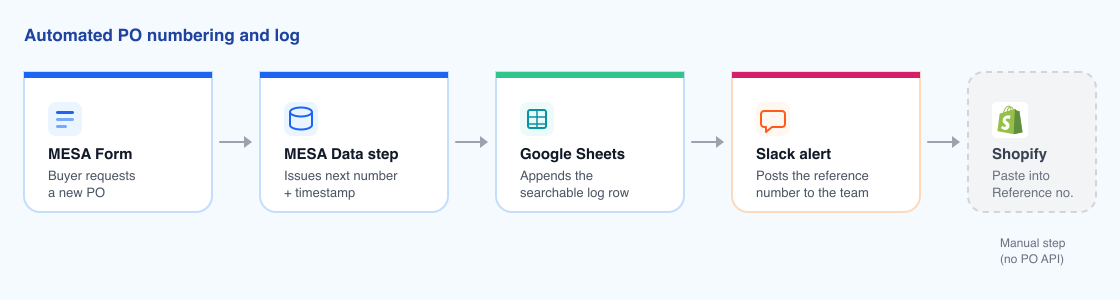
1. Start with a MESA Form, not a spreadsheet
MESA's Form tool builds the request itself: dropdowns for supplier, destination, buyer, and program, a number field for expected units, and a date field for expected arrival. Because it's a trigger, every submission starts the workflow, and the dropdowns are what keep ACME from also being entered as Acme and acme corp.
2. Let the Data tool issue the number and the timestamp
MESA's Data tool is a private database that persists between runs, which is what a sequence needs. Create a purchase_orders table, then:
- Use a Query step to count the rows already created for this supplier and program in the current year.
- Build the reference number from the form values plus that count, incremented by one.
- Write the row with a Create Record step. Every Data table automatically gets
mesa_id,mesa_created_at, andmesa_updated_atcolumns, so the time stamp is free — you never have to trust someone to type today's date.
One caveat worth knowing rather than discovering: a count-then-increment sequence assumes the two POs aren't raised in the same instant. For a form a human submits a few times a week that's fine; if you ever drive this from a high-frequency trigger, add a supplier-scoped uniqueness check before you rely on the number.
3. Append the row to Google Sheets
The Data table is the system of record; the Google Sheet is what the team actually opens. A Google Sheets Add Row step writes one line per PO: reference number, created-at stamp, supplier, destination, buyer, program, expected units, expected arrival, and a status column your team updates by hand as stock lands. That's the searchable archive Shopify's PO list doesn't give you — filter it by buyer, sort it by month, and pull up a two-year-old order during a damaged-shipment claim in seconds.
4. Post the number back to the buyer
Finish with a Slack message to your buying channel containing the reference number and a nudge to paste it into the Shopify PO's Reference number field. This is the step that makes the convention stick: the buyer never invents a format, they copy one.
Wire it to the moment you actually need a PO
Raising the PO is the second half of the problem. The first half is noticing that you need one. MESA's Shopify connector fires on Inventory Level Updated, so the same logic can watch stock crossing a reorder threshold and post the alert that starts the buying conversation — before a SKU sells out rather than after.
The template below is the closest ready-made version of the logging half: it keeps a Google Sheet in step with Shopify inventory levels as they change, which is the same Query-and-write pattern the PO log uses. If you haven't decided yet where stock counts are authoritative in the first place, sort that out before layering POs on top — our walkthrough of setting up an inventory source of truth covers that, and the inventory management tools comparison is the place to start if you concluded Shopify admin alone won't cover your operation.
What this setup deliberately doesn't do
Be clear-eyed about the gap. Native Shopify inventory plus a MESA log gives you naming, time stamps, searchable history, and reorder alerts. It does not give you demand forecasting, weighted-average costing, automated landed-cost allocation, multi-participant stocktake approvals, or multiple supplier SKUs per product — all things Stocky users are having to replace elsewhere. If your buying decisions genuinely depend on SKU-level forecasting, a dedicated demand-planning app is still the right tool, and this workflow sits underneath it rather than instead of it.
One more piece of housekeeping: Stocky's historical purchase orders don't move. Export what you need as CSV while you still have read-only access, because Shopify's import path only creates line items on a new draft PO — statuses, received quantities, and supplier links don't come with them.
FAQs
Can I change a Shopify purchase order number?
No. Shopify assigns the PO's own identifier and it isn't editable. Put your custom name in the Reference number field instead, which is free text and is meant for exactly this, and use tags for anything else you'll want to filter on later.
Can Shopify Flow or an app create purchase orders automatically?
Not currently. Purchase orders aren't exposed in Shopify's Admin GraphQL API, so nothing outside admin can create, read, or update one — including Shopify Flow, MESA, and every third-party PO app that syncs through the API. Automation can generate and log the reference number, but a person still creates the PO in admin.
Do native purchase orders require a specific Shopify plan?
Shopify documents purchase orders as part of core inventory management rather than a plan-gated feature, and its Stocky migration guide only calls out one plan caveat — that depending on your plan you might need an app for ABC analysis. Check your own admin against Shopify's current documentation before you plan around a specific capability.
How do I search old purchase orders in Shopify?
Shopify's purchase order list filters by status, supplier, and destination, and sorts by creation date. It doesn't filter on reference number or tags, which is the main reason to keep the parallel Google Sheets log — that's where a text search on 2026-09-ACME or a filter on buyer:priya actually works.