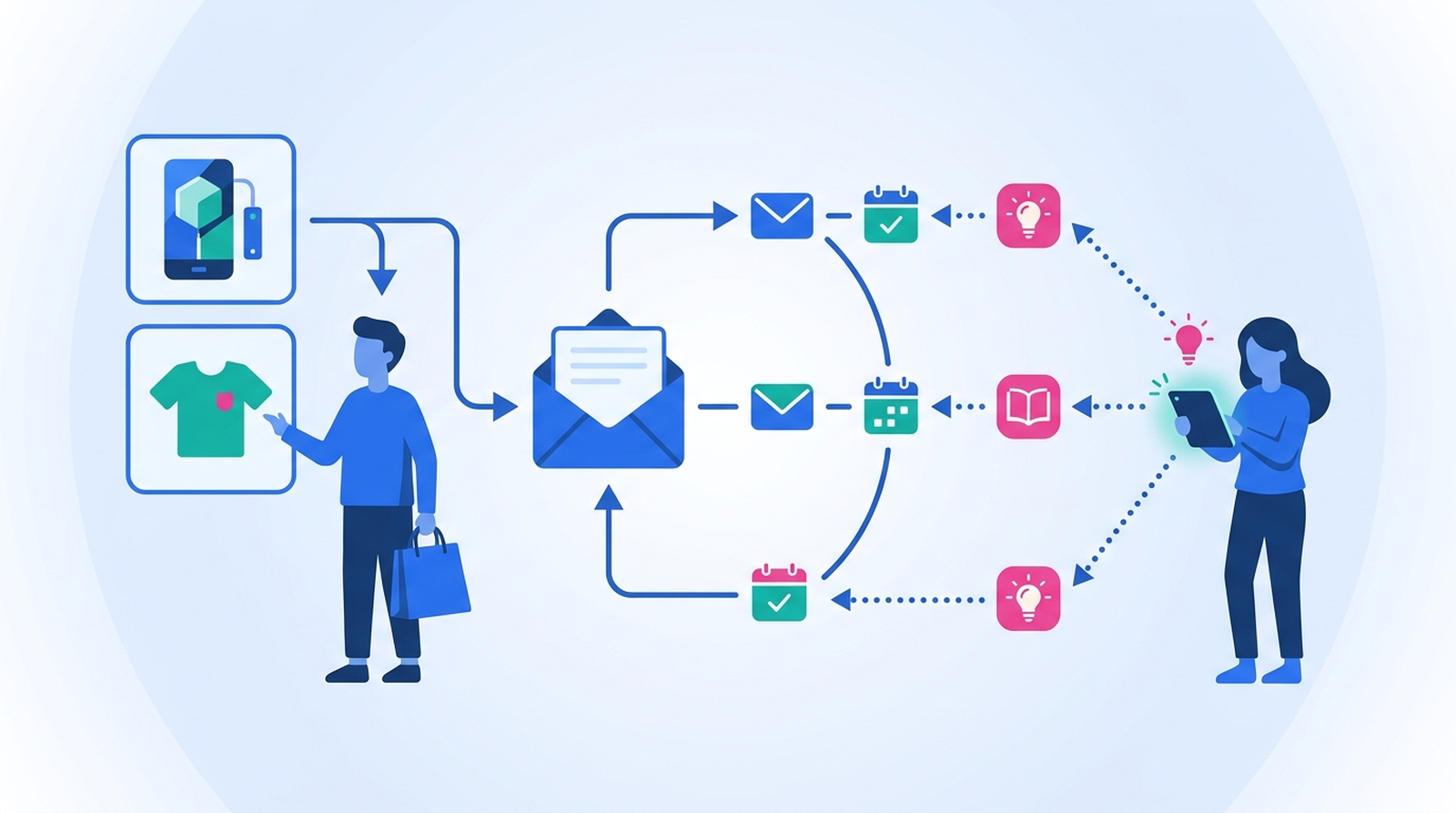
A post-purchase education series is only useful if it reaches the person who needs it. MESA qualifies each Shopify order against three conditions before a single email goes out — what type of product was bought, whether this buyer is new to it, and whether they've already complained or been refunded — and then hands the timing off to Klaviyo. The qualifying workflow is six steps, and the suppression layer that protects it is two more.
The use case comes straight from a cookware merchant who asked us for it: someone who buys a carbon steel pan should get a series that runs from purchase to about three months out — care tips, first-seasoning instructions, what the seasoning should look like by week six. But not everyone who buys a carbon steel pan. Only first-time buyers of that product type, or people who haven't bought one in the last six months. And nobody who just opened a support ticket about a damaged item or got a refund.
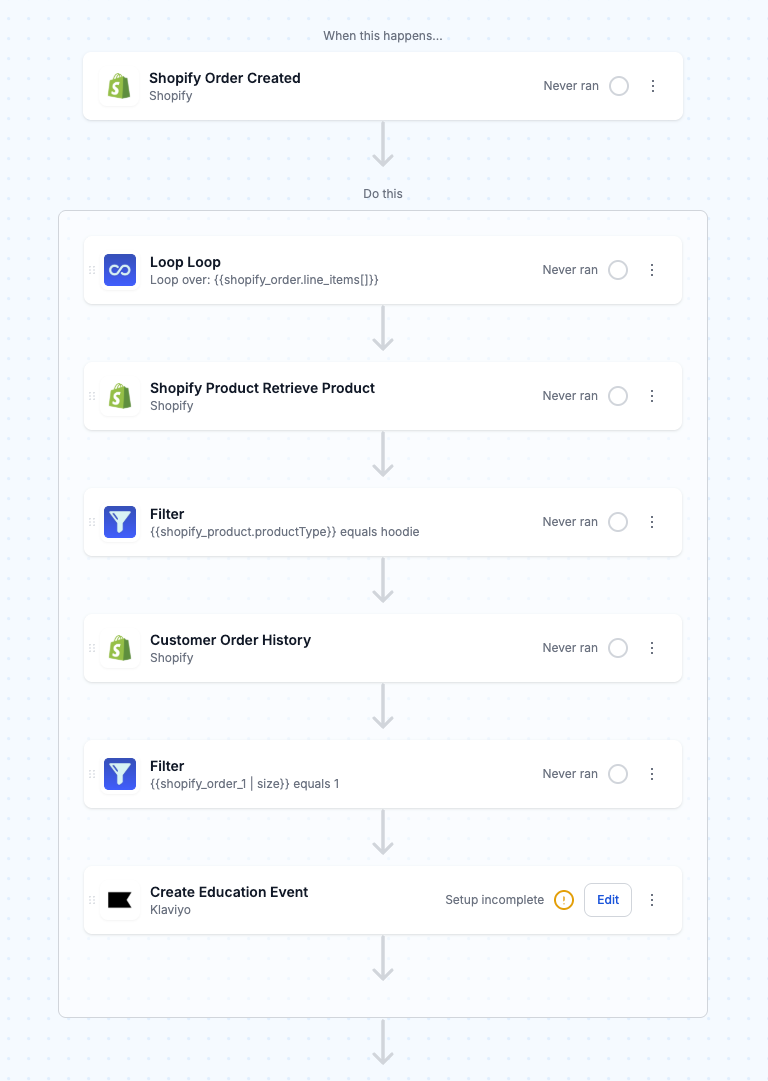
TL;DR: there's a template for that
What this workflow actually decides
It's tempting to build all of this inside Klaviyo. Klaviyo's Placed Order metric already fires on every Shopify order, and flows can filter on it. The problem is what that metric knows and what it doesn't.
Product type is the first gap. Shopify's order line items identify a product by ID, SKU, title, variant and vendor, but the product's type isn't a line-item field at all — it lives on the product record, reachable only through the nested product object in Shopify's LineItem schema. If your catalog spans carbon steel, stainless, cast iron and enameled, and each one needs different care instructions, you need the product record, not just the order.
Support history is the second gap. Klaviyo doesn't know that this customer emailed you yesterday about a dented lid. Your helpdesk knows that, and nothing bridges the two unless you build the bridge.
So the division of labor looks like this: MESA decides who qualifies and writes that decision into Klaviyo as an event. Klaviyo owns the sequence and the send timing, which is what it's actually good at. If you've already set up something like adding Shopify customers to a Klaviyo list after fulfillment, this is the same shape of integration with a lot more logic in front of it.
Build the qualifier in MESA
Six steps, top to bottom. Every step below is a stock trigger or action in MESA's Shopify and Klaviyo connectors plus the built-in Loop and Filter tools — no custom code required.
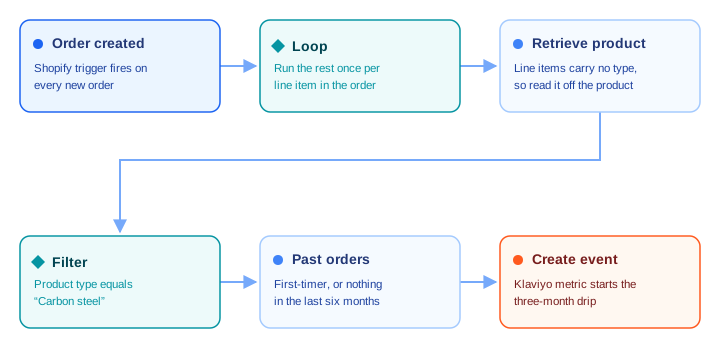
1. Shopify: Order Created
Start with the Order Created trigger, which fires when an order is created. Use Order Created rather than Order Paid or Order Fulfilled here on purpose: education content isn't transactional, so it doesn't need to wait on payment capture or a shipping label, and starting at creation gives Klaviyo the widest runway for a three-month sequence.
2. Loop: one pass per line item
Add a Loop step and point it at the order's line items. Everything after it runs once per item, which matters for a mixed cart — a pan, a lid and a cookbook in one order should only trigger the pan's series.
3. Shopify: Retrieve Product
Inside the Loop container, add Retrieve Product and pass it the current Loop item's product ID. This returns the full product record, including the Product type field you set in Shopify's product organization panel.
"A product type, previously referred to as custom product type, is a way to define a custom category."Shopify's product types documentation
If your product types aren't clean — half of them blank, or "Cookware" used for everything — fix that in Shopify before building the rest. A collection or a product tag works as the grouping field instead, and the workflow is otherwise identical; just filter on whichever field actually reflects how you'd group your care instructions.
4. Filter: product type
Add a Filter step on the product type from step 3 — Equals for an exact type, or Contains if your types are phrases like "Cookware — carbon steel". Filter values are case-sensitive, so match the string exactly as it appears on the product.
This step is the one you'll duplicate later. One workflow per product type is easier to reason about than one workflow branching five ways, and it means you can turn a single series off without touching the rest.
5. Shopify: Get List of Customer's Orders
Use Get List of Customer's Orders to pull the buyer's order history, adding status=any to the Parameters field so archived and cancelled orders are included too — without it the action only returns open orders, and a buyer whose earlier order was archived would look like a first-timer.
Then filter. For a plain first-purchase gate, check the returned order count. For the merchant's actual rule — first-timer or nothing in the last six months — compare order dates against a relative date, which MESA's Liquid templating gives you directly: {{ "now -6 months" | date: "%Y-%m-%d" }} renders the cutoff, and the Filter tool's Is after condition does the comparison. Run this in test mode against a real repeat customer and confirm whether the triggering order is included in the returned list before you trust your count.
There's a cleaner option worth knowing about here, covered in the next section: let MESA fire the event unconditionally and let Klaviyo enforce the six-month gap from the metric's own history. Fewer steps, one less place for the window to drift out of sync.
6. Klaviyo: Create Event
Finish with Klaviyo's Create Event action. Give the metric a name you'll recognize in Klaviyo's flow builder — Product Education Eligible works — and set the Profile's Email field to the order's email so Klaviyo attaches the event to the right profile.
Then use the Properties fields to carry everything the emails will need: the product type, the product title, the variant, the order number, and the purchase date. Those become event variables you can reference in the flow's copy, which is how one series covers a whole product type without hardcoding a single product name into an email.
Let Klaviyo own the timing — and the six-month rule
In Klaviyo, create a metric-triggered flow and pick your new metric as the trigger. A custom event sent in from an API works exactly like a native integration metric here:
"This action can be any event activity captured through an integration (e.g., started a checkout, placed an order, filled out a form) or events created via the Klaviyo API."Klaviyo's guide to flow triggers and filters
Your metric won't appear in that dropdown until Klaviyo has actually received it once, so run the MESA workflow in test mode first — the event shows up on the test profile's activity feed, and then in the flow builder's metric list. The same goes for event variables: Klaviyo can only offer you the properties it has seen.
From there, build the sequence with time delays: day 1 for care basics, week 1 for first use, week 6 for what the seasoning should look like by now, month 3 for the long-term maintenance email. Klaviyo's profile filters are where the six-month rule belongs if you took the simpler route in step 5 — a filter on how many times the profile has done Product Education Eligible over the last 180 days keeps a repeat buyer from restarting the series, using Klaviyo's own record of the metric rather than a second date calculation in MESA. For more on splitting responsibilities between the two tools, our Klaviyo and Shopify integration guide covers the general pattern.
The suppression layer: two small workflows, one profile property
Not emailing customers who have already complained or returned something is the requirement that turns a nice flow into a safe one. Nothing lands worse than a cheerful "here's how your seasoning should look by now" email arriving while a customer is mid-refund.
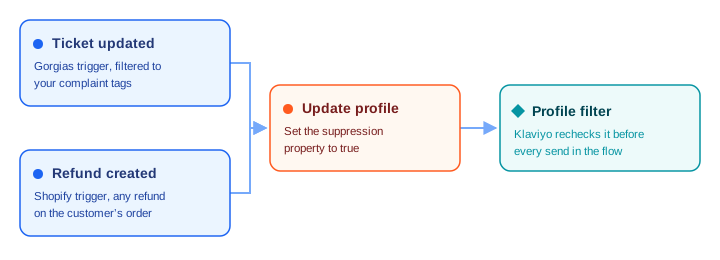
Build it as two small standalone workflows that both write the same flag:
- Gorgias → Klaviyo. Trigger on Ticket Updated, filter for your complaint tags (whatever you actually use — "damaged", "defective", "refund request"), then call Klaviyo's Update Profile action to set a custom property such as
education_suppressedtotrue. - Shopify → Klaviyo. Trigger on Refund Created, look up the customer, and set the same property. A refund is a clear enough signal on its own that it doesn't need a tag behind it.
The Gorgias half only works as well as your tagging, which is what Gorgias Rules exist to handle — auto-tagging on message content, sentiment or order history means the workflow gets a reliable signal instead of depending on an agent remembering to tag.
"Tags help create views based on detected intent, sentiment or any of the parameters available in Rules."Gorgias on Rules
Back in the education flow, add a profile filter for that property and the suppression takes effect mid-sequence, not just at entry — Klaviyo re-checks profile filters before each action in the flow, so a complaint in week two stops the month-three email that's already queued behind it. That mid-flight recheck is the whole reason a profile property beats a one-time entry check.
Two deliberate choices here. First, write the flag to the Klaviyo profile rather than tagging the Shopify customer: the flow needs to read it at send time, and Klaviyo can't see Shopify tags. If you also want the tag in Shopify for your own segmenting, add a Customer Add Tag step alongside it — just don't rely on it as the thing that gates the email. Second, use a custom property, not Klaviyo's Suppress Profiles action, which stops all email marketing to that person, not just this series. A property scoped to one flow is recoverable: clear it with another Update Profile step when the ticket closes, or leave it and let a human decide. If you're wiring up more of these helpdesk-to-store connections, our guide to Shopify customer support automation goes wider on the pattern.
Testing it before it touches a customer
Four things that bite in practice:
- Mixed carts fire more than once. Two qualifying line items in one order means two events. If that would double-enroll someone, add a Filter after the Loop on the first matching item, or let a Klaviyo profile filter on recent metric history absorb it.
- Order history is paginated. Get List of Customer's Orders returns 50 results by default. That's plenty for most stores, but a high-frequency buyer can exceed it, and a truncated list can read as "no recent purchase".
- Dates are store-local. MESA's Liquid
datefilter uses the store's default timezone from Shopify, so a "six months" cutoff is six months in your store's time, not UTC. - Tracking an event isn't consent. The event will attach to a profile whether or not that person is subscribed; whether an email actually sends depends on their marketing consent in Klaviyo. Test with a subscribed profile or you'll conclude the workflow is broken when it isn't.
Reusing it for anything with a learning curve
Nothing in this build is about cookware. The pattern is: a product that requires something of the buyer after checkout, plus a window in which they'll either get it right or give up. Swap the product type and the copy and it fits an espresso machine (dialing in a grind), retinol (introduce it slowly, expect week-three irritation), a sourdough starter, clipper blades, a saltwater tank, a bike with a break-in service due at 300 miles.
The suppression layer is what makes it repeatable across all of those. Once education_suppressed exists on your Klaviyo profiles, every future series you build reads the same flag, and both suppression workflows keep feeding it whether you have one education series or nine.
FAQs
Can't I just use Klaviyo's Placed Order trigger and flow filters?
For a single product, yes — filter Placed Order on the product name and you're done. It breaks down at the type level, because the product's type isn't part of the order line item; it's on the product record, which is what the Retrieve Product step in MESA fetches. It also can't see your helpdesk, so the complaint suppression isn't possible in Klaviyo alone.
Do I need Gorgias for the suppression layer?
No. The Shopify Refund Created half works on its own and catches the highest-risk case. The Gorgias half is what catches unhappy customers who haven't asked for money back yet, and the same shape works with any helpdesk MESA connects to — the trigger is "a ticket got tagged", the action is "set the property".
What if one order contains products from two different education series?
The Loop fires an event for each qualifying line item, so with one workflow per product type, the customer enters both series. That's sometimes correct and sometimes overwhelming. If you'd rather they only get one, gate entry in Klaviyo with a profile filter on recent Product Education Eligible activity, so the second series waits its turn.
How do I un-suppress someone after their ticket is resolved?
Add a third small workflow: Gorgias Ticket Updated, filtered to a closed or resolved status, calling Klaviyo Update Profile to set the property back to false. Worth doing deliberately rather than automatically — a resolved ticket about a damaged pan doesn't necessarily mean that customer wants seasoning tips next week.
Which MESA steps does this use?
Shopify's Order Created and Refund Created triggers, Retrieve Product and Get List of Customer's Orders actions, and optionally Customer Add Tag; Klaviyo's Create Event and Update Profile actions; Gorgias's Ticket Updated trigger; and the built-in Loop and Filter tools.