
Most Shopify merchants have already decided they want AI in customer service. The harder question is where to put it. Drop it in the wrong place and you get a bot confidently inventing a delivery date; put it in the right place and your team stops spending Monday morning re-reading the same forty messages.
This is a practical walkthrough: what Shopify's own AI already covers, the three layers where AI actually belongs in a support workflow, three workflows worth building first, and the decisions you should never hand to a model.
Start with the tickets you already get
Before automating anything, export your last 200 conversations from your helpdesk and sort them by what the customer actually wanted. Nearly every store finds the same shape: a long tail of genuinely tricky problems sitting on top of a short list of questions that repeat constantly — where's my order, can I change my address, this arrived damaged, does this fit, how do returns work.
That list is your automation roadmap, and it is store-specific. A store that ships in two days has almost no "where is my order" volume; a made-to-order brand has almost nothing else. Don't build against someone else's ticket mix.
It's worth knowing how low the bar is. Shopify's own write-up on AI customer service cites a blunt figure on how often shoppers get any reply at all:
"Still, 58.3% of shoppers never get a response, and only 23.4% are happy when they do, according to Pissed Consumer's 2025 state of customer service survey."Shopify, AI Customer Service for Ecommerce
Speed and consistency are the win here, not personality. Which is good news, because that's exactly what automation is good at.
What Shopify's built-in AI covers — and what it doesn't
Two native pieces matter, and they do very different jobs.
Shopify Magic and Shopify Inbox
Shopify Magic is the AI layer threaded through the admin, and two of its features are squarely customer-service features: suggested replies in Shopify Inbox, and instant answers — the question-and-answer pairs shoppers see when they open your chat window. Shopify will generate suggested instant answers for you, drawn from your store policies, which means the fastest AI win available to most stores is about fifteen minutes of editing text you didn't have to write.
On cost, Shopify's documentation is unambiguous: "Shopify Magic tools and experiences are available for free, regardless of your subscription plan." Shopify Inbox is a free app too. If someone has told you this tier of AI needs Shopify Plus, it doesn't.
One real limitation to plan around: automatically generated instant answer suggestions are English-only. You can still write instant answers by hand in any language — you just won't get the AI-drafted starting point.
Sidekick
Sidekick is the AI assistant inside your Shopify admin, and merchants routinely assume it's a support bot. It isn't. Shopify's own getting-started documentation spells out that Sidekick can't talk to your customers or handle customer support conversations on your behalf. It's a tool for you — pulling numbers, editing products, answering "how do I do this in Shopify" — not a tool for the person waiting on a reply.
So the native layer gives you first-touch chat deflection and drafting help. What it doesn't give you is anything that happens inside Gorgias, Zendesk, or Help Scout, any routing logic, or any of the work that happens after the reply is sent. That's the part you assemble.
The three layers of AI support
It helps to stop thinking about "an AI for support" and start thinking about three distinct layers, each with a different risk profile.
Layer 1 — deflection, before a ticket exists. A chat widget or helpdesk AI agent answers the question outright. This is the highest-leverage layer and also the highest-risk one, because the model is talking to your customer unsupervised. Helpdesk vendors compete hard here; Gorgias, for example, advertises "60% of inquiries resolved instantly" for its AI agent. Treat vendor deflection numbers as a ceiling under ideal conditions rather than a forecast for your store.
Layer 2 — triage, after the ticket arrives. AI reads the message, works out what it's about and how the customer feels, and then something deterministic happens: a tag, a route, an escalation, an alert. The model classifies; your rules decide. This is the safest place to start, because a mistake gets a ticket into the wrong queue rather than into the customer's inbox.
Layer 3 — after the reply. Summarizing, logging, spotting patterns, feeding product decisions. Nobody sees the output except your team, so the blast radius is basically zero.
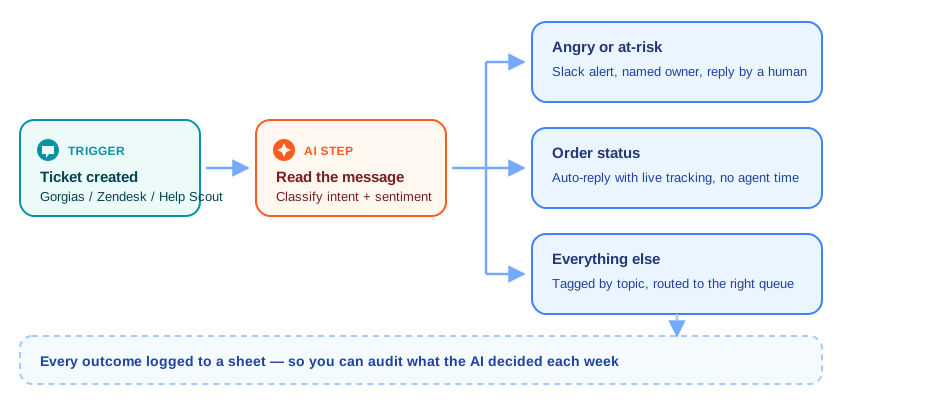
The three workflows below sit in layers 2 and 3 on purpose. They're the ones you can ship this week without a policy meeting.
Workflow 1: Escalate an angry ticket before it becomes a public review
Sentiment is the single most useful thing AI can tell you about a ticket, because it's the one signal that doesn't survive a keyword rule. "This is the third time I've had to write in" contains no profanity and no urgency keyword, and it is the ticket you most need to see immediately.
The workflow is short:
- Trigger: a ticket is created in Gorgias.
- Get the ticket's messages — the trigger payload alone usually isn't the full conversation.
- Analyze sentiment with AI, scoring the customer's tone.
- Parse the score into a number you can compare against.
- Filter on an anger threshold, so only genuinely hot tickets continue.
- Retrieve the shop, so a multi-store setup labels the alert correctly.
- Send a Slack alert with the ticket details and a direct link.
The threshold step is the one people skip and then regret. Set it too loose and Slack becomes noise your team mutes within a week; set it tight enough that an alert always means "someone senior should look at this now." Run it for a week with the alert going to a private channel, read every alert, then tune the number before you point it at the team channel.
This pattern generalizes past anger, too — the same shape works for a first-time buyer asking a pre-purchase question, or a ticket from a customer whose lifetime value crosses a threshold you care about.
Workflow 2: Let AI categorize tickets so routing stops guessing
Most helpdesk routing rules are keyword rules wearing a trench coat, and they break on phrasing. An AI classification step reads the message and returns one of your categories — returns, shipping, product question, wholesale, billing — which your routing logic can then act on with total predictability.
Inside MESA, the built-in AI tool handles this without you bringing your own OpenAI account. It offers Prompt, Summarize, Categorize, and Extract actions, and it's powered by GPT-4o. Two things to know before you build on it: it reads and generates up to 500 words, so long ticket threads should be trimmed or summarized first, and AI actions count as premium tasks rather than standard ones. That second point matters at volume — a classification step on every inbound ticket is a per-ticket cost, so classify once and reuse the result rather than calling the model again in every downstream branch.
A useful constraint: make the AI return a category from a fixed list you supply in the prompt, and add an explicit "unclear" option. A model given an escape hatch will use it; a model without one will invent a confident answer. Route "unclear" to a human queue and you've built a classifier that fails safely.
Workflow 3: Turn last week's tickets into product decisions
The support inbox is the best product research you own and the least-read document in the company. The reason is simple arithmetic — reading a week of threads carefully takes hours, so it gets done inconsistently or not at all.
This is the layer-3 use case, and it's one our own team ran into: ShopPad's Head of Product was manually reviewing 20–30 Help Scout tickets a week, reading full threads and logging sentiment into a spreadsheet by hand, before automating the summaries with AI. Same reading, none of the Monday.
The build is a scheduled workflow rather than a triggered one: on a weekly schedule, pull the tickets closed in the last seven days, summarize them into themes and sentiment, and drop the result somewhere your team already looks. A spreadsheet works. So does creating a task in your project tracker, which has the advantage of being something a person has to actively close rather than a document they can ignore.
Where to keep a human in the loop
Shopify's own guidance is candid that AI output can contain factual inaccuracies and needs oversight, and support is a place where an inaccuracy costs money directly. A few rules that hold up well:
- Never let AI commit to money. Refunds, discount codes, goodwill credits, and return-shipping approvals should be automated as far as the draft and stop there. The workflow can prepare the refund; a person clicks the button.
- Never let AI promise a date. Auto-replies should surface real tracking data pulled from the order, not the model's summary of when it thinks the package will arrive.
- Give every classifier an "unclear" exit. Ambiguity should route to a person, not resolve to the nearest plausible bucket.
- Log every automated decision. A row per AI action — ticket, category, score, what the workflow did — takes one step to add and is the only way you'll ever answer "why did it do that?"
- Read the log weekly for the first month. Threshold tuning is the whole job; nobody gets it right on the first configuration.
If you want the broader picture of what else belongs in this stack beyond the AI pieces, our guide to Shopify customer support automation covers the non-AI foundations these workflows sit on top of.
A sane rollout order
If you're starting from nothing, build in this order — each step earns trust for the next:
- Week 1: Turn on Shopify Inbox instant answers and edit the AI-suggested set against your real policies. Free, native, no build.
- Week 2: Ship the sentiment escalation to a private Slack channel. Read every alert. Tune the threshold.
- Week 3: Add AI categorization and let it tag tickets without routing anything yet. Compare its tags to what your team would have picked.
- Week 4: Turn routing on for the categories it got right, and start the weekly summary workflow.
- Only then consider a customer-facing AI agent that answers autonomously — by that point you have a month of data on what it would have gotten wrong.
FAQs
Can Shopify's Sidekick answer customer support questions for me?
No. Sidekick is an assistant for you inside the Shopify admin, and Shopify's documentation states directly that it can't talk to your customers or handle support conversations on your behalf. For customer-facing AI you need Shopify Inbox's instant answers, a helpdesk with its own AI agent, or a workflow you build yourself.
Do I need Shopify Plus to use AI for customer service?
No. Shopify Magic — which powers Inbox's suggested replies and instant answers — is free regardless of your subscription plan, and Shopify Inbox is itself a free app. Helpdesk apps and automation platforms price on their own terms, independent of your Shopify plan tier.
What's the difference between a helpdesk AI agent and an automation platform?
A helpdesk AI agent writes and sends replies to customers. An automation platform decides what happens around the ticket — classifying it, escalating it, tagging the customer in Shopify, logging it, triggering a follow-up. They're complementary, and the automation layer is the safer place to start because its mistakes stay internal.
How do I stop AI from sending a wrong answer to a customer?
Structurally, not by prompting harder. Keep the model on classification rather than composition for anything consequential, give every classifier an explicit "unclear" option that routes to a human, pull facts like tracking numbers and order totals from the actual Shopify record instead of from the model, and require a human click for anything that moves money.
How much does an AI step cost to run in a workflow?
In MESA, AI actions are billed as premium tasks rather than standard ones, and every plan includes a monthly bundle of premium credits. Practically, that means a classification step firing on every inbound ticket has a real per-ticket cost — so classify once, store the result, and reuse it downstream rather than calling the model repeatedly in the same workflow.