
In a busy restaurant, the moment a dish runs out is the moment someone shouts it across the kitchen or posts it in the team's Slack channel. Your online menu doesn't hear any of that. Unless someone stops to open the Shopify admin, find the product, pick the right location and change the number, delivery and pickup customers keep ordering the dish you no longer have.
This tutorial comes from a real question a restaurant group asked us: their staff already post updates like SOLD OUT | Chicken Tikka in each restaurant's private Slack channel, and they wanted MESA to read that message, work out which restaurant and Shopify location it belongs to, find the product, and set its inventory to zero. They run five restaurants and wanted one workflow covering all five channels, not five copies. Here's how to build exactly that, plus the commands to bring an item back and adjust counts.
TL;DR: there's a template for that
What the workflow does
Staff keep using Slack the way they already do. They just follow one short pattern: a command, a vertical bar, and the product name. The workflow understands five commands:
- SOLD OUT | Chicken Tikka sets the item's available inventory to 0 at that restaurant's location.
- AVAILABLE | Chicken Tikka brings it back by setting inventory to a restock number you choose, such as 99.
- ADD 10 | Mango Lassi adds 10 units to the current count.
- REMOVE 2 | Mango Lassi takes 2 units off the current count.
- SET 25 | Garlic Naan sets the count to exactly 25.
Because each restaurant has its own private channel, the channel tells the workflow which Shopify location to update. A message in the downtown channel only ever changes downtown's stock.
Before you start
A few things need to be in place on the Shopify side:
- Inventory tracking is on for every product staff will update. Without it there's no count to change.
- One Shopify location per restaurant. Shopify keeps a separate count at each location, which is what lets one restaurant sell out while another keeps serving the same dish.
- Product titles staff can actually type. If your Shopify product is called "Chicken Tikka Masala (Large)" but the kitchen calls it "Chicken Tikka", either rename it or add a short nickname list to the Code step (covered below).
"Your inventory is tracked separately at each location."Shopify Help Center
On the Slack side, connect your workspace to MESA and add the MESA app to each restaurant's private channel. A private channel only shares messages with apps that are members of it, so a channel you forget to add it to will simply be ignored.
Step-by-step: build the Slack-to-Shopify inventory workflow
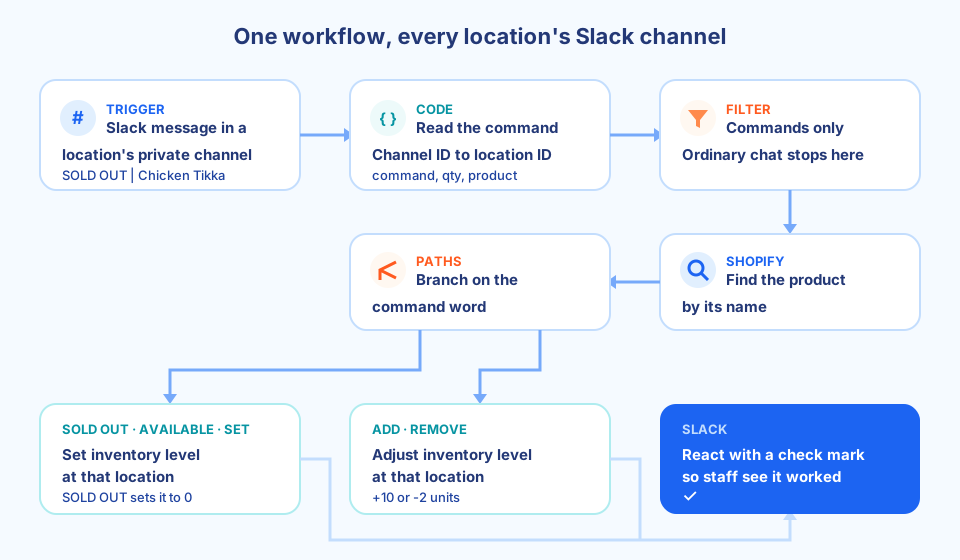
1. Trigger: Slack, Private Channel Received Message
Start the workflow with Slack's Private Channel Received Message trigger. It runs every time someone posts in a private channel the MESA app belongs to, so it fires on every message, including normal conversation. The next two steps sort the commands from the chatter.
2. Custom Code: read the command and find the location
Add a Custom Code step that does two small jobs:
- Parse the message. Split the text on the
|character. The left side is the command word plus an optional number (ADD 10), and the right side is the product name. Trim spaces and compare without caring about capitals, sosold out | chicken tikkaworks too. - Map the channel to a location. Keep a small lookup of Slack channel IDs to Shopify location IDs, one line per restaurant. You can find each location's ID with Shopify's Get List of Locations action, run once while you set up.
The step returns four values: the command, the quantity, the product name and the location ID. If the message doesn't follow the pattern, or comes from a channel that isn't in the map, it returns an empty command. This is also the right place for a nickname list ("tikka" means "Chicken Tikka Masala") if your menu names and product titles don't match.
3. Filter: ignore everything that isn't a command
Add a Filter that only continues when the command isn't empty and a location ID was found. "Running low on rice, can someone grab more?" stops here and never touches inventory.
4. Shopify: find the product
Use Shopify's Get List of Products action to look up the product whose title matches the name from the message, and take its variant. Most menu items have a single variant, which keeps this simple. If nothing matches, the workflow stops, so a typo can never change the wrong item's stock.
5. Paths: set or adjust
Add a Paths step that branches on the command word:
- SOLD OUT, AVAILABLE and SET go to Shopify's Set Inventory Level By Variant, which sets the variant's inventory at one location to a specific value. Use 0 for SOLD OUT, your restock number for AVAILABLE, and the number in the message for SET.
- ADD and REMOVE go to Shopify's Adjust Inventory Level By Variant, which changes the count at one location by a number: positive for ADD, negative for REMOVE.
Both actions use the location ID from step 2, which is what makes one workflow serve every restaurant.
6. Slack: confirm it worked
Finish with Slack's Add Emoji Reaction on the original message, for example a check mark. Staff see the confirmation right where they posted, without anyone opening Shopify. If you'd rather show the new count, use Send Message to reply with the product, location and updated quantity instead.
You can start from a ready-made version of this workflow. MESA's AI builds it in your account from the template below, and you then fill in your channel-to-location map and restock number.
What "sold out" does, and doesn't, stop
Setting available inventory to 0 is what stops online and pickup orders: by default, Shopify won't let customers add an item with zero inventory to their cart. Two settings can change that, and both are worth checking before you rely on this workflow:
- Continue selling when out of stock. If this is turned on for a product, online customers can still buy it at zero, and the SOLD OUT command won't stop orders. Turn it off for menu items you want this workflow to control.
- Shopify POS. In-person sales work differently. Shopify's own docs are clear that POS staff can keep ringing up items at zero.
"Staff can continue selling products when available inventory reaches zero and below."Shopify Help Center
So treat the Slack command as the switch for online, delivery and pickup orders. At the counter, the team that posted the message already knows the dish is gone.
Tips for running it across several locations
- Adding a restaurant is two changes: create its Shopify location and private channel, then add one line to the channel-to-location map and invite the MESA app to the channel.
- Use SKUs if names get messy. If several dishes have similar titles, have staff type a short code instead and swap the product lookup for Shopify's Retrieve Product Variant Details from SKU action.
- Bring everything back each morning. Restaurants often reset the whole menu before service. A second workflow on a schedule can set your usual items back to the restock number at every location, so nobody has to post AVAILABLE for each one.
- Pair it with alerts that go the other way. This workflow lets Slack change Shopify. To have Shopify tell your team when a count drops, set up location-based low stock alerts, and see our guide to automating Slack messages for other ways to keep the team in the loop.
Not running a restaurant? The same pattern works for any shop with locations and a team chat: a market stall, a pop-up, or a warehouse crew counting stock. For the bigger picture of what else you can hand off, read how to automate product inventory on Shopify.