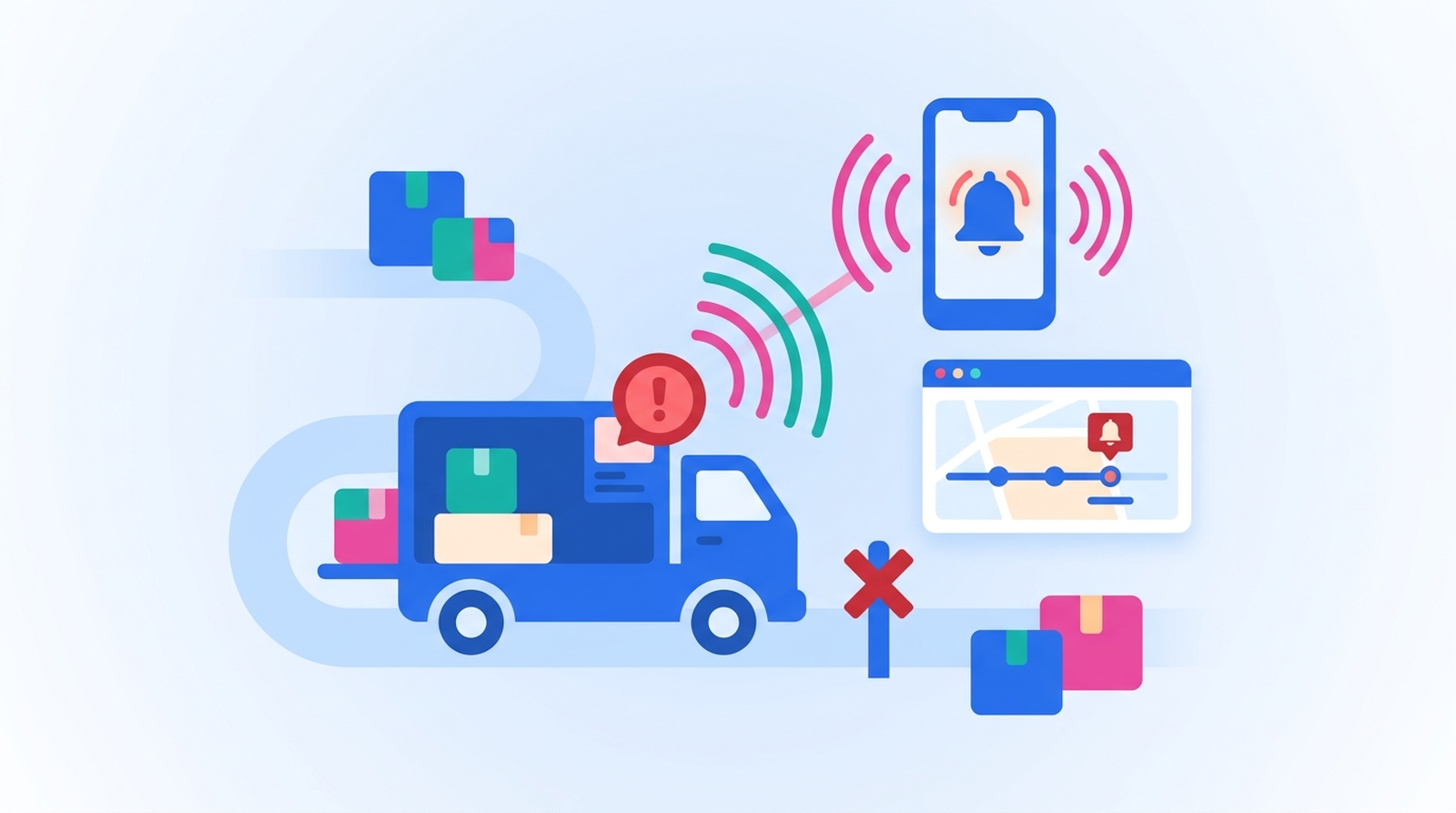
MESA's Package Tracking tool can start a workflow the moment a shipment hits Exception, Failed Attempt or Expired, so your team hears about a stuck holiday package before the customer emails to ask where it is. This guide sets that up in two short workflows: one that starts tracking every Shopify fulfillment, and one that alerts the team in Slack or by email, tags the order, and can email the customer first.
The week after Black Friday and Cyber Monday is when shipping problems pile up. Carriers are at peak volume, a few packages always get misrouted or come back undeliverable, and each one tends to surface as a support ticket days later. Most of those tickets are the same question. An alert on the problem statuses turns that question into a task your team can work before the customer has to ask.
TL;DR: there's a template for that
Which shipment statuses are worth an alert
MESA's Package Tracking tool can run a workflow on these shipping updates: Information Received, In Transit, Out for Delivery, Failed Attempt, Delivered, Exception, Expired and Pending. Most of them are good news, or news the customer already gets from your shipping notifications. Three of them usually mean a person needs to step in:
- Exception. The carrier has reported a problem with the shipment. Check the carrier's tracking details for the reason before you contact the customer.
- Failed Attempt. The carrier tried to deliver and couldn't. The customer may not know yet, and a quick note from you is better than a missed-delivery slip.
- Expired. Tracking for the number has expired without a delivery. The package hasn't arrived and the tracking data won't tell you more, so this one usually needs a person to follow up with the carrier.
Each of these is its own trigger in MESA: Shipment Experienced Exception, Shipment Experienced Failed Delivery and Shipment's Tracking Expired.
Workflow 1: start tracking every Shopify fulfillment
Package Tracking only reports on shipments it is tracking, so the first workflow hands it every tracking number as orders ship. MESA has a ready-made template for exactly this: when a Shopify fulfillment is created, it passes the fulfillment's tracking number to Package Tracking, which starts watching the shipment. A fulfillment with no tracking number is skipped, since there's nothing to watch.
Add one step to that template before you turn it on, because the alert workflow will need to know which order a tracking number belongs to:
- Data: Create Record. Save the tracking number, the Shopify order ID, the order number and the customer's email to a MESA data table. The alert workflow looks the tracking number up in this table to find the order.
One detail from MESA's docs is worth knowing here: tracking the same number twice throws an error, and any later update has to come from a Package Tracking trigger. So keep the tracking step in this one workflow, and don't add a second workflow that also starts tracking the same fulfillments.
Workflow 2: alert the team, tag the order, and email the customer first
The second workflow starts from a problem status and does the follow-up. Build it once with the Shipment Experienced Exception trigger, then make copies with Shipment Experienced Failed Delivery and Shipment's Tracking Expired as their triggers, so each status gets its own alert and its own tag.
- Trigger: Package Tracking, Shipment Experienced Exception. Runs when a tracked shipment's status changes to Exception.
- Data: Query. Find the record with this tracking number in the table from workflow 1, to get the order ID, order number and customer email.
- Shopify: Order Add Tag. Tag the order, for example
shipping-exception. A saved order view filtered on that tag becomes your team's list of stuck packages, and you can remove the tag when the order is sorted out. - Slack: Send Message, or Email: Send Email. Post the order number, carrier, tracking number and status to the channel or inbox where shipping problems are handled. Name the status in the message, so whoever picks it up knows whether to call the carrier or contact the customer.
- Optional, Email: Send Email to the customer. A short, plain note: "We noticed a delay with your order and we're looking into it with the carrier. You don't need to do anything yet; we'll follow up." Keep it to what you know, and don't promise a new delivery date until you have one.
Whether to email the customer automatically depends on the status. A Failed Attempt is usually worth a message right away, because the customer can act on it. An Exception can be something the carrier fixes on its own, so some teams prefer to have a person check the carrier's details first and send the note by hand. Start with team alerts only, watch what comes in during the first week, then add the customer email to the statuses where it clearly helps.
If you use Tracktor for your tracking page
Tracktor is ShopPad's order tracking app for Shopify, and MESA has a Tracktor connector. Its Retrieve Order action pulls the order's latest details, and its Update Order's Manual Status action sets the order's status on the Tracktor tracking page; Exception is one of the statuses you can choose. Adding that step to workflow 2 means a customer who checks the tracking page sees the same status your team is working on. Both actions take the order ID, which the Data: Query step already found.
Alerts handle the packages that go wrong. For the far larger number of "where is my order" emails about packages that are simply on their way, the fix is a branded tracking page and shipping notifications, which we cover on the ShopPad blog.
Before the holiday rush: test it
- Run workflow 1 on a real fulfillment and check that a row lands in your data table with the right order ID and tracking number.
- Send yourself the alert. Use MESA's Manual Run feature on workflow 2 to check the Slack or email message reads clearly, and that the tag lands on the right order.
- Agree who owns the alerts. An alert channel nobody watches during the busiest week of the year is just a log. Name the person who checks it each day through the peak shipping weeks.
- Decide on the customer email per status, and write the wording before the rush, not on the day a package goes missing.
If you'd rather not wire the steps by hand, describe the workflow to the MESA AI assistant inside MESA ("when a shipment hits Exception, look up the order, tag it and post it to Slack") and it will build it for you to review.
For more on what Shopify shows customers natively and how tracking apps compare, see our guide to Shopify order tracking. On the happier end of the same timeline, a delivered event can start a Klaviyo order-delivered flow, and these alerts fit into a broader customer service automation setup.
FAQs
Which shipment statuses can trigger a MESA workflow?
MESA's Package Tracking tool can run a workflow on Information Received, In Transit, Out for Delivery, Failed Attempt, Delivered, Exception, Expired and Pending. For problem alerts, Exception, Failed Attempt and Expired are the three to watch.
Do I need to track each package before the alert can fire?
Yes. Package Tracking only reports on shipments it is tracking, so a workflow has to start tracking each tracking number first. The Track New Shopify Fulfillments template does that whenever a Shopify fulfillment is created with a tracking number.
Can the alert go to email instead of Slack?
Yes. Use an Email: Send Email step in place of, or alongside, the Slack message. The rest of the workflow stays the same.