Your store associates do more than ring up sales. They help a shopper find the right size, get them on your email list, and send them home happy. When that shopper comes back a month later and orders from your website, the associate who earned the sale usually gets no credit for it, and your commission or incentive program can't reward the work that matters most.
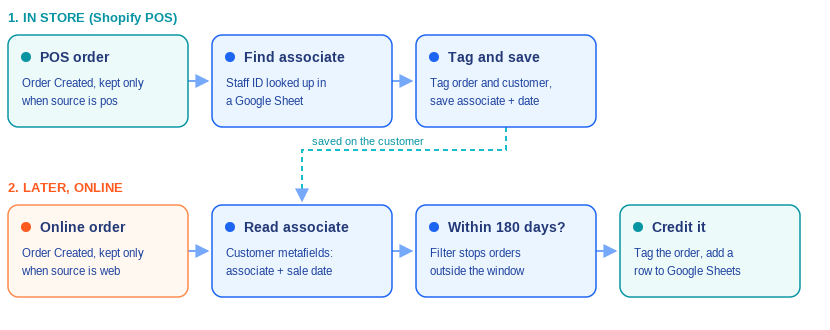
This tutorial shows how to close that gap with two MESA workflows. The first tags every Shopify POS order and customer with the associate who made the sale. The second checks each new online order, and if it comes from a customer an associate served in the last 180 days, tags it and logs it to Google Sheets for payout review. We'll also cover a stricter version that only credits customers whose very first order was in store.
TL;DR: there's a template for that
Why Shopify doesn't credit staff for later online orders
Shopify POS can credit a sale to the staff member who made it, either the whole sale or individual items. This is a Shopify POS Pro feature, and the credited sales show up in the POS total sales by staff member report in your admin.
"You can credit a full sale to one staff member, or credit individual items to different staff members. Crediting sales to staff lets you track who made each sale and review their performance."Shopify Help Center
That credit stays on the POS order. There's one exception: when an associate sends an email cart from POS and the customer checks out online from that link, Shopify credits the online sale to the associate. A customer who comes back on their own and orders from your website weeks later isn't credited to anyone, and the customer record doesn't remember who served them.
So the fix has two parts: remember the associate on the customer at the moment of the in-store sale, then check for that memory whenever the same customer orders online.
Before you start
- Attach a customer to every POS sale you want to credit. An anonymous walk-in sale can't be matched to a later online order. Capturing the customer's email at checkout is what makes the whole program work, which is exactly why many stores reward it.
- Decide how a sale gets its associate. On POS Pro you can add staff to each sale, or have Shopify credit the staff member at the register automatically. Without POS Pro, the staff member logged in to POS when the order was rung up is the best signal you have.
- Make a staff sheet. Shopify records staff by ID. A small Google Sheet with two columns, staff ID and the name you want in tags, lets the workflow write readable tags like
associate:Jordan. - Pick your credit window. This tutorial uses 180 days. Use whatever your commission plan says.
Workflow 1: Tag POS customers with their associate
This workflow runs on every new order and does its work only for in-store sales.
- Trigger: Shopify Order Created. MESA has one order trigger for every channel, so the next step narrows it down.
- Filter: POS orders with a customer. Continue only if the order's source is
posand a customer is attached. - Google Sheets Query Rows. Look up the credited staff member's ID in your staff sheet to get their name. Use the staff credited on the line items, or the staff member who rang up the order if no one was added to the sale.
- Shopify Order Add Tag. Tag the POS order, for example
associate:Jordan. - Shopify Set Customer Metafield. Save two values on the customer: the associate's name and the date of the in-store sale. These are what the online workflow reads later.
- Shopify Customer Add Tag. Add the same
associate:Jordantag to the customer, so you can filter customers by associate in the admin.
Each new POS sale overwrites the saved associate and date, so the most recent associate gets credit and the 180-day window restarts. If your program credits the first associate instead, add a check that skips customers who already have one saved.
Tags are the readable part, and the metafields do the matching. Tags are easy to see and filter on, but a date inside a tag is awkward to compare. For more on how order and customer tags work, see our guide to Shopify tags, and if you only need to mark POS orders by channel, auto-tagging Shopify orders from Retail POS is the simpler version.
Workflow 2: Credit online orders within 180 days
This workflow also starts from Shopify Order Created, and this time keeps only website orders.
- Trigger: Shopify Order Created.
- Filter: online orders from known customers. Continue only if the order's source is
weband a customer is attached. - Shopify Retrieve Customer Metafield. Read the associate and in-store sale date saved by the first workflow.
- Filter: within the credit window. Continue only if an associate is saved and the online order was placed no more than 180 days after the in-store sale.
- Shopify Order Add Tag. Tag the online order, for example
credit:Jordan, so anyone looking at it in the admin can see who earned it. - Google Sheets Add Row. Log the order number, customer email, associate, both dates, the days between them, and the order value.
The sheet is your payout ledger. Logging the days between the two orders makes it easy to audit the window, and logging the order value lets you calculate commission with a simple formula. Leave the actual payout to a person: refunds and cancellations after the fact are normal, and a quick review each pay period catches them before money moves.
Variant: credit only customers whose first order was in store
Some incentive programs are narrower. A common one rewards associates for capturing a new customer's email at checkout, and pays out only when that customer later converts online. In that case, an online order should count only if the customer's first-ever order was the POS sale, not if they were already a regular online shopper who happened to visit the store.
For this version, you don't need the first workflow's metafields at all:
- Trigger: Shopify Order Created, filtered to web orders with a customer attached.
- Shopify Get List of Customer's Orders. Pull the customer's order history, oldest first.
- Filter: first order was POS. Continue only if the oldest order's source is
pos. You can also require that this is the customer's first web order, so each customer is credited once. - Shopify Order Add Tag. Tag the online order with the associate credited on that first POS order.
- Google Sheets Add Row. Log it for your quarterly payout review.
The trade-off: this version credits the associate who made the customer's first sale, and only for customers who started in store. The 180-day version credits whoever served them most recently, regardless of where they first bought. Pick the one that matches the behavior you want to reward, and write the rule down for your team so nobody is surprised at payout time.
Tips for running a fair staff incentive program
- Keep the native report as your in-store number. Shopify's POS total sales by staff member report already covers in-store sales. Use your sheet only for the online orders Shopify can't attribute, so nothing is counted twice.
- Watch out for email carts. Shopify already credits an associate when the customer checks out from an email cart sent from POS. Those orders are attributed to the POS channel, so the web-only filter keeps them out of your sheet.
- Make tags consistent. Use one prefix, like
associate:andcredit:, so you can search and export them cleanly. The staff sheet is the single place to fix a name. - Tell staff how it works. An incentive only changes behavior when people know the rules: attach the customer, and you get credit for what they buy online within the window.
If you're looking for more ways to automate your retail side, our guide to building Shopify POS solutions for retail automation covers thank-you cards, team notifications and other in-store workflows.