
A merchant who makes food products asked MESA's site assistant a question that comes up in a lot of receiving docks. Their team logs every delivery on a QA and receiving form that writes to a Google Sheet: the product (say, orange peel), the lot number on the supplier's label, the quantity (50 kg), and where it's going (WH/Stock). Then someone retypes each row into Odoo as an incoming receipt. They wanted the sheet to do that part: create the receipt, assign the lot whether or not Odoo has seen that lot number before, and raise on-hand inventory through a real receipt, not an inventory adjustment.
MESA can build that with its Odoo Custom Model steps. This guide walks through the workflow, the Odoo records it creates, and the one step we recommend leaving to a person: clicking Validate.
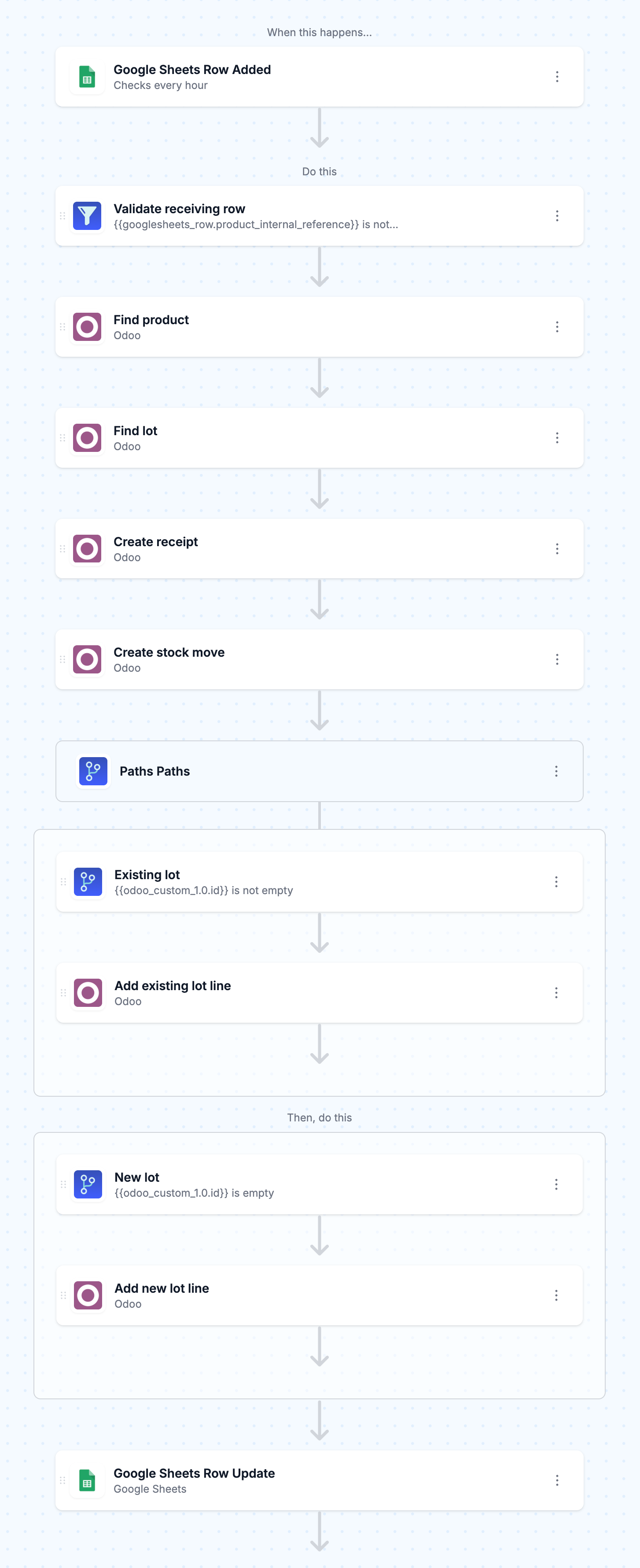
TL;DR: there's a template for that
Why a receipt, not an inventory adjustment
You could push the new quantity straight into Odoo's on-hand count, but then the stock just appears. A receipt records where it came from, which lot it belongs to, which operation type moved it, and who validated it. For food, cosmetics or anything else with lot traceability, that history is the reason you track lots in the first place: if a supplier recalls a batch, you need to know which receipt brought lot ABC123 in.
So the workflow builds the same records Odoo builds when someone receives goods by hand:
- stock.picking: the receipt itself, with the Receipts operation type, a source location (your vendor location) and a destination such as WH/Stock.
- stock.move: one line on that receipt for the product and the quantity you expect.
- stock.move.line: the detailed line that carries the lot number and the quantity actually received. In Odoo's own screens, this is what you fill in from the Details link on a receipt line.
Odoo's model and field names can shift between versions, so before you map anything, turn on developer mode in Odoo and check the fields on these three models under Settings, Technical, Models. In recent versions, the received quantity on a move line is quantity and the lot model is stock.lot.
Set up Odoo for lots first
Two settings have to be in place before any receipt can carry a lot. Odoo's lot documentation puts it plainly:
"To track products using lots, enable the Lots & Serial Numbers feature."Odoo documentation, Lot numbers
That setting lives in Inventory, Configuration, Settings, under Traceability. Then set each product you receive (orange peel, in the merchant's example) to be tracked by lots on its product form.
The second thing to check is whether your Receipts operation type may create new lots. Under Inventory, Configuration, Operation Types, the Lots/Serial Numbers options are "Create New" and "Use Existing ones". Odoo's default is the one this workflow needs: "By default, new lots can only be created when receiving products, and existing lot numbers cannot be used." If you plan to receive more stock into a lot that already exists (a second pallet of ABC123 arriving later), tick Use Existing ones as well.
Lay out the receiving sheet
The workflow reads one row per received lot. Keep it simple and consistent, whether the rows come from a linked form or from someone typing into the sheet on the dock:
- Product reference: the product's Internal Reference in Odoo. Match on this, not the product name, which people type differently.
- Lot number: exactly as printed on the supplier's label.
- Quantity: in the product's unit of measure (kg here).
- Location: the destination, for example WH/Stock. If every delivery goes to the same place, you can hard-code it in the workflow and drop the column.
- Status and Receipt: left blank on entry. The workflow fills these in.
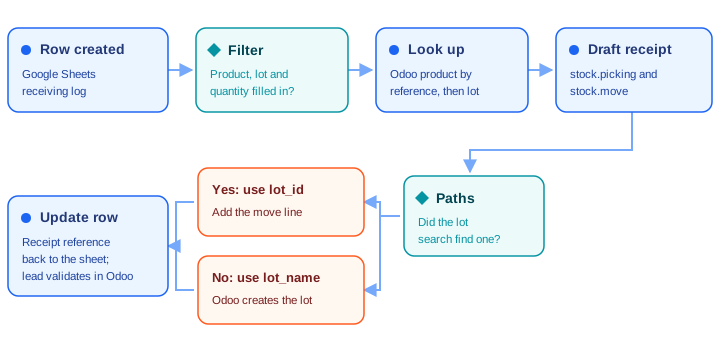
The workflow at a glance
Step 1: Start on a new row
Use the Google Sheets Row Created trigger on your receiving log. Each new row is one delivery of one lot.
Step 2: Skip incomplete rows
Add a Filter step that continues only when product reference, lot number and a quantity above zero are filled in, and the Status column is empty. A form submitted with a missing lot number would otherwise create a receipt Odoo refuses to validate.
Step 3: Find the product and the lot in Odoo
Add an Odoo List Custom Model step on product.product, searching default_code for the row's product reference. That returns the product's ID and its unit of measure, which the next steps need.
Then add a second List Custom Model step on stock.lot, searching for a lot whose name is the row's lot number and whose product is the ID you just found. The merchant was clear that the lot "may or may not already exist", and this lookup is how the workflow tells which.
Step 4: Create the receipt and its move
Add an Odoo Create Custom Model step on stock.picking with:
- the ID of your Receipts operation type (
picking_type_id) - your vendor location as the source (
location_id) and the destination location's ID, such as WH/Stock, aslocation_dest_id - a source document (
origin) that points back to the sheet, such as "Receiving log row 214"
Then a second Create Custom Model step on stock.move, linked to the new receipt (picking_id), with the product ID, the quantity as product_uom_qty, the product's unit of measure, and the same source and destination locations.
Look up the IDs for the operation type and locations once, in Odoo with developer mode on, and paste them into the steps. They don't change from row to row.
Step 5: Add the lot, new or existing
Add a Paths step that branches on whether the lot search in step 3 found anything. Each path ends in a Create Custom Model step on stock.move.line, linked to the move and the receipt, with the product, both locations and the received quantity. The only difference is the lot:
- The lot exists: pass its ID as
lot_id, so this delivery is added to the lot you already have. - The lot is new: pass the lot number as
lot_name. Because receipts can create new lots, Odoo creates lot ABC123 when the receipt is validated.
Step 6: Write the receipt back to the sheet
Finish with Google Sheets Update Row: write the receipt's reference (Odoo names it, something like WH/IN/00042) and a status of "Ready to validate" back to the row. Now the dock has a record of which Odoo receipt each delivery became, and the Status column stops the row from being processed twice.
The last step: validate in Odoo
The receipt now sits in Odoo with the product, quantity, destination and lot filled in. On-hand stock goes up when it's validated, and that's the step we suggest leaving to a person.
There's a practical reason as well as a QA one. MESA's Odoo steps create, read, update and delete records; Update Custom Model changes field values, and it can't press a button like Validate. The workflow sketched in the original conversation had an Update Custom Model step validate the receipt, and that step can't do it.
The good news is that validating takes one click, and it's a natural QA checkpoint: the receiving lead opens the receipt from the reference in the sheet, confirms the count against what's on the pallet, and clicks Validate. In the merchant's example, on-hand orange peel goes from 100 kg to 150 kg in WH/Stock, with the 50 kg traceable to lot ABC123 and to that receipt. Odoo also checks the lot for you here: "Clicking Validate before assigning a lot number triggers an error," which is exactly why step 5 assigns one.
If you want validation to happen with no person involved, Odoo's external API can call a model's methods directly, and a MESA API step can send that request. Check your plan first: Odoo's external API documentation says "Access to data via the external API is only available on Custom Odoo pricing plans." MESA's own Odoo connection guide lists Standard Online as supported for its Odoo steps, but a direct method call is a separate request, so on Standard plan for one click per receipt.
What to know before you build
- Odoo is a Pro-tier connector in MESA. See MESA's pricing page for what's included on each plan.
- Connecting Odoo takes a username, password and your Odoo domain. Our guide to connecting Odoo with MESA walks through where to find each one.
- Test with one row. Use a test product and a throwaway lot number, run the workflow in the builder's test mode, and open the receipt in Odoo before you turn it on. The first run is where a wrong location ID or field name shows up.
- Units matter. The quantity in the sheet must be in the product's unit of measure, or in a unit from the same category that you pass on the move.
- Several lots in one delivery can be several rows, each becoming its own receipt, which keeps the workflow simple. If you'd rather have one receipt with many lots, add a delivery or PO number column and group the rows, which is a bigger build.
Odoo Custom Model steps can reach most of Odoo's records, which is what makes builds like this possible. For another example on the manufacturing side, see how to turn configured Shopify orders into Odoo manufacturing orders and bills of materials. And if you're still weighing Odoo against other systems, our roundup of CRM and ERP options for Shopify covers where it fits.
FAQs
Can MESA validate the Odoo receipt automatically?
Not with its Odoo steps, which create and update records but can't press Validate. The receipt waits with everything filled in, and a person validates it in one click. Calling Odoo's external API from a MESA API step is possible, but Odoo's docs limit external API data access to Custom plans.
What happens if the lot number already exists?
The workflow finds it in step 3 and passes its ID, so the new quantity is added to that lot. Make sure your Receipts operation type allows using existing lots, since Odoo's default only allows creating new ones on receipts.
Does this work with a Google Form?
Yes, as long as the form writes its responses to a Google Sheet. Point the Row Created trigger at that responses sheet, and test with one submission to confirm the trigger picks up the new row.
Will this change inventory before anyone checks it?
No. A receipt only raises on-hand quantity when it's validated, so nothing changes in stock until your receiving lead confirms it.
Does this work on Odoo Online Standard?
MESA's Odoo connection guide says all editions, including Standard Online, are supported for its Odoo steps, which is everything this workflow uses. Only the optional automatic validation through Odoo's external API depends on your Odoo plan.