Inventory Source Of Truth: A Practical Setup
-
- •
- May. 28, 2026
- •
- 6 min read

Here’s a situation most Shopify store operators have been in: a customer places an order, you move to fulfill it, and somewhere between your Shopify dashboard, your warehouse system, and the spreadsheet your buying team maintains, the numbers don’t agree. Your store said 12 units in stock. Your warehouse says 4. Your spreadsheet says 9. Which one do you trust?
The instinct is to try to keep all three in sync. Build a system where a change in one place updates the others automatically, in both directions. That sounds like the right answer. According to IHL Group, inventory distortion costs retailers $1.77 trillion globally from a combination of out-of-stocks and overstocks, so the pressure to solve it is real. But bidirectional sync introduces more problems than it solves.
This guide is about a simpler approach: pick one system as your source of truth, and build reliable one-way pushes from it to everywhere else. Less complexity, fewer conflicts, and a setup that actually holds up over time.

Table of Contents:
Why bidirectional sync causes more problems than it solves
The appeal of syncing your inventory across systems is obvious. You want the number in Shopify to match the number in your warehouse software to match the number in your ops spreadsheet. So you build or buy something that tries to keep them all current.
The problem shows up when two systems update at the same time. An order comes in and Shopify decrements the count. Simultaneously, someone updates the spreadsheet manually because a shipment just arrived. Now you have a conflict: which number is right? The sync engine has to pick one, and it’s not always going to pick correctly.
Add a return, a manual inventory adjustment, or a warehouse discrepancy, and the complexity compounds. You end up spending more time reconciling the systems than you would have spent just keeping one of them accurate.
The better mental model is this: your inventory lives in one place, and everything else reflects it. When the number changes in the source system, downstream tools get updated. One direction. Triggered by the event. No conflicts, because nothing outside Shopify is allowed to overwrite Shopify.
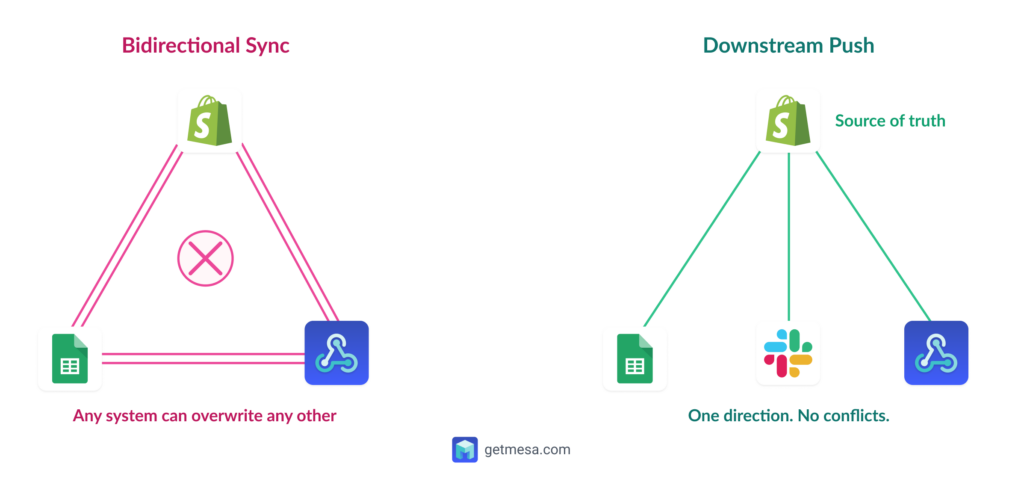
What that looks like in practice
For most Shopify stores, Shopify is the right source of truth. It’s where orders are processed, where returns are recorded, where manual adjustments happen. Shopify’s own inventory management tools give you per-location tracking, adjustment history, and the event hooks that make automation possible. It has the most complete picture of what’s moved and why.
The job of everything else, your ops spreadsheet, your buying team’s Slack channel, your supplier’s inbox, is to receive information from Shopify, not to feed back into it. When inventory changes in Shopify, a workflow pushes the updated information to wherever it needs to go. The right person gets the right number at the right time, automatically.
MESA sits between Shopify and those downstream destinations. It listens for inventory events and routes the information wherever you point it. You define the rules once: what triggers the workflow, what conditions matter, where the data goes. After that, it runs on its own.
Four workflows worth building
1. Alert your buying team when stock hits a reorder point
Trigger: inventory level updated, quantity below your threshold for a given SKU.
Action: send a Slack message to your buying channel with the product name, SKU, current quantity, and location.
Set the threshold in Shopify’s inventory settings so your reorder logic lives in one place. The workflow just listens for when that threshold is crossed and makes sure the right people know about it without having to check.
🔧 Try these templates:
MESA Template ID
send-slack-message-when-shopify-inventory-runs-low
MESA Template ID
shopify-location-specific-inventory-alerts
2. Update your ops spreadsheet automatically
Trigger: inventory level updated.
Action: find the matching SKU row in your Google Sheet and update the quantity.
Add a location filter if you’re working with multiple warehouses. Otherwise the trigger fires for every inventory event across every location, and your spreadsheet starts seeing updates that don’t apply to the location your team cares about.
This is the workflow that makes the spreadsheet worth keeping. Instead of being a document someone maintains manually, it becomes a live reflection of what’s in Shopify. The people who rely on it for buying decisions or reporting can trust the numbers because they’re not dependent on anyone remembering to update them.
🔧 Try this template:
MESA Template ID
shopify-product-inventory-google-sheets
3. Notify your supplier when a product needs reordering
Trigger: inventory updated + quantity below threshold + vendor tag matches a specific supplier.
Action: send an email to that supplier with the SKU, current quantity on hand, and your requested reorder quantity.
This works best when your products are tagged by vendor in Shopify. The condition check in MESA matches the inventory event to the right supplier so the notification goes to the right place. You can set up separate workflows for each vendor, or use a branching structure if your supplier list is short.
🔧 Try this template:
MESA Template ID
email-notification-shopify-product-out-of-stock
4. Write returns back into your inventory record
Trigger: refund created with restock flag enabled.
Action: update the matching row in your ops spreadsheet, and optionally send a Slack notification to your buying team if the returned quantity is significant.
Returns are often invisible to the people who need to know about them most. When a returned unit is restocked, your ops spreadsheet should reflect it automatically. The same way it reflects a sale. Closing that loop means your buying team isn’t placing reorders based on numbers that don’t account for what just came back.
🔧 Try this template:
MESA Template ID
shopify-refunds-google-sheets
A few things to get right before you build
Keep your reorder thresholds in Shopify, not in the workflow. If the logic for “when to reorder” lives inside the workflow conditions, it’s hard to update and easy to lose track of. Set the threshold on the product or variant in Shopify, and let the workflow just respond to the event.
Filter by location from the start. If you have more than one warehouse or stock location, add a location condition to every inventory workflow you build. An update at your East Coast warehouse probably shouldn’t trigger a notification meant for your West Coast buying team.
Don’t build write-back from external tools into Shopify unless you have a deliberate reason. The moment external systems can update Shopify inventory, you’ve re-introduced the conflict problem. If a supplier sends you updated stock counts, review them before they hit Shopify. Don’t automate that write without a check in place.
Inventory problems rarely come from a lack of data. They come from having too many places where that data lives, each slightly different, each requiring someone to maintain it. A setup like this takes an afternoon to build and removes a constant background overhead from your operations. The goal isn’t a perfect dashboard. It’s a system where the right number reaches the right person the moment something changes.