

How to Automatically Record, Transcribe, and Share Meeting Notes
-
- •
- Last updated: Jun. 16, 2026
- •
- 7 min read

Most teams handle meeting documentation the same broken way: one person frantically scribbles notes while trying to stay present in the conversation. The notes are incomplete. The action items get lost. Three days later, someone asks, “Wait, what did we decide?”
The fix isn’t better note-takers. It’s removing humans from the documentation loop entirely.
This guide walks through how to build a fully automated meeting workflow using Google Calendar, Recall.ai, and MESA — so every meeting is recorded, transcribed, and delivered to Slack without anyone lifting a finger.
Table of Contents:
Does Google Meet automatically record meetings?
Not by default. Google Meet does have a built-in recording feature, but it comes with three significant limitations:
It requires a paid Google Workspace plan. Recording is only available on Business Standard, Business Plus, Enterprise, and Education plans. If you’re on a personal account or Google Workspace Starter, the record button simply doesn’t appear.
Someone has to start it manually. Even with access, recording doesn’t happen automatically. Someone in the meeting has to remember to click the record button before the conversation begins — which means meetings get missed, especially quick calls, recurring standups, and anything that starts while someone’s running late.
The recording stays in Google Drive. Meet saves recordings to the organizer’s Drive, where they’re easy to lose track of and hard to act on. There’s no transcription, no summary, no automatic delivery to where your team actually works.
For teams that want every meeting documented without relying on anyone to remember anything, the native option isn’t enough. The workflow in this guide solves all three gaps: it records automatically, transcribes with speaker labels, and delivers structured notes to Slack the moment the meeting ends.
What this workflow does
When you schedule a meeting in Google Calendar:
- Recall.ai automatically joins and records the call
- AI generates a structured transcript with speaker labels
- MESA processes the transcript and extracts a summary, decisions, and action items
- Notes are posted to Slack — automatically, as soon as the meeting ends
No manual recording. No note-taking. No follow-up email threads asking what was decided.
Step 1: Automatically record every Google Calendar meeting with Recall.ai
The first problem to solve is the recording itself. Google Meet has a built-in record button, but it requires someone to remember to hit it — which means meetings get missed exactly when it matters most.
The better approach: when a new calendar event appears, automatically send a Recall.ai bot into the meeting to handle recording.
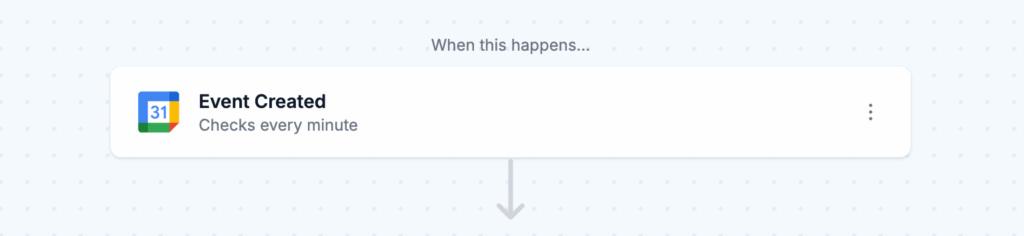
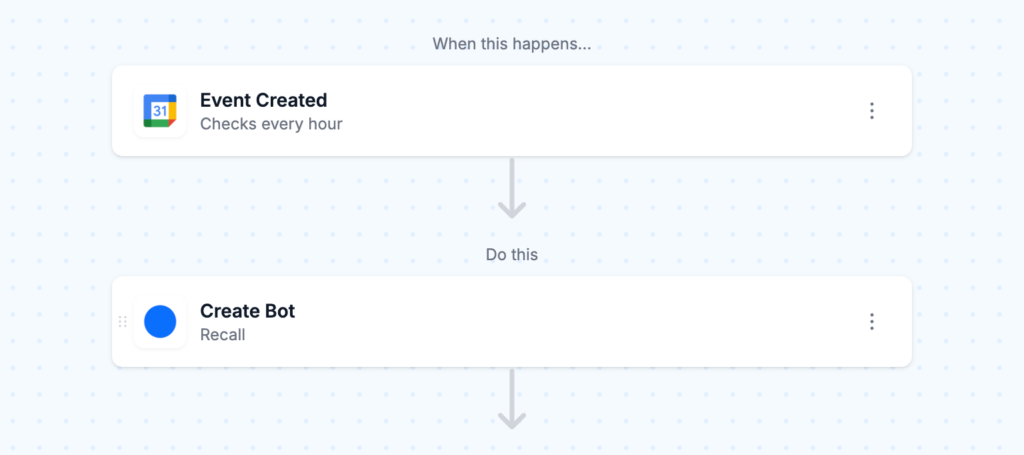
How to set this up in MESA:
- Connect Google Calendar. In MESA, set up a trigger that monitors your Google Calendar for newly created events. Authenticate your Google account and specify which calendar to watch. The workflow checks for new events continuously and fires whenever a new meeting is scheduled that includes a video call link.
- Create the Recall recording bot. When MESA detects a new calendar event with a meeting URL, it automatically sends those details to Recall.ai, which creates an AI recording bot. The bot joins the meeting at the scheduled time and begins recording. It appears in the meeting as “MESA Recording Bot” so attendees know it’s present.
- Test it. Enable the workflow and create a test calendar event with a video link. Verify that Recall creates the bot. Once confirmed, the automation runs continuously — every new meeting you schedule gets a recording bot without any manual action.
MESA Template ID
send-google-calendar-events-to-recall-meeting-bot
Privacy tip: Don't record everything blindly. Use MESA's filter conditions to only trigger recording for meetings with external attendees, meetings tagged with a specific calendar label, or events with more than three participants. This keeps recording purposeful and respects one-on-one privacy.Step 2: Transcribe the recording automatically
Once Recall finishes recording, the raw audio and video sit in your Recall account. The next step is turning that into a usable transcript — with speaker labels and timestamps — so AI can actually analyze it.
Recall.ai handles transcription natively. When a meeting ends, it processes the recording and generates a full transcript. MESA listens for the “transcript ready” event in Recall, which triggers the next stage of the workflow.
No manual export. No uploading files. The transcript moves automatically.
Step 3: Generate structured notes with AI
Raw transcripts aren’t useful on their own — they’re overwhelming. The goal is extracting what your team actually needs: what was decided, who owns what, and what comes next.
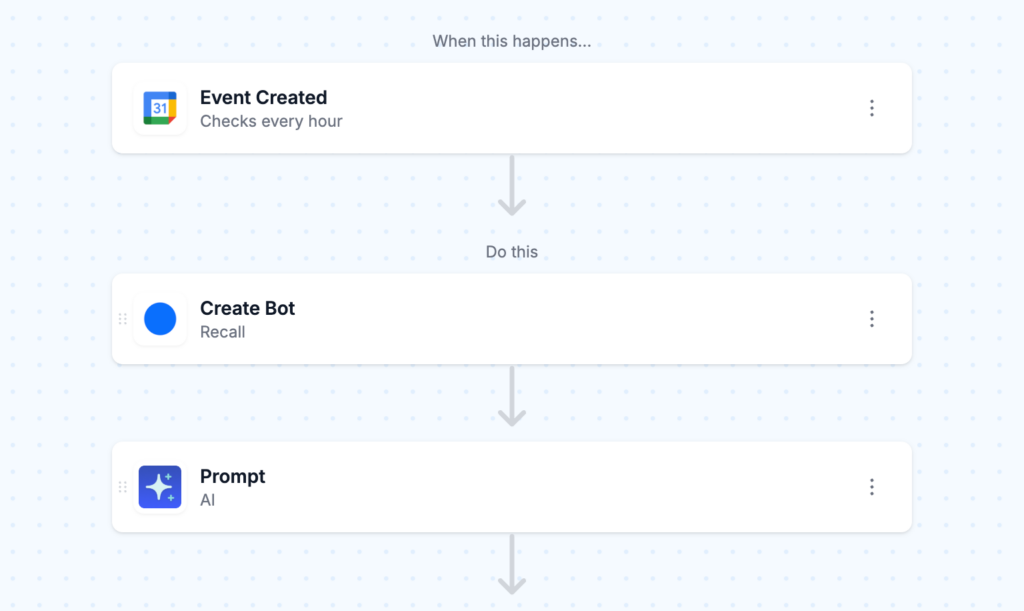
When Recall signals that the transcript is ready, MESA passes the full transcript to an AI step that produces:
- A 2–3 paragraph summary of the meeting
- A list of decisions made during the call
- Action items with owners, extracted from the conversation
- Open questions or follow-ups that weren’t resolved
If there are no action items, the AI explicitly states that — so the Slack message is never ambiguous.
AI tip: You can customize the AI prompt to match your team's style. Some teams want one-line bullet action items. Others want full context per item with a due date field. MESA lets you edit the prompt directly, so you control the output format.Step 4: Post meeting notes to Slack
Once AI generates the structured notes, MESA sends them to your designated Slack channel. The message posts automatically, formatted and readable, as soon as the meeting ends.
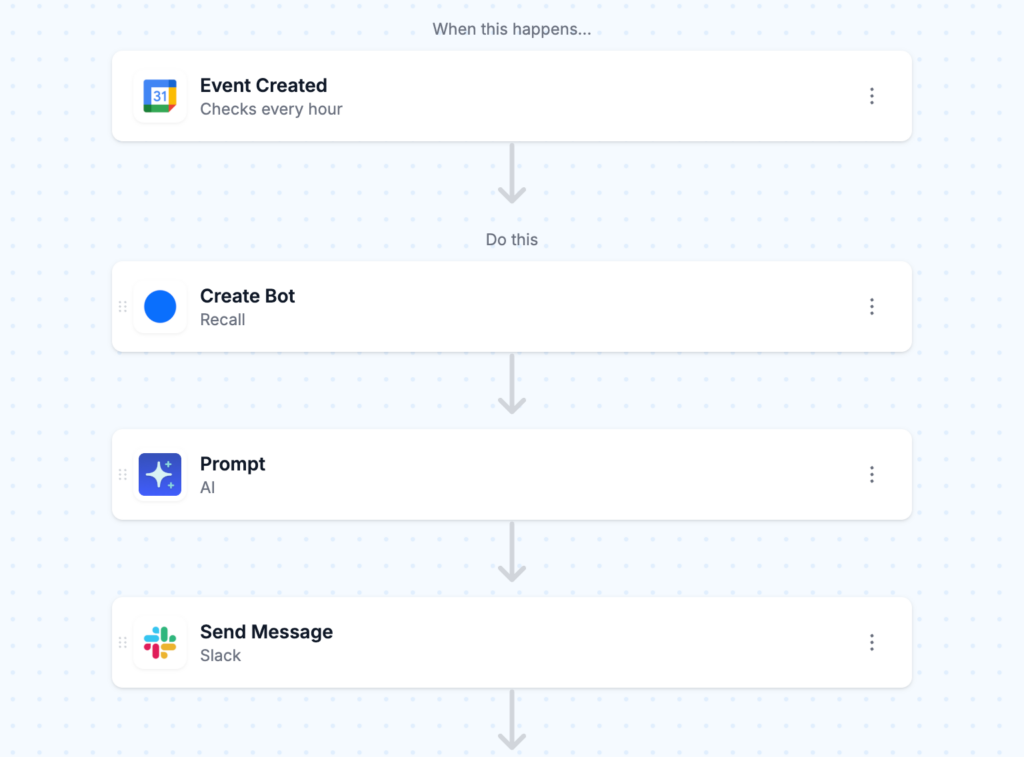
Your team doesn’t need to check Recall, open a separate doc, or ask anyone what happened. The information comes to them.
Configuration options worth knowing:
- Route to different channels by meeting type. Strategy sessions can go to
#leadership, client calls to#account-[name], and weekly standups to#team-updates. Use MESA’s conditional logic to route based on calendar labels or attendee criteria. - Send just action items for short meetings. Not every meeting warrants a full summary. For 15-minute standups, configure the AI step to return only action items — keeping the Slack message short and scannable.
- Tag the right people. If Recall identifies speaker names, MESA can map those names to Slack handles and @-mention the people responsible for each action item.
MESA Template ID
transcribe-meeting-send-notes-slack
Tips for running this workflow well
Don’t transcribe everything. Set filter conditions so the recording bot only joins meetings that actually warrant documentation. Blanket recording creates noise and privacy concerns. Targeted recording creates value.
Route output to where decisions live. If your team uses a project management tool like Asana or Linear, add a step that creates tasks from extracted action items. Slack is great for visibility, but tasks need a home.
Use AI to filter before sending. For internal standups where no decisions are made, you can add a conditional step: if the AI detects no action items and no decisions, suppress the Slack message entirely. Clean channels = more attention to what matters.
Review the AI summary format after your first few meetings. AI outputs are only as good as the prompt. After two or three real meetings, check whether the summaries are accurate and adjust the prompt if needed.
Frequently asked questions
Yes. Recall.ai supports Google Meet, Zoom, and Microsoft Teams. As long as your Google Calendar event includes a video conference link from any of these platforms, the MESA trigger will fire and the Recall bot will join.
Yes. The Recall bot joins the meeting visibly and is named so attendees can see it. Most platforms also show a recording indicator to all participants. You should inform attendees about your recording practices — especially for external calls.
If a calendar event is updated or deleted, you can add a MESA step that cancels the corresponding Recall bot. This requires a separate “calendar event updated” trigger in your workflow.
Yes. MESA can send the structured notes to email, Notion, Google Docs, Asana, or any connected app. Slack is the most common destination for team-wide visibility, but the workflow is flexible.
About 10 minutes total. Five minutes for the recording workflow (Step 1) and five minutes for the transcription-to-Slack workflow (Steps 2–4). Both use pre-built MESA templates that only require connecting your accounts.
Get started
Both templates are available in MESA’s template library:
- Record meetings automatically:
MESA Template ID
send-google-calendar-events-to-recall-meeting-bot
- Transcribe and send to Slack:
MESA Template ID
transcribe-meeting-send-notes-slack
Connect both templates in MESA to have the full workflow running before your next meeting.